



Attention: EveryAction Advocacy is now Bonterra Advocacy. Please bear with us as we update our screenshots to match our new name.
(5 min read)
Our Click-to-Call feature is a powerful tool to amplify your message with the help of your most engaged supporters. Decision makers find phone calls much harder to ignore than email or social media. A large volume of calls can bring an office to a halt and force a legislator or decision maker to focus on the issue you want them to address. Click-to-Call makes it simpler for you to guide your supporters through the call process and lets you track the effectiveness of this action.
Using Click-to-Call
Using a form you create, supporters are invited to use the call service and your script to talk with their decision-maker. When they respond, they are walked through the steps to complete the call.
- Supporters submit their phone numbers through the form to get started.
- The service then calls them at the number they provided.
- After answering, they'll hear a recorded message from your organization with instructions on what to say during the call.
- They will be asked to press * (star key) to be connected to their decision-maker. If you selected multiple decision-makers when building the form, call order will be randomized.
- They'll hear the phone on the other end ring, as though they had initiated the call.
- Once they've completed their call to the decision-maker, your supporter can hang up OR can press * (star key) to be connected to the next target (if any).
Setting up Click-to-Call
Setting up Click-to-Call is much like creating other advocacy forms for email or social media.
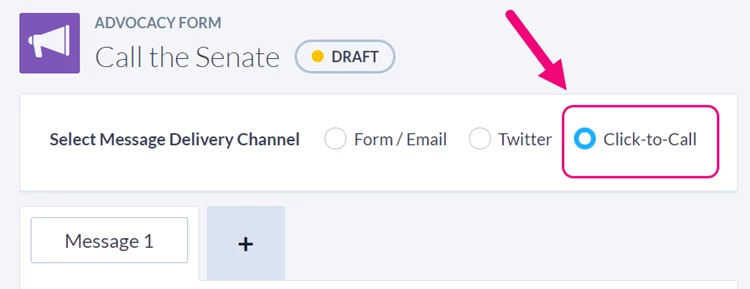
If this is a feature that has been activated for you (contact Client Services to find out about pricing), you will see the option to create a Click-to-Call form in Configure Advocacy when creating a new Advocacy Form.
You can choose from several advocacy target universes or create a form for a custom target. The Federal and State advocacy targets are standard with this feature. Contact Client Services if you wish to add County or Municipal advocacy targets.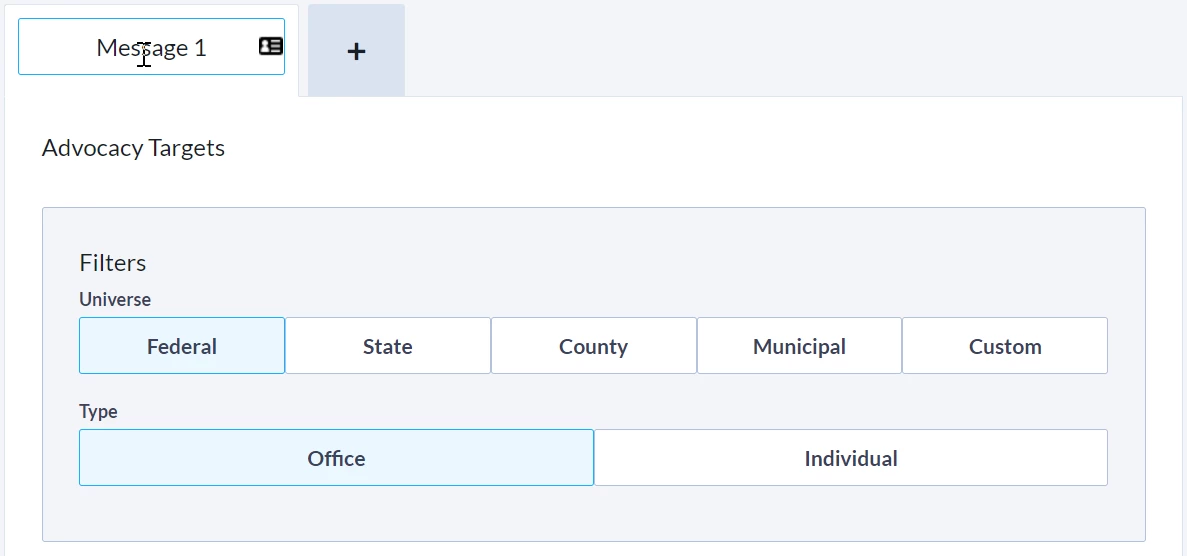
The call order to decision-makers you select within a Universe will be randomized for your supporters. For example, if both US Senators in your supporters' state are selected as targets, supporters have an equal chance of reaching either senator when making the call.
If you select a custom target, be sure to include a phone number for that target or the call will not be initiated, and your supporters will not receive the phone call with instructions.
Adding a recorded message or script
Like other advocacy forms, you can create up to 4 messages and select the corresponding targets. However, with Click-to-Call, the messages are not text for supporters to send, but are audio messages supporters hear after they submit the form and receive a call back from the call service. These messages coach supporters on what to say when they are connected to the decision-maker or their staff. You can record this message yourself or you can upload a script that will be converted to speech and read back to the supporter.
Important Tip: The recording or call script should remind the caller to press the * (star key) at the end of the call if they are calling multiple targets. This will automatically connect them to the next target in the list.
If you want to upload your own recording, select Audio File under Call Script Type. The type of audio files you can upload include: MPEG, WAV, AIFF, GSM, and ULAW.
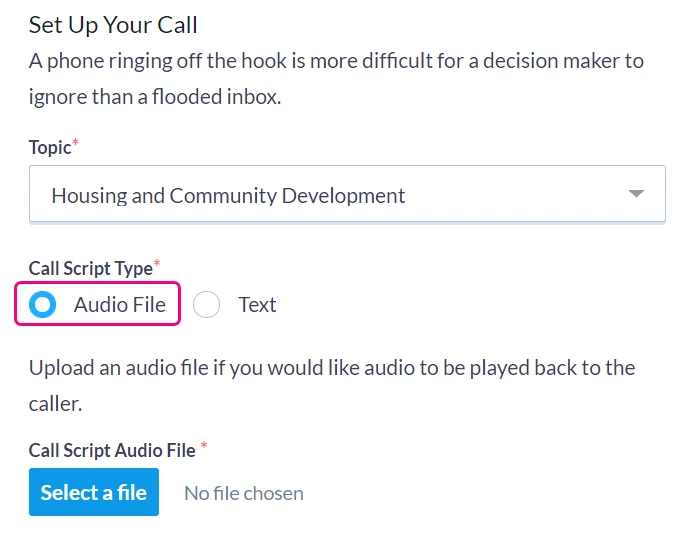
If you prefer to just insert a script to convert to speech, choose Text under Call Script Type.
When you create your text script, keep in mind that you are limited to 4,000 characters. Be sure to add a statement about using the * (star key) at the end of the call to be connected to the next target.
Read more about creating and using Scripts
Creating a Thank You page
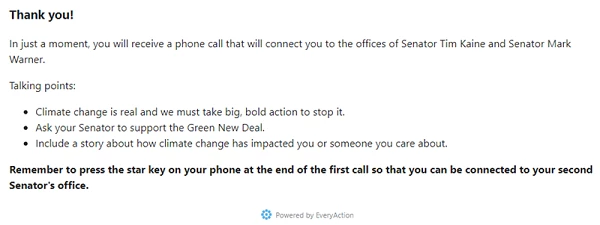
After you have set up your form, you will also need to update your Thank You page. This is the page that your supporter will most likely be looking at as they make their calls, so you should use this as an opportunity to reinforce your talking points and to remind them to press the * (star key) to be connected to their next target.
Tracking your Click-to-Call actions
If you'd like to see how many calls were completed and their duration, you can add that to your Advocacy Report. Using Edit Columns, add Call Duration and Call Status to your report.

The Call Duration shows the length of time the supporter spent with each target.
The Call Status displays the outcome of that call. Possible outcomes include:
- Call completed - This includes calls that were connected to the target or their staff and calls that reached a voicemail service for the target.
- Target's phone was busy
- Target did not answer
- Target's phone number was invalid
- Supporter hung up before they could be connected
- Supporter's phone was busy (no charge to client)
- Supporter did not answer (no charge to client)
- Supporter's phone number was invalid (no charge to client)
Tracking total minutes on Click-to Call actions
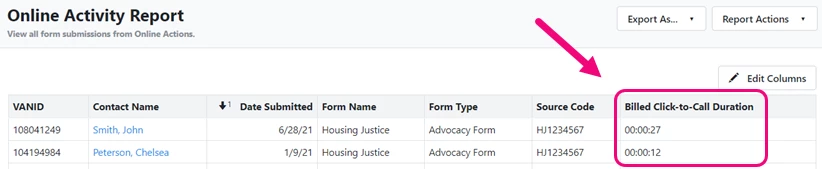
For tracking how many minutes you are using on these calls, you can add a new column to your Online Activity Report. Use Edit Columns to add Billed Click-to-Call Duration. The Billed Click-to-Call Duration is greater than the sum of all target calls seen in the Advocacy Report. This is because the total duration includes the time the supporter spent listening to your recording, the time needed to connect the supporter to each target, and the time they spent speaking with the targets.
If you need additional help, or want to find out more about billing and call duration, do not hesitate to contact Support.