



Elected Official Lookup Pages allow users to set up a page where supporters can look up their elected officials based on their address. These are available with the Advocacy package.
These are useful not only as an educational resource, but also for offline asks such as writing letters and office visits or lobby days.
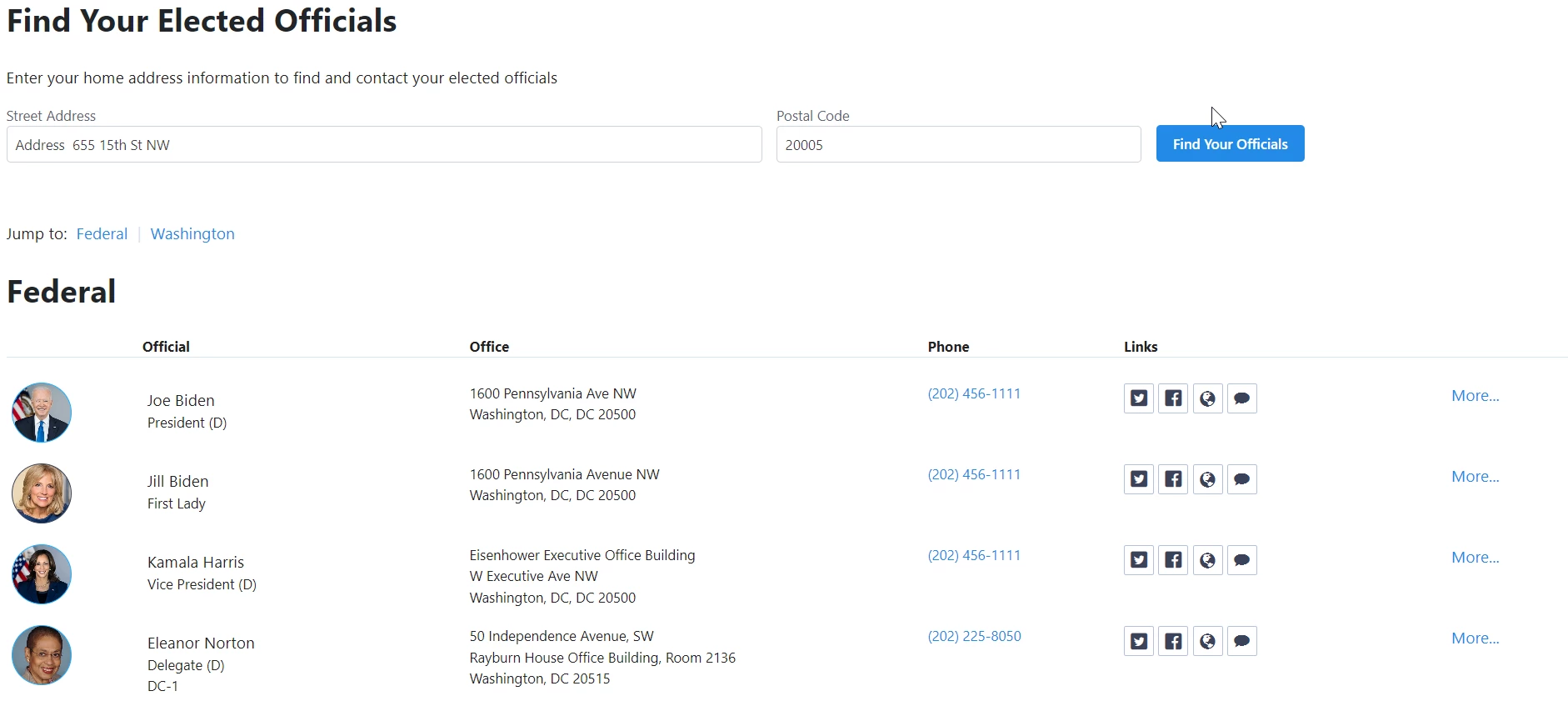
Once the page has been published, supporters can enter their address and see their elected officials' contact information. This works the same way our Advocacy Forms determine whether someone is in the target's district.
Creating an Elected Official Lookup Page
Open the Pages tab from the Online Actions dashboard.
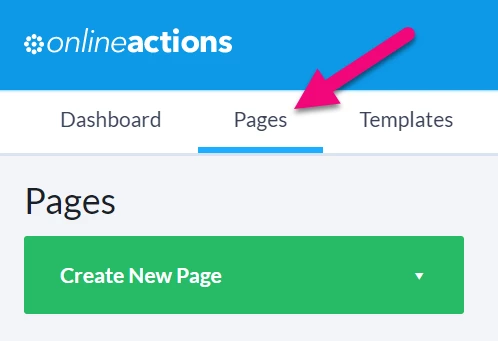
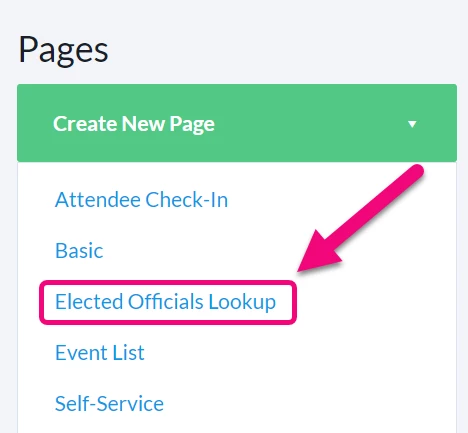
Select Create New Page > Elected Official Lookup.
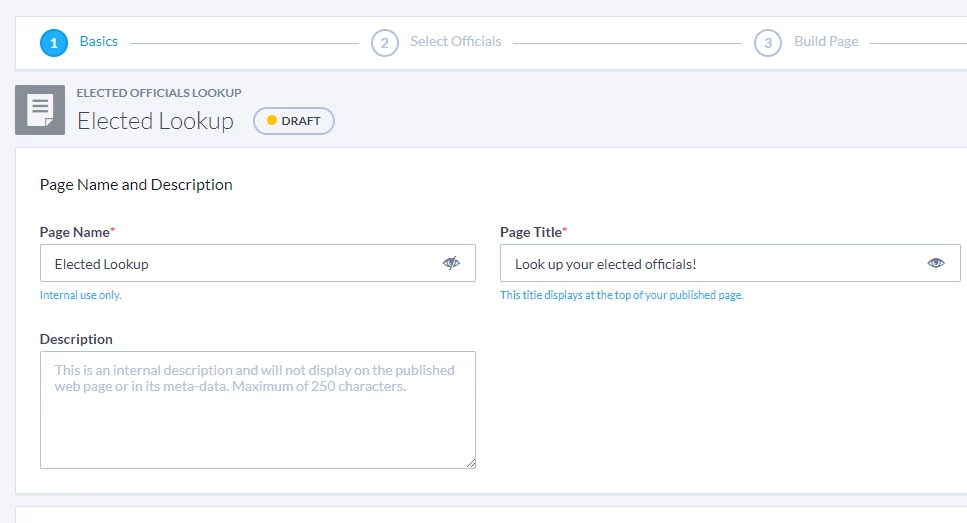
Add your basic details and your Theme if you have one. Upload a header image and add footer details as necessary.
Read more about Themes
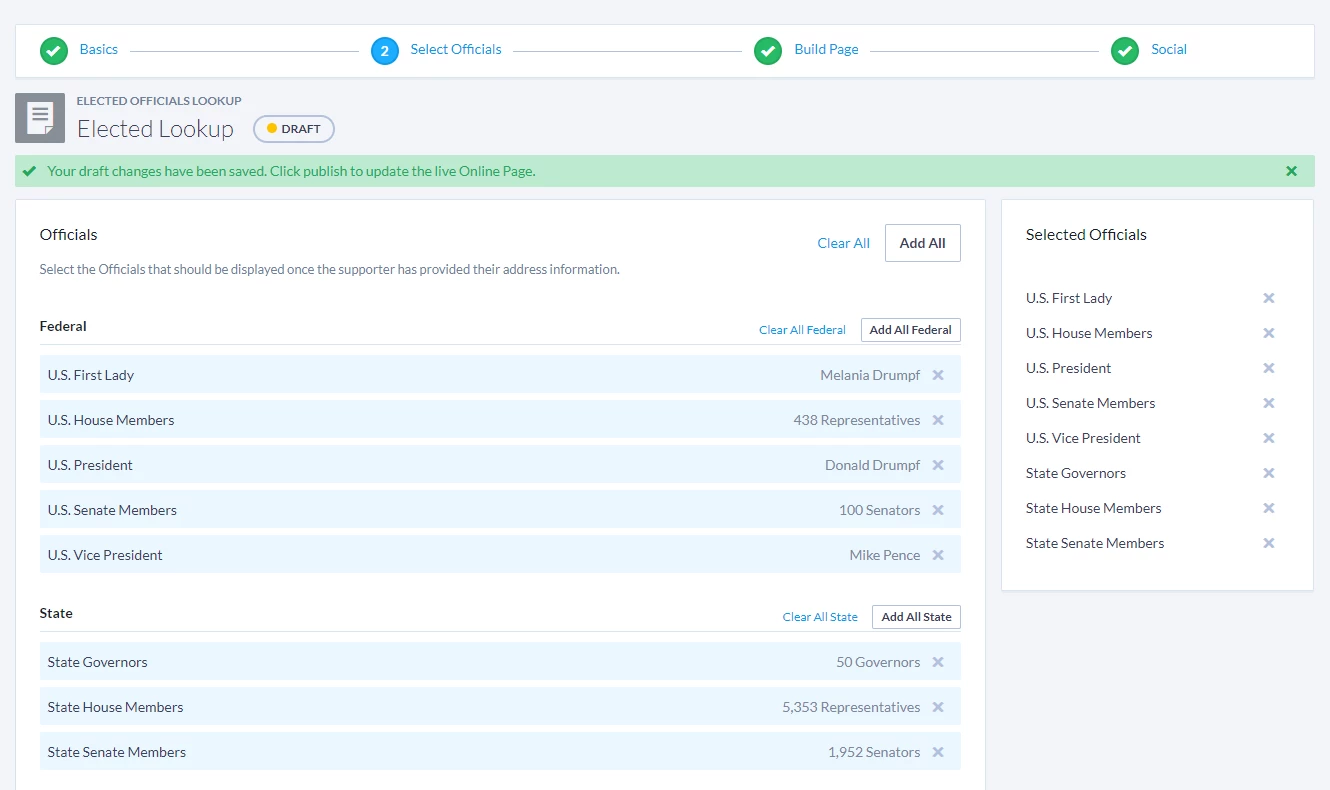
On the Select Officials step, you'll see that we've selected all offices available to you by default. Click the X to remove an office or click the + to add an office. You can also select Add All or Clear All.
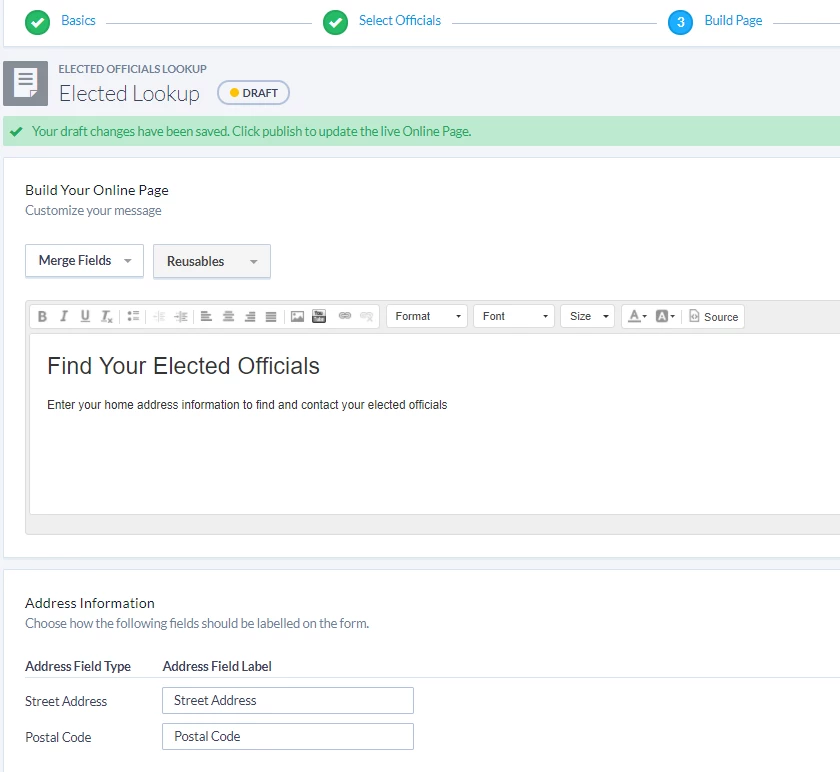
Edit the content you'd like to display at the top of the page using the content editor in the Build Your Online Page section. There will be one or two required form fields, depending on the offices selected on the previous step. Nation-wide and state-wide offices require only the Postal Code field. Districted offices require both the Postal Code and Street Address fields.
Note that these 2 fields will automatically populate in the case that the supporter has submitted one of our forms in the past. These values can also be populated via query string ("pc" = Postal Code; "add1" = Street Address).
-
Example: www.domain.com/formShortCode?pc=02145&add1=48 Grove St Ste 202
You can adjust the labels (from "Postal Code" to "ZIP Code," for example) as desired.
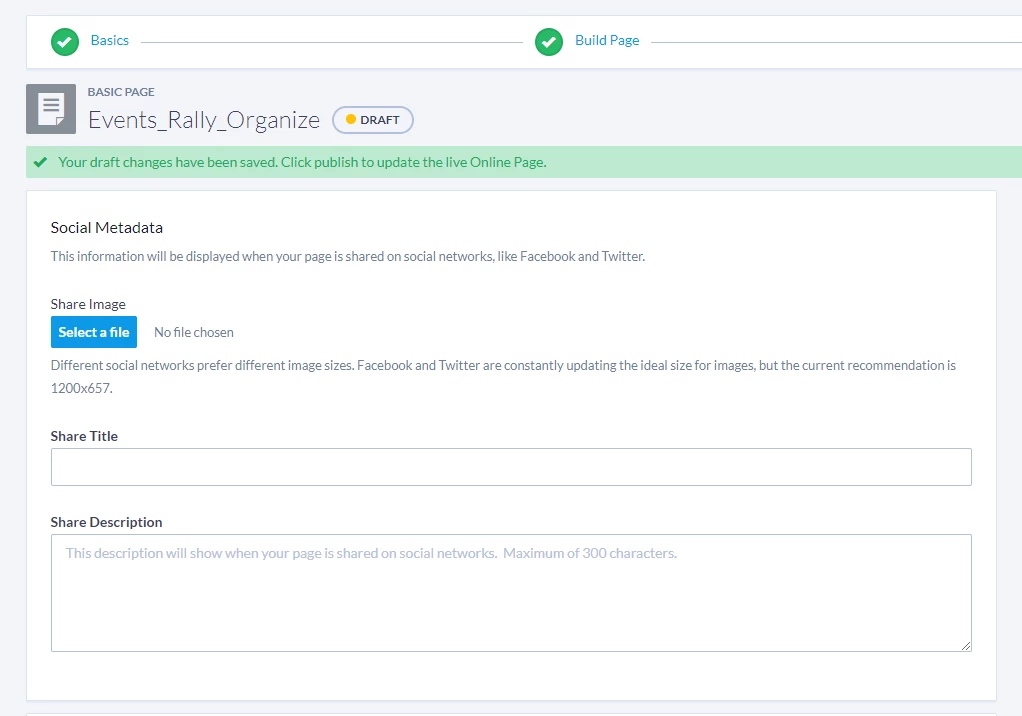
On the Social step, you can configure social metadata and social sharing.
The social metadata section allows you to set the image, title, and description that will be displayed when your page is shared on social networks.
You can turn on Facebook and Twitter sharing in the Social Sharing section and provide default Tweet content that your supporters can customize.
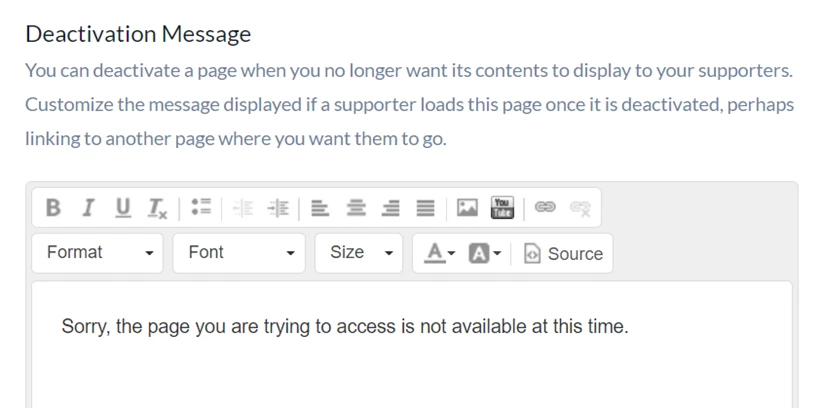
If you need to deactivate the page, you can enter a default message that your supports will see if they follow your old links.
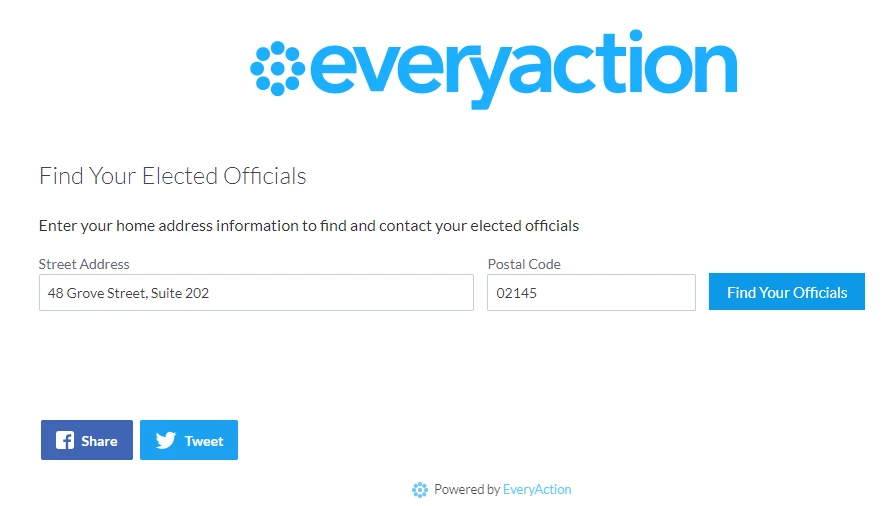
What your supporters will see
The lookup:
The results:
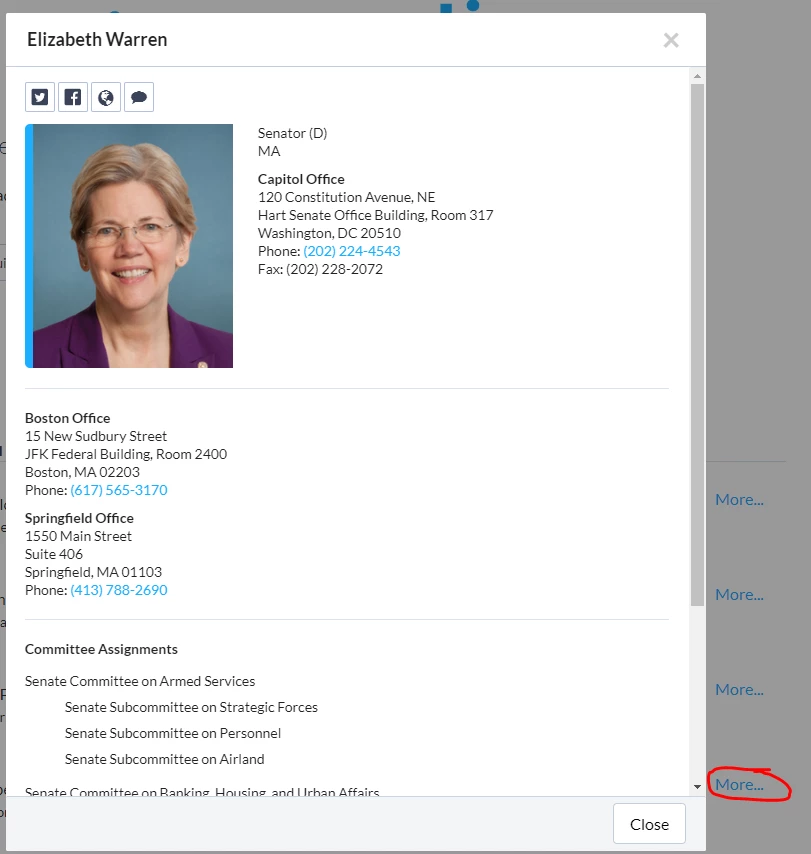
If a supporter clicks on 'More...' a modal will display with additional details. For Federal and State elected officials, this includes the additional office addresses (and fax and phone numbers) and Committee Assignments.
Related Documentation
Online Actions
Basic Pages
Using Themes to Style Online Actions Forms