



Depending on your package, there are several ways to create walk sheets for your volunteers to use.
While the easiest method is to use MiniVAN to manage your canvass, some organizations may also have access to the PDF Report Builder where you can create a customized Profile Report that you can use for your volunteers.
Read more about MiniVAN canvassing
Read more about using the PDF Report Builder
However, we also have an older method for creating Report Formats that allows you to choose which fields from your contact records you want to print on the canvass walk sheets or packets you share with your volunteers.
Creating a Report Format
To begin, search for Report Format in the Sidebar or open Main Menu > Administrative Menu > Reports * Forms * Labels > Report Formats.
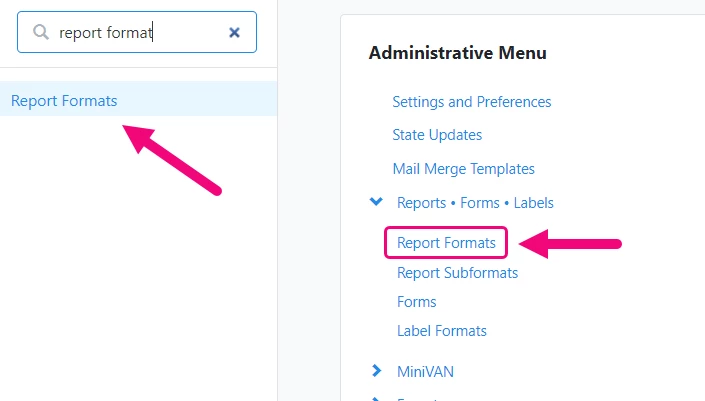
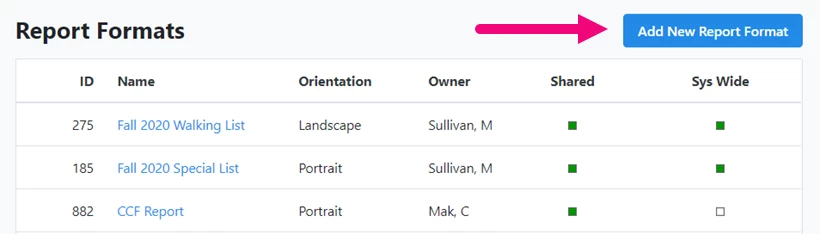
The Report Formats list page will display all your previous configurations. To add a new one, select Add New Report Format.
Add the basic details for the format, including the Name and details about the layout such as the text size, page orientation, and so on. Make sure you select enough rows to display the information you want for each entry.
You can also select whether to show the contact Notes or Stories on your walk sheets. When you select Next, you'll be able to specify how much space you'd like to leave for a script on your sheet.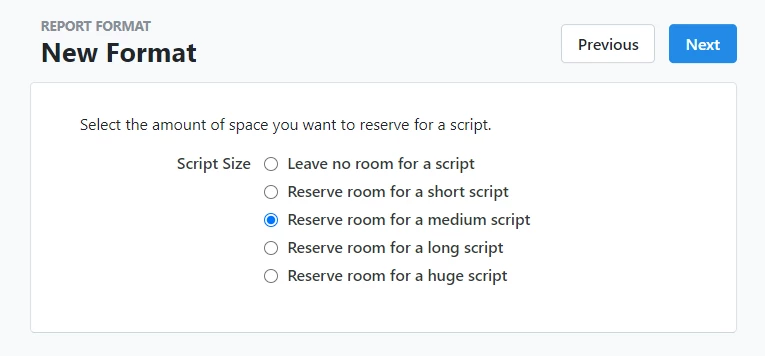
On the next step, you can drag and drop the fields you want to appear on the report. The way the fields display are how they will look on the printed version, with sample data filled in. Hover over the options to see the field names.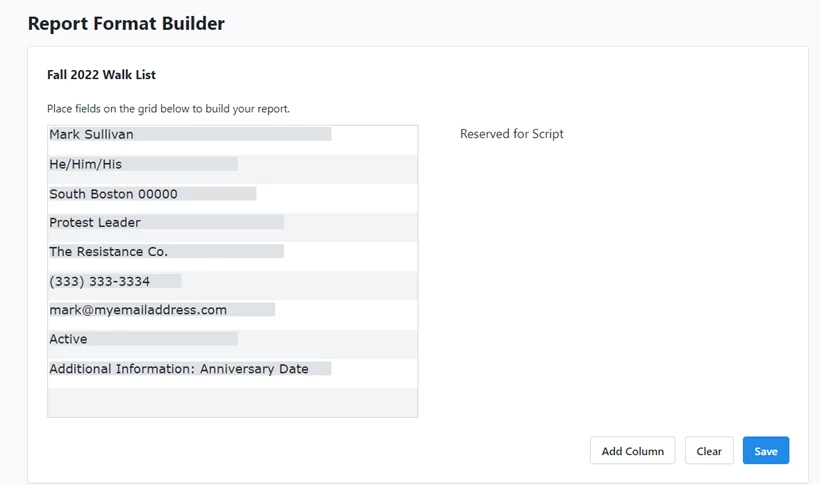
You can also add things like Activist Codes, Survey Questions, Targets, additional text, and blank checkboxes that will display on your form. You can also use the Subformat button to create a sort order for any fields you add that have lists.
To format a field with Bold or Italics, drop it into the Field Formatter at the bottom before you add it.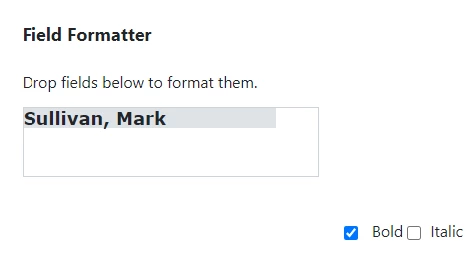
On the next step, you will be able to view a print preview and assign committee access.
Printing your list
To print your list, click the name from the Report Format list to open the details page. You can then Set Print Defaults or Edit the Layout if you need to. Select Print My List to create the final list for printing.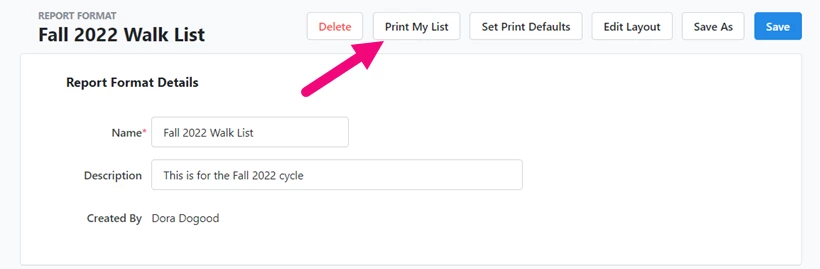
You'll then be able to select the script you want to display, select the contact method, sort the list by the criteria you select, and choose any other elements you want to display such as header and footers and the format you need.
After selecting Next, your PDF file will be created. You can download and print the result from My PDF Files.