



When supporters visit Online Actions forms that have FastAction enabled, they have the option to create or log in to their FastAction profile. Supporters who have signed up for FastAction will open forms that have their personal information pre-filled.

FastAction works for all Online Actions forms, regardless of who creates each form. If your supporters signed up on another form you created, or even on a form from another organization that uses FastAction, they can still use the same profile for one-click action on any forms with FastAction enabled.
Step 1: Navigate to Online Actions and Select Your Form
Once in Online Actions, either create a new form or select an existing form from the Form Overview section.
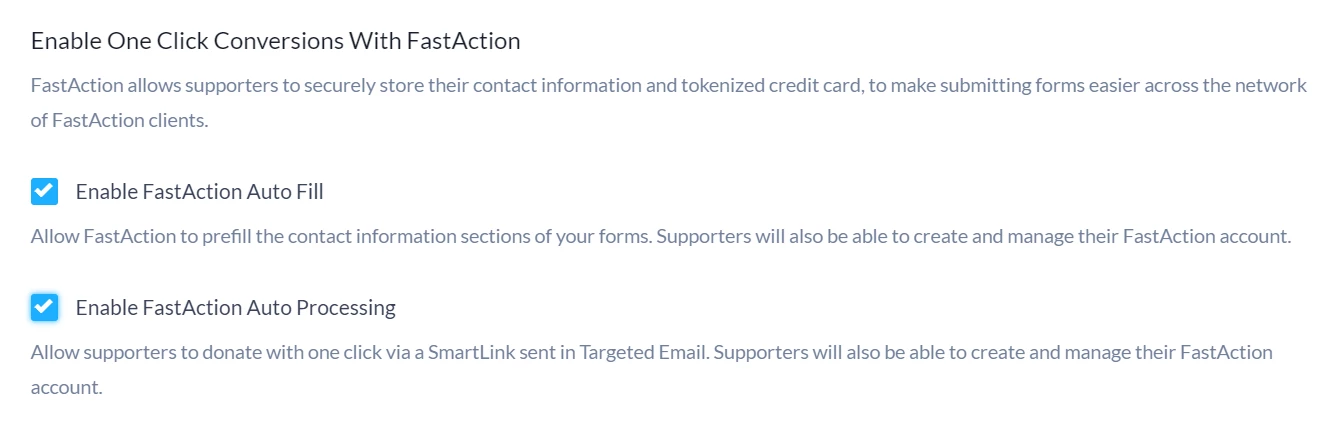
Step 2: On the Basics page, scroll to the section Enable One Click Conversions With FastAction
While it's generally a best practice to enable FastAction on all your forms, you can decide whether you want to include it on a form-by-form basis. When creating your form, you will see the option to Enable One Click Conversions with FastAction from the Basics step of your form setup. Enable FastAction Auto Fill is checked by default. If your supporter is logged in to FastAction when they visit your form or they reach the form from a Smart Link in an email, this will prefill the form with contact information (and credit card information, if available) using their supporter's FastAction profile.
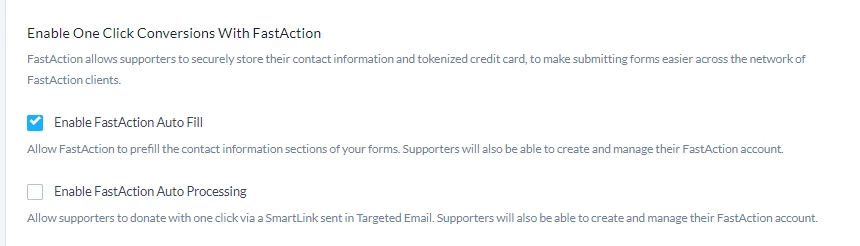
Using FastAction with Contribution forms
On Contribution forms, you can also Enable FastAction Auto Processing if you wish to turn on automatic payment processing (one-click contribution) for the form using Smart Links in a Targeted Email. Supporters will be able to donate right from your email message in one click if they are already logged into FastAction in their browser. A supporter not logged into their FastAction profile will see their information pre-filled on the form to confirm and process the donation with one additional click.
Turning on either or both of these options does not require supporters to use FastAction; they can always uncheck Remember me or Update my profile when filling out a form.
Step 3: Publish Your Form
On the Confirmation page, scroll to the bottom of the page and select "Publish Changes".
What else do you need help with?
How do I set up Auto-Scroll for mobile devices?
How do I create an Online Actions form?