When your canvassers are in conversation with voters and potential supporters, you’ll want them to be informed about the people they talk to. Your MiniVAN Format determines what information about your contacts is available to canvassers in the free MiniVAN mobile canvassing app.
Read an overview of MiniVAN
To see this information in the app, tap on a household or person and then the Details tab.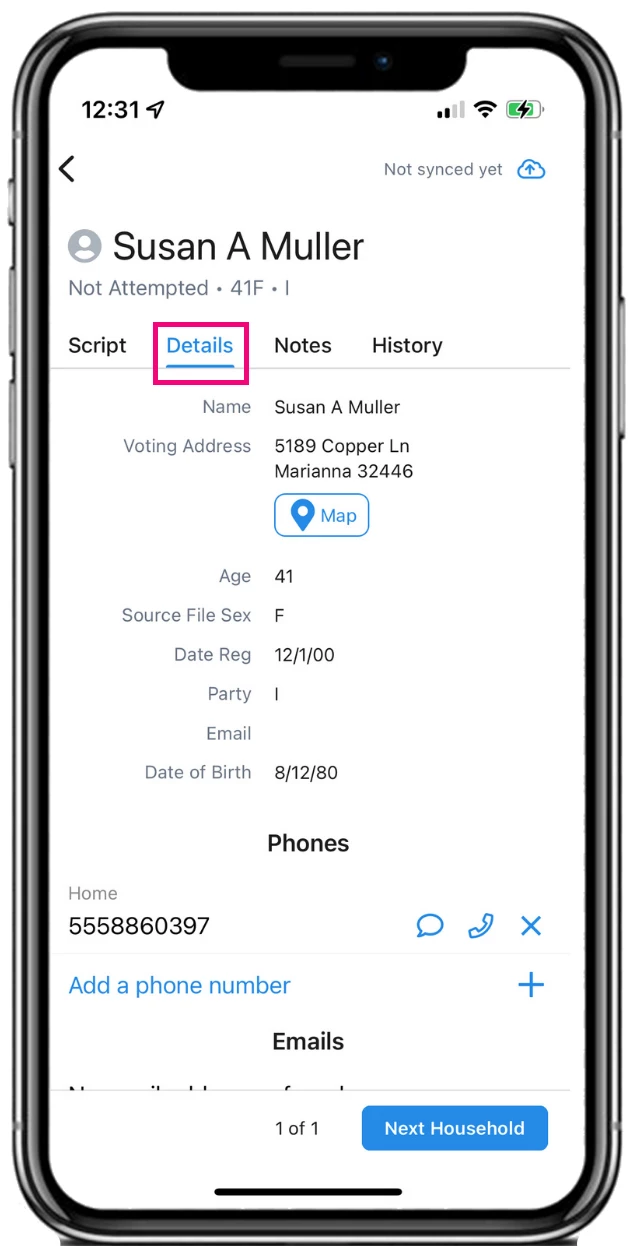
Creating your format
Search for MiniVAN Formats in the Sidebar and open the format list. Select Add New MiniVAN Format on the upper right of the section.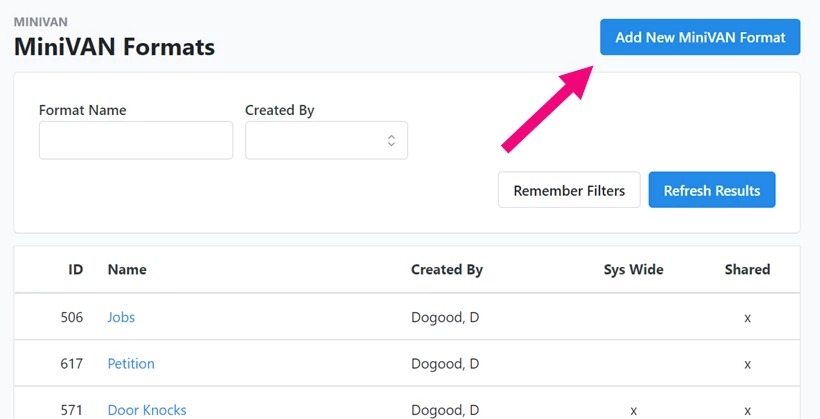
The Person Fields section lets you choose the information you want in the Details tab in the app. Drag and drop each field to arrange them in the order they will appear. Depending on the database you’re using, you may be able to add other fields, like Polling or Early Vote locations to your format as well.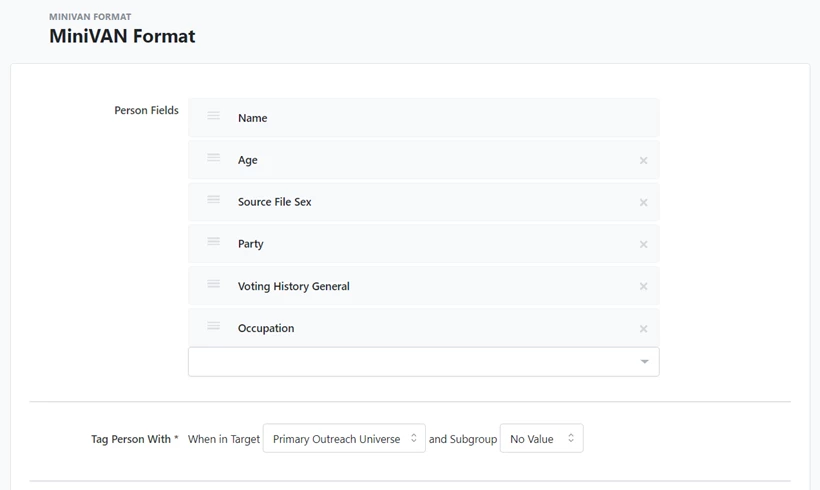
Tag Person With * allows you to select a target and a target subgroup among those active and available within your committee. In the app, an asterisk ( * ) will appear next to the names of people who fall within the target subgroup.
Be sure to name and save your format so you can use it with your MiniVAN Campaigns.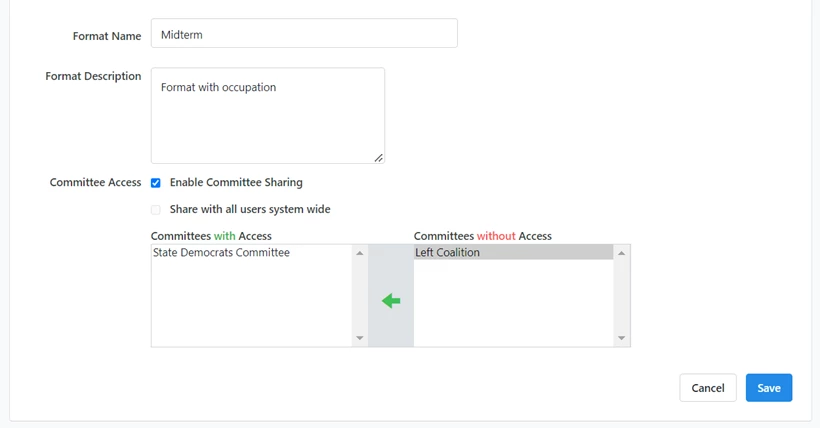
If you have access to multiple committees, you can also choose to enable committee sharing so your other committees can use your format.
Read more about setting up a MiniVAN canvass
Creating a format for workplace organizing
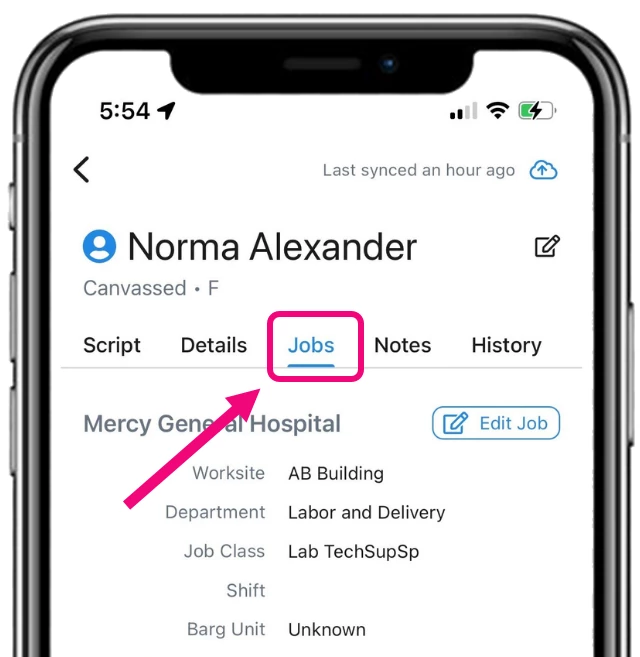
If your account supports workplace organizing, you can create a MiniVAN Format withjobs. Enable the Job Fields to include jobs information in your format. Include at least one field to have access to the Jobs section of your MiniVAN Campaign.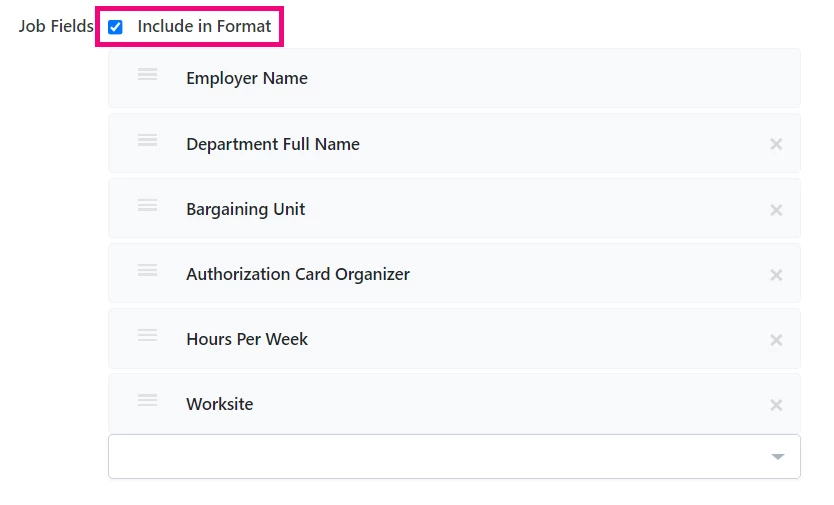
To see your Job Fields in the MiniVAN app, select a contact, then the Jobs tab.