



Attention: EveryAction Digital is now Bonterra Digital. Please bear with us as we update our screenshots to match our new name.
Optimized Ask has been shown to increase both conversion and average contribution size when used to help set the ask amount in Targeted Emails. But, you may be wondering how you can be sure that the differences you are seeing are due to the impact of your Optimized Asks and not from traditional factors like messaging or segmentation.
Read more about Optimized Asks
A good way to validate Optimized Ask and see the impact it’s having on giving is to conduct an A/B test in Targeted Email that will let you compare responses to your Optimized Asks to the responses you get to your traditional asks.
Creating the audience
Before you begin, you’ll want to think about who to include in your testing. You need to make sure you receive enough responses to give you results that are statistically significant. With a low response rate, one or two high or low contributions may be enough to throw off your results.
You’ll probably want to build an audience that will generate at least 25 contributions in both the Optimized Ask and control groups. But, the more responses you get, the more confidence you’ll have in your results.
Select your audience based on the expected conversion rate. If 1% of recipients usually donate, then you'll need to send the email to at least 5000 recipients to get 50 contributions.
And, since Optimized Ask only generates asks for supporters who've donated in the past two years, you’ll want to make sure that at least 5000 of the recipients on your list are previous donors.
Creating the email
Begin by creating an email with a fundraising ask linking to an Online Actions contribution form that has what you consider a typical or best Ask array. For your primary email, you should uncheck Use predictive analytics to automatically personalize ask amounts for this email on the Compose Message step. This will make sure Optimized Ask will be off for your control email.
Once you’ve added your primary email, you can then select Test Case to add the new variant.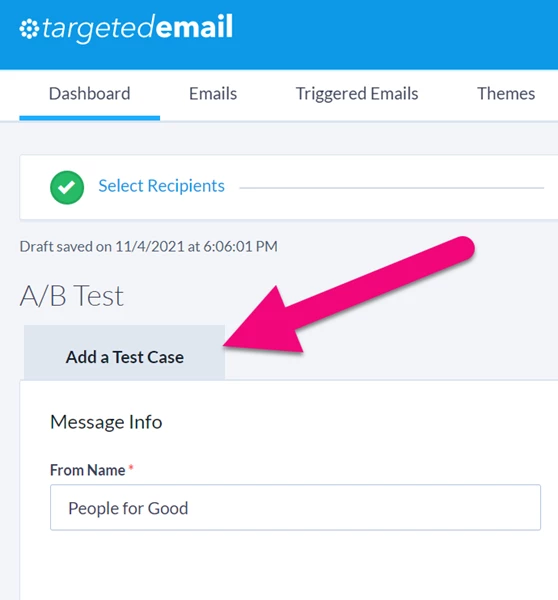
On your second email, you need to check the box for Use predictive analytics to automatically personalize ask amounts for this email. Be sure to name each of your test cases with a name that will make it easy to identify which one is the Optimized Ask.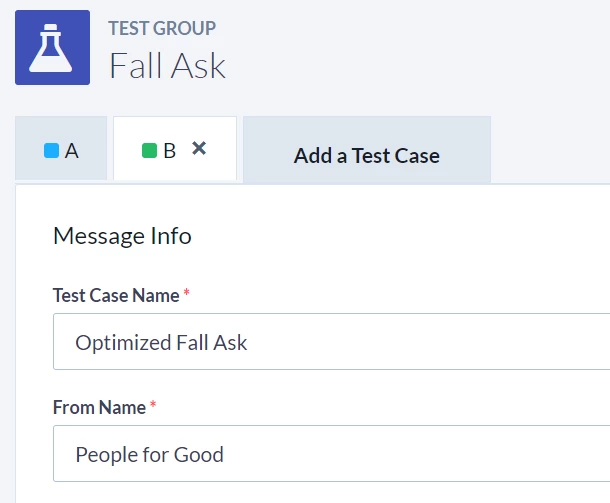
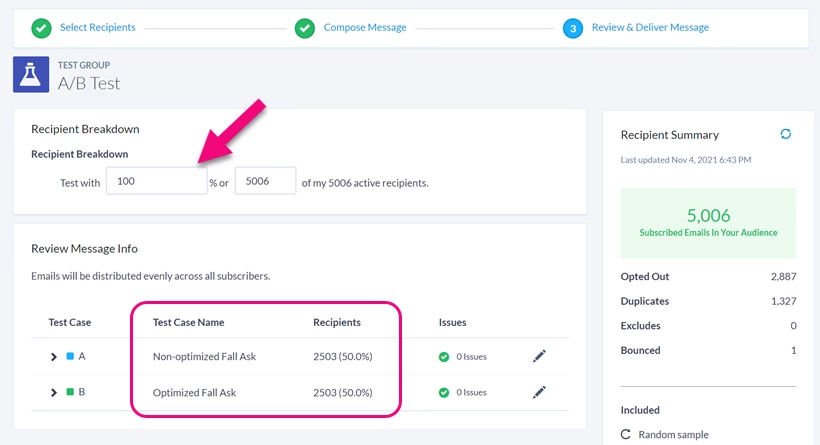
On the Review step, you're going to send to your whole list for the text, so enter 100% before you finalize and send your email.
Tracking your results
You can use the Email Test Case Comparison Report to monitor the performance of each email. Remember, the more conversions you get for both emails, the more reliable the results will be.
Read more about reporting on email performance
The difference in Amount Raised per Recipient between the two emails is the best metric to show the impact of more frequent and larger contributions from Optimized Ask.
