(5 min read)
In order to run a canvass, you'll need to complete the following steps to get started:
-
Create a script for your canvassers to use when talking to voters.
-
Set up a MiniVAN Campaign, where you select the script and format, as well as determine additional settings like auto-syncing of data from the app back to the CRM.
-
Create a Street Team Effort. You will get the list number that your canvassers will use to access your canvass in MiniVAN.
Street Team Efforts can be created from My Voters or My Campaign/EveryAction/My Members/My Workers. Where you run your effort out of depends on your objective.
If you are collecting contributions and/or need to be able to add new people to your database who may not be voters, you will need to run your Street Team Effort out of My Campaign/EveryAction. If you need to do one or both of those things but are targeting voters or tracking voter information, you can have your volunteers look people up in the voter file before choosing to add someone new from scratch.
If you are reaching out to voters and do not need to collect contributions or add new people to your database, you should run your Street Team Effort out of My Voters. This is most common for get out the vote efforts or voter surveys.
Creating Scripts
You can use a combination of text, Activist Codes, Survey Questions, and events in your script for your canvassers to record responses.
You can create and manage scripts using the link in the left-hand sidebar menu. When you're creating a script for a canvass, be sure to adjust the Walk Results on the right, which determine the options canvassers can select if they aren't able to speak with someone (not home, moved, refused, etc.).
You can set up branched scripts for MiniVAN, which prompt canvassers with text and questions based on answers to earlier questions in the script. For example, if the canvasser indicates the person has not decided who they're supporting in the election, they could be prompted to provide compelling information about the candidate; but if the canvasser indicates the person is supporting the candidate, they could be prompted to ask if they will volunteer.
Creating MiniVAN Campaigns
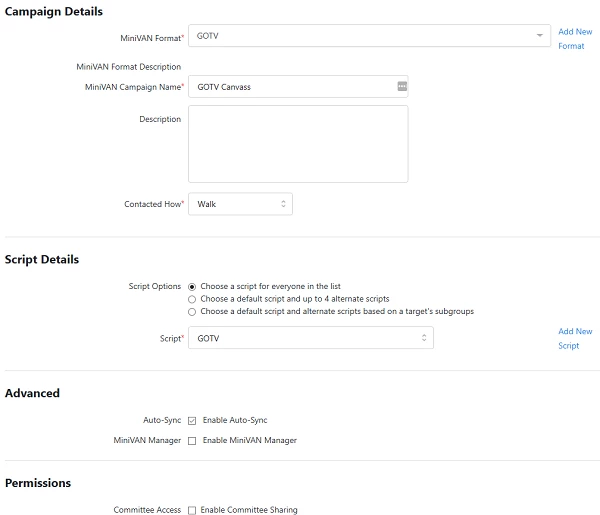
MiniVAN Campaigns allow you to select the script and format for a particular effort, and determine additional settings like auto-syncing of data from the app back to the CRM.
You can get to MiniVAN Campaigns using the link in the left sidebar menu, then Add New MiniVAN Campaign or click on an existing one to edit it.
The required fields are:
-
MiniVAN Format: This determines the information that canvassers will see about each voter, volunteer, or donor. Select the default MiniVAN Format or one that you've created (instructions further below).
-
MiniVAN Campaign Name: Name your campaign.
-
Contacted How: This is typically Walk, but you will have a number of options to choose from depending on how your canvassers are reaching people.
-
Script: Select the Script that you want to use for this campaign.
-
Online Form: While this is not a required field for all campaigns, you have to select a form here in order to collect contributions or signups from MiniVAN. This option is not available in My Voters because forms are created from My Campaign or EveryAction. You will see the online form option if you have the Digital package, and you will be able to select a contribution form if you purchased the MiniVAN Contributions add-on service. If you are street canvassing to collect contributions, it's a good idea to use a Contribution form dedicated to your canvass. Do not use forms that have been daisy-chained (on the form setup, your form should not redirect to another form, or it will cause issues when canvassing). Keep in mind that FastAction does not work on MiniVAN.
We also suggest using the following settings or considering whether they would be helpful for your canvass:
-
Description: Adding a description is a good habit to establish so you and others at your organization can refer back to details about what the campaign is for.
-
Script options: This is set to Choose a script for everyone in the list by default. If your canvassers may need different scripts for different groups of people you're reaching out to, you can select alternative scripts here.
-
Auto-Sync: In order to get your canvass data back into the CRM, your canvassers must sync the data back. You can choose to enable auto-syncing, which will cause MiniVAN on your canvasser's devices to sync data every few minutes. Keep in mind that this can drain device batteries faster. Additionally, auto-sync is turned on for all Street Team Efforts, regardless of this setting.
You may also see the following options:
-
MiniVAN Manager: If you purchased MiniVAN Manager as an add-on service, you will see this option.
-
Enable Committee Sharing: If you are in a committee sharing setup and have access to the master committee, you will also have the option of enabling committee sharing. When you're finished, Save it.
Finishing your street canvass setup
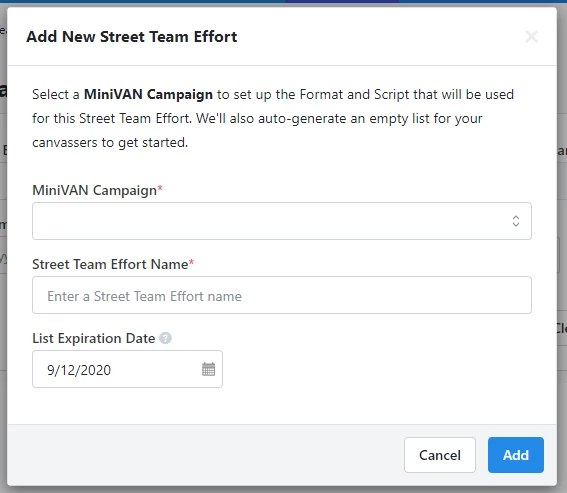
Once you've created a MiniVAN Campaign, go to Street Team Efforts from the sidebar menu, then Add New Street Team Effort.
Select the MiniVAN Campaign you'd like to use, name the effort, and set an expiration date for the effort > Add. Remember, if you are collecting contributions, you need to create your effort from My Campaign/EveryAction and your MiniVAN Campaign must have the Contribution form selected.
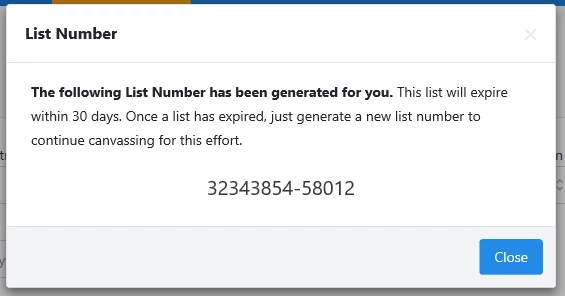
The system will then generate a list number that can be entered into MiniVAN.
On the efforts list page, you can see the date each effort was created and when it will expire. You can update the expiration date at any time by updating the effort details. If the expiration date passes and you’d like to keep using the same effort, you can Refresh List Number from the efforts list page.

(Optional) Creating MiniVAN Formats
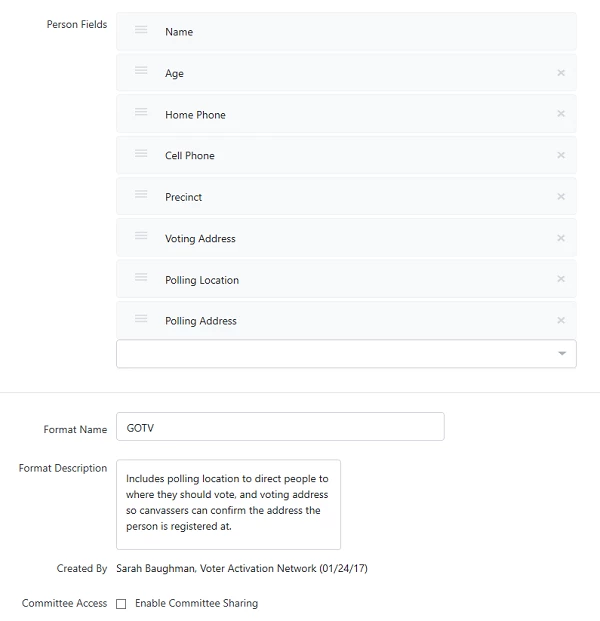
MiniVAN Formats determine the information that canvassers will see about each voter, volunteer, or donor. If your street canvass is set up in EveryAction or My Campaign, this still determines the information the canvasser sees after creating a new record. You select a MiniVAN Format when setting up your MiniVAN Campaign. You can select the default format or create your own.
The default MiniVAN Format includes the following:
-
Name
-
Voting Address
-
Voting City
-
Pref Phone (preferred phone number)
-
Age
-
Source File Sex
-
Date Reg
-
Party
-
Email
-
Phone Numbers
-
Date of Birth
If you'd like to create your own custom format, navigate to MiniVAN Formats using the link in the left sidebar menu.
When you Add New MiniVAN Format, select which fields you want to be displayed for canvassers in the app by choosing from the dropdown menu. You can adjust the order by dragging and dropping the fields and remove them using the x to the right of each one.
If you'd like to add a field that you don't see in the dropdown, contact our support team to see if we can enable the option for you.
Name your format and write a description. If you are in a committee sharing setup and have access to the master committee, you will also have the option of enabling committee sharing. When you're finished, Save it.