



Text messaging is a powerful tool to reach supporters quickly and get them engaged as activists, donors, or volunteers. With Mobile Messaging you create and send broadcast text messages using the same kinds of tools you may already know from other features, like Targeted Email.
Getting started
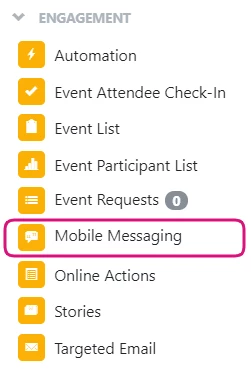
Select Mobile Messaging from the Engagement section of the Sidebar.
Your Mobile Messaging dashboard displays your message Inbox, Drafts, and Sent messages. You can send new messages from here as well.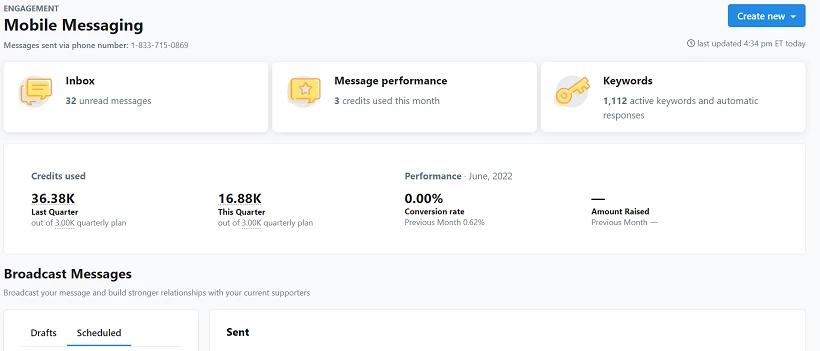
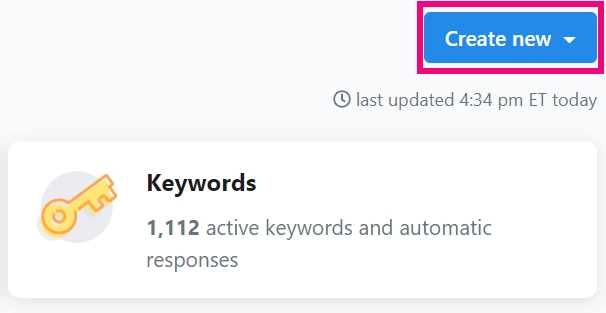
To create a new message, select Create new, Broadcast message and give your message a Name (for internal use).

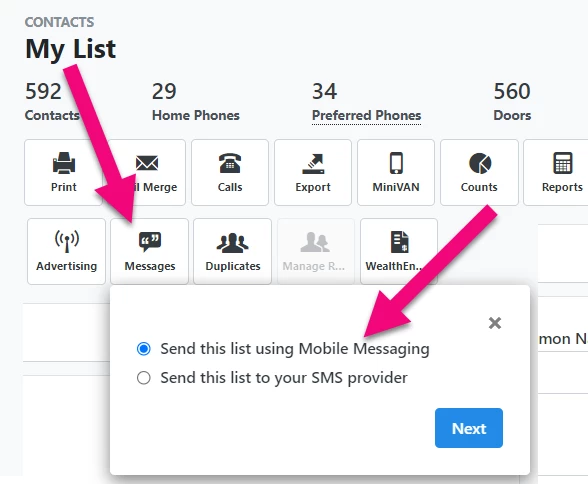
You can also create your mobile message from My List by choosing Messages, Send this list using Mobile Messaging.
Read more about creating a list
Building your audience
Mobile Messaging uses your contacts from My List to build your audience. Before you can send texts to a number, however, a contact will need to opt-in to receiving text messages. Only contacts who have opted-in can be texted.
Choose your Saved List or Search from My Folders.
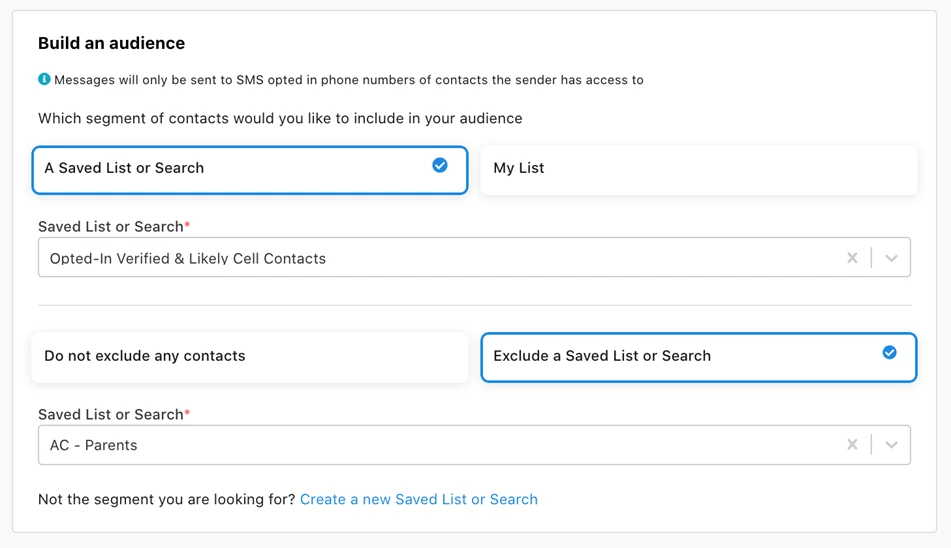
You can further refine your audience using Exclude a Saved List or Search to remove anyone you don’t need from your primary list. This is useful if you have a category of contacts - high value donors, for example - that you use a different engagement strategy with. If you do not have a previously saved list or search, you can Create a new Saved List or Search using the link at the bottom.
Once you've added your contacts, you can calculate the number of recipients who will receive your message using Calculate recipients. Once the Recipient Summary totals the number of phone numbers the message will be sent to, you can select the option to 'View More' for a descriptive accounting of how the number was arrived at.
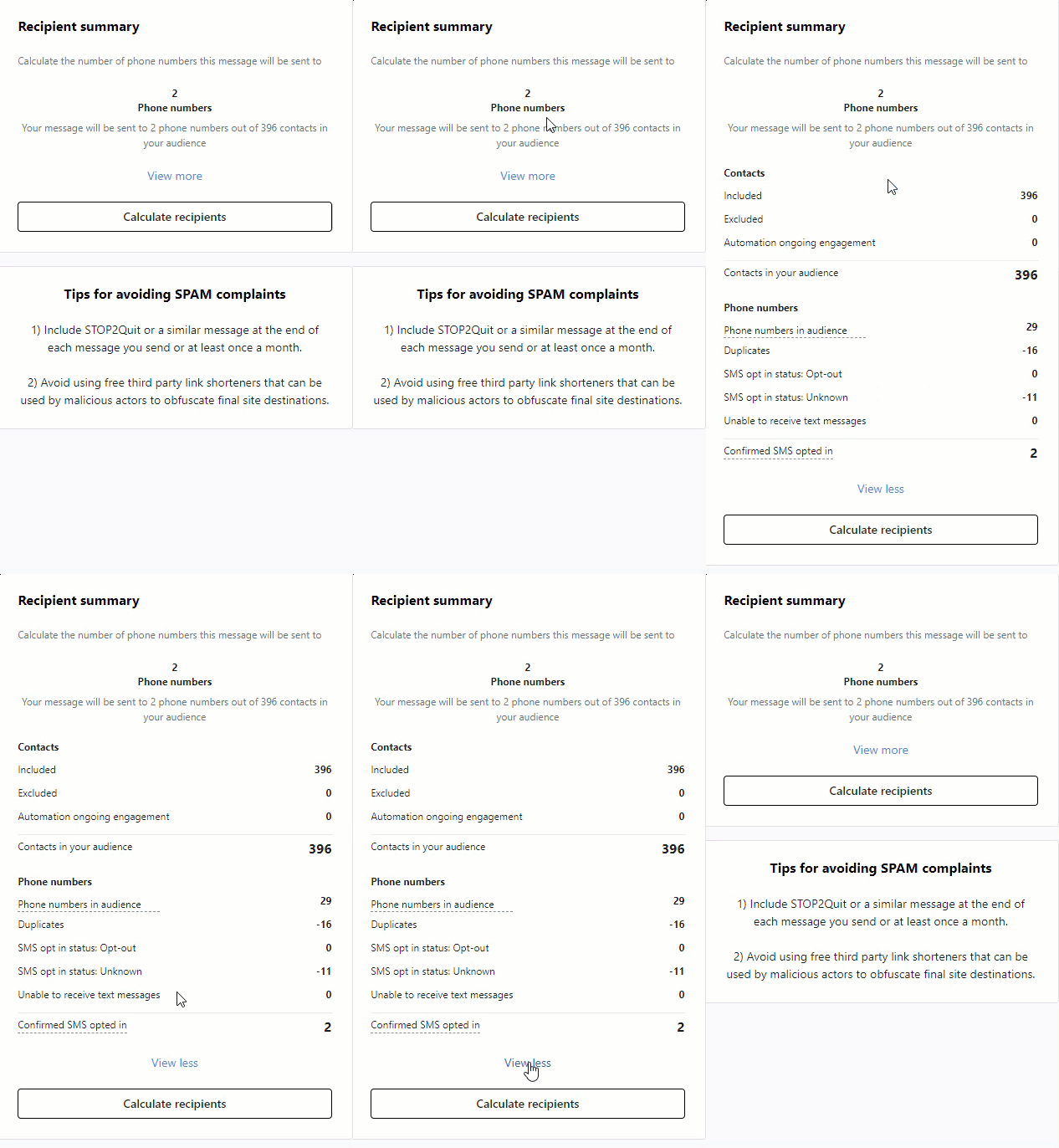
If a phone number is shared by multiple contacts, we will only include one contact as a recipient to prevent that number from receiving your message more than once. The contact associated with the number in your records most recently is used as the primary contact for the message.
If you adjust your list, you can Recalculate recipients to see the total number of phone numbers in your audience. Once you are satisfied you are targeting the right audience, you can begin composing your SMS or MMS message.
Composing an SMS message
SMS (Short Message Service) uses text, although you can incorporate elements like emojis or web links into this type of message. Because of its simplicity and low-bandwidth needs, plain SMS messages are a good choice for large lists.
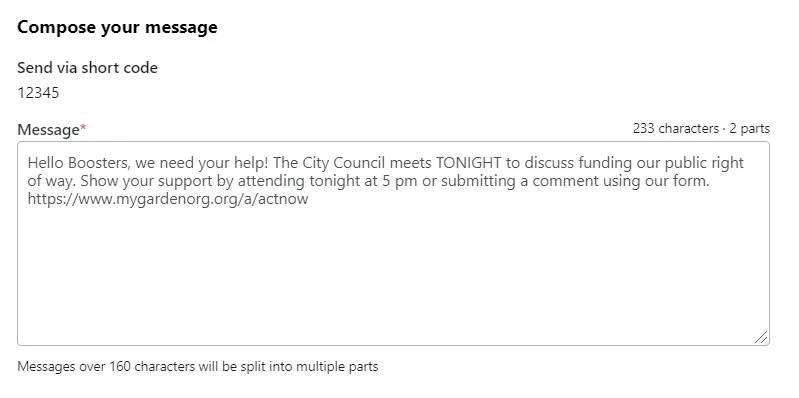
As you write your message, you’ll notice a character and message part counter at the top-right of your message box. This helps you keep track of how long and how many message parts your SMS message is.
Messages with more than 160 characters become multi-part messages in transit, although they are often stitched back together to appear as a single message. If you add an emoji, your message becomes multi-part after 70 characters.
Composing an MMS message
MMS (Multimedia Messaging Service) lets you enhance your standard text message with multimedia elements like images, animations, and videos, which can boost audience engagement.
An MMS text sent over a dedicated short code can support a Subject line, similar to an email subject line. Subject lines are not available for messages sent from toll-free numbers.
MMS texts also have a higher character count than SMS texts, up to 1600. To get started, select MMS, add a Subject line, and the text of your message.
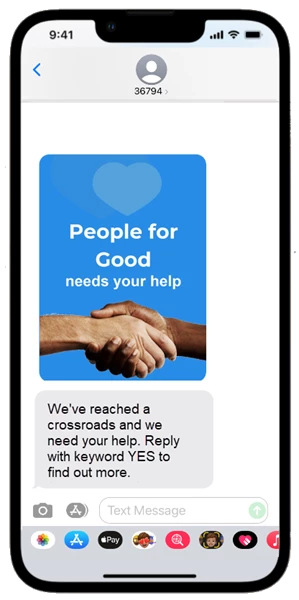
To include a multi-media element, select Media to upload. You may need to adjust the file size of your media before it can be added.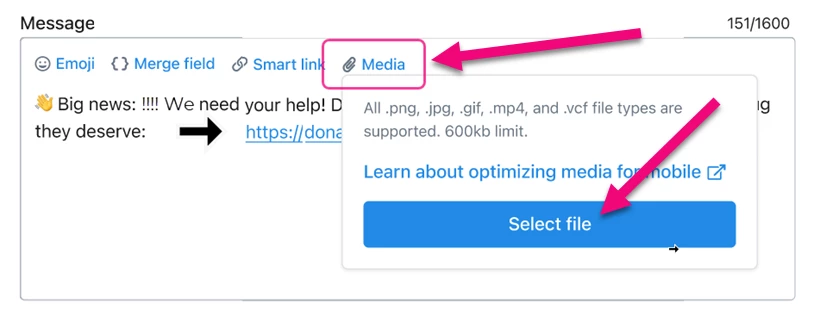
Personalizing your SMS or MMS message
To craft effective messaging, you can customize each text by incorporating Merge Fields that pull information from your contact records and creating Smart Links that pre-populate Online Action forms with recipient data, so supporters don’t have to provide information you already have.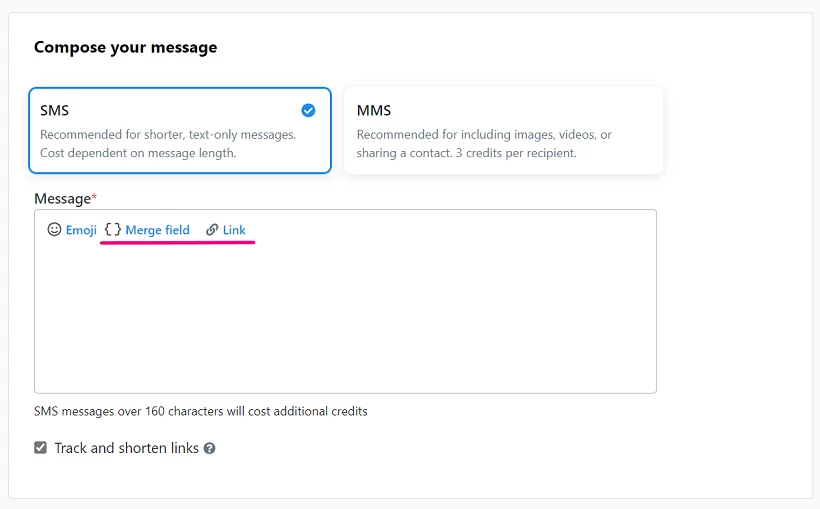
Add a Merge field to your email template to incorporate a value, like recipient names, zip codes, or contributions, from your contact records.
When you choose a Smart Link, the forms you link to will automatically populate with supporter information based on your records.
By default, links will be shortened before your message is sent. You can see shortened links when you Preview your text. If you do not want your links shortened, uncheck Track and shorten links just below your message box.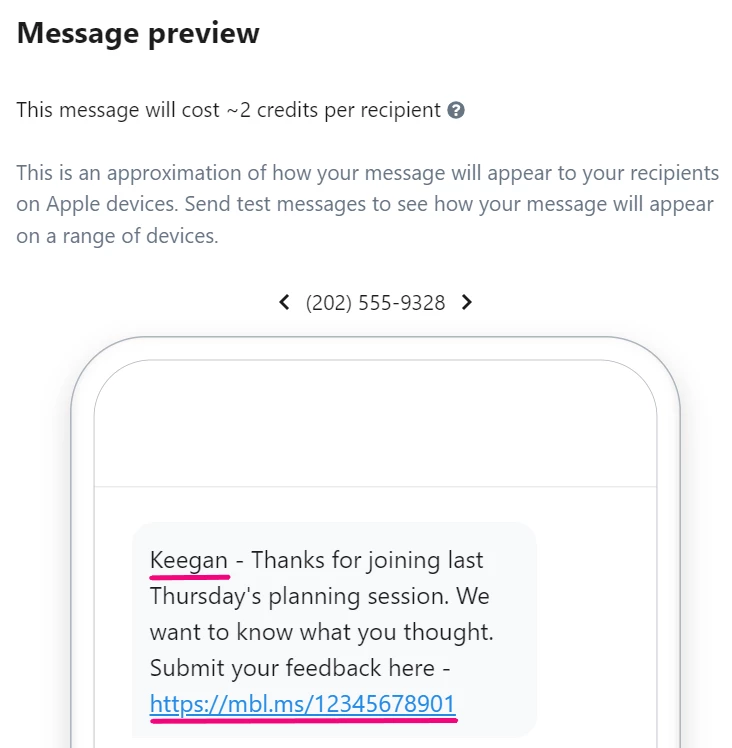
Sending your message
After you’ve drafted your message, you can Send a test message. Tests count towards your total messages each month but allow you to check formatting, catch typos, and ensure deliverability and accessibility for your recipients.
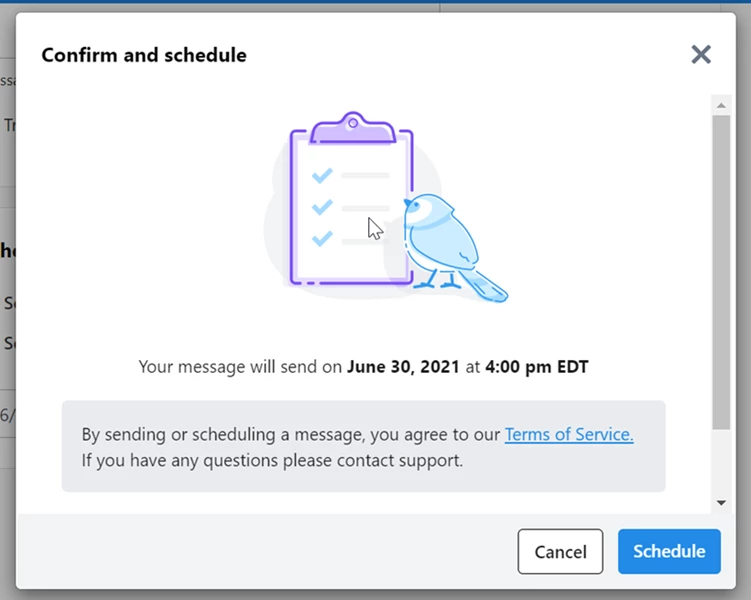
When you’re ready, Send your message immediately or schedule it to go out later. You can choose to schedule texts to send according to supporter time zone. For example, if you set a message to send at 12:30 PM, we will send that message at 12:30 PM in whatever time zone is associated with the zip code of the primary address on record. If one is not available, we will use the time zone associated with the area code of the primary phone number on record.
Scheduling is only available when you’re texting a Saved Search or Saved List. Your search or list refreshes just before the message sends to capture new contacts for your message audience.
A/B Testing
Optimize your mobile messages to drive better engagement, increase conversion on calls to action, and raise more dollars by A/B testing your messages.
Begin creating an A/B test message the same way you would a message – create a new message, give it a unique name, and select an audience. Then follow the Create an A/B test variant link above the Compose your message box to create two variants of your message, an A and a B.
Any content already added in editor will auto-populate the A variant. Leave your message as is, or adjust it as you see fit. Click the B tab to navigate to the variant. Variants will be auto-named by appending _A or _B to the end of the message name. You can change the message names, but variant names must be unique to avoid confusion later.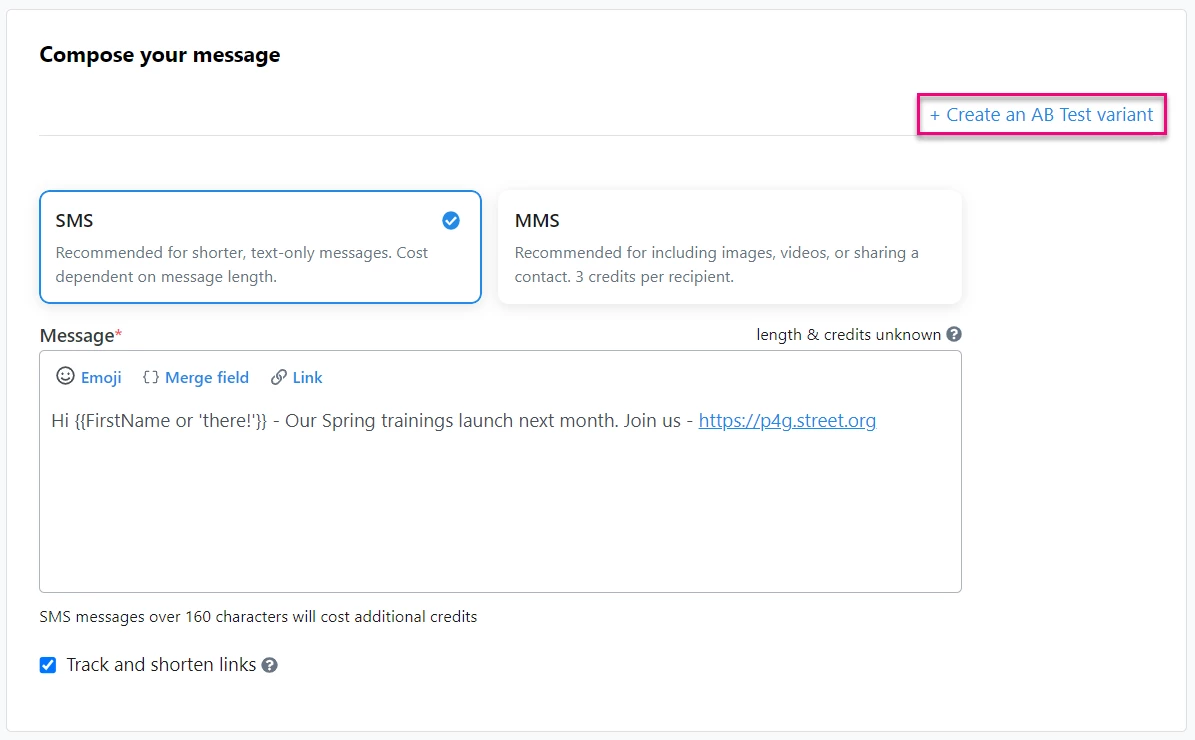
With your variants drafted, select your audience using a Saved Search or Saved List. You will be asked to a choose the percentage of your audience that will receive the B variants. Test a large enough segment of your audience to yield meaningful results. This will vary depending on what you are testing and your overall audience size. The winning variant is determined automatically, based on criteria you set in the Selecting a winner panel. The winning variant is then sent to the remaining contacts in your audience who did not receive the test variants.
Preview, send, and schedule your messages as with standard messages.
Following up with your messages
From your Mobile Messaging Inbox you can view incoming responses to your text campaigns and speak directly to your supporters. Text in real-time and schedule follow-up conversations. Filter your inbox by message status, sort your list from newest to oldest, and search for contacts.
Read more about Mobile Messaging Inbox