


Best Practices: Creating dynamic contribution ask amounts
Knowing how much a donor has given in the past can help you determine the right amount to ask for the next time you reach out to them. For example, a donor may have only given $50 in the last month but you might find that in the last year their total giving was $500. With this information you may want to make a bigger ask next time.
You can use conditional content, Smart Links, and query strings to create dynamic asks in your Targeted Email and Mobile Messaging that will automatically pull the right information from your donor's contribution history and build an ask that makes sense for them.
Customizing your asks using Targeted Email
Online Actions forms allow you to customize your asks by setting several different suggested donation amounts - for recurring commitments or one-time contributions - for anyone using your form.
To increase donor engagement, however, you can offer personalized contribution ask amounts in your Targeted Email when you link to forms that pull contact data from your records. You can create these links by:
-
Adding query strings and conditional content that use what you already know about your donor to customize the ask. For example, you can select the Highest Previous Contribution amount, Most Recent Contribution amount, or a value stored in a custom currency contact field to create a customized ask that will appear on your form when your donor clicks the link in the email.
-
Selecting one of the default Reusables when you are using the Classic editor in Targeted Email. Some of these will insert dynamic contribution ask amounts and only require you to replace the placeholder URL with a link to your actual custom contribution form.
If you are using the Drag & Drop editor, or you just don't want to spend a lot of time creating custom conditional content, you can begin adding conditional query strings with Smart Links.
Using Smart Links to create a dynamic ask
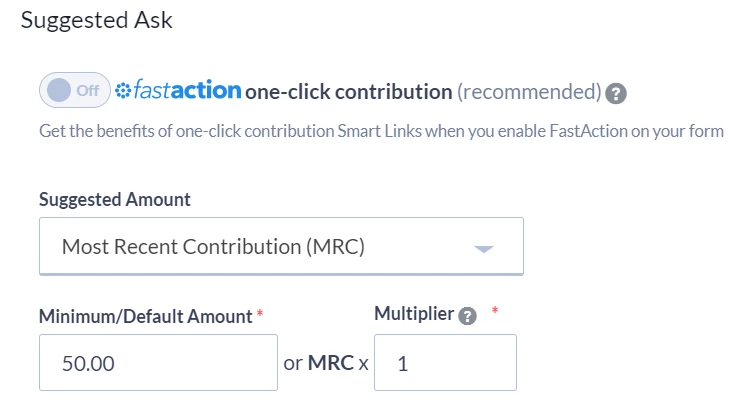
Smart Links create conditional ask links. For example, you can create a dynamic ask that uses your donor's Most Recent Contribution Amount to ask for another donation of the same value or suggest an alternative value two, three times higher. You can choose the multiplier.
When you select Smart Links in the message box you can search for the form you want to use. Decide whether you want to create a single ask or give a list of suggested amounts to your donor in the email.
In the Suggested Ask section, select Most Recent Contribution and then determine which multipliers you want to add to any additional asks. Add a minimum default amount for recipients without any contribution history for your organization.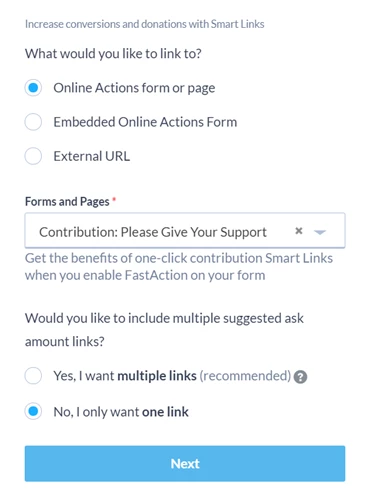
When a recipient clicks a Smart Link to a custom contribution form, the form will highlight one of of the following as the contribution amount:
-
Most Recent Contribution Amount, if they made a contribution in the past
-
Minimum/Default, if they have never made a contribution
Customizing the rest of your email
You can customize your message further by inserting conditional content that reflects your donor giving history. For example, you may want to thank them for their Highest Previous Contribution or recognize when they have made a Recurring Commitment.
How do I creating dynamic contribution ask amounts? | How does dynamic contribution ask amounts work in EveryAction? | Why can't I creating dynamic contribution ask amounts? | Where do I creating dynamic contribution ask amounts in EveryAction? | What is dynamic contribution ask amounts in EveryAction? | How to creating dynamic contribution ask amounts? | Can I creating dynamic contribution ask amounts in EveryAction?