



(2 min read)
You can use the Assigned Staff field under Vital Stats and Contact Preferences to keep track of the point person at your organization for donors, prospects, volunteers, or other types of people. In order for someone to be assigned to a record, they must have a User account. Additionally, each contact record can only have one Assigned Staff person.
Using Bulk Upload
If you have a lot of contacts that have an assigned staff person, it may be fastest at the outset to bulk apply the information.
If you're assigning the same staff person to a group of contacts, you will first need to Create a List of individuals. Then select Bulk Upload > Apply New Mapping > Apply Assigned Staff and select the staff name.

In order to assign multiple staff people at a time, we suggest exporting your list of contacts that need to have staff assigned to them by using Create a List. After you Run Search you can then Export the list as Standard Text and Customize Export to select columns for your file.
Open the resulting file and add a column called Assigned Staff. Enter the names of the staff you want to assign in each row.
You can then re-upload the list using Bulk Upload. When selecting the upload method, you should use VAN ID - the unique ID on each record - to get an exact match to the existing contact records.
Adding assigned staff to one record
Assigned Staff can be manually applied to records one by one from the Vital Stats & Contact Preferences section of the contact details.

Searching for records with or without Assigned Staff
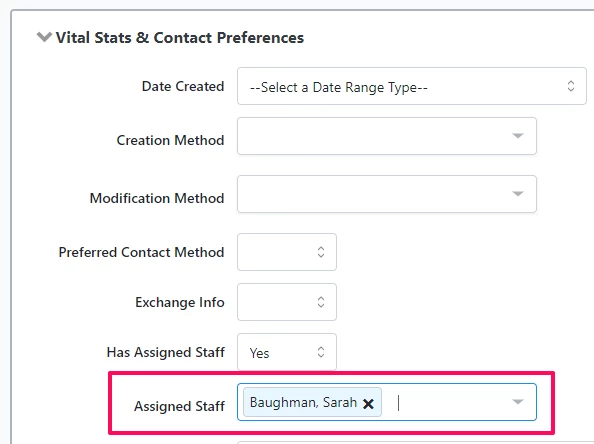
Once you've assigned staff to contacts, you can use the same field under Vital Stats and Contact Preferences in Create a List to narrow to contacts that are assigned to you or another staff member.
Including Assigned Staff in Reports
You can also add Assigned Staff as a column to some reports in Report Manager, including the Contribution Report.
Including Assigned Staff in Exports
To export a list that includes the Assigned Staff person, you can include that column in a Standard Text Export. Run your search and select Exports >> Standard Text >> Customize Export. Then, select your Assigned Staff.
How do I how to: assign staff as point person for contacts? | How does how to: assign staff as point person for contacts work in EveryAction? | Why can't I how to: assign staff as point person for contacts? | Where do I how to: assign staff as point person for contacts in EveryAction? | What is how to: assign staff as point person for contacts in EveryAction? | How to how to: assign staff as point person for contacts? | Can I how to: assign staff as point person for contacts in EveryAction?