



Merging records in Quick Look Up
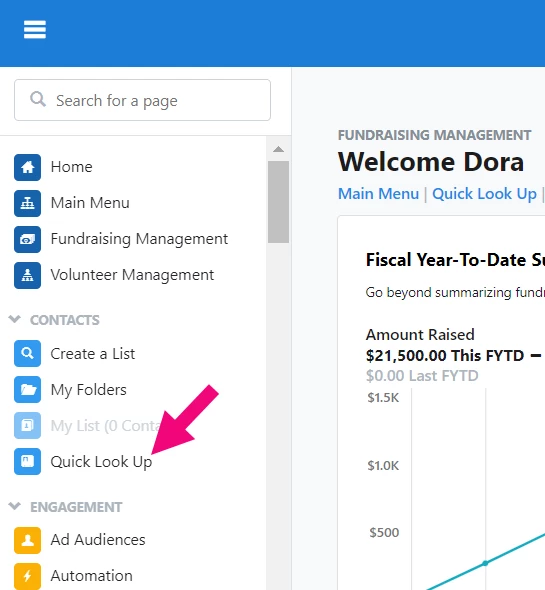
Open Quick Look Up from the Sidebar.
Quick Look Up will accept partial inputs and return all possible matches. For example, if you enter one letter for Last Name, it will find every record that has a last name that starts with that letter. If too many results return, you will be asked to refine your search by providing more information.
If you leave SmartName search on, it will also try to match names based on common alternative spellings for names and nicknames.
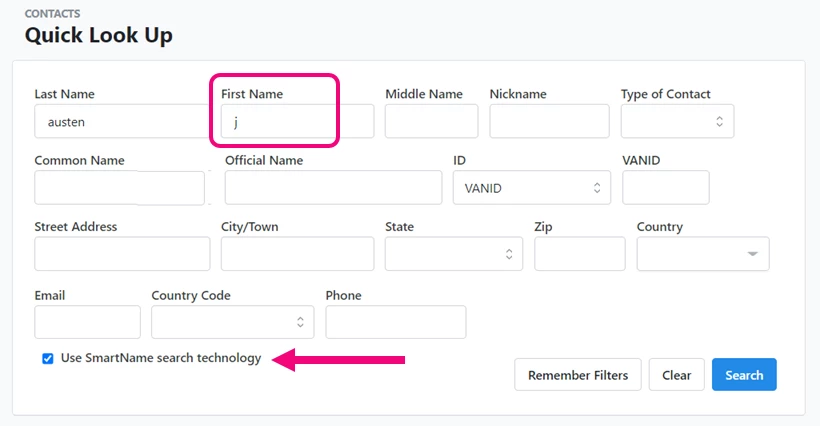
When searching for duplicates, it can be useful to try to keep the search a little broad so you get as many possible versions of a name as possible. So, for example, if you suspect you have some misspelled entries that are the same person, you might want to only use a few letters in the name so you can see more options.

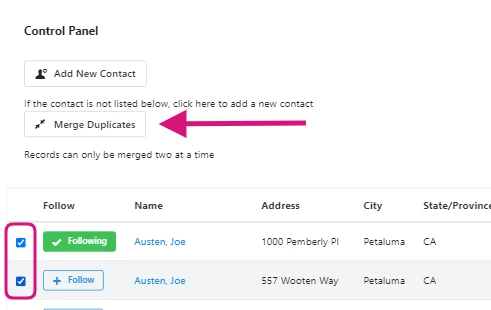
Once you’ve performed the search, you can use the checkbox next to two of the records you wish to merge and then click Merge Duplicates. You can only merge two contact records at a time. The button will be grayed out until two boxes are checked.
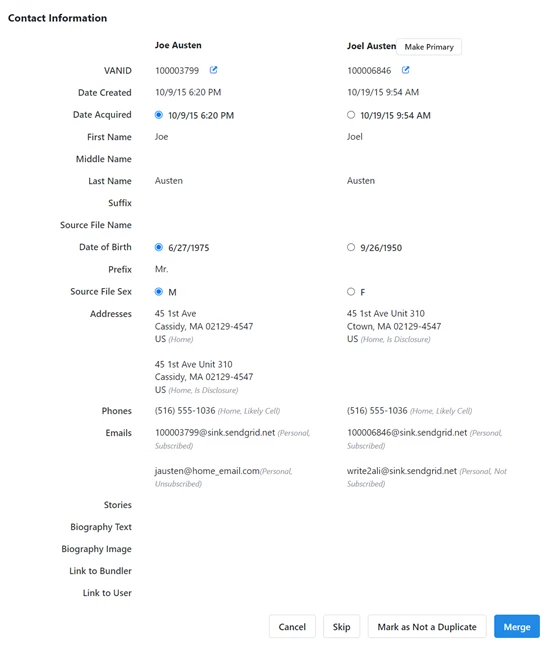
You will see a comparison of each record side-by-side. You can select which record should be kept as the Primary record. The other record will be merged into the primary record and then deleted. You can use the blue external link icons to view each record on its own in a new tab.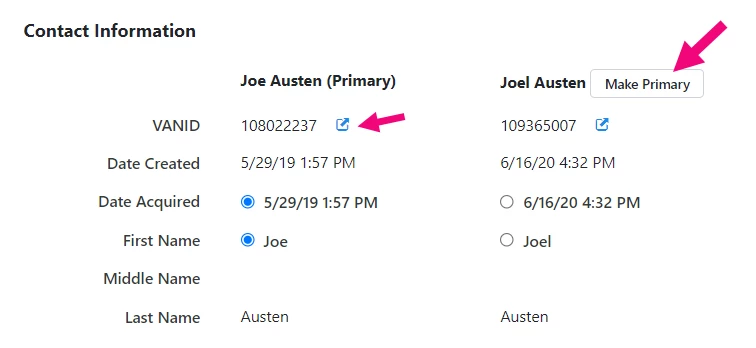
Fields where multiple values can be stored--such as emails, phones, and addresses--will be combined into your Primary record during the merge.
For fields that can only have one value, you’ll need to choose which data to keep. Tab through each part of the contact record using the links on the left.
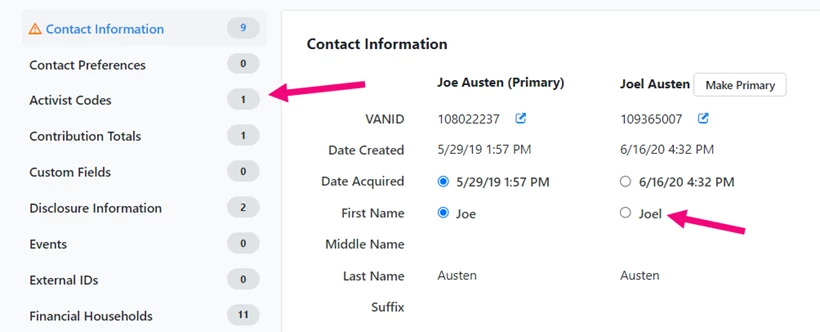
A warning sign will appear next to any tab that has a field requiring intervention. For example, two records may have conflicting Custom Fields for which there can only be one value applied (e.g. Level of education: high school vs. college degree). In these cases, you will need to select the value to be retained in the merge by using the radio buttons.
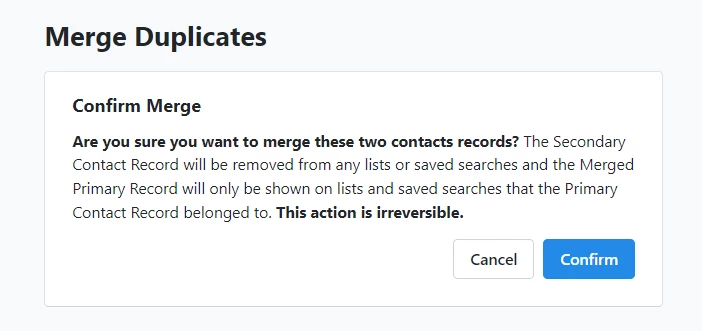
Once you’ve made all your selections, select Merge from the bottom of any page and confirm the action.
Using My List to find duplicates
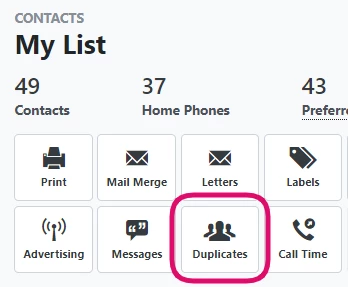
After running a search with Create a List, it’s a good practice to make sure you don’t have any duplicate contact records that should be merged. While you can select specific records to merge from My List in much the same way you can with Quick Look Up, My List has another option you can use to help you identify all suspected duplicates in your list based on the fields you choose to compare.
Begin by loading one of your lists (or by creating a new one). If you want to de-dupe your entire database, you can run a search in Create a List without selecting any criteria; this will return all contact records.
Read more about creating lists
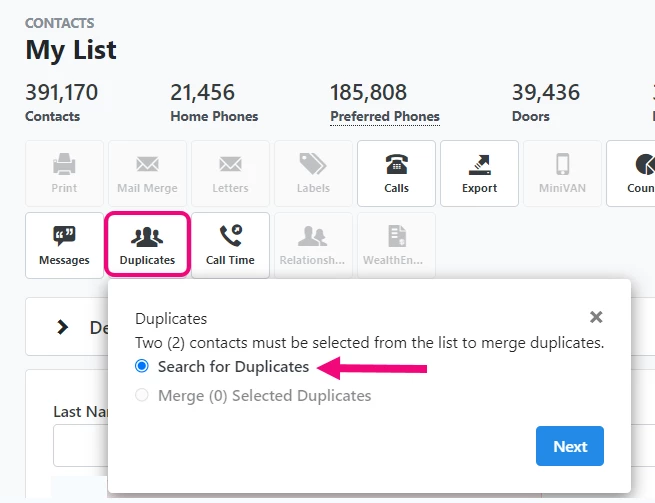
Once you've run the search, click on Duplicates.
To find all duplicate records in the list, choose Search for Duplicates.
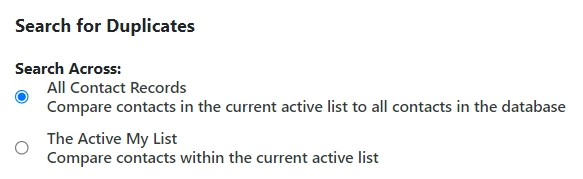
Select whether you want to compare the people in your list to your entire database or just to other members of the current list. In most cases, you’ll probably want to make sure you’re checking for duplicates across your entire database.
You can then look for duplicates based on a predefined list of contact fields. This will allow you, for example, to search for all records that have the same address or phone number, not just the same name.
Be careful selecting only phone number or address as a search criterion, since the results might show different people in the same household. If you match on some version of the name and on address or phone number, you are more likely to identify similar records.
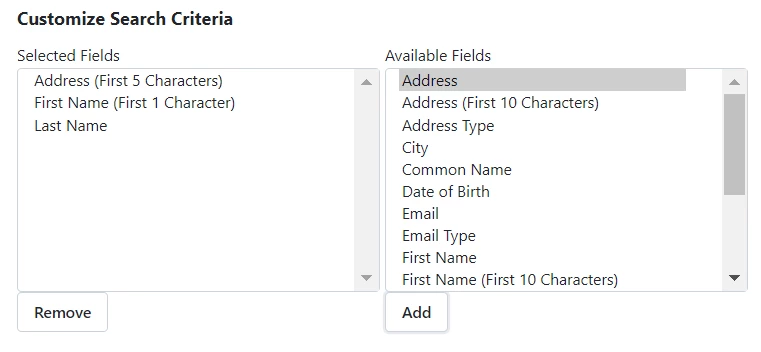
If your search result is too broad, you will see a warning asking you to consider adding more criteria to narrow your search.

Once you’ve updated or approved the search, your first result will appear as a comparison between your first two records.
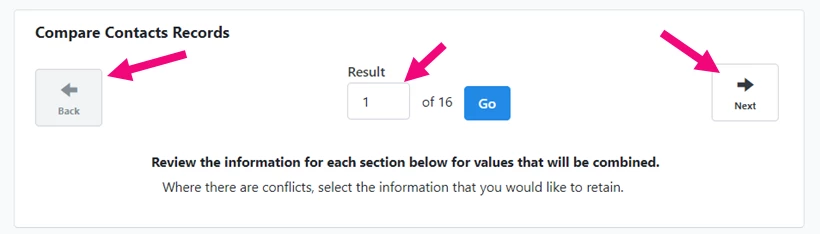
At the top of the page, you’ll see a navigation bar that will let you page through your results using the Next and Back buttons or that will let you jump to a particular result using a page number.
At the bottom of the page, you will see several options for action on each comparison page.

-
Cancel will exit the Duplicates comparison workflow
-
Skip allows you to eliminate a pair of likely matches from the active search. The pair will still show up in future Duplicate searches via My List.
-
Mark as Not A Duplicate will eliminate the likely match from the current and all future Duplicate searches via My List. If needed, you can still use Quick Look Up to merge the records later.
-
Merge will combine the two records, keeping the primary record and adding additional data from the second record. The second record will then be deleted.
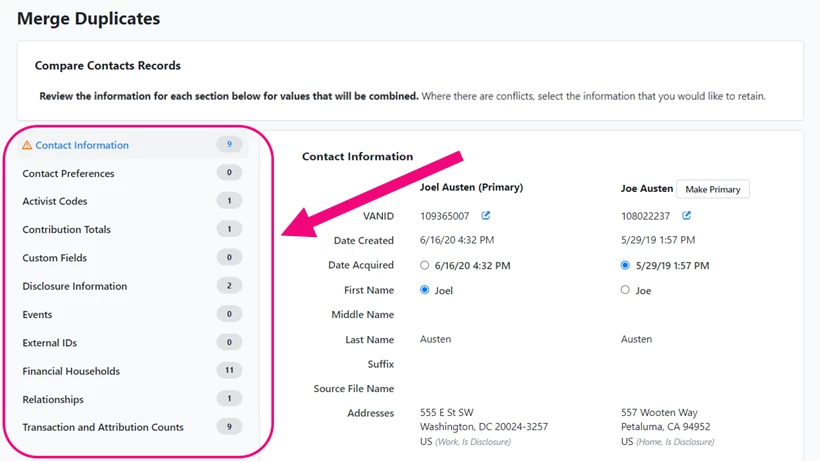
Before you merge two records, make sure you have reviewed all the data on both contact records. This comparison works the same way it does in Quick Look Up. You will need to select which record you want to keep as the primary record and then make choices for the fields where you can only keep one result. Use the tabs on the left to page through more parts of the two records. Fields like address, phone, email, and notes will keep the data from both records in your final merged result.
Merging from the contact record
If you have someone you know has a duplicate record, you can quickly find and merge it using the More Actions > Merge link from their contact Overview page.
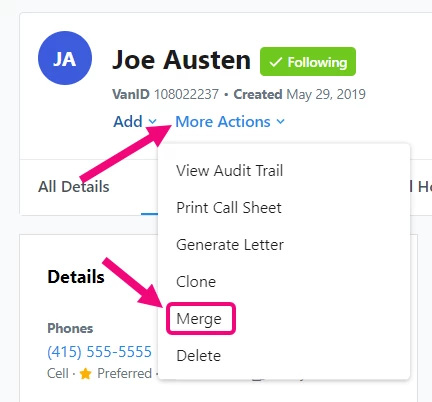
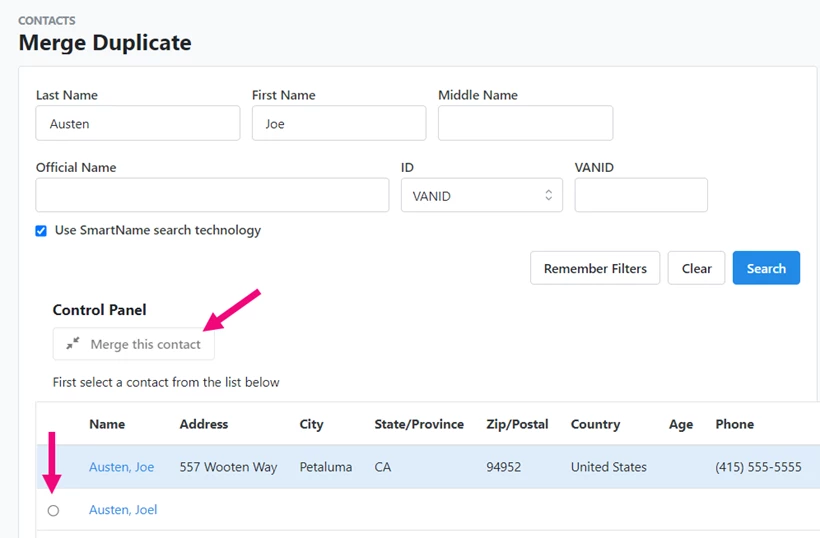
This will automatically do a Quick Look Up search based on their name. Select the record you want to merge it with from the search results and then select Merge this contact.
You will then see the same comparison screen used in My List and Quick Look Up. Follow the same process as you did above. Choose which record to make your primary and then select the data you want for the remaining fields using radio buttons. Be sure you’ve reviewed the entire contact record by using the tabs on the left to view each section.
Troubleshooting merges
There are a few times when you might not be able to merge two records. Most of the time, this will be because you do not have sufficient editing privileges for both records. Check with your administrator to make sure you have sufficient permissions (or committee access in multi-committee setups) to view and edit both contact records.
If you know that you have the proper permissions but you are still having difficulty, there may be another reason that the merge is being blocked. There are some specific cases where we prevent a merge from happening, including when:
-
you don’t have permission to see conflicting Custom Field values on both records
-
you are trying to merge an Organization record with a Person record. Both contact records must be the same type of record.
-
one or both records are part of a Joint Fundraising Committee. These records cannot be merged.
-
you file Disclosure Reports and the secondary record you’re trying to merge was already associated with a disbursement or contribution. For compliance reasons, you can only merge records when the secondary record has no contributions or disbursements.
-
the secondary contact record is linked to a Public User ID (usually used by canvassing organizations)
-
you don’t have access to the Job records that have conflicting values (for users of My Workers)
Finding more support
If you are having difficulty with merging records after reviewing these instructions, please contact the Support team. If you are wanting to do a very large deduping process, you may need to contract with our data team to help you quickly clean up the records in your database.
How do I how to: merge duplicate contact records? | How does how to: merge duplicate contact records work in EveryAction? | Why can't I how to: merge duplicate contact records? | Where do I how to: merge duplicate contact records in EveryAction? | What is how to: merge duplicate contact records in EveryAction? | How to how to: merge duplicate contact records? | Can I how to: merge duplicate contact records in EveryAction?