



Campaigns provide a way to track the efficacy of outreach efforts by categorizing specific campaigns and their contents for analysis. They can be applied to 'Online Actions', 'Targeted Emails', 'Activist Codes', 'Events', 'Scripts', and 'Master Survey Questions'.
Campaigns are broadly defined but typically correspond to a program around a particular issue, such as saving the polar bears or raising awareness around gun violence prevention. They are also assigned 'Campaign Types' – such as 'Issue' or 'Legislative'.
Step 1: Navigate to 'Campaign Types'
- From the homepage, navigate to the left-hand menu. Click Engagement > Tracking & Codes > Campaign Types.
- Or use the Search for a page field and type Campaign Types.
Step 2: Add a new 'Campaign Type'
Click the 'Add New Campaign Type' button near the upper right corner of the page

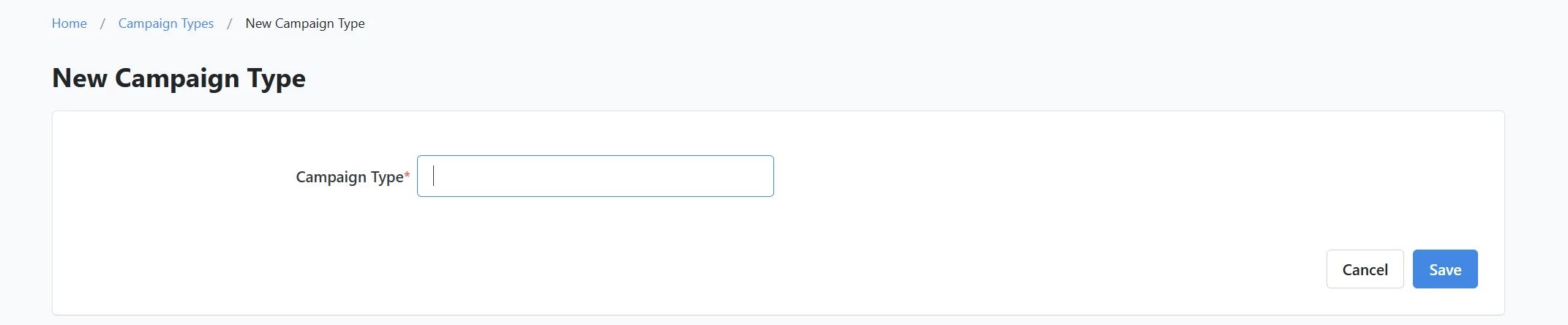
Step 3: Name the 'Campaign Type'
Enter a name for the 'Campaign Type' and click 'Save'.
Step 4: Navigate to your 'Campaigns' page
- From the homepage, navigate to the left-hand menu. Click Engagement > Tracking & Codes > Campaigns.
- Or use the Search for a page field and type Campaigns.
Step 5: Add your new campaign
Click the 'Add New Campaign' button near the upper right corner of the page.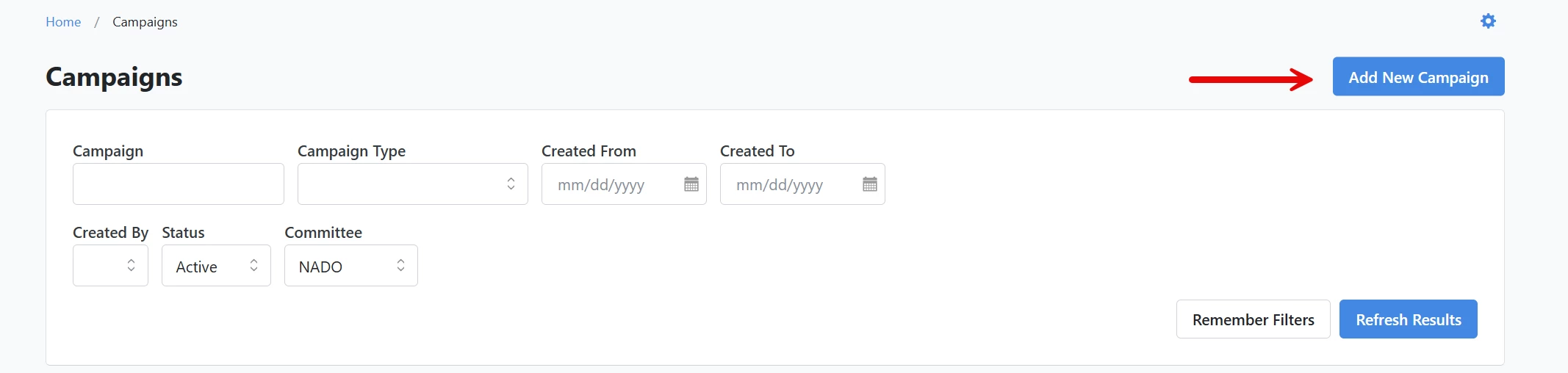
Step 6: Enter your campaign's details
Name your campaign, select the 'Campaign Type', and then indicate if it is 'Active', 'Archived', or 'Inactive'.
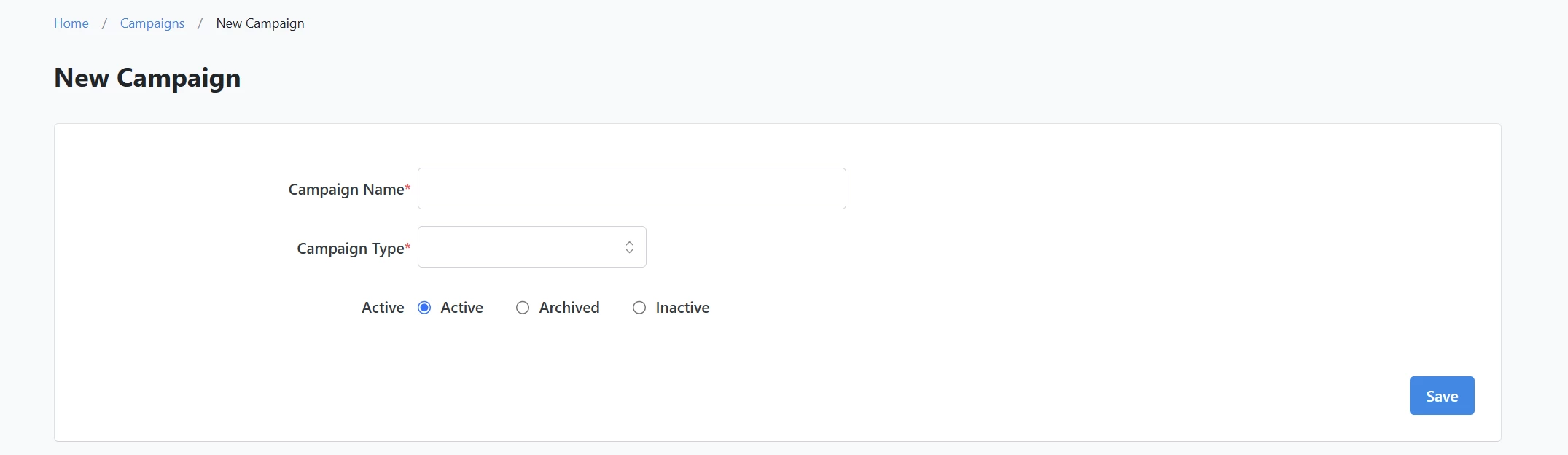
Note: The difference between 'Archived' and 'Inactive' is that Archive means that you cannot actively apply it to any source codes and cannot access it in searches, reports, etc, while Inactive means that while you cannot apply it to anything, however, you can still search for it in tools such as Create a List and reports.
Be sure to click to save your work when you are finished!
What else do you need help with?
Navigate back to the Codes and Effort Tracking Resource Index.