



Tags offer a way to track efforts in a broader context. They can help answer questions like:
- How are my membership (or volunteer, etc.) outreach efforts doing?
- How is my effort around saving the whales doing?
While there is overlapping functionality with Activist Codes and Custom Fields, tags are not intended as a replacement. They are designed to work in conjunction with other code types so you can view your results more broadly.
For example, you might have a few Activist Codes ("monthly sustainer," "platinum member," etc.) as well as a few Source Codes (e.g. "member_outreach_2017_nov," "2017_GivingTuesday_member_outreach," etc.) related to membership efforts. By creating a tag called "Membership" and applying it to all contact records with any member-related Activist Codes and Source Codes, you can more easily view how your membership builds over time.
Please note that Tags cannot be used on 'Online Actions' forms or as merge fields on 'Online Actions' forms or in 'Targeted Email'.
Tags can be applied to:
- Contact records
- Events
- Locations
Tags are hierarchical, and there is no limit to the number that can be created or applied.
Creating Tags
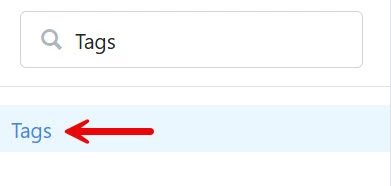
Step 1: Search for 'Tags'
Use the search bar in the left navigation panel to navigate to 'Tags'.
Step 2: Create a new Tag
Click the 'Add New Tag' button in the upper right corner of the 'Tags' page.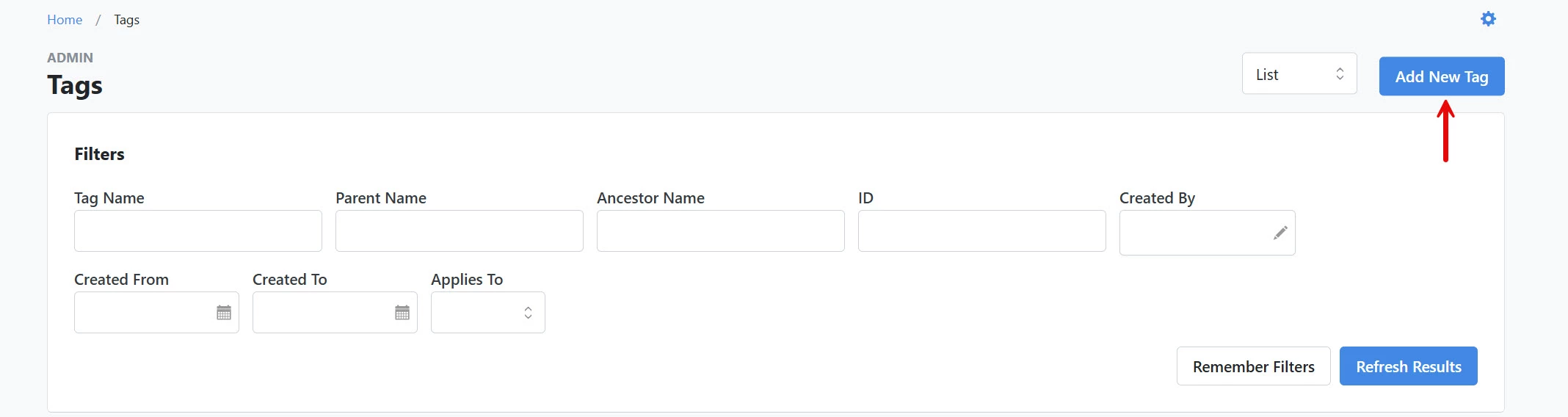
Note: If this should be a child of another tag, select the parent in the 'Parent' field.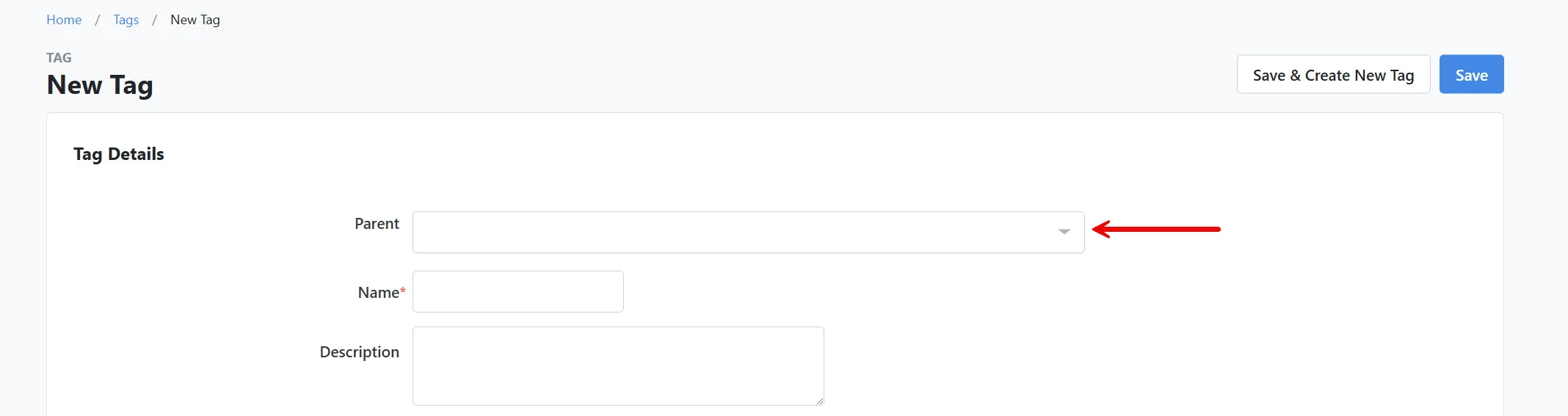
Step 3: Set Availability
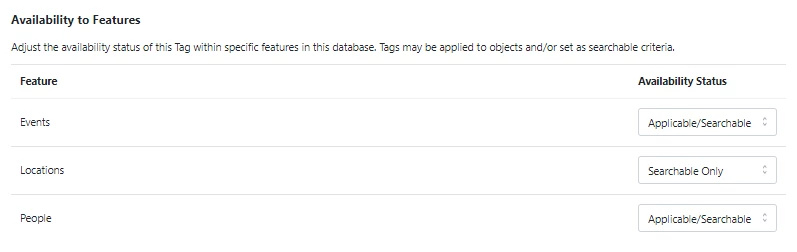
Scrolling down, you will find the 'Availability to Features' section, which allows you to decide which features can use the tag.
You can also select an 'Availability Status' for each feature. This will determine whether the tag can be applied to those records or only used for searching. When you add a new tag, we recommend selecting the 'Applicable/Searchable' status so you can add the tag to your records. 'Searchable Only' is usually reserved for when you want to stop using the tag on new records but still want it to be available for reporting or searches.
Be sure to click 'Save' when you are finished!

What else do you need help with?
Navigate back to the Codes and Effort Tracking Resource Index.