



Query strings are codes or identifiers that can be added to the end of a link to an 'Online Actions' form that will pre-populate fields, apply additional information on contact records, or provide tracking information for reporting.
For example, you can use query strings with 'Targeted Email' when you link to your 'Online Actions' forms. You can use these query strings to identify the person responding and pre-populate the form with the data available from their contact record. This makes it much faster for your supporter to complete the form without extra typing which helps you increase your conversion rates.
You can also use query strings to identify responses you can use in your searches and reports. You can apply source codes and 'Market Source Codes' to contacts and form submissions, or apply query strings like UTM_Campaign to help with 3rd party analytics, like Google Analytics.
Understanding query strings
Adding a query string to an 'Online Actions' form URL does not change the address that the system generates when the form is published. Query strings are appended to the end of the URL when emailing or otherwise advertising the form.
For example, if the URL for your Event Form is:
https://secure.everyaction.com/LwC6biKp10aky9dihLHLOg2
You can apply a source code by adding the string at the end of your URL when you add the link to your Targeted Email or your online ad.
?sourceid=1019039
Each query string is made up of a query string parameter name and value. So, in this example, the name of the parameter is sourceid and the value will be 1019039.
When your supporter clicks the link, they will see something similar to the following in their browser bar:

Tracking email performance using query strings
Query strings make it easy to track responses and analyze your email performance. Using a query string, you can automatically apply source codes, Market Source Codes, or other identifiers whenever someone clicks the link to fill in your form.
The easiest way to add these codes is using Add Querystring from Targeted Email > Compose Message > Track Your Efforts. Using the dropdown, you can select which kind of codes you want to add to the links in your email. When the email is sent, Targeted Email will add these values to every link in your email.
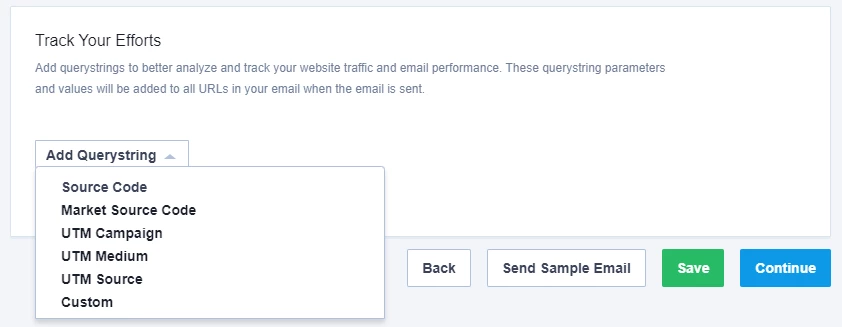
The Source Code option allows you to select an existing code and it overwrites any default source code associated with your form (if your form has one set). Supporters using the email link will have your selected source code applied to their form submissions rather than the default code for the form. (If you want to create a source code on the fly, you will need to manually add that query field to the link in your email, as described below.)
You can also create various codes on the fly including Market Source Codes, UTM Campaign, UTM Medium, UTM Source, or Custom codes.
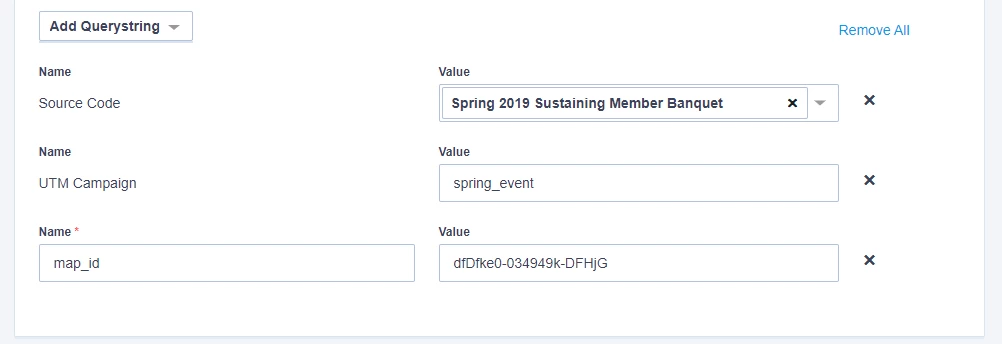
If you want one or two of your links to have different query string values, you can add those manually to the specific links. Targeted Email will not overwrite those values with the values set in the Track Your Efforts section.
When you create a new email using Create From Existing, these values will also be copied into the new email.
Pre-populating fields on a form with a query string
To populate a field on a form the field parameter, the value must be joined by an equal sign '=' like so:
To add additional fields, use '&' to append more. For example, if you wanted to pre-populate the form with your supporter's first name and e-mail, you would use the syntax:
The easiest way to add these links is to use 'SmartLinks' from the 'Compose Message' step in 'Targeted Email'. This feature will help you create links that pre-populate your forms with basic contact information.
Note: SmartLinks are intended to work specifically for the e-mail recipient and our recommendation is not to forward them. When you click on a SmartLink in an e-mail, it can load data onto the form for a supporter based on the identifiers in the link, regardless of whether or not they have a cookie in their browser to pre-fill data on the form. So, forwarding a SmartLink can result in pre-filling data, including the credit card token stored in FastAction, for the original recipient, even when the recipient of the forwarded email clicks the link. For this reason, we recommend indicating that these links are designed to be one-time use for the original e-mail recipient.
Manually adding query strings
If you need more complex links than are available from the 'Track Your Efforts' query string feature or 'SmartLinks', you can also build links from scratch. Be sure to use the proper syntax or your query string will not work.
There are a few general rules:
- The query string always goes at the end of the URL,
- The query string must begin with a question mark [?]
- Each field available to use in a query string has a particular parameter. For example, First Name is 'fn' and E-mail is 'em'. For a list of available tags, see our EveryAction Developer Documentation
- Each field value in a query string has double braces on either end: e.g. {{FirstName}} ; this is similar to merge fields in 'Targeted Email' or 'Online Actions'
How do I use query strings? | How does use query strings work in EveryAction? | Why can't I use query strings? | Where do I use query strings in EveryAction? | What is use query strings in EveryAction? | How to use query strings? | Can I use query strings in EveryAction?