Attention: EveryAction is now Bonterra CRM. Please bear with us as we update our screenshots to match our new name.
(7 min read)
Custom Calculated Fields allow you to create your own contribution summary fields you can use to track things like the count, average amount, total amount, highest previous amount, or most recent date. These fields are available to anyone using the Development Pro package.
These fields are automatically added to the Custom Calculated Fields group, rather than one of your Contact Custom Field groups.
Read more about creating other kinds of custom fields
Creating Custom Calculated Fields
Begin by searching for the Custom Fields list from the Sidebar.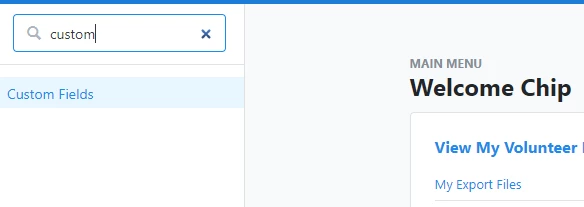
To add your new field, select Create New Custom Field > Calculated Field.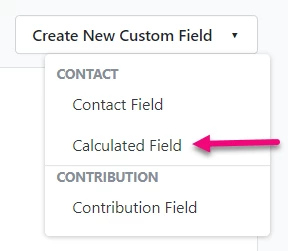
You can then add the Field Details, such as name and description.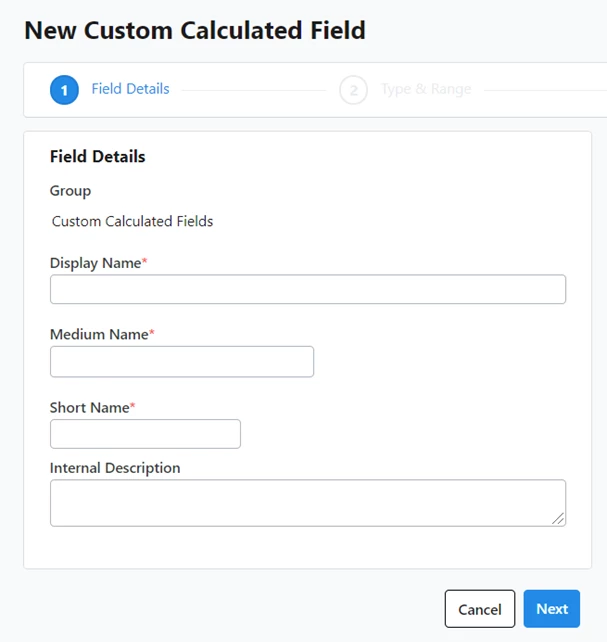
Selecting the type and range
On the Type & Range step, you'll be able to add the type of calculated field, specify whether it should be calculated based on individual or financial household giving, and select the date range to use for your calculations.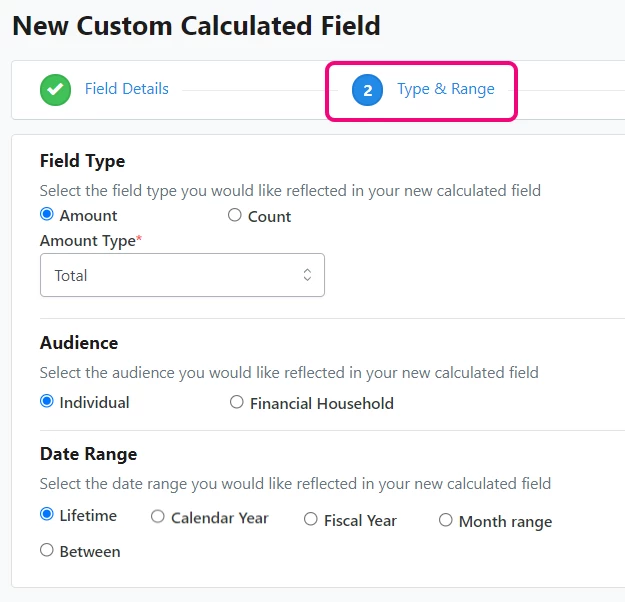
The Field Type can be either:
-
a Count of contributions - count of contributions that meet the critera
-
a calculated Amount, of one of these types:
-
Average - average gift amount of all contributions that meet the criteria
-
Highest - highest gift amount of all the contributions that meet the criteria
-
Total - sum of all contributions that meet the criteria
-
Most Recent - the most recent gift of all the contributions that meet the criteria
-
Comparison - the difference between the sum of gifts in one date range and the sum of gifts in another date range
-
Comparison fields, in particular, can help you see if giving is increasing or decreasing, by showing the change amount, the percentage difference between base amount and comparison amount, and a status indicating the nature of the change, including:
-
Upgraded: when the Base amount is less than the Comparison amount
-
Level: when the Base amount is equal to the Comparison amount
-
Downgraded: when the Base amount is greater than the Comparison amount
-
New or Reactivated: when the Comparison amount is greater than the Base, but the Base is zero
-
Lapsed: when the Base amount is greater than the Comparison but the Comparison is zero
If giving in both the base and comparison period is zero, then the values for this field will be blank for that person.
For the audience, you can select whether you only want to use contributions given by the individual or whether you want to include all members of the household when you make your calculation. You might, for example, find it more useful to calculate the most recent contribution or highest previous contribution for the entire household which can then be included as a custom calculated field on each family member’s contact records.
When selecting a Date Range, you can use This year or Last year to create a dynamic range that won’t require you to update the field at the start of every year.
Adding more details
On the Contribution Details step, you can further refine the universe of contributions you want to include in your calculations.
You can choose which Designations to include in your custom calculated field, by filtering contributions to a single designation for this calculation or by using the contributions that meet your criteria from multiple Designations that you specify.
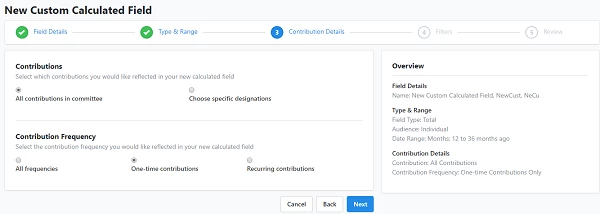
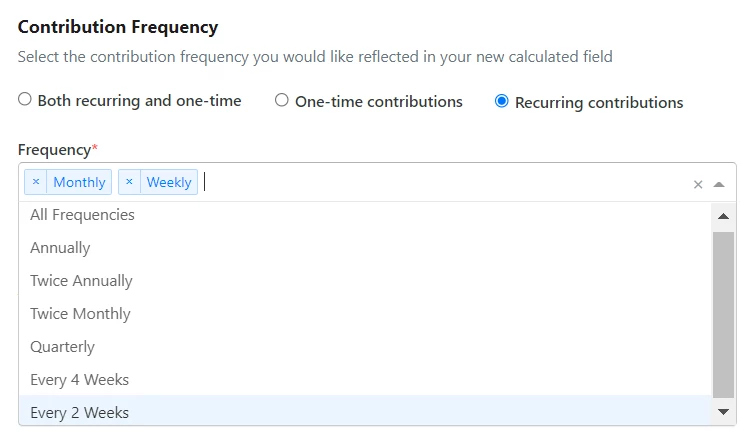
You can select if you want to include recurring contributions in your calculation. For example, if you are creating a field that identifies the Highest contribution amount over a certain time period, limiting the universe to recurring contributions in your calculations will show you the highest recurring amount from that person rather than their highest one-time amount.
If you select only recurring contributions as your universe, you can further narrow your choice to include only the frequencies you’re interested in.
You can select whether you want to include attributed contributions in your calculations.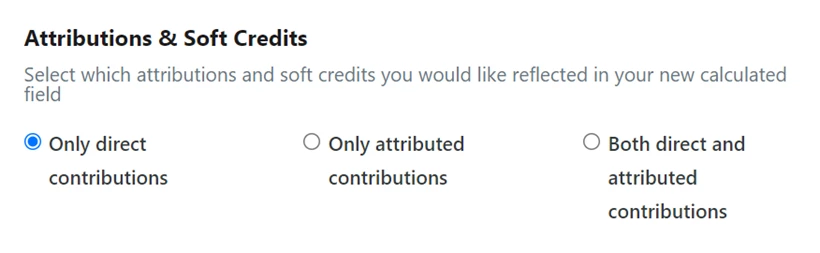
You can also select which Soft Credit types you want to include in your Attributed contributions. For instance, if a person has a soft credit for a donor-advised fund gift, that will be included towards the sum of gifts, as part of a comparison, or returned as the Most Recent Contribution or Highest Previous Contribution, even though it’s not a direct gift from the donor.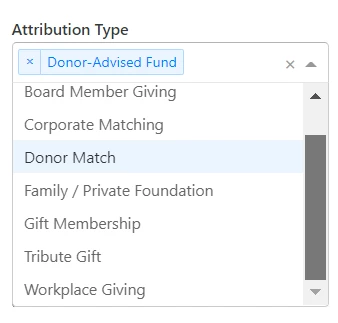
You can then decide whether to include pledges in your calculations or not.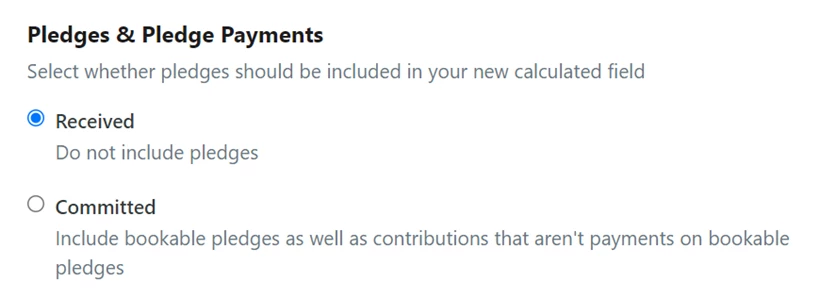
If you select the Committed option, bookable pledges (those that are marked to give/unconditional/promise) will be included in your amounts or contribution counts but the payments on the pledge ARE NOT included in the calculation. If you select Received, pledges will not be included in the summary fields.
Filtering contributions
In the Filters step, you can choose to include or exclude contributions with specific campaigns, channels, source codes, payment methods, or custom contribution fields. Organizations with disclosure reporting will also see Period and Cycle options.
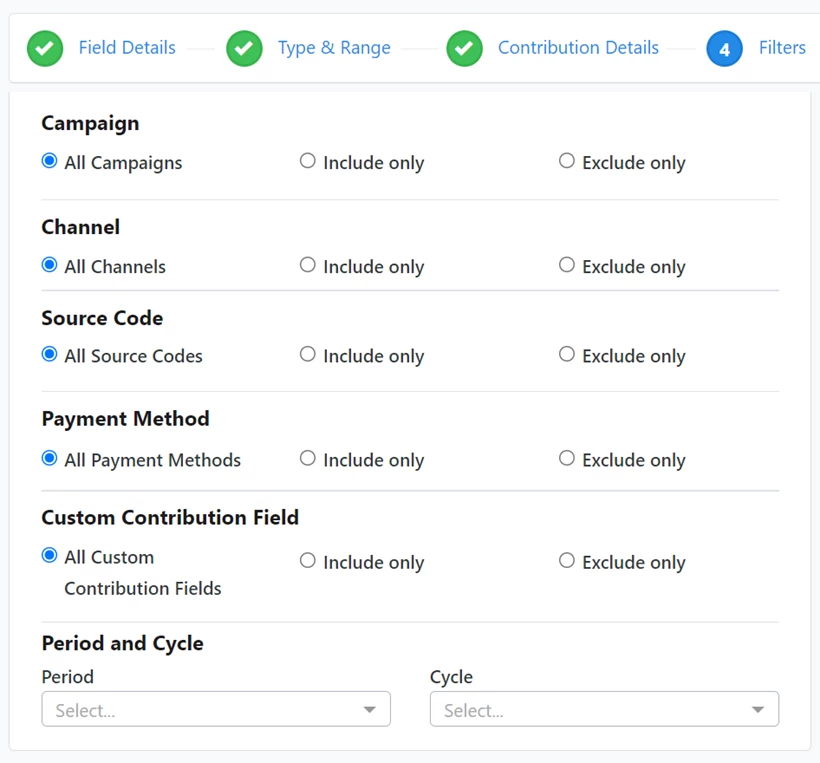
Using the filters, for instance, you can include or exclude contributions to a particular campaign (or group of campaigns) as part of your calculation. Or, you can exclude in-kind gifts by selecting Exclude Only > Payment Method > In-Kind. You can also use the Channel filter to exclude contributions made via offline channels if you want to calculate the highest amount for each contact in your online channels.
Reviewing your settings
In the final step, you can Review and Edit all your details and filters and make any edits before you Save & Finish. After you are finished, your new field will appear in the list under the Custom Calculated Fields Group.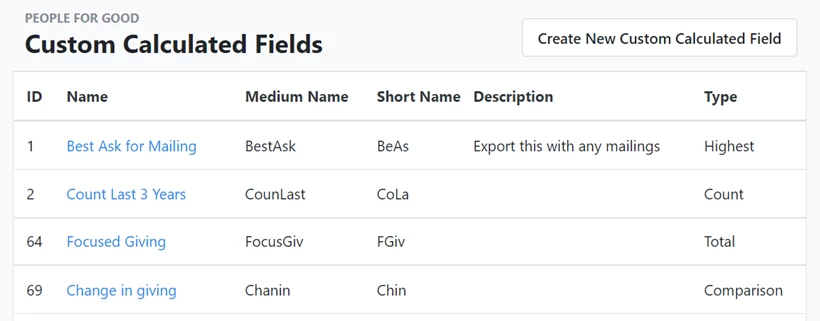
Once you’ve added the field, it will calculate and populate the values for all the existing donors in your database. After the initial calculation is added, the values going forward won’t update immediately when new gifts are entered. Instead, your calculated fields will update once a day during an overnight process.
Viewing on contact records
After adding your Custom Calculated Field, you can see the results on the Financial tab of an individual contact record.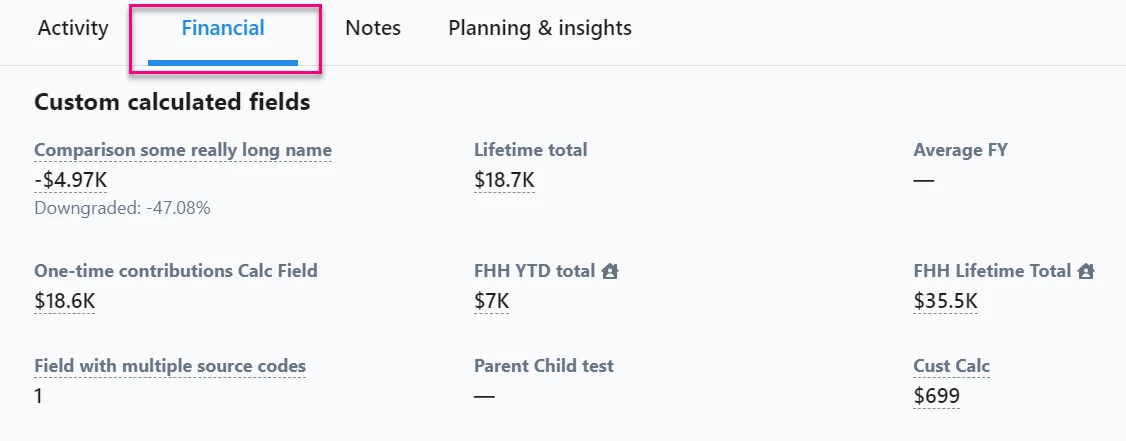
Comparison fields will appear with an Amount, a Percent Change, and a Status (see above for an explanation of Status.)
If the calculated field is based on giving from the entire Financial Household, you’ll see them noted with the house icon.
Searching on Custom Calculated Fields
You can use your Custom Calculated Fields to make a list of contacts by using them as criteria from the Custom Contact Fields section of Create a List.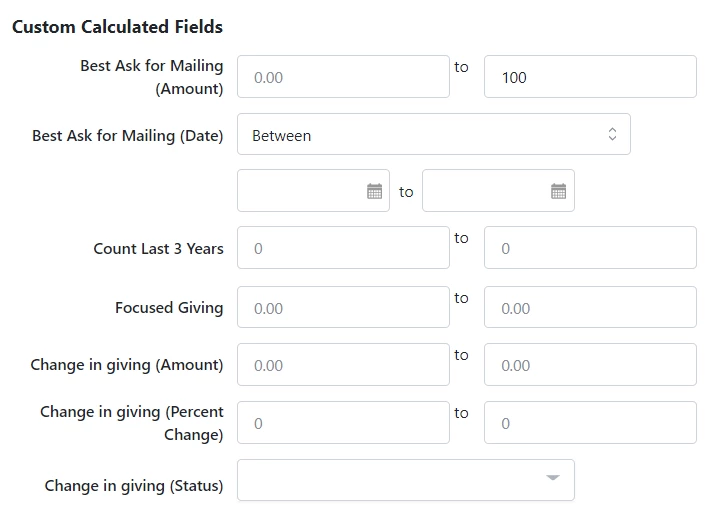
Custom Calculated Fields of the type Total or Average will display with a single range selector for an amount.
If your Custom Calculated Field is one that identifies the highest or most recent contribution, you will see an amount selector but you will also see a date range selector.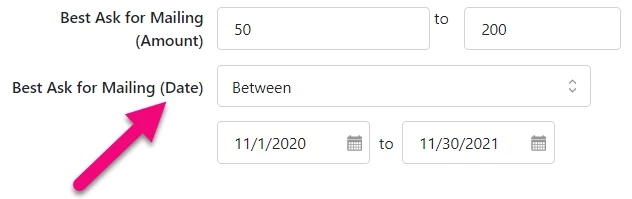
Custom Calculated Fields that use comparisons will have selectors for choosing an Amount range, a range for percent change, and an option to select one or more statuses.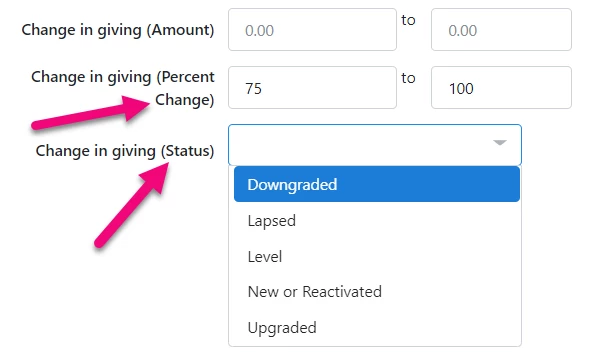
Adding to reports
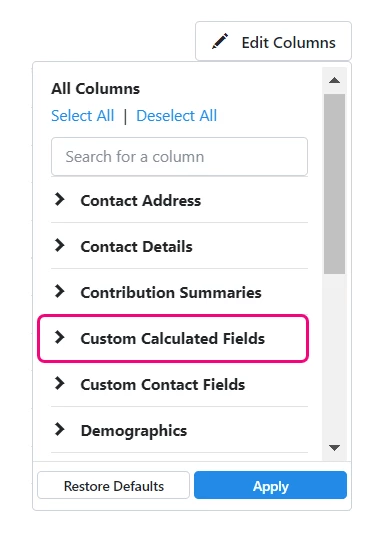
You can also include your Custom Calculated Fields as additional columns in many of your reports, including:
-
Attributions & Soft Credits Report
-
Changes to Contact Records Report
-
Contribution Aggregate Report
-
Membership Report
When you add a highest or most recent type calculated field, you will see a column for amount and one for date for each field. If you add comparison type Custom Calculated Fields to your report, you will see separate Amount, Percentage, and Status columns for each field.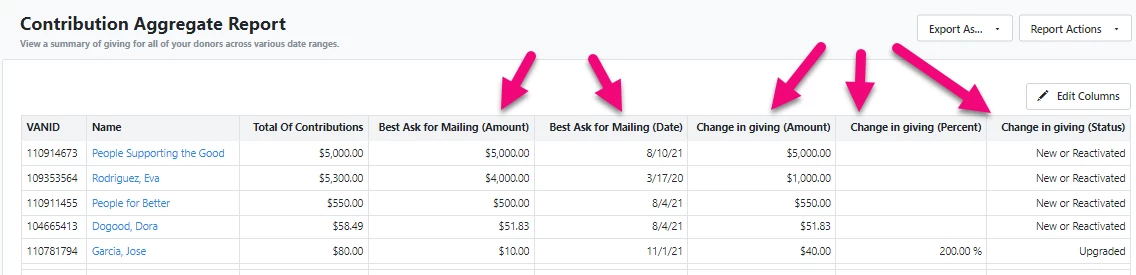
Exporting with your list
You can add Custom Calculated Fields to any list you plan to export by customizing the Standard Text Export.
Read more about exporting lists
From My List, select Export > Standard Text > Customize Export.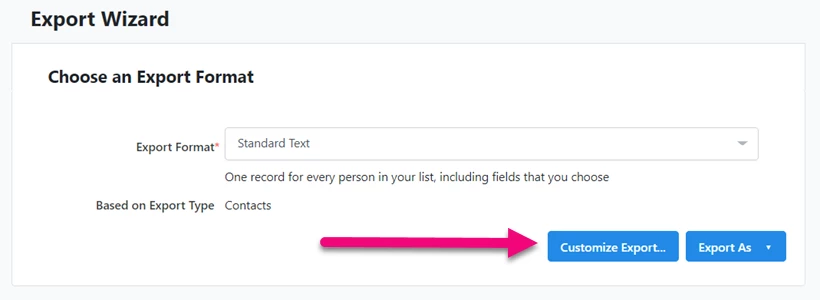
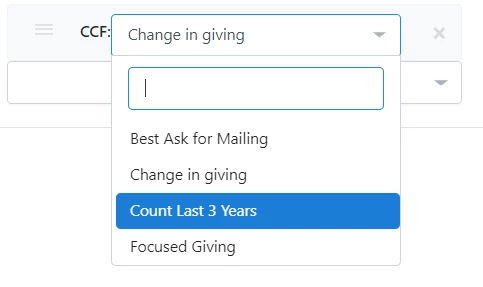
From the Fields to Export section, use the dropdown to search for Custom Calculated Fields.
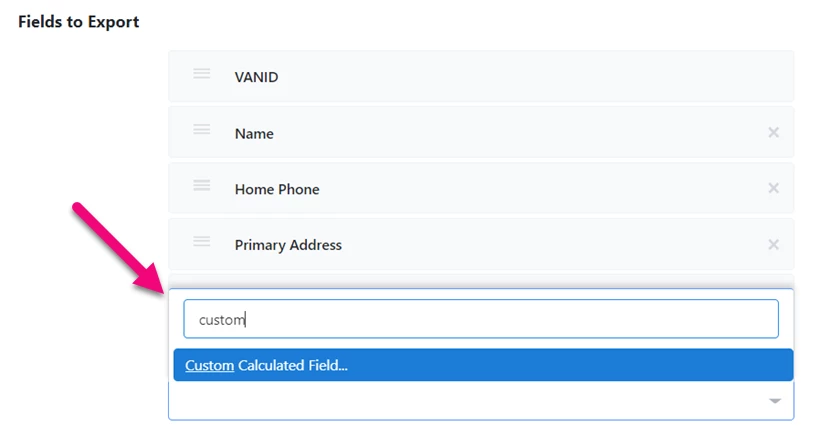
You can then find the specific fields you want to include.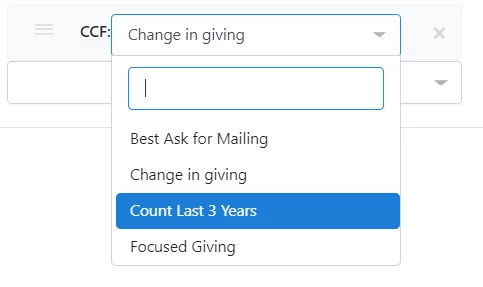
Multiple columns will be added to your report for any comparison fields you add, including one for amount, one for percentage, and one for status. Any highest or most recent type Custom Calculated Fields will have columns for amount and date.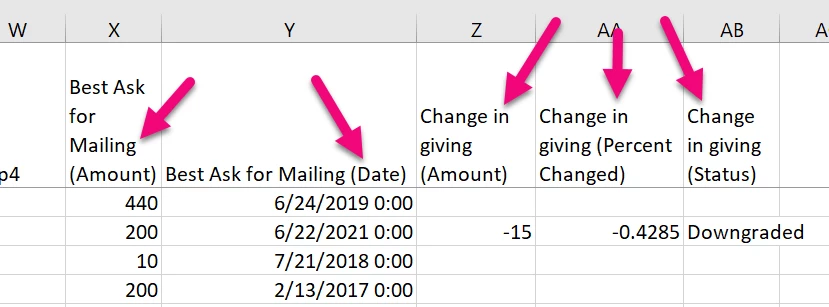
Exporting in Direct Response Plans
You can also add Custom Calculated Fields to your Direct Response Plan exports.
Read more about customizing and exporting your Direct Response Plan
When you are ready to export your approved plan, select Customize Export.
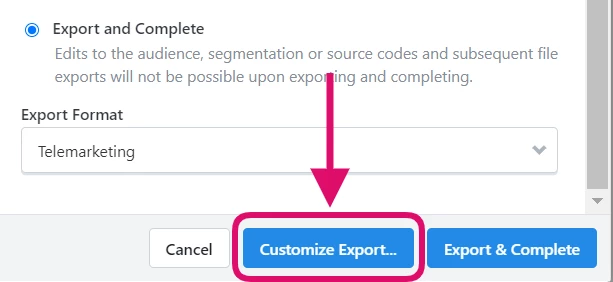
From the Fields to Export section, use the dropdown to search for Custom Calculated Fields and after you add it, use the dropdown to search for the specific field you wish to add.