



Start by clicking on Report Manager from the main menu or from Sidebar.
Users may see other report tools; if so, click on Counts and Crosstabs on the lefthand menu.
Next, click on 'Counts and Crosstabs Formats'.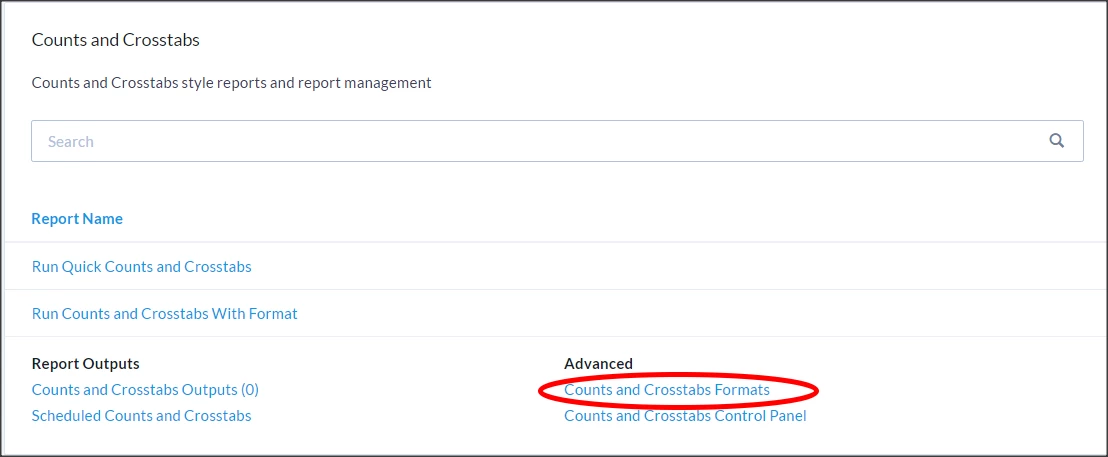
Click 'Add New Format.'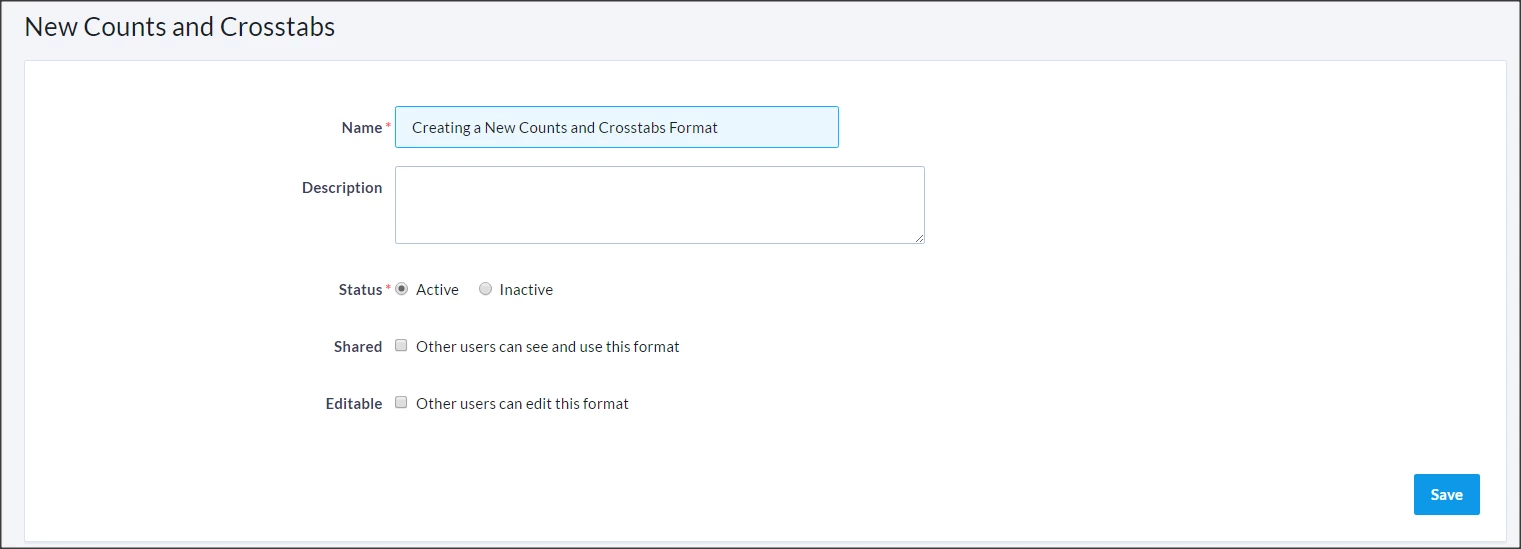
Enter a name, description and choose whether other users can see and use or edit the format. Click Save.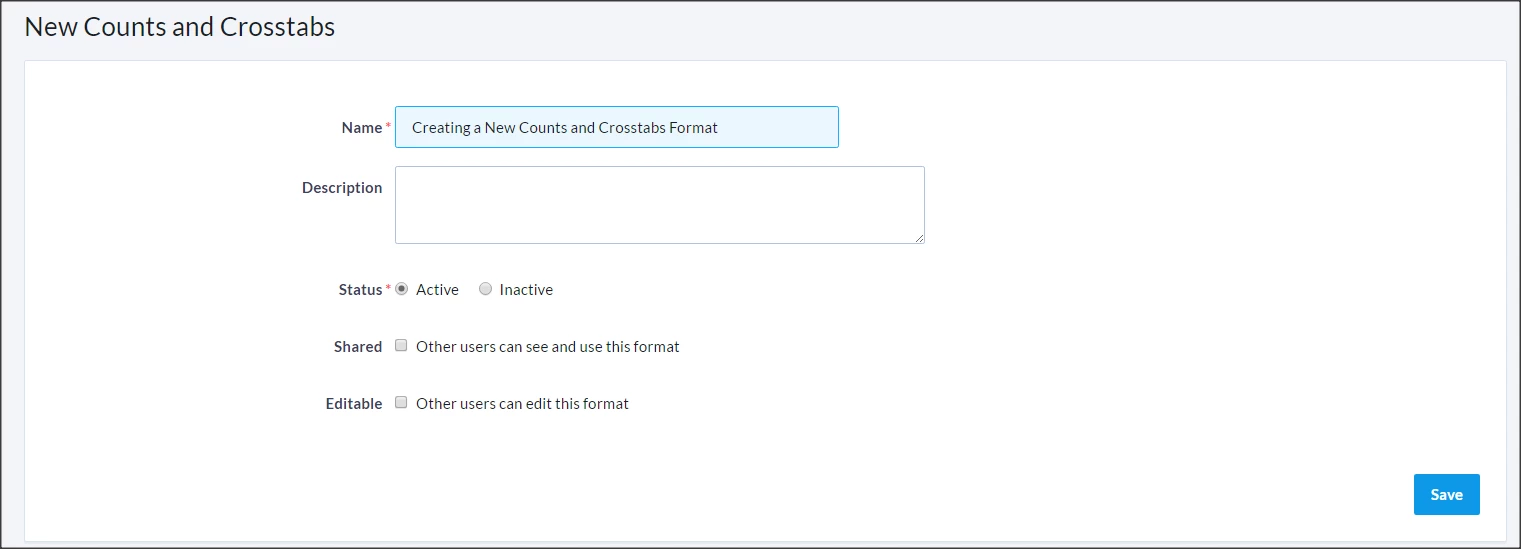
Scroll down to Settings, and choose settings if you would like the counts to be of people, doors, mailboxes, or phones.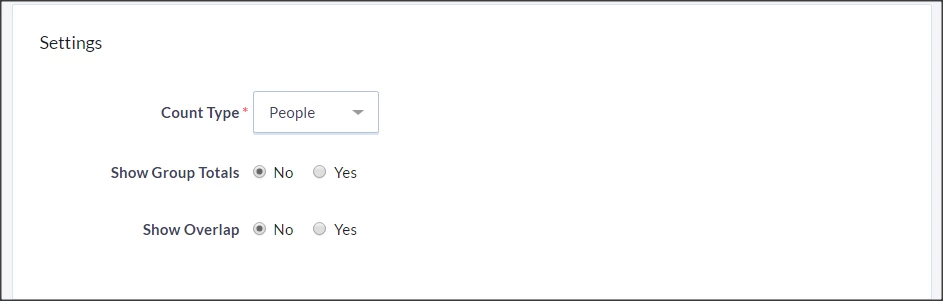
Next, create your crosstabs format by selecting Rows and Sections (columns) and clicking ‘Save New’. In the example below, an Activist Code and Age have been selected for Rows and Sections respectively.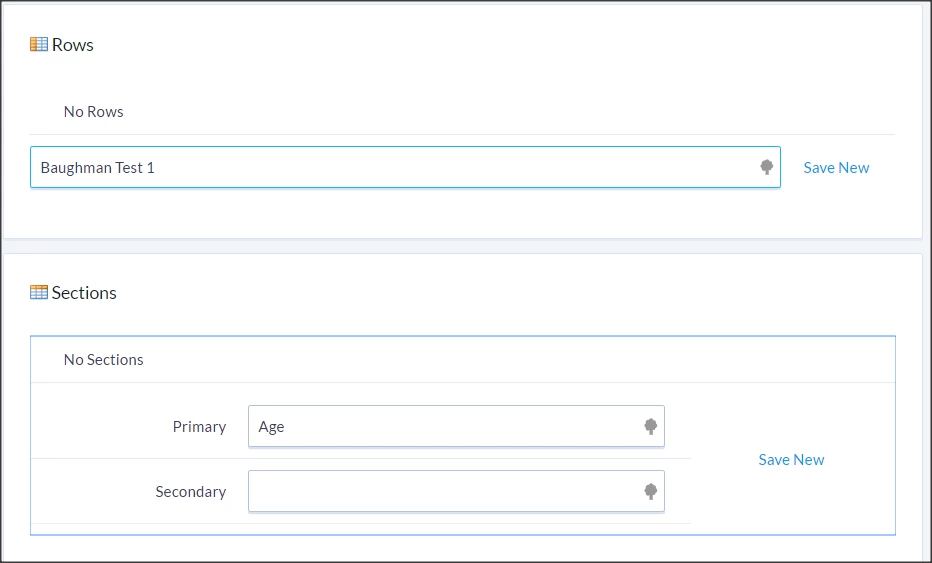
A preview of your format will display below. Add additional Rows or delete fields. Click on Options to show percentages.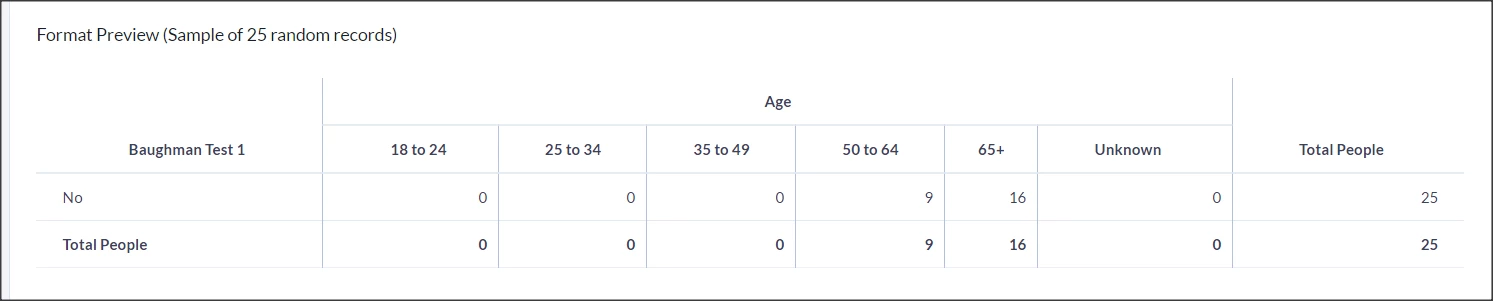
When finished, click ‘Save’ or ‘Run’ under ‘Actions. You can also schedule reports to be sent to you in this format.