



Counts and Crosstabs allow you to analyze data by comparing various data points. For example, you can view a target universe by age and city. This is particularly helpful in deciding how to target various subgroups of contact records
Running Quick Counts & Crosstabs
There are two ways to access Counts and Crosstabs. The first is from the My List page. If you have created a list of records for which you'd like to analyze with Counts and Crosstabs, you can click on the Counts icon on the My List page.
To begin the alternative workflow, which is best for running quick Counts and Crosstabs on the entire database, go to Report Manager from the Main Menu (or Sidebar).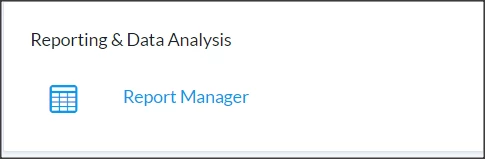
Once in Report Manager, click Counts and Crosstabs in the left-hand side menu. Then click on Run Quick Counts and Crosstabs.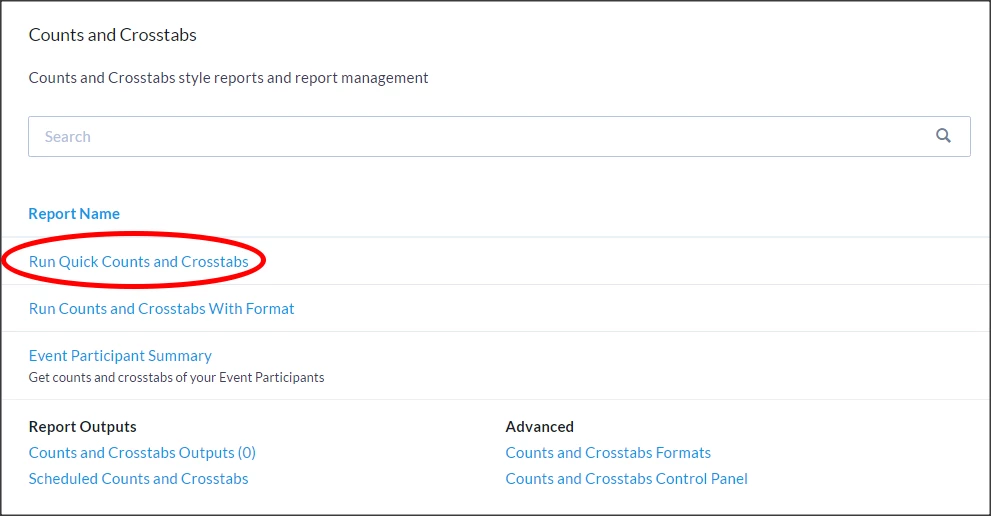
From My List, Counts & Crosstabs will default to analyze the current list loaded.
If you open Counts & Crosstabs from Report Manager, the tool will default to analyze the entire universe in the database ('All People'). You can adjust the universe by using the dropdown just above and next to the Refresh Results button. You can also use the dropdown to the left to view counts of people (i.e. contact records), doors, mailboxes, or phones.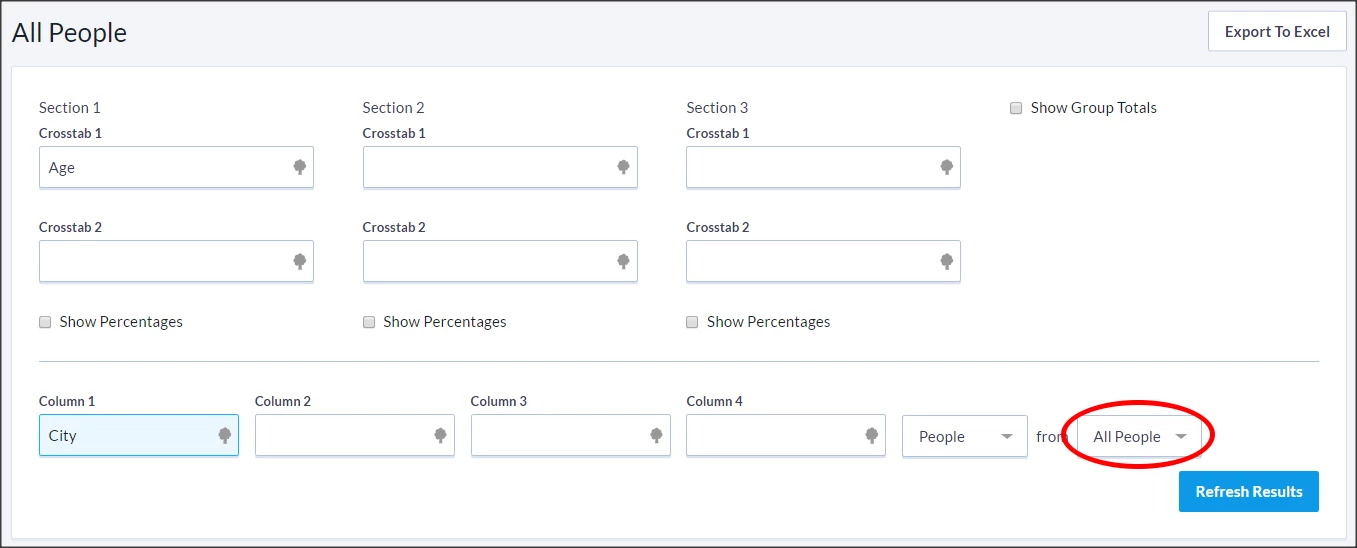
Select fields for Crosstabs and Columns. The fields available include geographic regions, age, sex, Activist Codes, and Survey Questions.
In the example below, Issue Activist Codes is selected in two Crosstab sections, and then Donor Activist Codes is selected in the columns.
Keep in mind that geographic regions are only available in Columns, not Crosstabs. Additionally, if the list or universe being used is over 50,000 records, Counts and Crosstabs will be Generated, rather than Real Time. This means that changes to contact records will not be reflected in the results until the following morning.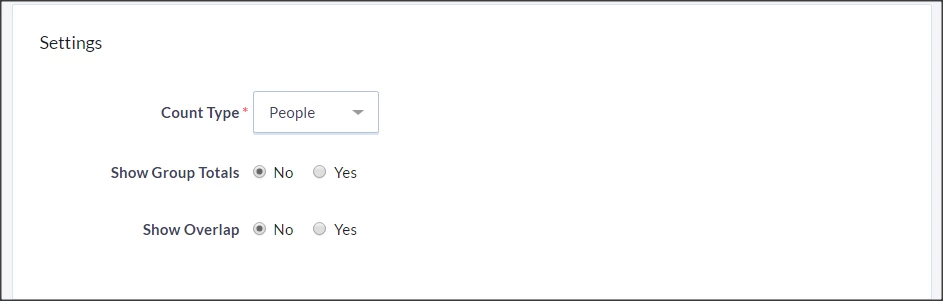
Once the Refresh Results button is clicked, the counts appear below: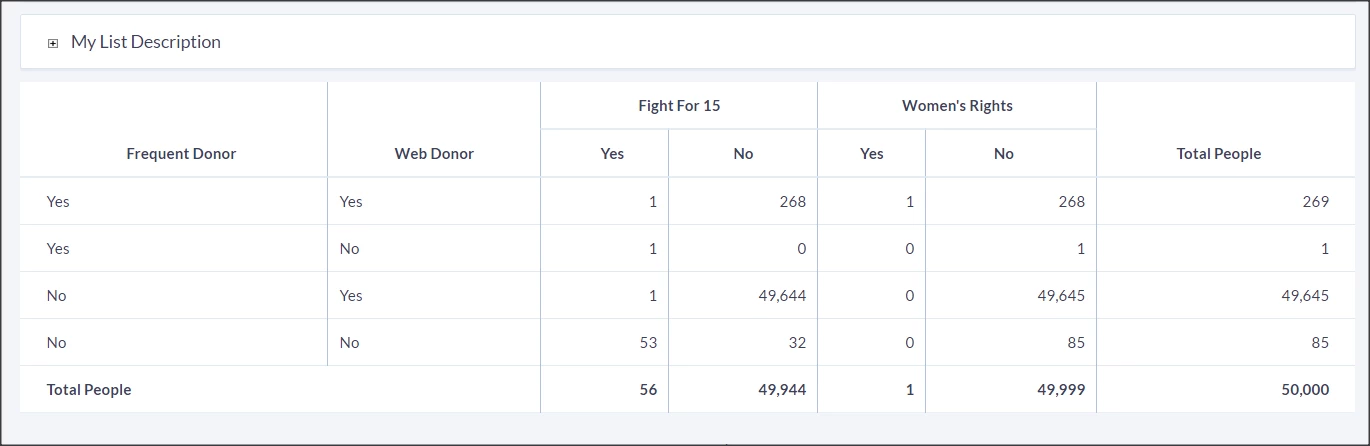
FAQs & Tips
-
You can also view by selecting Export to Excel
-
What is the difference between "Run Quick Counts and Crosstabs" and "Run Counts and Crosstabs with Formats"? Counts and Crosstabs with Formats allows user to create default settings for this report. Formats can be shared with other users. This ensures that everyone should be looking at the same report, assuming they have access to the same records and data in the system. In contrast, Quick Counts and Crosstabs does not have any default selections for rows and columns.
Read more on crosstab formats