


How do I add a contact record using Search?
Step 1: Start a Search
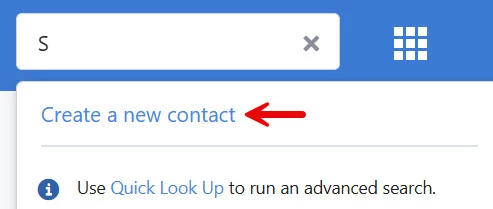
Use the search bar and input any letter or number. Click 'Create a new contact' in the drop-down list.
Step 2: Add the contact's details
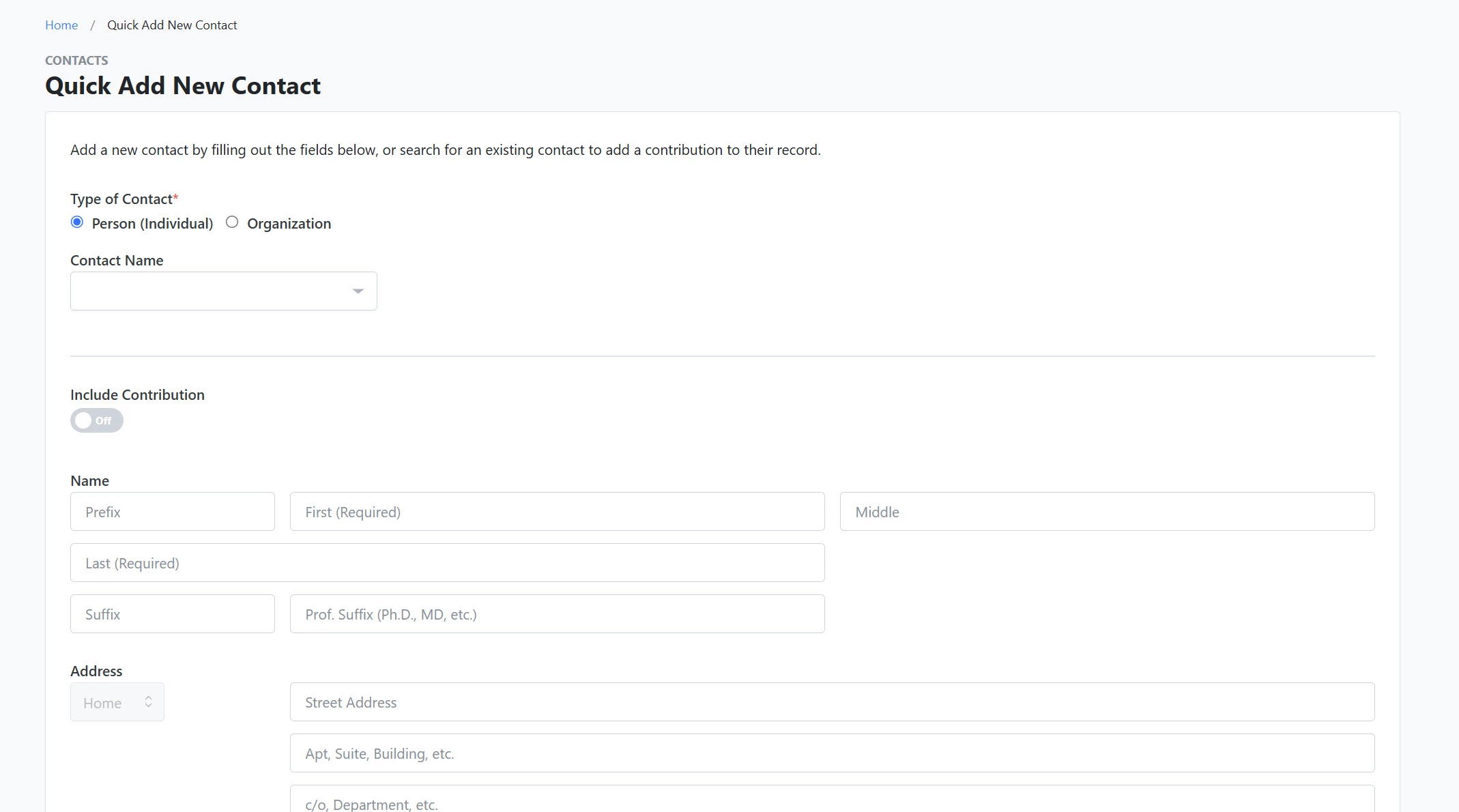
Input the contact's details. If applicable, toggle 'On' the 'Include Contribution' option and include the relevant information.
Step 3: Save the record
When you are finished, click 'Save' to permanently store the record in your database. If you need to create additional contact records, click 'Save and Add Another' and repeat this process as needed.

Not quite what you were searching for?
-
Navigate back to the Create & Add Contacts Resource Index.
How do I add a contact record using search? | How does add a contact record using search work in EveryAction? | Why can't I add a contact record using search? | Where do I add a contact record using search in EveryAction? | What is add a contact record using search in EveryAction? | How to add a contact record using search? | Can I add a contact record using search in EveryAction?