



The Notes feature in contact records allows you to enter custom information that provides helpful insights about contacts. The notes you create can be flagged for importance and turned into Pinned Notes, which are listed at the top of a contact record for easy reference and to quickly inform other users of important, must-know information about a particular contact.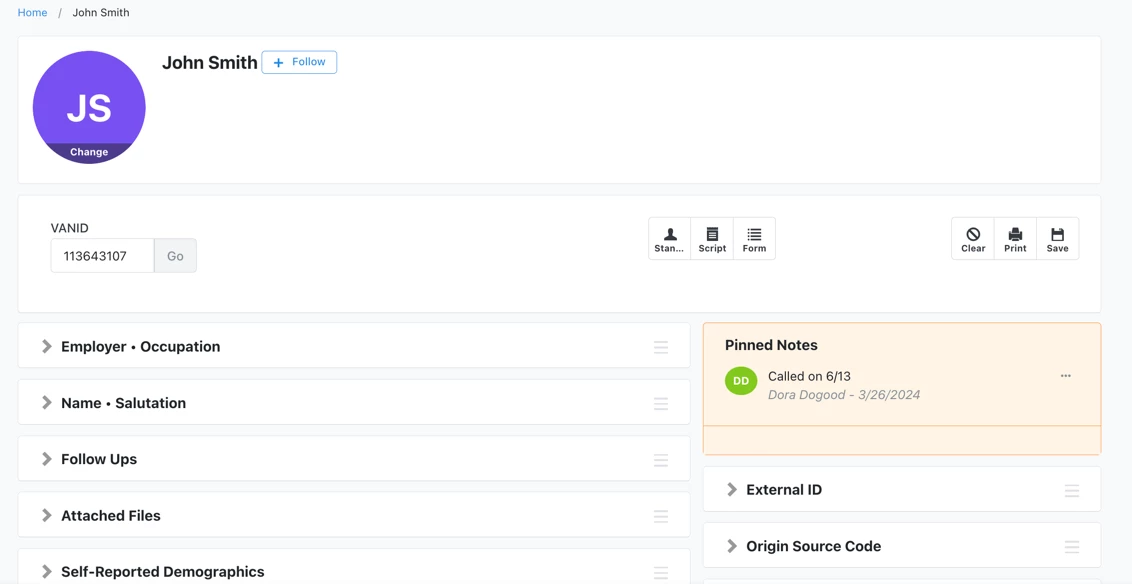
Creating a new Pinned Note
To create a note and pin it to a contact record, follow these steps:
-
Navigate to the desired contact record (All Details view) and expand the Notes section.
-
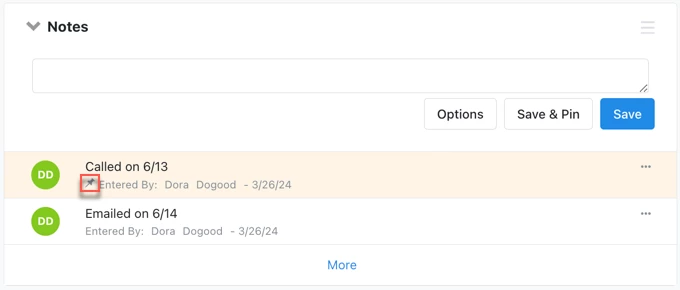
Type in the note and click Save & Pin.
-
You will see a thumbtack icon that indicates a note is pinned for this contact.
Pinning an existing note
To pin an existing note for a contact:
-
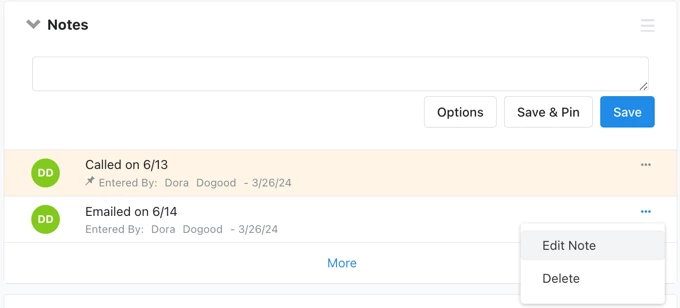
Click on the ellipses on the desired note and select Edit Note
-
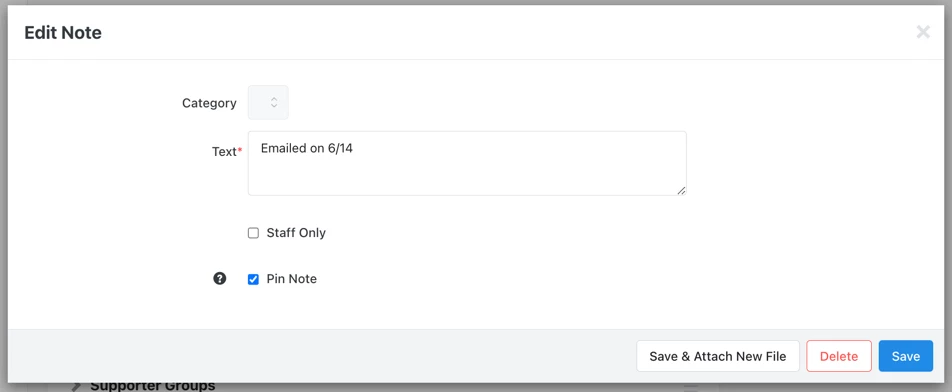
Check Pin Note, and click Save.
Removing Pinned Notes
To remove a pinned note, find the pinned note at the top of the contact record or in the Notes section and click Edit Note.
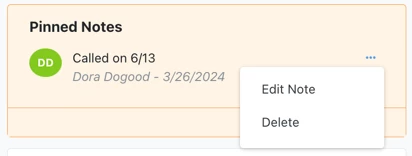
To unpin a note but keep it Notes section, simply uncheck the Pin Notes box.
To delete the pinned note, click Delete. This will remove the note from the contact record altogether.
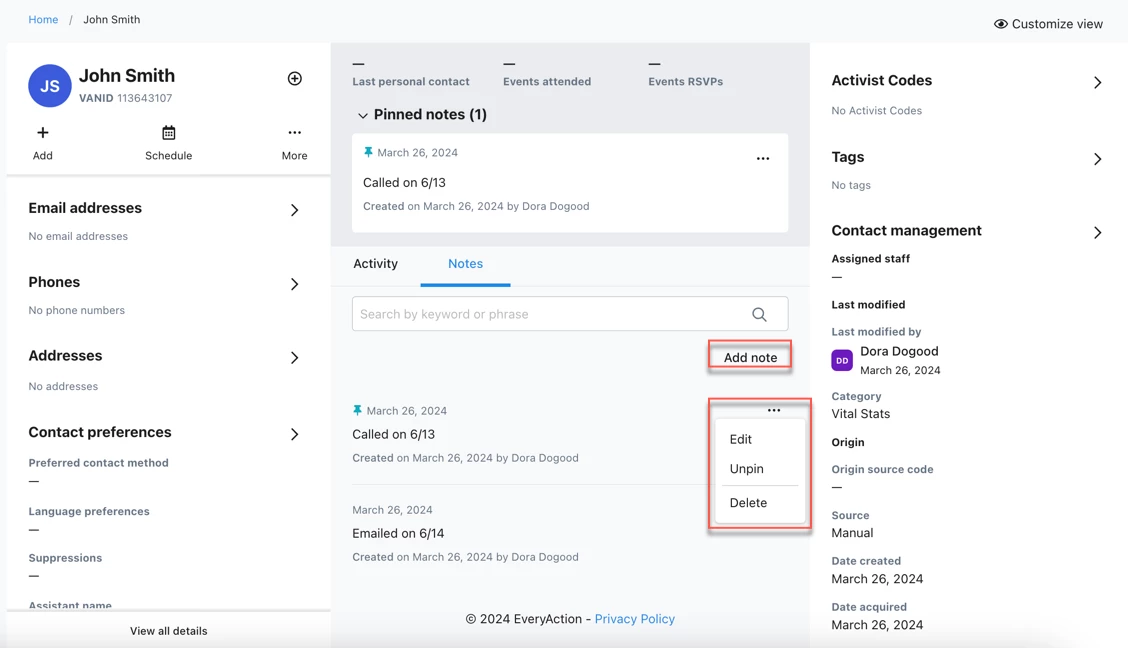
On the standard contact record view, the functions are the same. Pinned notes are displayed at the top of the contact record. Switch from the Activity tab to the Notes tab to see the options for adding, editing, unpinning, and deleting notes.
Doing more with Pinned Notes
-
Use Pinned Notes to filter search results in Create a List
-
Include your most recent Pinned Notes in report exports
Read more about exporting a list
Read more about creating and running reports in Report Manager
How do I how to: create pinned notes? | How does how to: create pinned notes work in EveryAction? | Why can't I how to: create pinned notes? | Where do I how to: create pinned notes in EveryAction? | What is how to: create pinned notes in EveryAction? | How to how to: create pinned notes? | Can I how to: create pinned notes in EveryAction?