



(4 min read)
Keeping track of important updates to major gift or high dollar donors, or to VIP supporters, is much easier when you use the Follow feature. Once you follow a contact, you can download specialized tracking reports or receive daily emails that notify you whenever your contact makes a contribution, contacts your member services team, or updates their personal information. Multiple users from your organization can Follow the same contact and personalize their notification settings.
Each user account is limited to following 1,000 contacts at a time. This limit cannot be raised, so it is important to use discretion when choosing the contacts you need to follow.
Following a contact
From the All Details screen of an individual contact record, you can use the add button next to their name to Follow your contact.
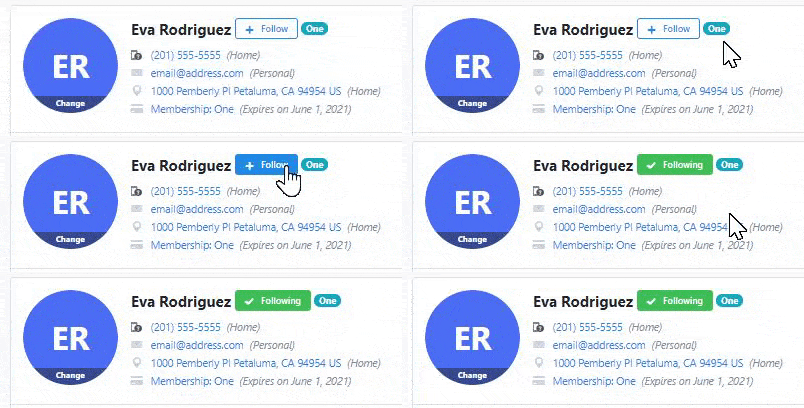
From the Contact Record view, click the plus sign next to their name to Follow.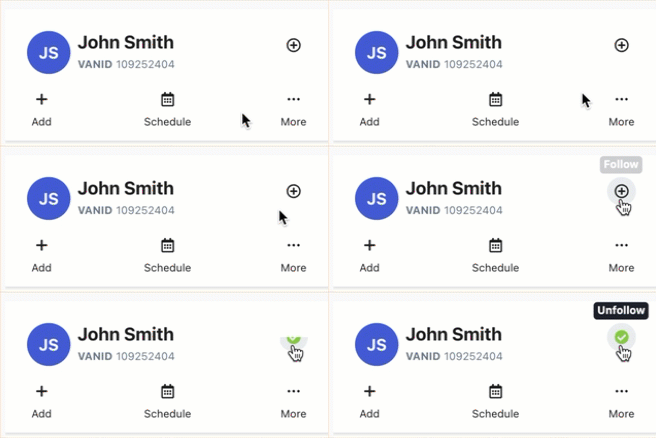
You can also follow multiple contacts at once if you are using the Bulk Upload Wizard or Bulk Apply in My List.
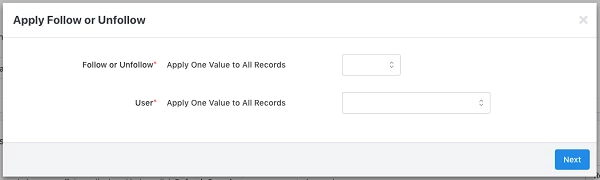
Depending on your package, you may also be able to set up an Automation that will automatically assign staff to follow-up with contacts based on the criteria you choose. This is particularly helpful for folks working with Major Donors or Planned Giving to identify contacts who are ready for the next step in their cultivation.
Read more about Automation
Customizing your Follow notifications
Once you have followed your desired contacts, you can set up how you want to be notified. You can generate a report (see below) or you can choose to email notifications daily, using Followed Contact Settings under your name in the upper right corner.
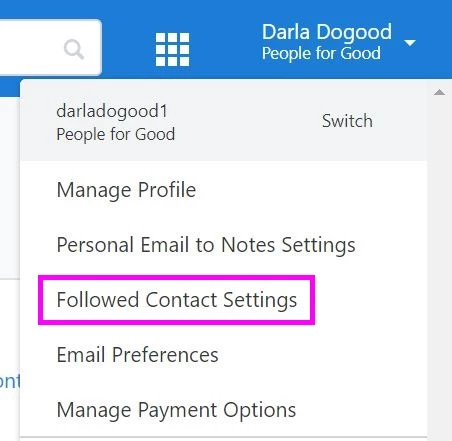
You can also reach Followed Contact Settings by using Manage Profile > Followed Contact Settings.
Email customization
From Followed Contact Settings, you can opt to receive notifications via email. You'll receive one email per contact each day to let you know what changes happened with your contact.
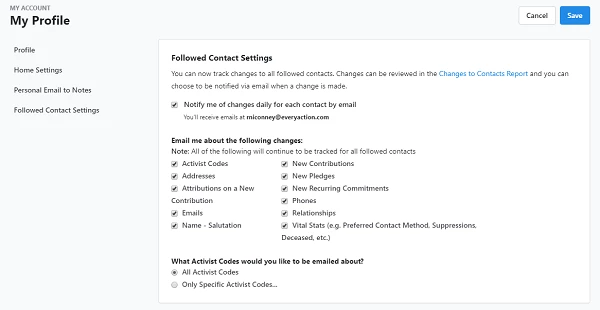
You can choose which changes you wish to track on your contacts. Uncheck any of the boxes for information you don't need and Save to schedule the emails.
- Activist Codes - If you choose this option, you can select to follow all codes or to limit notifications to only specific activist codes that you select.
- Addresses - Any changes in address are added to the emailed report.
- Emails - If the email address has changed, you receive an alert in your daily notification.
- Financial Household - This option includes any adds or changes to Financial Households and their salutations.
- Name - Salutation - Using this option will notify you if there is a change in the name or salutation of any followed contacts.
- Phones - If phone numbers are added or deleted, you'll be notified in the daily email.
- Relationships - This notifies you if there are any change to the relationships listed for any followed contacts.
- Vital Stats - This will update you with any significant changes to any of your followed contacts' Vital Stats & Contact Preferences. This will track things like Preferred Contact Method, Suppressions (such as Deceased or Do Not Mail), Assigned Staff, and so on.
- New Contributions - This alerts you to any new contribution that are not recurring payments. Changes to previous contributions are not tracked.
- Attributions on New Contributions - This will let you know if any of your followed contacts received any attributions for new contributions that others have made.
- New Pledges - This notifies you if any of your followed contacts have a new pledge. Changes to existing pledges are not tracked.
- New Recurring Commitments - If any of your followed contacts commits to a new recurring donation, you'll be notified in the daily email. Changes to existing recurring donations are not tracked.
These settings are for all followed contacts. Since this is a summary email for an entire group, you cannot customize these notifications for individual contacts.
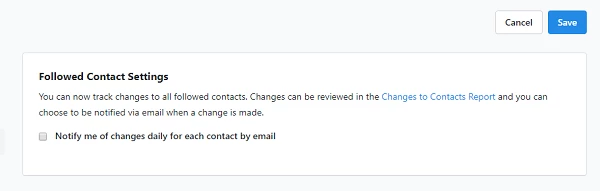
If you no longer wish to receive emails about your followed contacts, uncheck the Notify Me checkbox and save the change.
Changes to Contacts Report customization
If you'd like to generate a report of changes that have been made in the last 30 days to all your followed contacts, you can use the Changes to Contacts Report. You can reach this report by using the link in the Followed Contact Settings from the User Menu under your name in the upper right corner or by searching for it in the Report Manager.
You can do some customization of this report using Edit Filters but you'll be limited to only followed contacts and only the last 30 days.
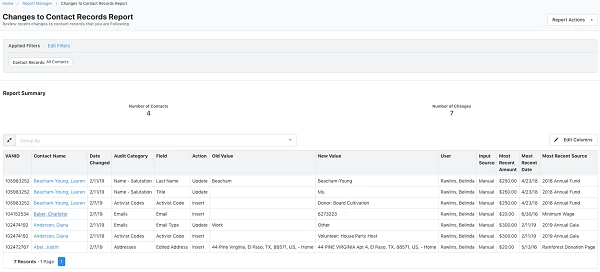
Although this report does not include information on new contributions, pledges, or recurring commitments, it does include a summary of the amount, date, and source code of the most recent contribution by the contact. You can use Edit Columns to add more summary fields to your form. Save or schedule the report to be sent to your email using the options in Report Actions.