


How to: Manage Confirmation Status and report on Confirmed Opt-In
(4 min read)
Using Confirmed Opt-In with your Online Actions can help you improve your Targeted Email responses by adding only supporters who are the most engaged to your lists.
After setting up your Subscription Confirmation email and enabling Confirmed Opt-In on your Online Actions forms, you can begin to track, manage, and report on your subscriptions.
Read more on setting up Confirmed Opt-In
Understanding your supporter's Confirmation Status
When new supporters take action using one of your Online Actions forms that uses Confirmed Opt-In, they will receive a Subscription Confirmation email asking them to verify that they wish to be added to your lists. Once your recipient uses the embedded link to Confirm the subscription, their email address will be authorized to receive your Targeted Emails.
Supporters who choose to opt-in are usually more engaged and more likely to open your messages, improving your email deliverability. You can track whether or not your supporter has accepted your opt-in request by using the email address's Confirmation Status.
From the contact record details, look for the Confirmation Status in the Email section using the All Details view.
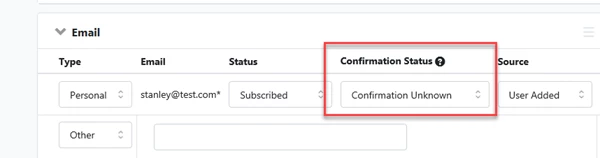
The different status options - Confirmation Unknown, Confirmation Not Needed, Pending, Sent- Not Confirmed, and Confirmed - describe where in the confirmation process a particular email address is.
Confirmation Unknown
- Before your Subscription Confirmation email is first set up, all email addresses have a confirmation status of Confirmation Unknown.
Pending
Emails that show as Pending are either:
- a newly subscribed email address added via an online form that has Confirmed Opt-In enabled, or
- an address you manually updated to the confirmation status of Pending.
Any contact with a Pending status will automatically be sent a Subscription Confirmation email. This happens immediately for any contact who has submitted a form using Confirmed Opt-In. Contacts who have been manually updated to Pending will receive their Subscription Confirmation email within an hour.
Sent - Not Confirmed
- Once a Subscription Confirmation has been sent to a Pending contact, their status will be updated to Sent - Not Confirmed.
- If your contact does not click on the confirmation link in your email, their status will remain as Sent - Not Confirmed.
Confirmed
- If your contact confirms their opt-in using the link in the Subscription Confirmation email, their status will update to Confirmed.
Confirmation Not Needed
- For email addresses that you are certain do not need to be confirmed, such as staff or board member email addresses, you can update the confirmation status to Confirmation Not Needed.
If a contact has multiple emails, each email needs to go through the Confirmed Opt-In process separately so you may see different statuses on each email address.
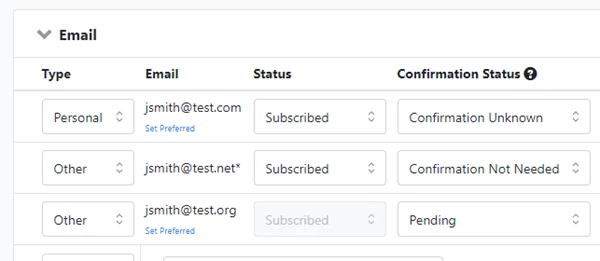
Using Confirmation Status with Targeted Email
Targeted Email uses the Confirmation Status to automatically determine which contacts to include or exclude in your mailings.
Targeted Emails are sent to all Subscribed contacts in your list who have the Confirmation Status:
- Confirmation Unknown
- Confirmation Not Needed
- Confirmed
Targeted Emails are not sent to contacts that are:
- Pending, or
- Sent- Not Confirmed,
regardless of their Subscription status.
The best way for you to get an accurate count of the number of email addresses that can receive your Targeted Email is the Email Address Status Report available in the Report Manager.
Filter the report by setting the Email Address Details > Subscription Status to Subscribed and the Confirmation Status to Confirmation Unknown, Confirmation Not Needed, or Confirmed.
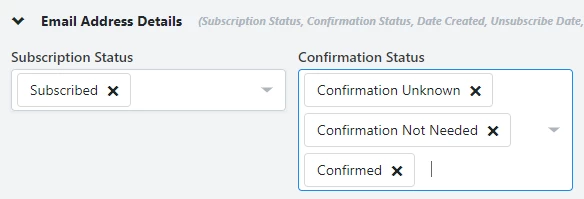
You may see multiple rows for each contact, since this report will show the status for each email in your records. For example, if you have 3 emails for a particular contact, you will see a separate row and status for each address.
Manually triggering confirmation for new or bulk uploaded emails
You can manually trigger confirmation emails for anyone who has not already been sent a confirmation email, like contacts with the status Confirmation Unknown or Confirmation Not Needed.
To manually trigger the confirmation process, update your contact's confirmation status to Pending from the Email section on their record (or by applying it to the mapped Confirmation Status column in your upload).
Within an hour, your contact will receive the subscription confirmation email and their status will be updated to Sent - Not Confirmed. If they click the confirmation link, the confirmation status will update to Confirmed. You will not be able to use this to re-trigger confirmation emails for anyone who has not accepted the original confirmation email.
Bulk updating Confirmation Status
If you want to update the Confirmation Status on several records at once, you can use the Bulk Apply feature.
From within the Email Address Status Report, click on Report Actions, and then Export & Apply Bulk Action.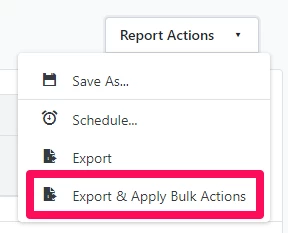
You can choose from the following options:
- Mark all email addresses as Subscribed, Confirmation Unknown
- Mark all email addresses as Subscribed, Confirmation Not Needed
- Mark all email addresses as Subscribed, Pending
- Mark all email addresses as Not Subscribed
- Mark all email addresses as Unsubscribed
The first three options will update Confirmation Status to the one specified, but only for emails with the Subscribed subscription status. The change will not be made for email addresses that already have the Confirmation Unknown or Confirmed confirmation status.
You cannot use the Bulk Apply to change emails from Pending to another status or from Sent - Not Confirmed to another status since these statuses are controlled by an automatic email and confirmation process (see above to understand how email addresses change out of these statuses).
And while you can bulk update a subscription status from Subscribed to Not Subscribed or Unsubscribed, you cannot do the reverse.
Read more on managing email subscriptions
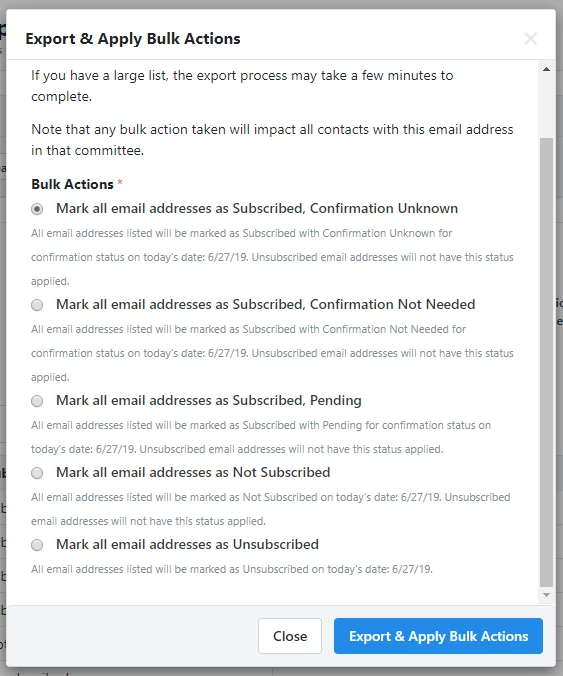
Select the update you'd like to make, then click Export & Apply Bulk Actions.
Reporting on Confirmation Status
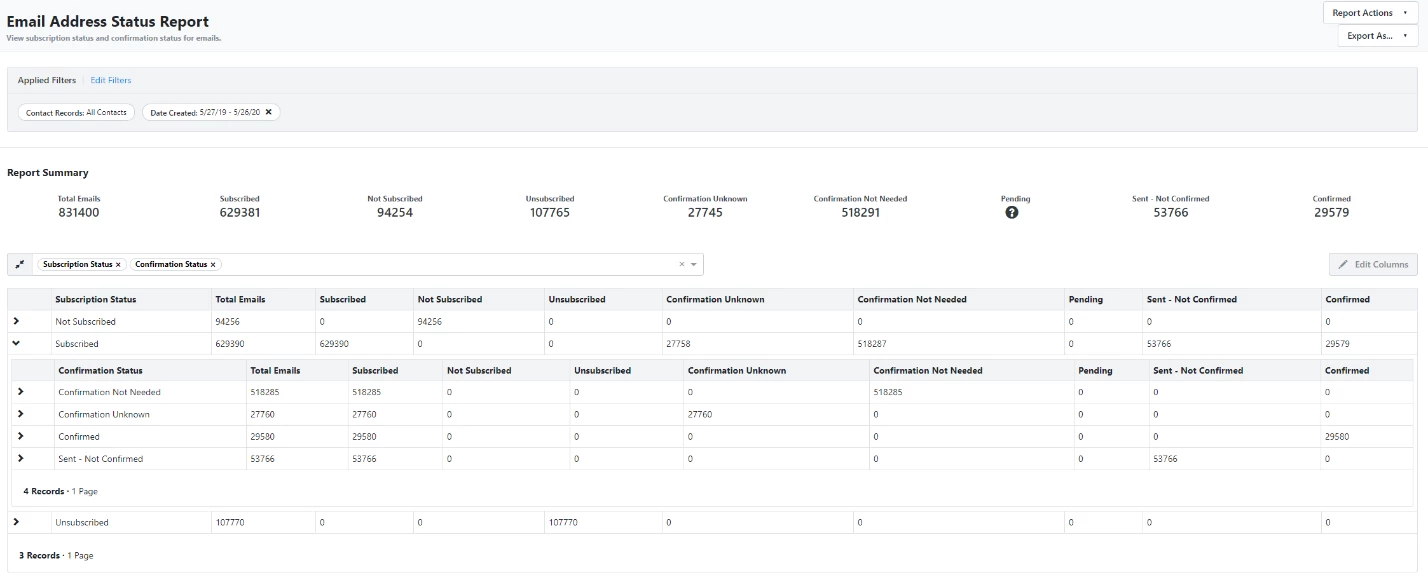
The Email Address Status Report allows you to see the subscription and confirmation statuses of each email in your database. You can open this report from Report Manager.
How do I how to: manage confirmation status and report on confirmed opt-in? | How does how to: manage confirmation status and report on confirmed opt-in work in EveryAction? | Why can't I how to: manage confirmation status and report on confirmed opt-in? | Where do I how to: manage confirmation status and report on confirmed opt-in in EveryAction? | What is how to: manage confirmation status and report on confirmed opt-in in EveryAction? | How to how to: manage confirmation status and report on confirmed opt-in? | Can I how to: manage confirmation status and report on confirmed opt-in in EveryAction?