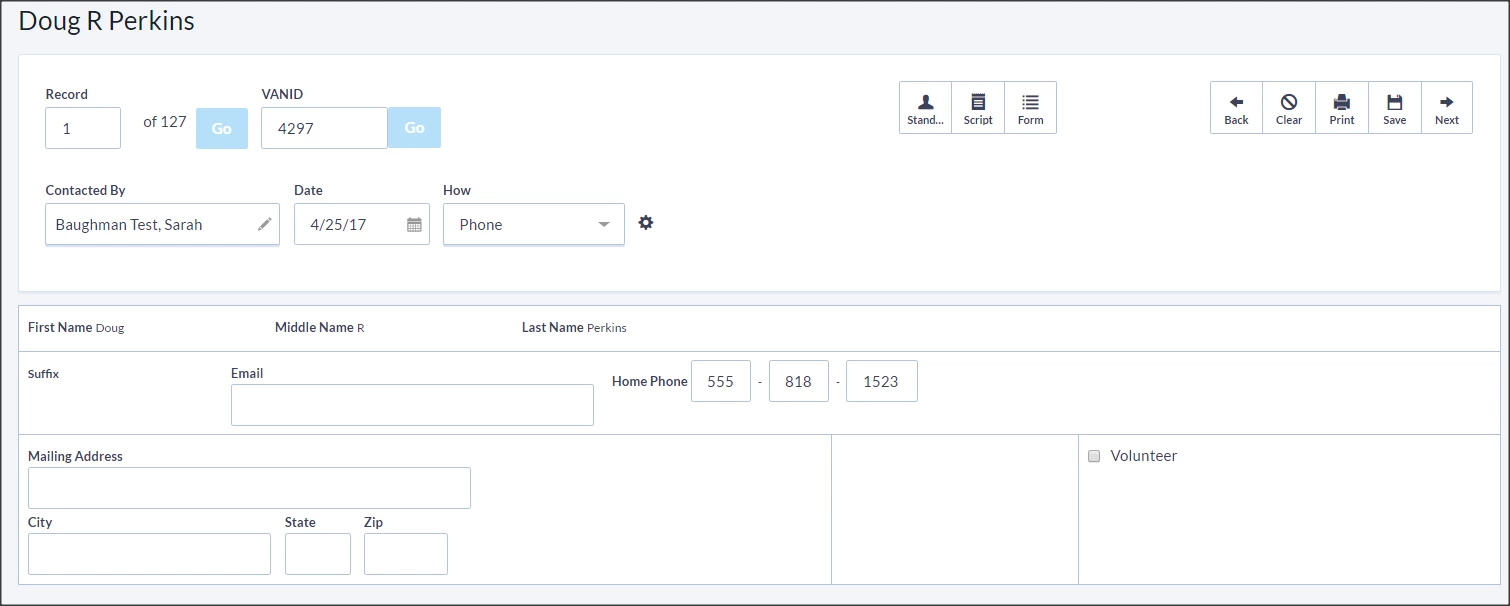
Form View allows you to enter data based on the fields selected for a Form. It is available for lists of 2,500 contact records or less. Form View is neither the fastest type of data entry, like Grid View, nor the slowest type of data entry, like Script View.
It is most useful in two cases. First, Form View is helpful when a Form has been printed out to collect information (at a meeting, for example) and you then need to enter that data. Second, it is also useful when you find yourself frequently entering in the same type of information about records.
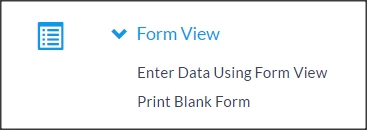
Using Form ViewYou can access Form View two ways. The user can click the Form icon from My List, or click Form View and then Enter Data Using Form View in the Load Data section on the Main Menu or Sidebar.

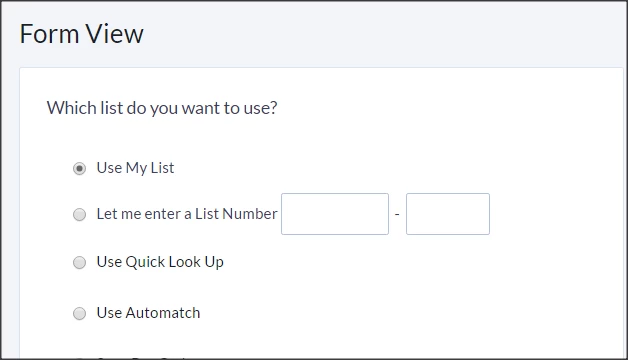
If you access Form View from the Load Data menu, you will be able to choose one of several options:
- Use My List - allows you to load their current list into Form View, entering data for those records specifically
- Let me enter a List Number - allows you to enter a list number from a printed list (this is generally used for door-knocking and canvassing, once volunteers complete their outreach)
- Use Quick Look Up - allows you to search for one record at a time
- Use Automatch - allows you to enter data while creating new records; the process will attempt to match new records to existing ones.
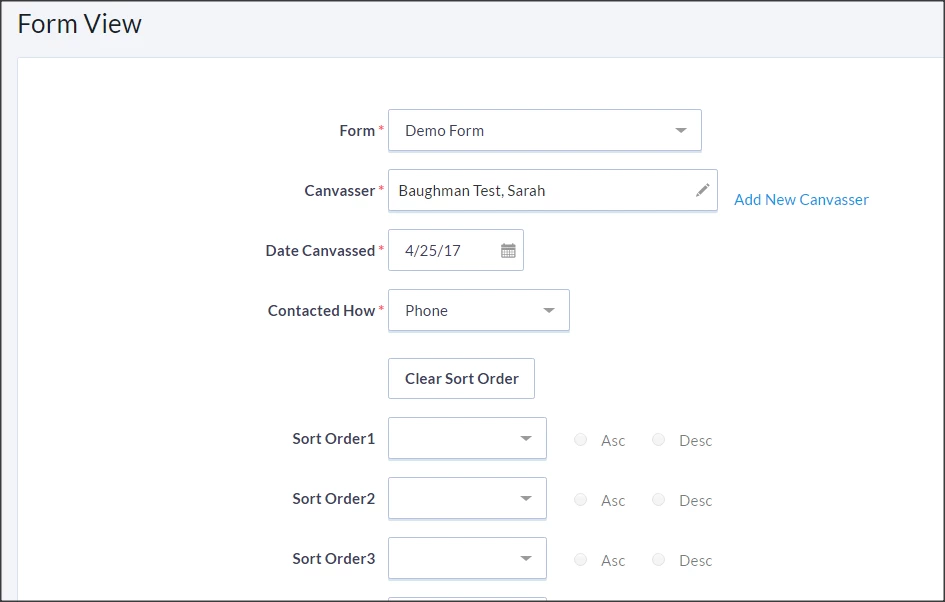
On the next page, you can choose a previously created Form, the Canvasser, Date Canvassed, contact method, and sort order. The Form determines how the information is displayed for data entry, based on which fields were added to the Form. When finished with the settings, click the Save/Next button to move on to the person on the list.
You can now input information one person at a time and click Save/Next to move on to the next person.