(5 min read)
Digital advertising is an important component of donor acquisition and relationship building and our digital ad tools make it easier for you to track your digital outreach efforts and see the results of those efforts over time.
With Digital Ad Plans, you can specify unique segments that you'd like to target with ads, export them to digital ad platforms like Google Ads, and then either target them directly or use them as the basis for a lookalike audience when acquiring new supporters and donors. Once you've launched your campaign, you will be able to track the cost and compare that to the money raised to create a report on the ROI of your digital ad spend. You will need to have a Digital package that includes Digital Ads in order to use this feature.
If you are specifically creating ads to use on Facebook, we recommend that you create your audiences using Ad Audiences that will help you create and manage your audiences on their platform. You can still set up a separate Digital Ad Plan for your Facebook efforts to help you track your budget and other details against similar efforts with other ad platforms.
Read more about Facebook Ad audiences
Getting started
You can begin creating your plan by searching in the Sidebar for Direct Response Plans and opening the plan list page.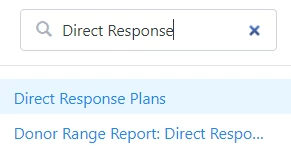
Select Create A Plan from the top of the page to add your new Digital Ad plan.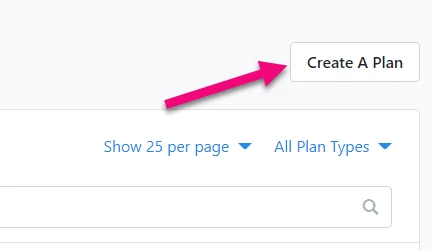
Setting up digital ad details
Add the basic information about your Digital Ad plan and then select Create to continue adding more details.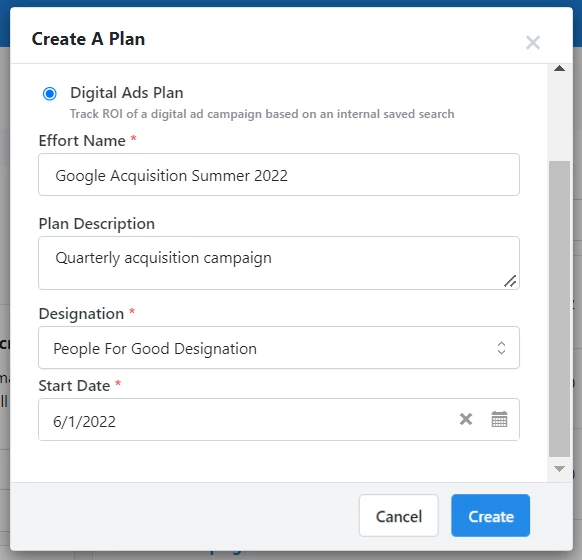
From the Details step, you'll be able to associate your plan with a particular campaign, add your budgeted cost, and list the platform and creative used for the ad.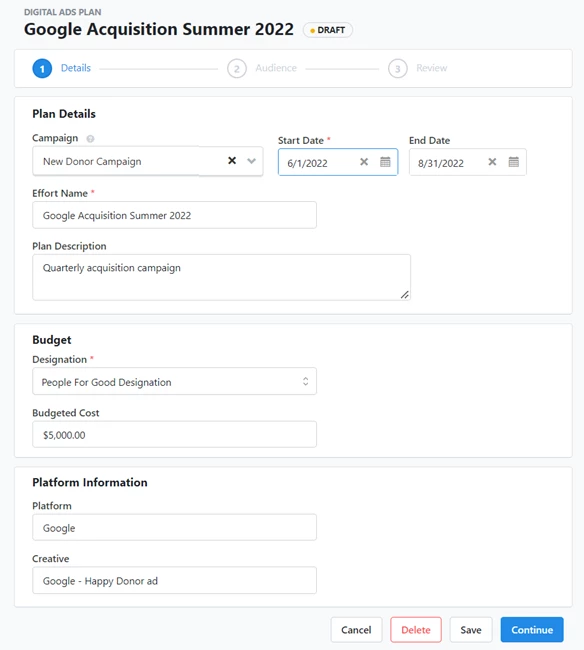
Defining your audience
In the second step, you can create or add a saved search to define your audience. If you are reaching out to existing contacts, you will use this as your exact audience on the advertising platform. You can also use this search to exclude existing contacts from your ads if you are running an acquisition campaign or you can use it as a model for a lookalike audience of users on the platform who match the same characteristics as your existing donors.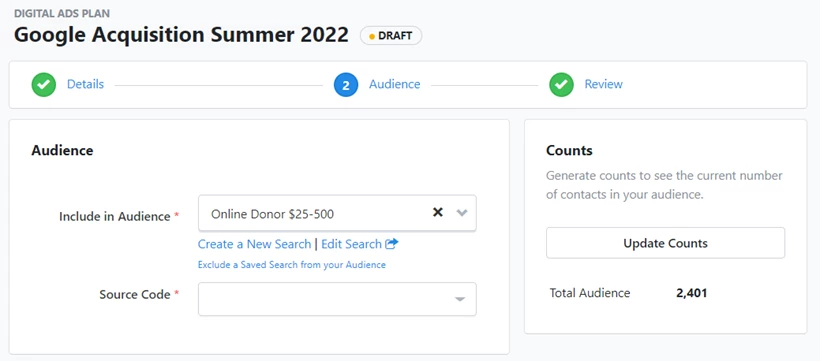
If you are using a custom audience to target your existing supporters with the ad (for multi-channel touches), you may also want to upload an exclusion audience, so that you don't pay to display ads to people who are already donors or subscribers.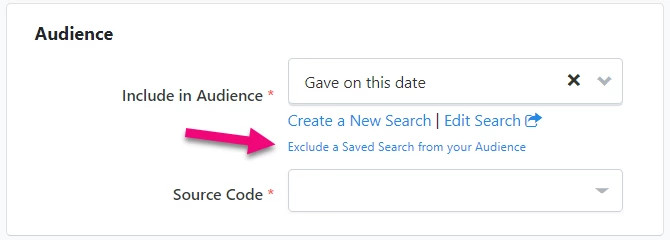
When you enter a Source Code to associate with these contacts you should choose one that is unique to this particular advertisement. When contributions are recorded later using this source code, your donor will automatically be associated with this Digital Ad Plan. This will make it easier to track the impact of this specific outreach effort.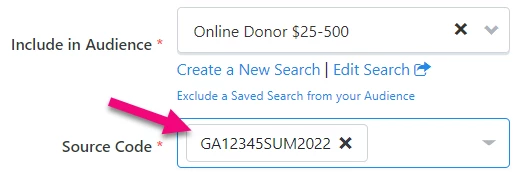
If you have new donors responding to your ads, this source code will also be the Origin Source Code for those new contacts. If the ad was used specifically for new supporter acquisition, you can use the Origin Source Code as the basis for tracking long-term ROI of this cohort of supporters.
To finish this step, be sure to confirm your audience size using Update Counts.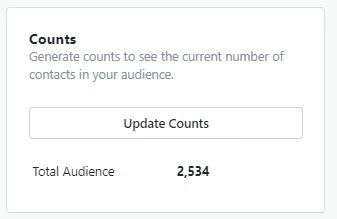
You'll also see a review section on this page that confirms whether you have completed all the steps to set up your Digital Ads Plan.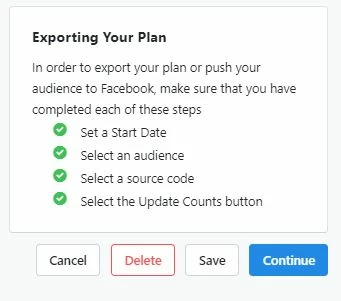
Reviewing and exporting
In the review step, you'll have a chance to review everything in your plan nd correct any errors before exporting your plan.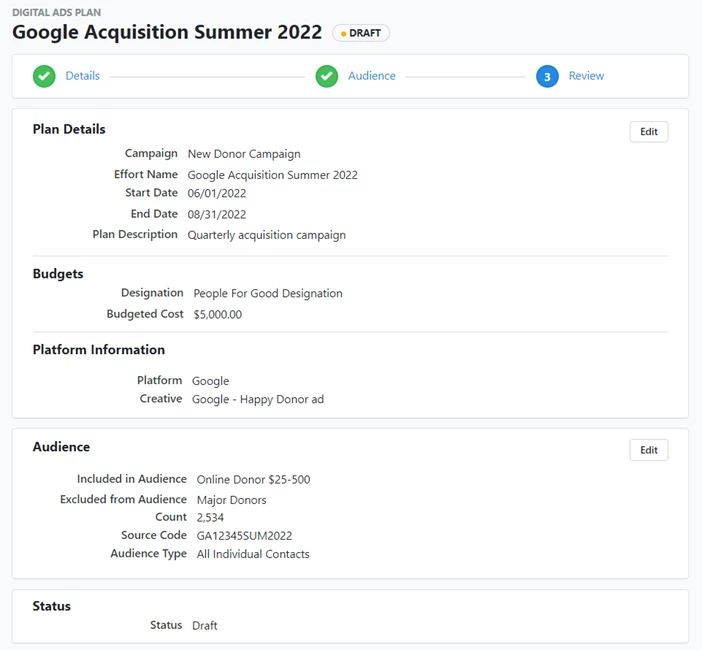
The review panel will highlight anything that is missing in your plan.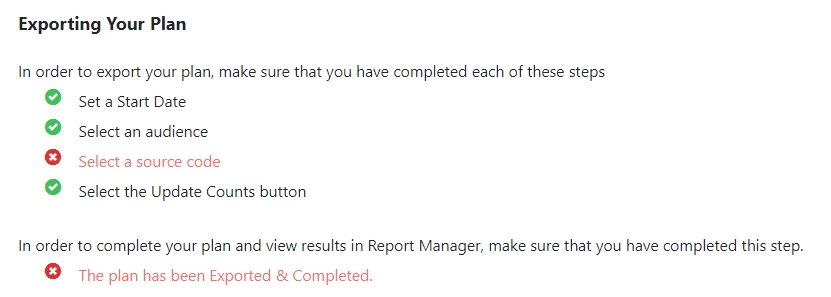
Once you are satisfied with this information, you can then Export & Complete the audience list to send to your advertising platform.
You will be asked if you wish to update the Contact History of the records in your list. If you are targeting specific contacts with your ads, you should select Yes. If you are using your contacts to create a look-a-like audience on your chosen platform, select No so your contact records are not altered since you aren't actually targeting these supporters.
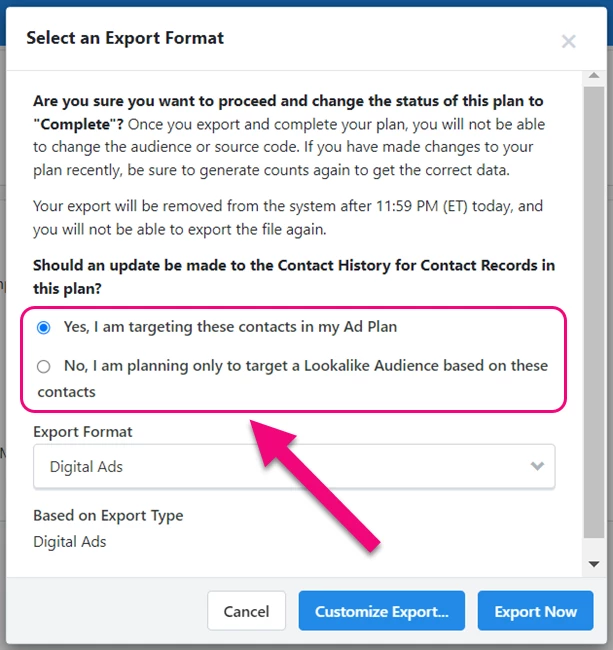
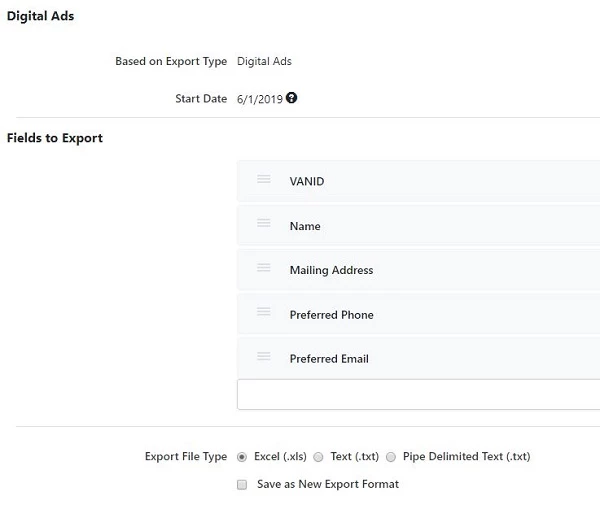
With Customize Export, you can choose which contact fields to include and which format to use for the file. This file will be available for download under My Exports once it is ready.