


How to: Clear early vote data and manage early vote settings
(5 min read)
As an administrator managing early vote settings in your database, you can:
-
Clear early vote data
-
Update the election cycle. To add a new election cycle that’s not listed, contact Support.
-
Customize Early Voting settings in Create a List according to your GOTV plan
-
View and manage Early Vote Fields
-
Activate and deactivate certain Early Vote Fields
-
Add custom dropdown field values to certain Early Vote Fields
SmartVAN, which is not managed by national administrators, maintains early vote data and locations differently:
-
TargetSmart provides voter file data, including early vote data. To receive notifications about upcoming voter file updates on SmartVAN, contact their support team.
-
While neither TargetSmart nor VAN provides early voting locations, you can send polling location files in a Support Request for upload.
-
Our team can update some early vote settings before an election. You can also send an in-app Support Request to ask to have settings changed. Whether or not your request is honored depends on how other users will be affected. Settings are applied statewide.
Clearing old data and updating elections
View the election cycle in the Early Voting sections of Create a list and on individual contact records. You can clear vote data and update the election cycle. If the election cycle is not listed, send a Support Request to have it added.
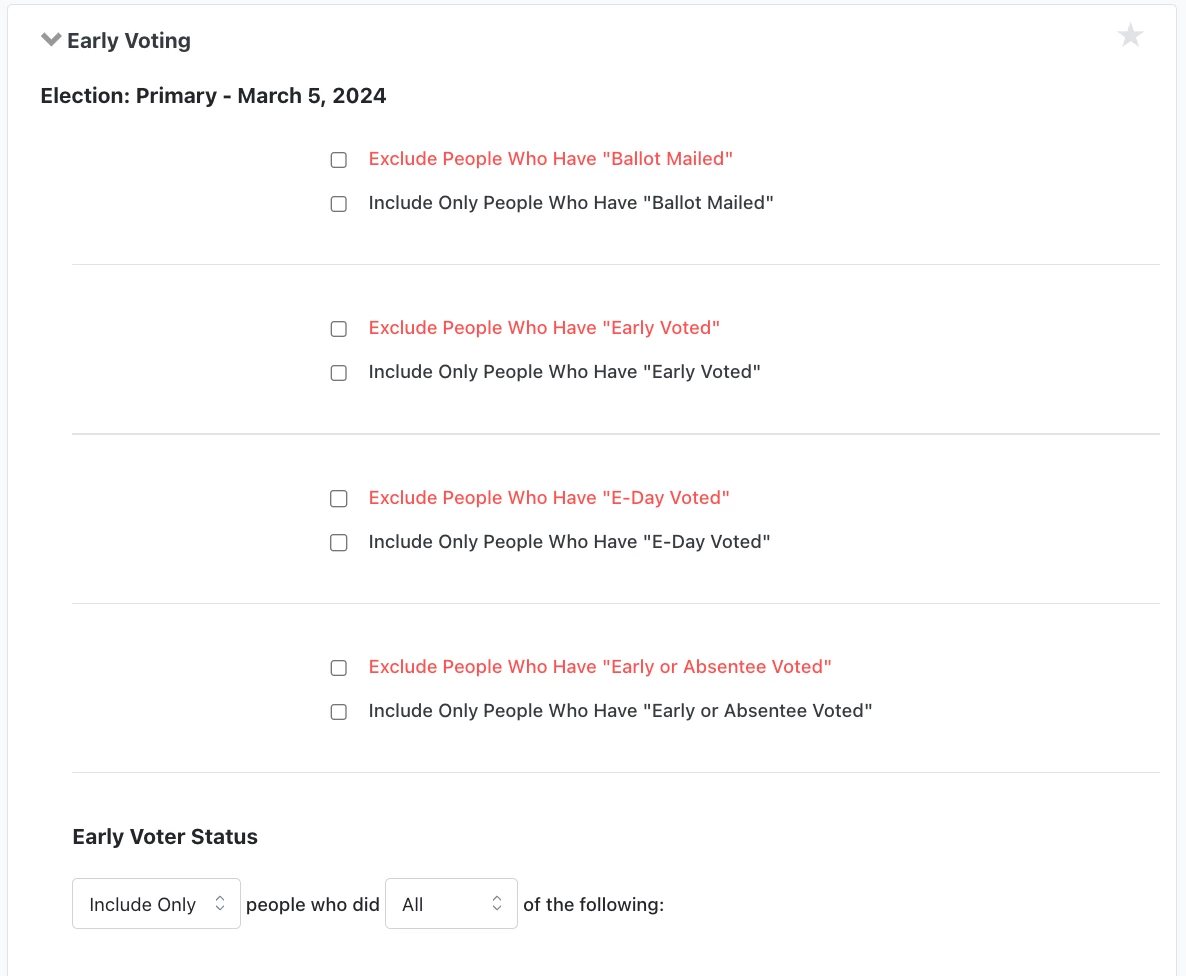
Early vote data is tied to whichever election cycle is set at the time. Reset your early vote data after each election to avoid merging an old data set with a new one during the next election.
If we do not have the election for which you would like to track early vote data on file, we will ask for the following details:
-
Election Name - Description of the election, e.g. Sep 8, 20- New Hampshire Presidential Primary
-
Election Type - Categorize the election:
-
General
-
Primary
-
Presidential Primary
-
Special Primary
-
Special General
-
Runoff
-
Municipal Primary
-
Municipal General
-
Other
-
-
The following fields are optional:
-
Election Month - The month of the election
-
Election Day of the Month - The day of the election
-
Election Year: The election year
-
State Code: Location of the election
Accessing and Editing Early Vote Settings
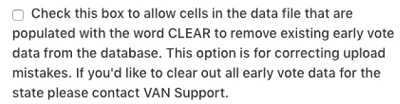
If you find that you or another user loaded incorrect early vote data, you can correct it by simply uploading a new file. The most recent data will override any existing early vote data on those records.
To clear incorrect data, your file must have CLEAR in the cells that you want to empty. When you select Apply Early Vote Info in the mapping dropdown, check the box for clearing out data.
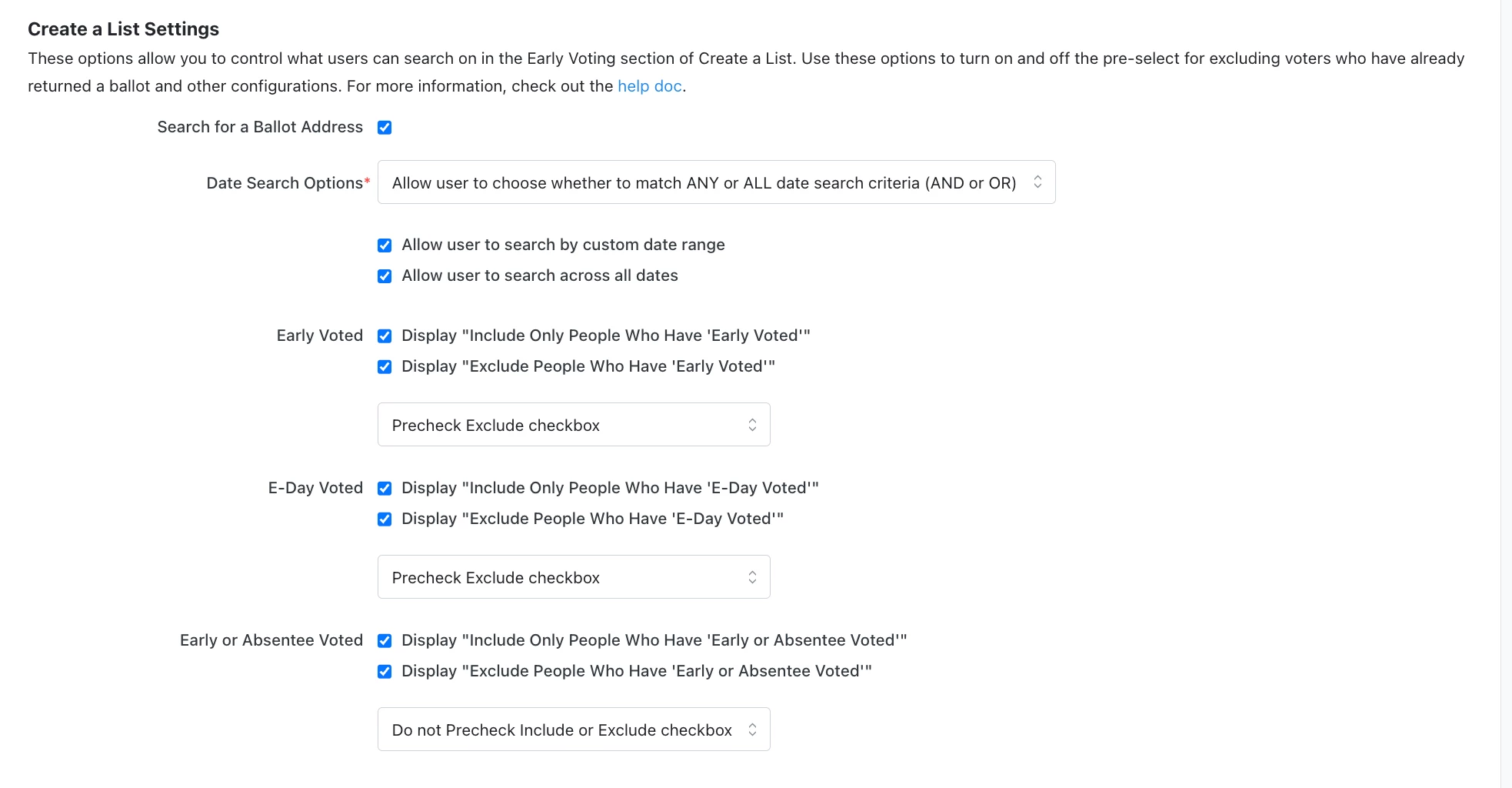
Access Early Vote Settings in My Voters from the Sidebar to view and edit settings for committees in the state where you are logged in. From here, you can control certain settings in your committee, including the following presets:
-
Pre-check “Exclude anyone who has voted on Election Day” in Create a List
-
Pre-check “Exclude anyone who has early voted” in Create a List
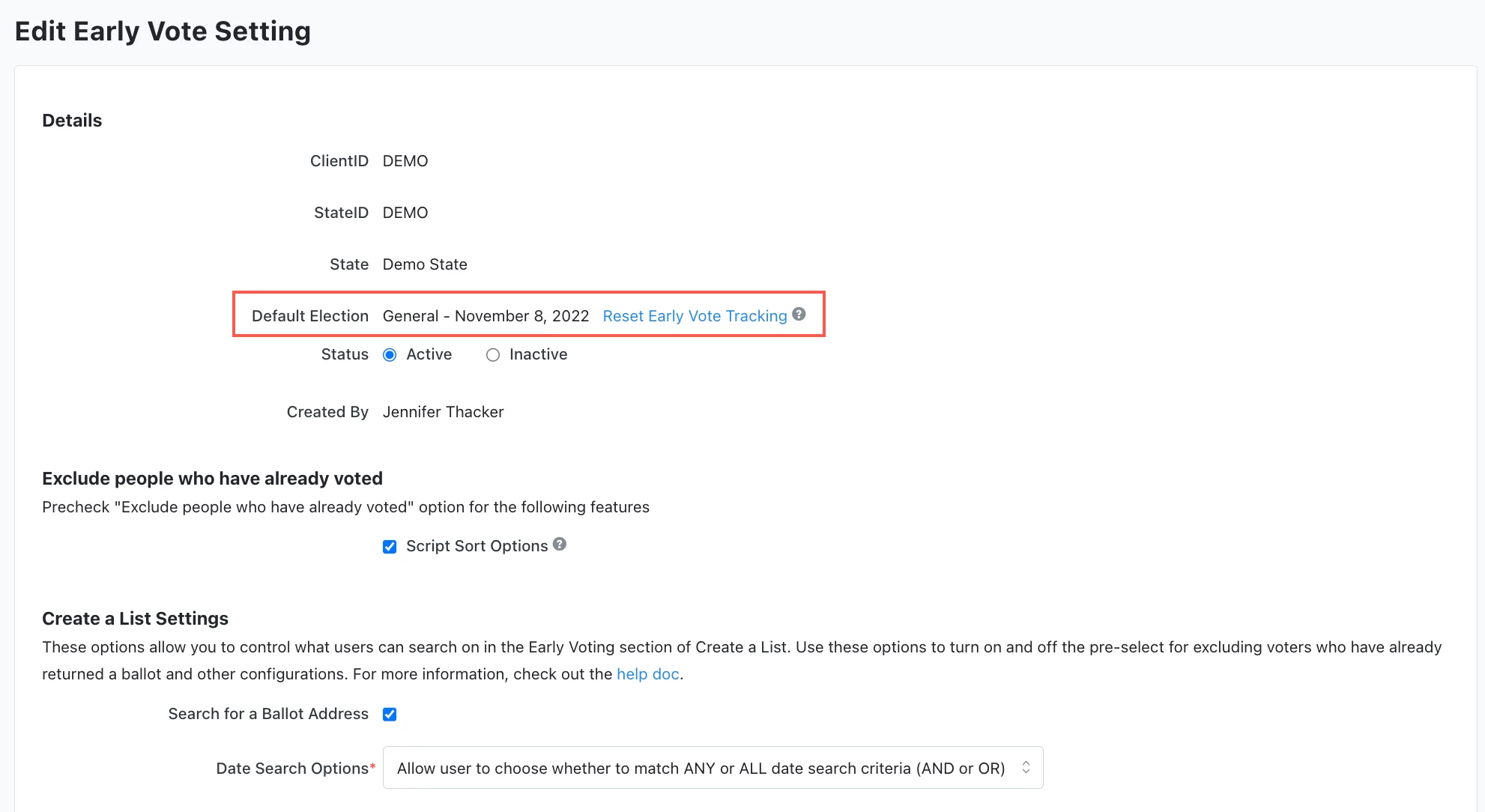
From the Early Vote Settings page, you may also reset early vote tracking data in your committee(s) without submitting a Support Request.
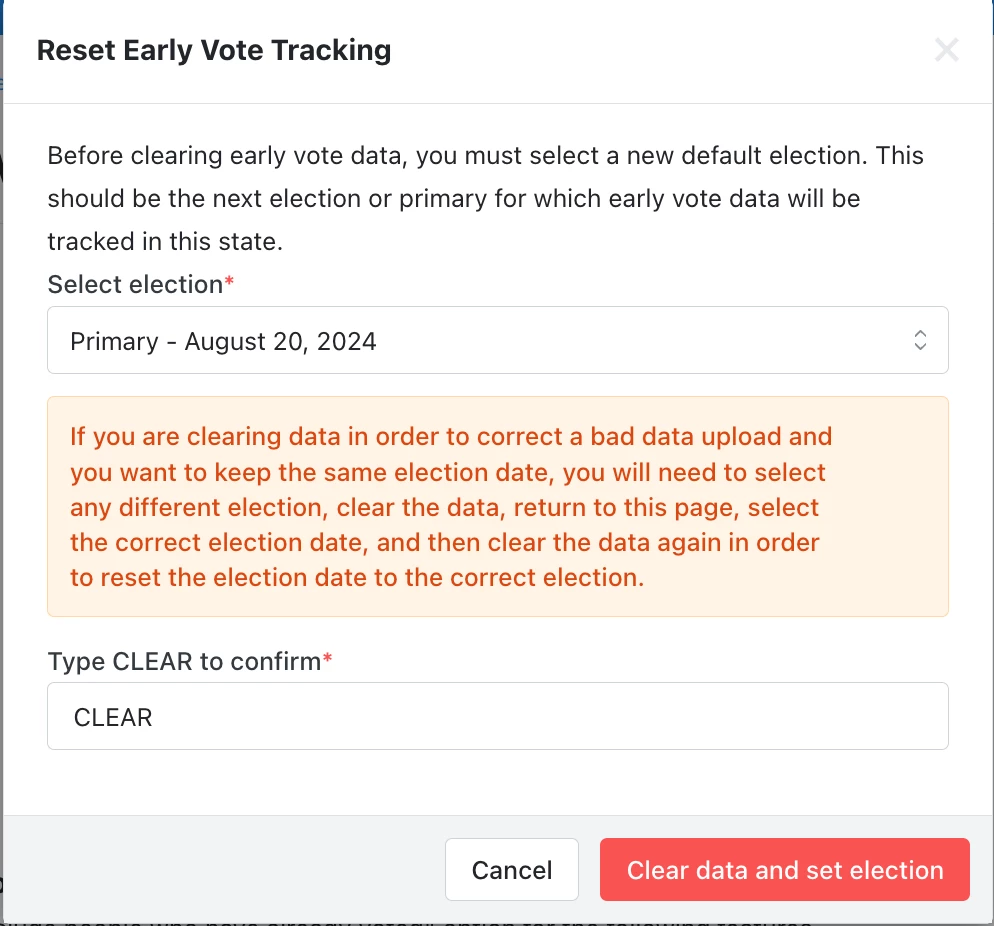
When logged in to the state that you are clearing data from, next to Default Election, you will see an option to Reset Early Vote Tracking Data and remove early vote tracking data from that current election in My Voters.
Each time you reset early vote data, you will be prompted to select a new default election, likely the next election or primary for which early vote data will be tracked in this state.
To reset tracking for the existing election, you have to:
-
Select election
-
Confirm your choice with CLEAR and update data
Applying Early vote settings
When early voting begins, you may find it helpful to have early or absentee voters excluded from your target universes by default, so you don’t have to remember to exclude them every time you Create a list. After the election, have your settings updated so that this exclusion is unchecked by default.
As a national admin, you can turn on or off that following settings in Create A List:
-
Pre-check Exclude anyone who has early or absentee voted
-
Pre-check Exclude anyone who has voted on Election Day
-
Search for all dates
-
Search for any dates
-
Use dropdown list
-
-
Exclude early and absentee voters from printed lists by default
Additionally, you can request to have the following options displayed in Create A List:
-
Display Include Anyone Who Has Early Voted
-
Display Exclude Anyone Who Was Mailed a Ballot
-
Display Include Anyone Who Was Mailed a Ballot
-
Display Exclude Anyone Who Has Voted On Election Day
-
Display Include Anyone Who Has Voted On Election Day
-
Search Early Vote Dates by date range
-
Search Early Vote Dates by checkbox
-
Search for a Ballot Address
Early Vote Fields Overview
The types of early and absentee vote data provided by the Secretary of State’s office - or other election authority - may change from time to time and national administrators can enable and disable certain Early Vote Fields.
From the Early Vote Fields menu, an admin is able to view the Early Vote Fields in the system.
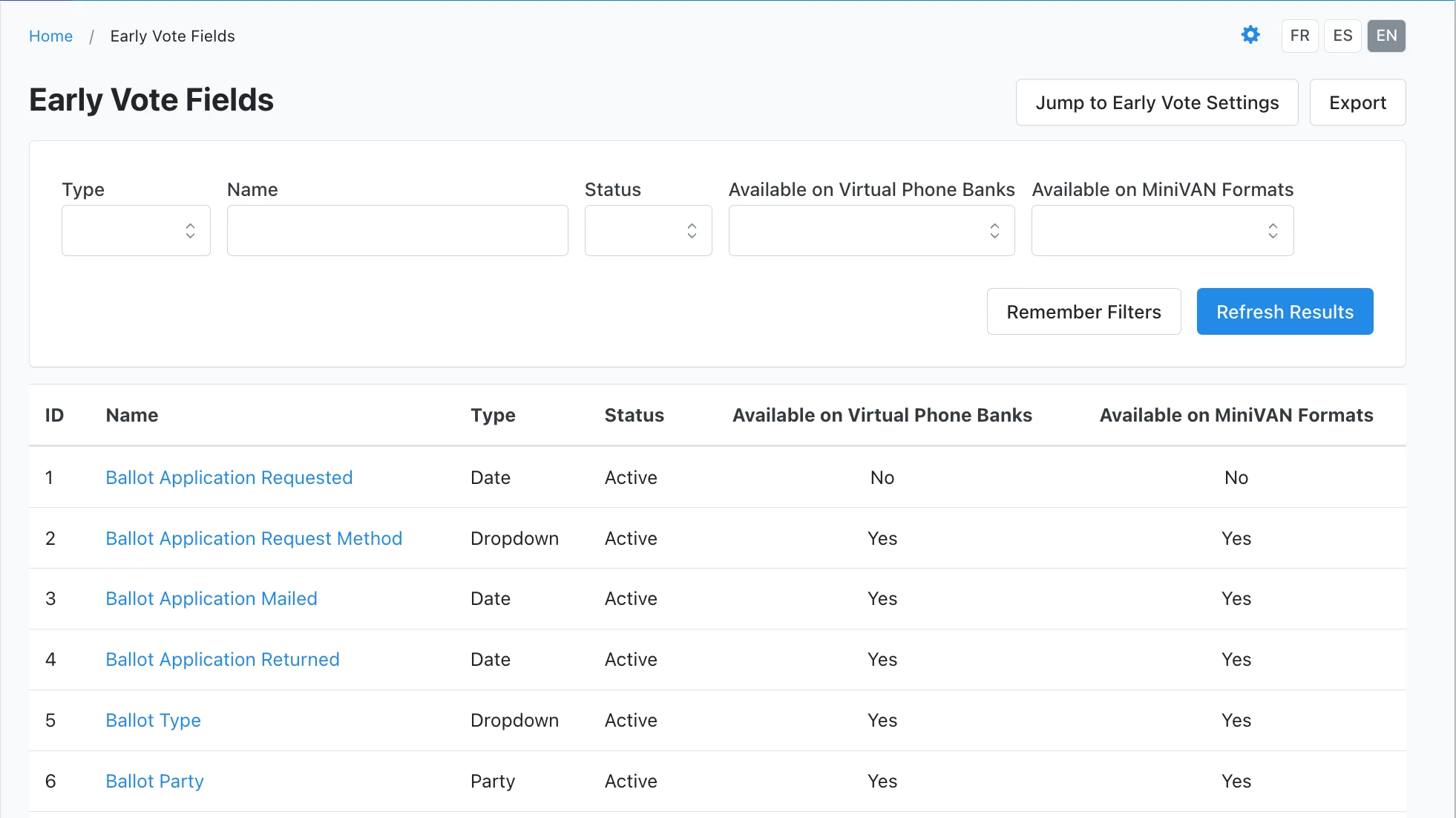
There are a variety of possible available Early Vote Fields which include:
-
Ballot Application Requested - Date an absentee or early vote ballot was requested
-
Ballot Application Request Method - Indicates how the ballot was requested
-
Ballot Application Mailed - Date an application for a ballot was mailed
-
Ballot Application Returned - Date the ballot application was returned to the clerk. This can also be considered the date the voter signed the application before it was returned.
-
Ballot Type - Indicates if the requested ballot was provided to a voter for any reason. Values include:
-
Absentee
-
Civilian
-
Mail In
-
Military
-
Overseas
-
-
Ballot Party - Some states have both parties on the same ballot, some have different ballots per party. This could also vary between primaries and general.
-
Is Permanent Absentee
-
Ballot Mailed - Date the ballot was mailed to the voter
-
Ballot Addresses - Allows searching by Street, City, State, Zip, and Country
-
Ballot Address 1
-
Ballot Address 2
-
Ballot Address 3
-
Ballot City
-
Ballot Zip9
-
Ballot State
-
Ballot Country
-
-
Ballot Return Status - Indicates that a ballot was accepted, or the reason it was rejected. Current status of the ballot. This can change over time is ballots are reissued. Values include:
-
Accepted
-
Cancelled
-
Conflict
-
Duplicate
-
ID Not Provided
-
No Application
-
Not Voted
-
OK
-
Pending
-
Rejected
-
Returned after Deadline
-
Returned Undeliverable
-
Signature Different
-
Signature Missing
-
Spoiled
-
Witness info Incomplete
-
Wrong Voter
-
-
Ballot Received - Date ballot received after voter returned it.
-
Ballot Cancelled - Date a ballot was cancelled
-
Ballot Reissued - Date a ballot was reissued to a voter
-
Ballot Rejected - Date a ballot was rejected
-
Ballot Rejection Reason - Most recent reason a ballot was rejected. Ballots can be reissued and have different rejection reasons over time.
-
Early Voted - Date someone was marked as early voted
- E-Day Voted - Indicates voters who vote on election day
Enabling and Disabling Early Vote Fields
As a system adminstrator, you can activiate and deactivate Early Vote Fields as relevent to your state.
From the Early Vote Field menu, you can select any of the Early Vote Fields you wish to enable or disable by selecting the field from the menu.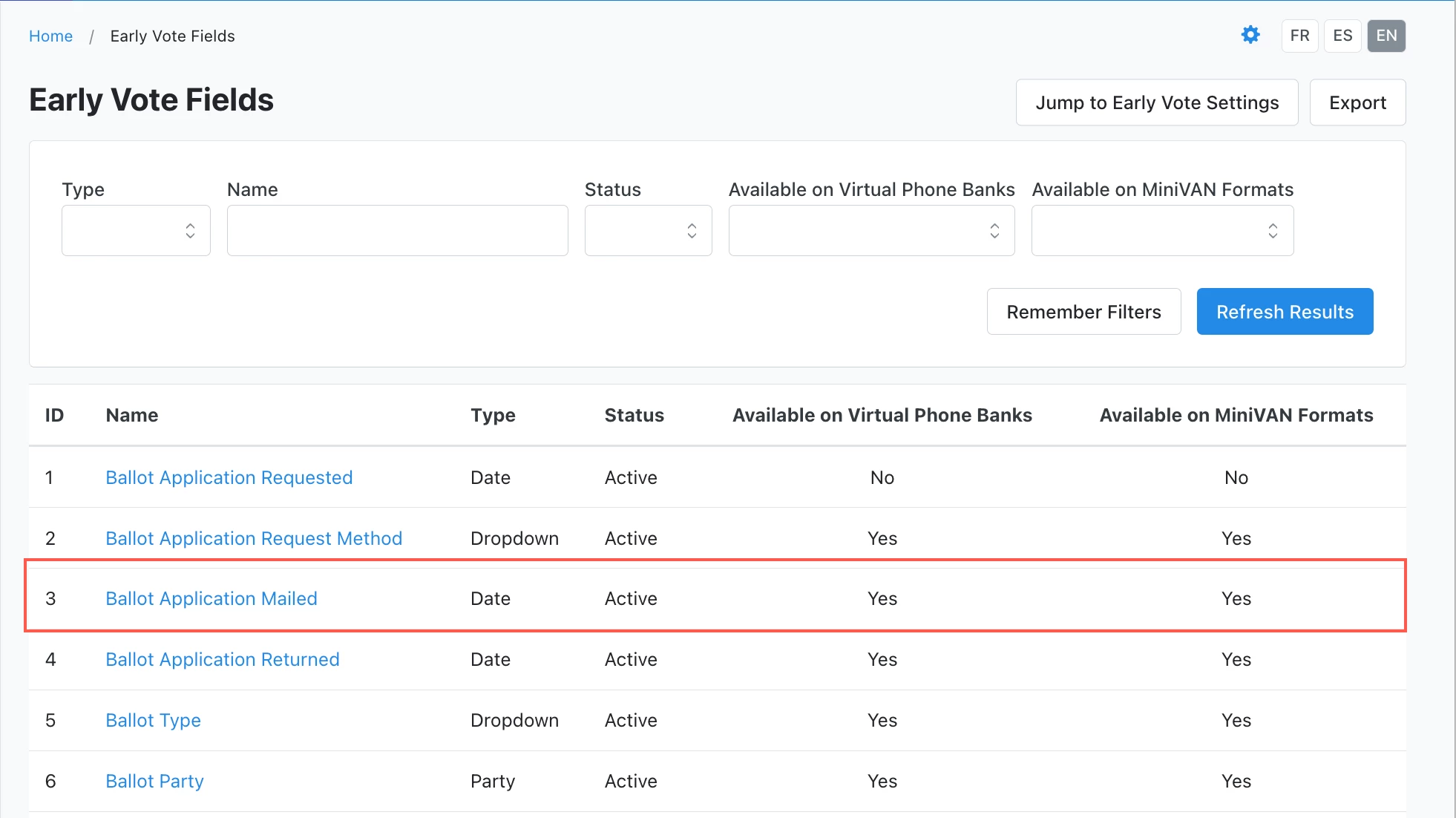
Once the Early Vote Field is selected, administrators are able to choose whether they wish to make the field active or inactive by selecting one of the available options.
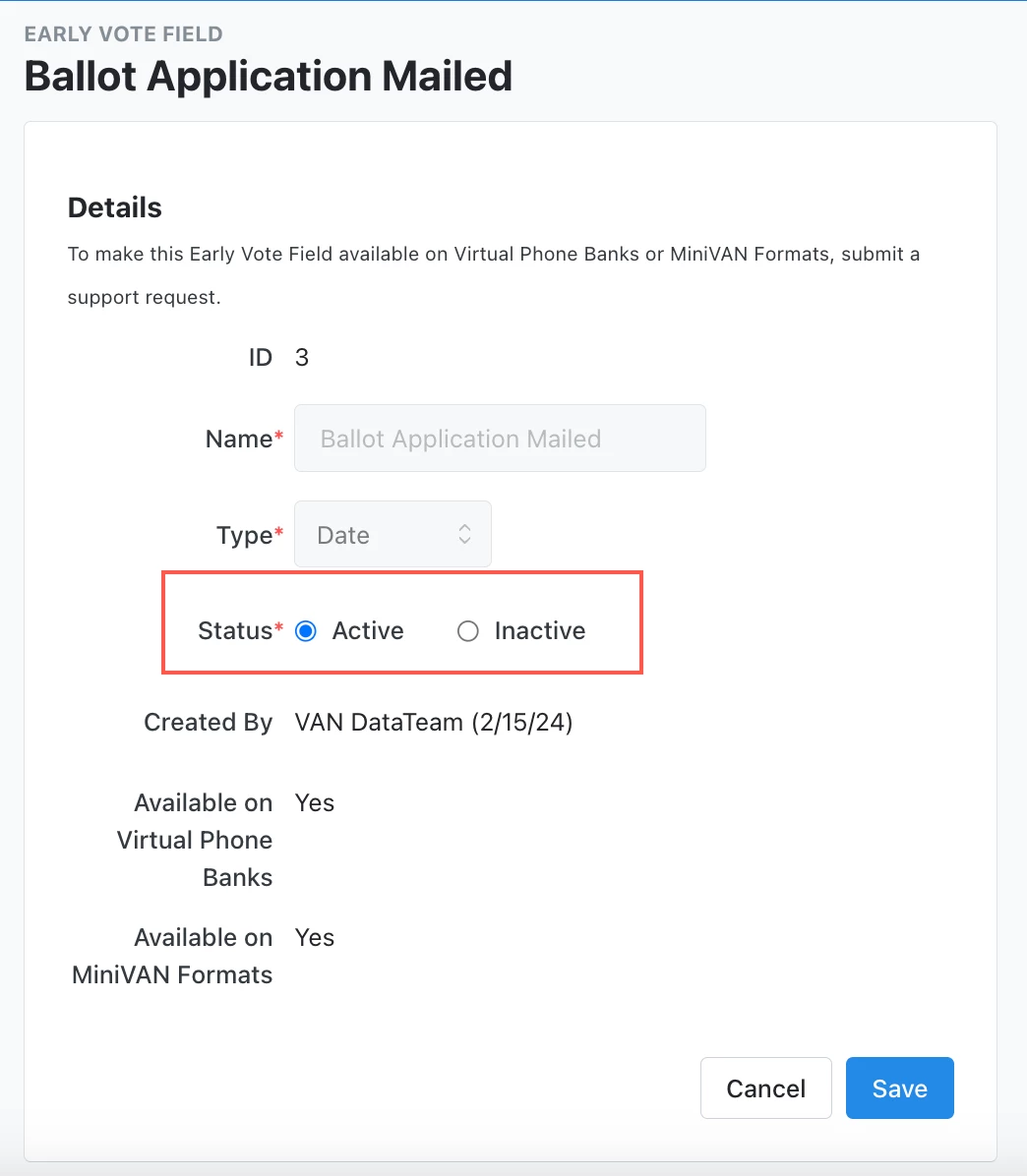
Select Save to make your selection.
If you need to change whether an Early Vote Field is available on MiniVAN or Virtual Phonebank contact support.
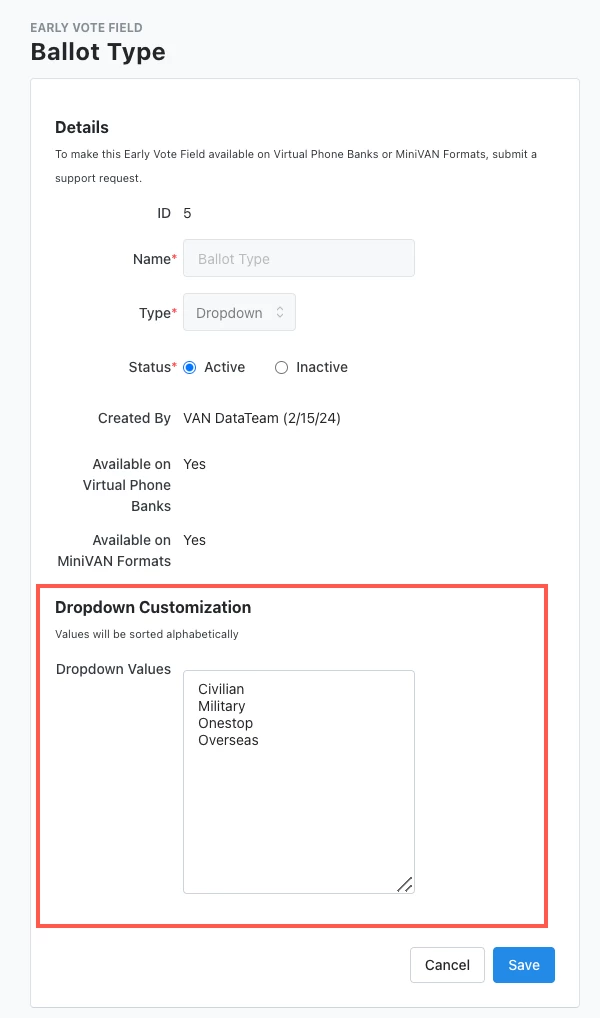
Adding Custom Dropdown Early Vote Field Values
Administrators can add customizable dropdown values to the following standard, non-removable values:
Ballot Types:
-
Civilian
-
Military
-
Onestop
-
Overseas
Ballot Application Request Method:
-
Email
-
In Person
-
Mail
-
Online
-
Request By Relative
Ballot Return Statuses:
-
Cancelled
-
Accepted
-
Rejected
-
Not Returned
-
Pending
From the Early Vote Field menu, you can select the Early Vote Field you wish to add custom field values by selecting the field from the menu.
Once selected, an administrator can enter custom field values into the dropdown box.
It is important to note that any standard values previously set cannot be removed, however, the custom fields that a system administrator adds may be removed at any time.
Select Save to add the custom field values to the Early Vote Field.
How do I how to: clear early vote data and manage early vote settings? | How does how to: clear early vote data and manage early vote settings work in EveryAction? | Why can't I how to: clear early vote data and manage early vote settings? | Where do I how to: clear early vote data and manage early vote settings in EveryAction? | What is how to: clear early vote data and manage early vote settings in EveryAction? | How to how to: clear early vote data and manage early vote settings? | Can I how to: clear early vote data and manage early vote settings in EveryAction?