


FAQ: Multi-Step Searching
1) How can I use AND, OR, NOT Statements?
QUESTION: When trying to narrow search results, how do I use “AND, OR, NOT” statements?
ANSWER: Creating “AND, OR, NOT” statements can be accomplished by using the Add Step function in Create A List.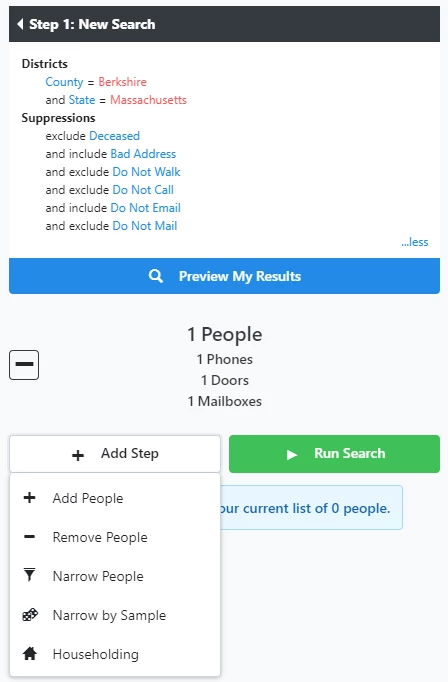
-
AND means that you want to NARROW PEOPLE – so create a step with the first criteria, and then NARROW PEOPLE to those that also have the second criteria
-
OR means you want to ADD PEOPLE – so create step 1 with first criteria, and then ADD PEOPLE that have the second criteria, even if they are missing the first criteria
-
If you are adding while using the Multi-picker, then it creates an “OR” statement, giving you people who have either or both (i.e. OR)
-
- NOT means you want to REMOVE PEOPLE – so create step 1 with first criteria, and then REMOVE PEOPLE with the second criteria
2) How do I create a list of records with Multiple Activist Codes?
QUESTION: How do I create a list of records that have more than one activist code? E.g., users who have Activist Code 1 AND who also Activist Code 2? It seems that once I add a value, that can be the only value on that filter. In that case, I’d only want the records who were in the overlap.
ANSWER:
-
Select Activist Code 1
-
Add Step > Narrow People
-
Select Activist Code 2
These steps now join them in an “AND” statement.
3) How do find contacts across a list of different email domains to comply with GDPR requirements?
QUESTION: We also suppress users that have an email address with a typical EU email provider as their domain, but the EA saved search requires that I choose a single domain as my search filter. Once I choose one domain, I can’t add another domain to the filter.
ANSWER:
-
In Create a List, expand the Email page section and use the Email Domain field to specify the first email domain.
-
Select Add Step
-
Select Add People
-
In your second search step, repeat step 1 to specify the second email domain.
-
Repeat this process as necessary until all email domains are added to your search criteria.
These steps now join them into an “OR” statement..
4) How do I create a saved search with a Null Value Field?
QUESTION: How do I create a saved search of people who have a null value in a field? E.g., what if I wanted to create a list of everyone who has a null value in their birthday field? Or a null value in their first name field?
ANSWER: For those search filters that support the functionality, click the grey circle with a slash for “Is empty”. Use this for the name search. NOTE: Birth date doesn’t support the “is empty” functionality, so Add Step to Remove Contacts that DO have a birth date as shown below: Birth date doesn’t support this, so remove records that DO have a birth date like shown below: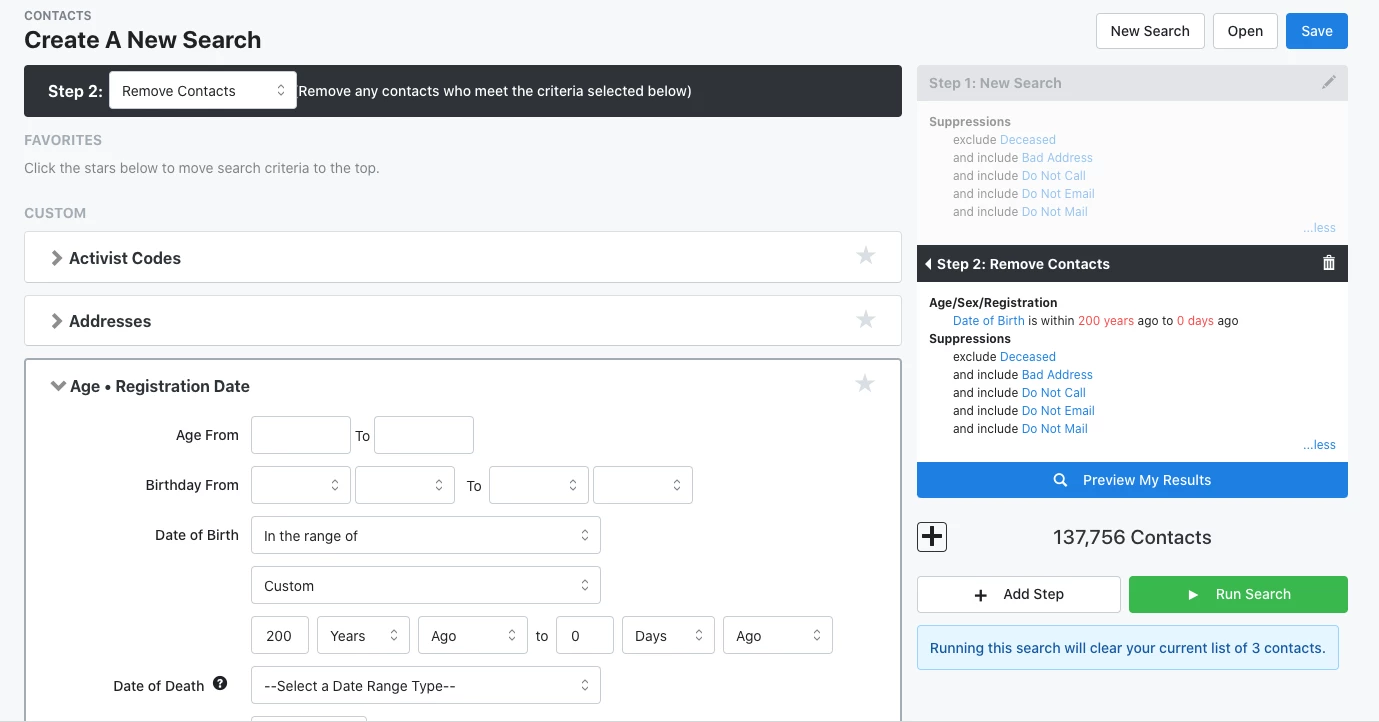
5) What does “Is Empty” and “Is Not Empty” mean in a search?
QUESTION: Some search filters have an icon with a grey circle with a slash titled “Is empty” or “Is not empty”. If they are available, how can I use these to support searching? 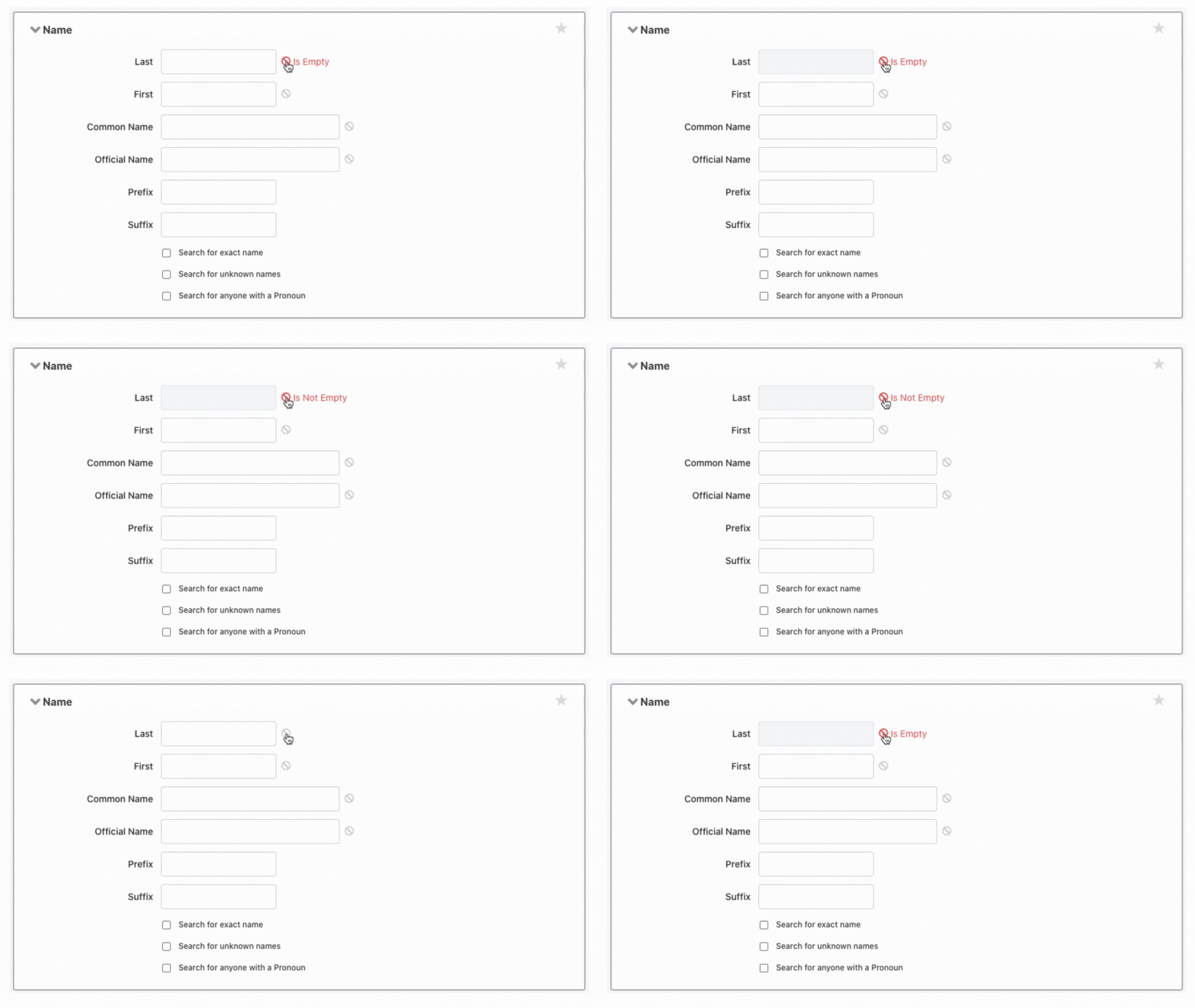
ANSWER:
Certain fields allow you to search on them based on whether or not there is a value stored within the field. For instance, if you want to search for anyone missing employer information, you can click the interdictory circle and select the “Is empty” option. Alternatively, you can select the “Is not empty” option by clicking on the interdictory circle again.
Note: When using null/blank search criteria in the Address tab, searching ‘is empty’ on a specific address field will search for contacts that have SOME contact information, but not anything in that particular field itself. If you want to search for contacts with no address information, you’ll want to use the ‘bad address’ status under the suppressions tab.
6) How do I access and use Multi-picker search functionality?
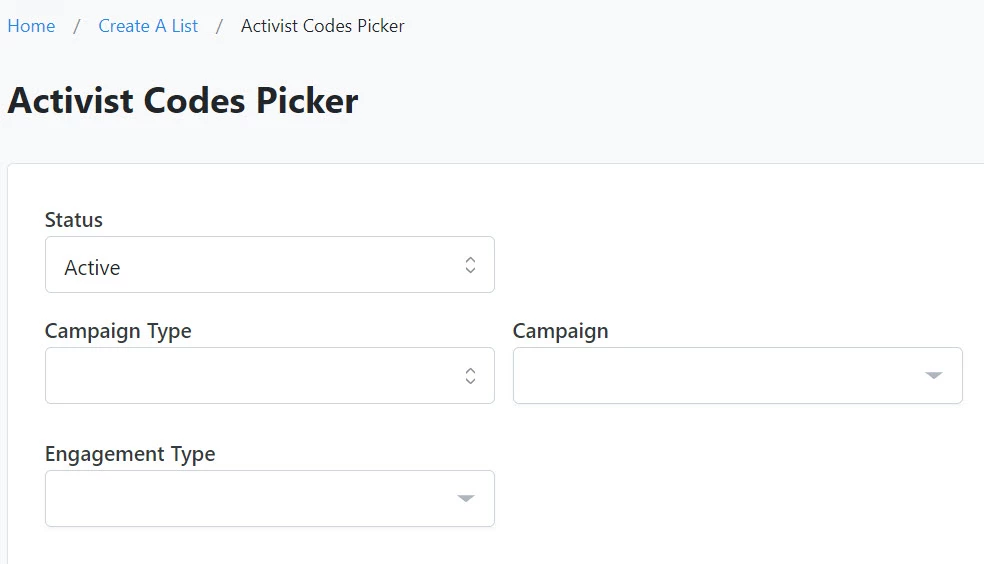
- Any search criteria page that has a Multi-picker page is highlighted in blue, selecting the hyperlink gets you to the Multi-picker page
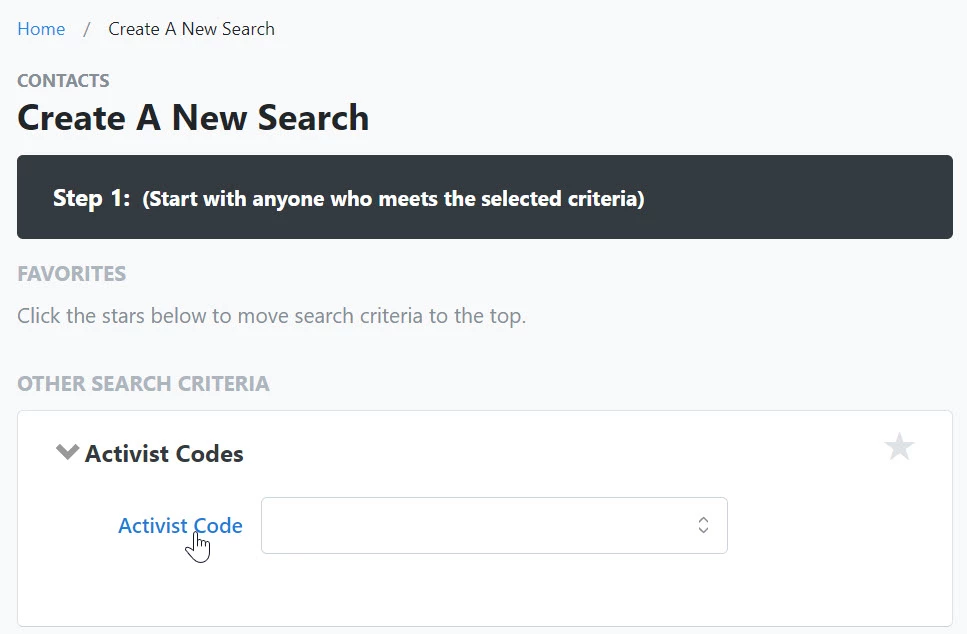
- You can use the Multi-picker page to create an “OR” search, for example, if you want to search for anyone who has one of 5 Activist Codes you can select all 5 from the Activity Code Multi-picker page and it will act like an “OR” search
7) How do I use the country Multi-picker page?
QUESTION: We have a query that identifies all EU residents, so that we can suppress them from email since we are not fully GDPR compliant and we don’t need to be because we don’t market to users in the EU. Looking at saved search in EA, it appears that there isn’t a “OR” parameter. I can create a saved search for everyone in Germany, but how can I create one saved search that includes everyone in Austria or Germany or Bulgaria, etc.?
ANSWER:
From Create a List expand the Address page section and find the Country field.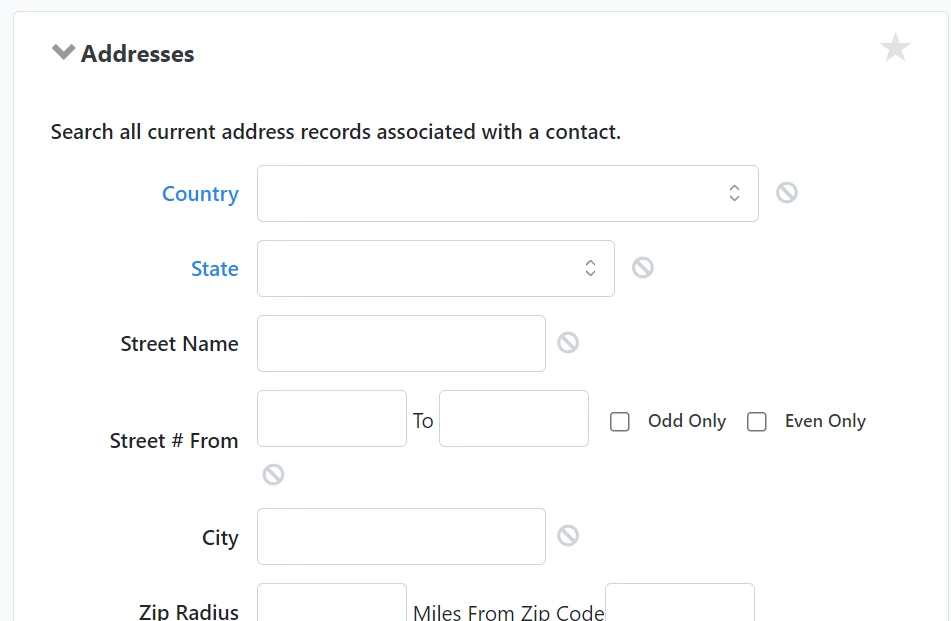
Instead of selecting a single country from the dropdown menu for Country, select the blue hyperlink for the Country multi-picker page.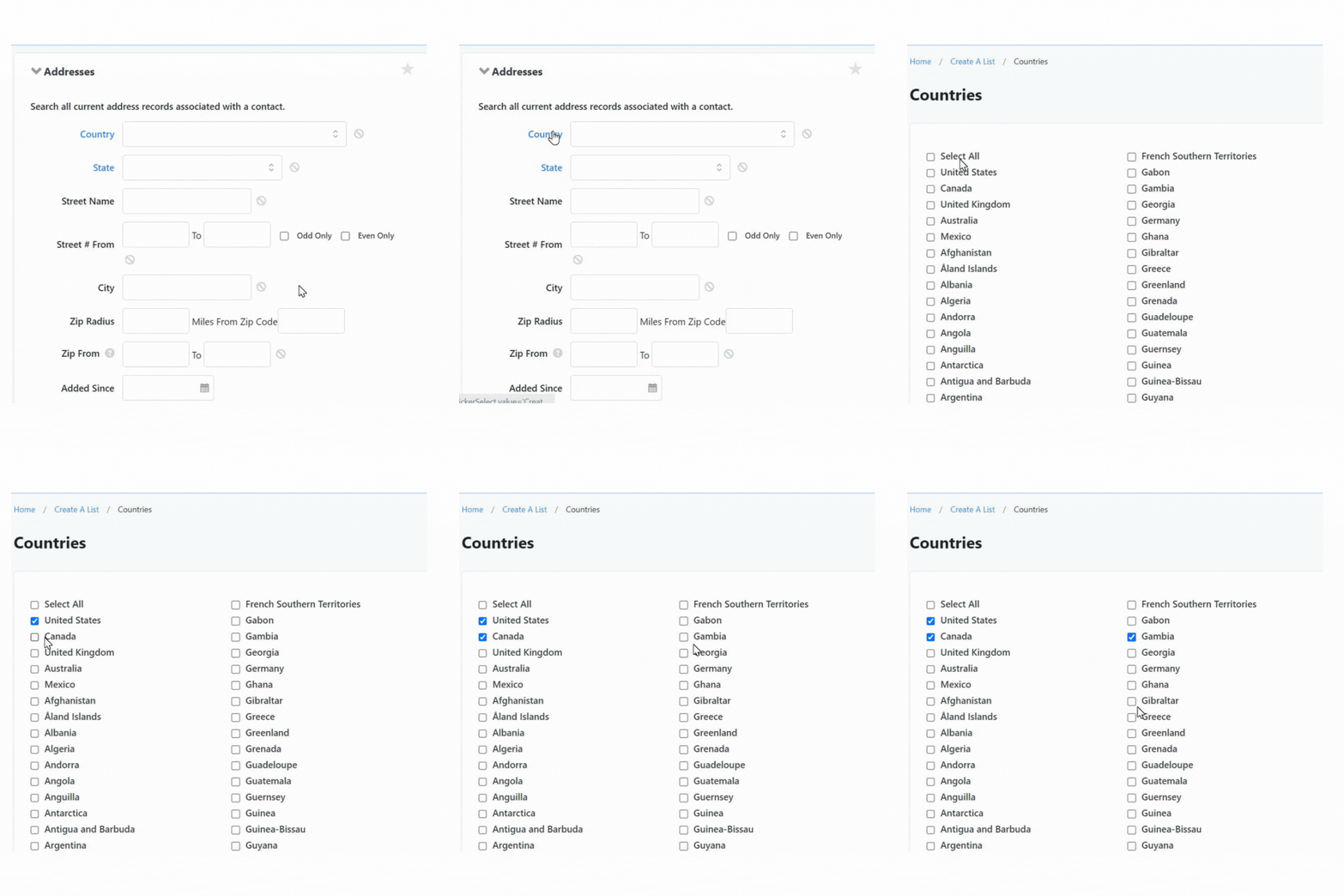
These steps now join them into an “OR” statement.
8) How can I narrow search results?
QUESTION: What are some tips to help narrow search results?
ANSWER:
The following are tips to help narrow search results:
Combining different search criteria in the same search generally works as narrowing the search criteria. It is not always necessary to use the Narrow People step unless you need to narrow from within the same search criteria – i.e. Using Narrow People if I need to do an “AND” search with activist codes.
Using Related Criteria
In certain Create a List page sections, you will see the ability to narrow the search by selecting related criteria such in the Contribution Summary by putting in a date range in combination with a Source Code and an amount range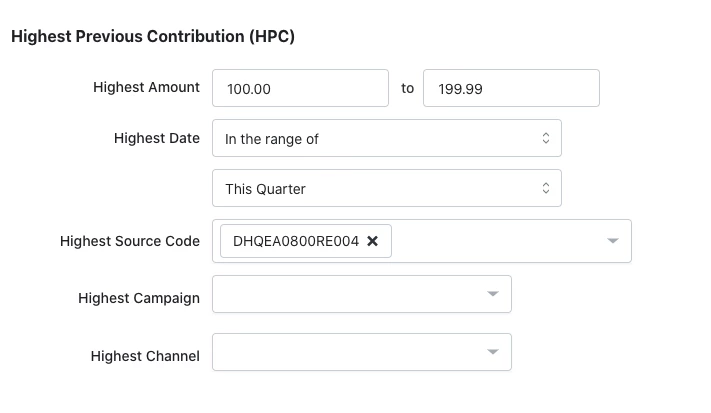
By Selecting “refresh step”, the search criteria displays on the right side.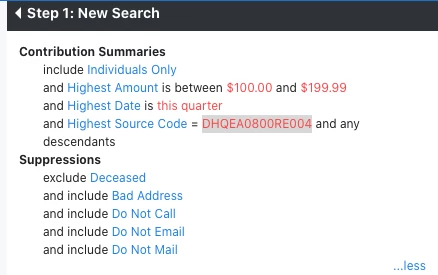
Consolidating searches into a single step narrows them to finding people who fit all the criteria in that step and would find people whose Highest Previous Contribution fits the criteria in the Contribution Summaries section AND who have an address in one of the countries listed in the Multi-picker list of countries you selected, and who are not dead, but would still include anyone with certain suppressions.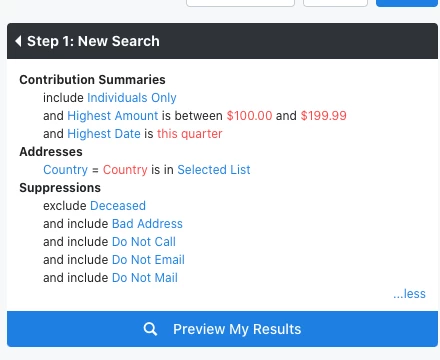
How do I multi-step searching? | How does multi-step searching work in EveryAction? | Why can't I multi-step searching? | Where do I multi-step searching in EveryAction? | What is multi-step searching in EveryAction? | How to multi-step searching? | Can I multi-step searching in EveryAction?