



User Groups are committee-specific groups that allow you to share Folders and Virtual Phone Banks with other users.
Typically, groups are created based on criteria such as geographic distinctions (i.e. offices, regions) or campaign roles (i.e. field organizers, regional field directors) - but you can create any user group to fit your needs. There are very few restrictions and no limits to the number of users in your group.
Step 1: Navigate to 'User Groups'
Begin by searching for the User Groups page from the Sidebar or opening the link from Main Menu > Administrative Menu > Users • Committees.
Step 2: Create a new User Group
Select 'Add New User Group' at the top of the page and then add the Name. If you are using a multi-Committee setup, select the Committee where you want to add the group.
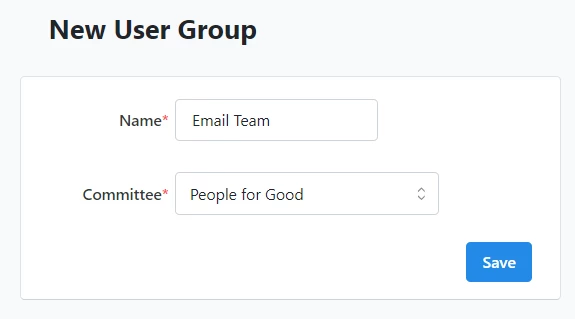
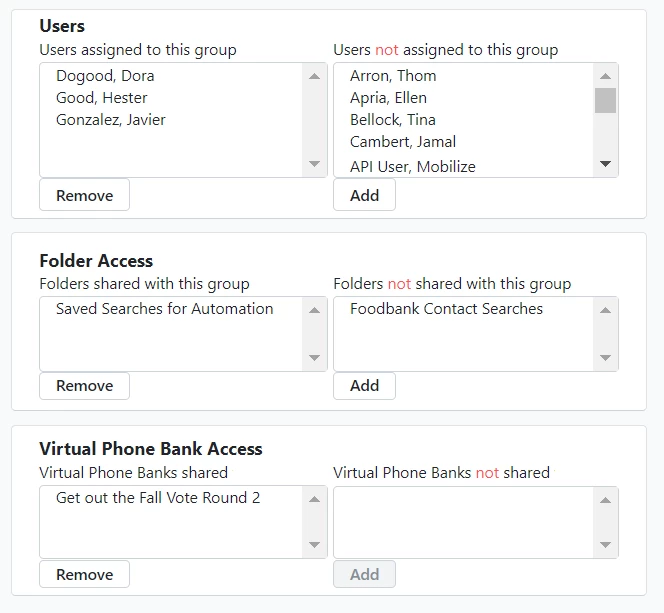
Step 3: Assign Users
On the next screen, Edit User Group, you can assign Users to the group and set access to particular Folders or Virtual Phone Banks for the group. Be sure to Save your settings.
Editing an existing User Group
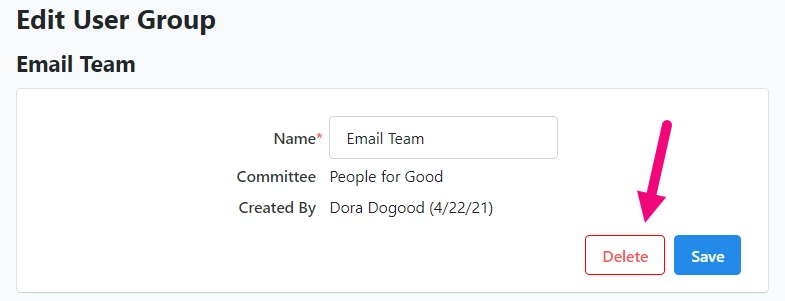
From the User Groups list page, click on the name of the User Group you want to edit.
You can then edit the Users and Folder or Virtual Phone Bank access. If you no longer want to use the group, you can Delete it.
Adding users to the group from their user details page
You can also add users to your group directly from their user details page.
To open their details, search in the Sidebar for Users and open the Users list page. Search for the user you want to add.
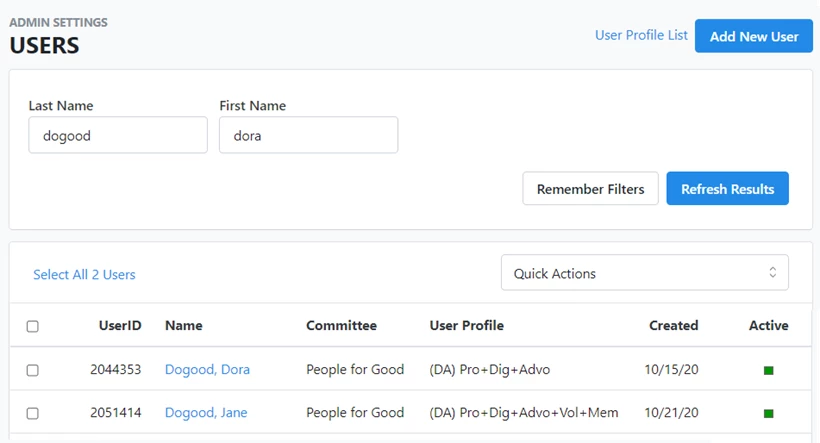
After clicking on their name to open the details page, look in the User Groups section to see which groups they belong to, if any.
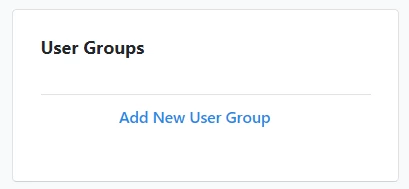
When you select Add, you’ll first be asked to select the Committee (if you have access to more than one) and then the specific User Group you want to add them to.
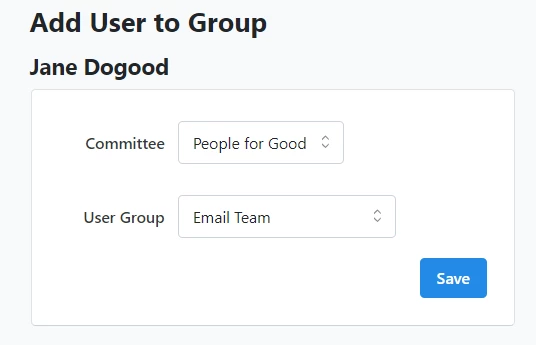
The Committee dropdown will only display Committees that the particular user has access to.
Sharing folders
You can share Folders you’ve created directly to a User Group from the Folder List page.
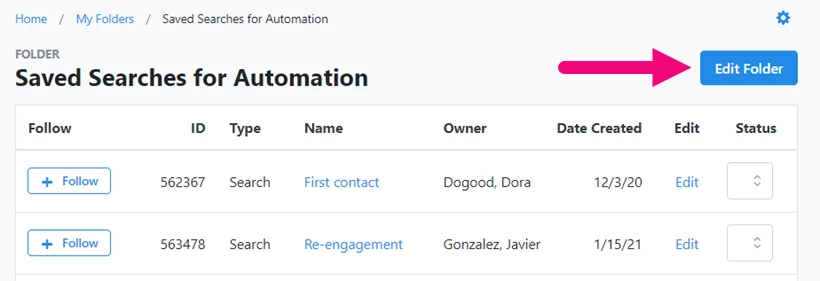
Open View My Folders from your home page or by searching for My Folders in the Sidebar. Click on the name of the folder you want to edit and then select Edit Folder.
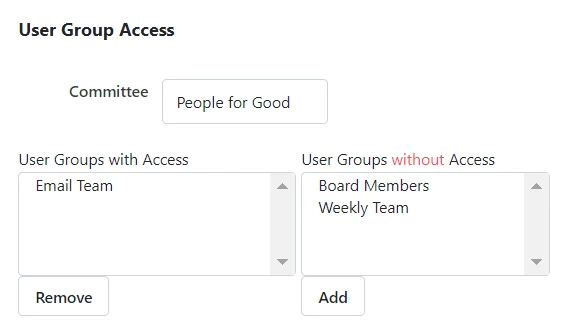
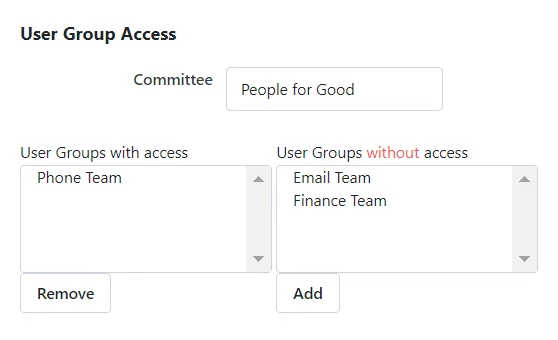
From the User Group Access section, select the Committee, if needed, and which groups you want to share the folder with. Then, Save your settings.
Sharing Virtual Phone Bank lists
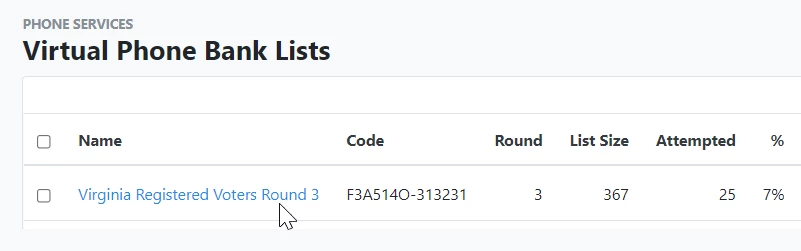
You can assign User Group access directly from your Virtual Phone Bank's details page. Search in the Sidebar for the Virtual Phone Bank Lists page and then click on the name of the phone bank you want to share.
From the User Group Access section, select the Committee (if you have more than one) and which groups you want to share the folder with. Then, Save your settings.
What else do you need help with?
Navigate back to the User Access overview.