


How to: Manage hosted events
We’ve made some updates to our login experience! If you come across references to “ActionID” in our help resources, those are being updated to reflect the new name: Bonterra Account. Nothing changes on your end as we tidy up the documentation.
With Hosted Events, your supporters can request to host an event on your behalf and you'll be able to approve their request, manage the branding and messaging, and then track their results.
Managing hosted events usually includes the following steps:
- You set up your Event Host Form so supporters can make their request to host
- Your supporter submits the form
- You review and approve (or deny) the event request
- (If approved) The Event and Event Signup Form are generated
- The host receives an email with a link to the form and another to their check-in page (if enabled)
- Invitees can begin registering via the Event Signup Form
- You can monitor your data in real-time as registrations come in
- The host can view signups on their check-in page
- On the day of the event, the host can use the check-in page to mark each person as Attended or Did Not Attend
Before getting started with Hosted Events, you should make sure the Event Types you want to use for Hosted Events are set up so you can use them with Online Actions.
Creating your event host form
You will need to create an Event Host Form in Online Actions. Your supporters can then use this form to make the request to host your event. When configuring the Event Host Form, you can choose whether confirmation emails will be sent to the potential host when:
- they submit the Event Host Form
- the event request is approved
- someone registers for their event
Approving the request
Event Host Form submissions will take the form of Event Requests, which you can then review and either approve or deny.
When an event request has been approved:
- An Event will be created in the system
- An Event Signup Form will be published in Online Actions – this form will be tied to the Event
- The Event will be applied to the host’s contact record in the Events section
- If the Event request approval notification has been enabled on the Event Host Form, then the host will receive an email containing a link to the Event Signup Form, which can be distributed among invitees, and a link to the Attendee Check-in page, which should ONLY be used by you and the host, not shared to attendees themselves. Your host will need to be logged into Bonterra Account to view this page.
At this point, you will be able to edit the Event further on Event Details (i.e. adding Roles, adding shifts, etc).
Once your supporters are signing up for the event through the Event Signup Form, you can see the data in real-time, and hosts can use their check-in page to view signups.
Managing Attendee Check-In and Event Status
On the day of the event, your host can use the Attendee Check-In page to mark guests as Attended and no-shows as Did Not Attend. The Attendee Check-In Page is available to you on the Event Details page in the database as well, and you may check guests in yourself.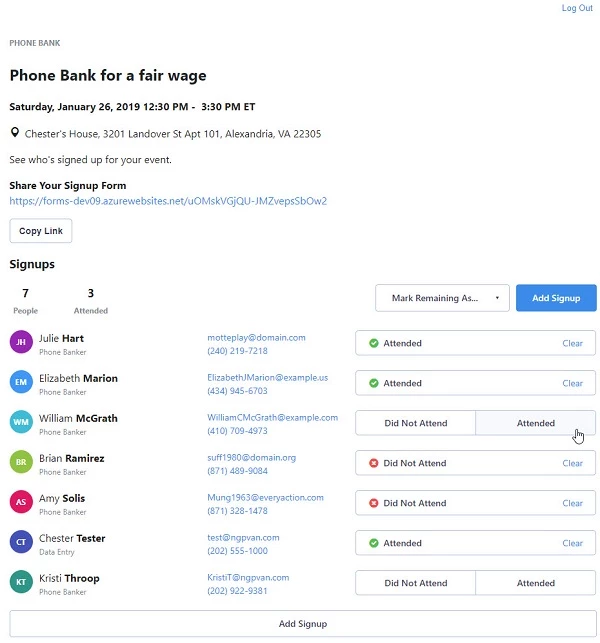
Like other pages and forms, this page is mobile-friendly, making it easy to check individuals in on the day of the event.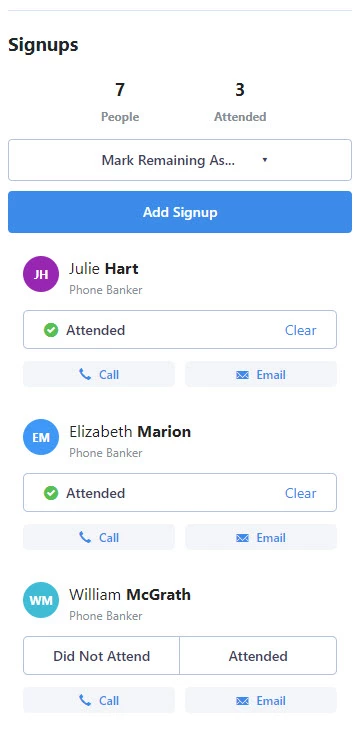
This data will be reflected in your records as soon as it is entered:
- When a supporter submits the Event Signup form, their status will display as Sched-Web in the database
- When someone is marked as Attended on the Attendee Check-In page, the status will update to Completed in the database
- When someone is marked as Did Not Attend, on the Attendee Check-In page, the status will update to No Show in the database
Searching and Reporting on Hosted Events
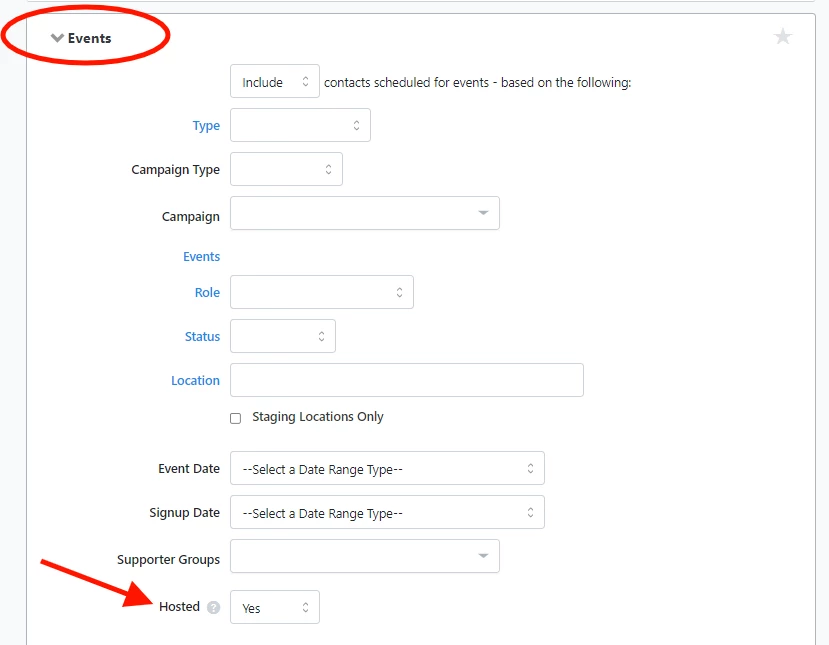
You can search for contacts records that Hosted Events by using the Events field in Create a List.
Signups for Hosted Events can be viewed in the same way as any Event or Event Signup Form with the Event List, Event Participant List, and Event section on a contact record. 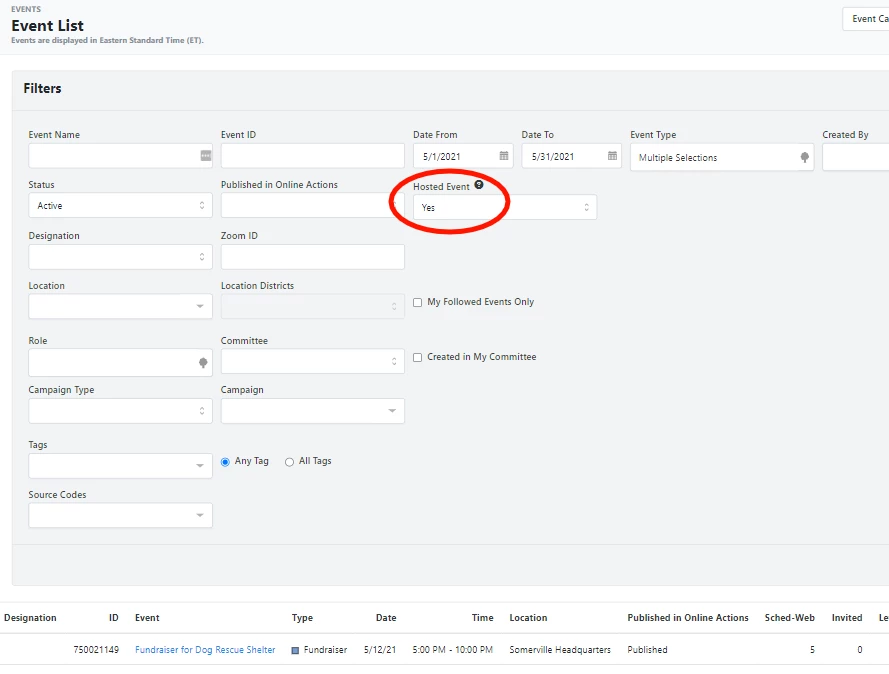
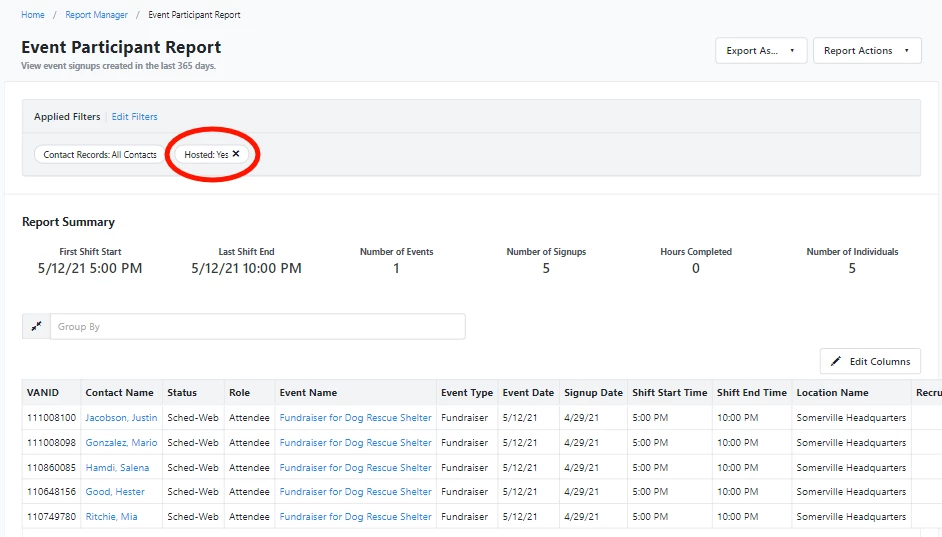
Additionally, users will see related fields in the Event Participant Report. There is a filter to narrow to Hosted Events or exclude them from the results. If narrowed to Hosted Events, users can see their impact by looking at how many signups have occurred, hours have been completed, and individuals have participated and comparing it to non-Hosted Events.
How do I how to: manage hosted events? | How does how to: manage hosted events work in EveryAction? | Why can't I how to: manage hosted events? | Where do I how to: manage hosted events in EveryAction? | What is how to: manage hosted events in EveryAction? | How to how to: manage hosted events? | Can I how to: manage hosted events in EveryAction?