


How to: View and share scheduled events using the Calendar and Event List
You can create and view your upcoming Events using the Calendar, and share them to your supporters using an Event List Page. You will be able configure location, dates, times, shifts, roles and collect information on attendee status for events hosted by your organization.
In order to create new Events, you must first create Event Types, Event Roles, and Locations.
Viewing and creating events from the Calendar
To get to the event calendar, select Event Calendar under the Events & Volunteer section of the Left-hand Menu, or search for it using the sidebar.
You will then be able to see any other events you have scheduled. You can change the view to see events per day, week, and month.
To create a new event, click Add New Event in the upper right corner. 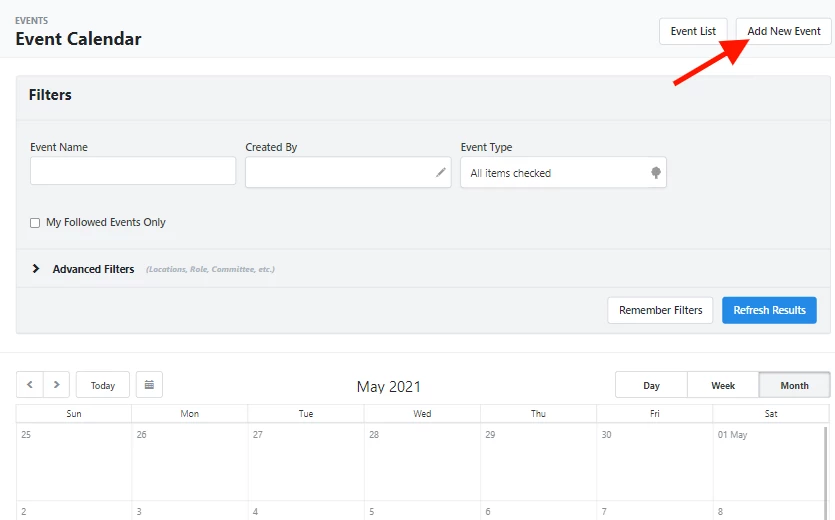
You will then be prompted to choose the Event Type. Once selected you will be asked to fill out the main details like Name, Short Name (visible internally), Date From, and Date To. You can also link the event to an existing Campaign.
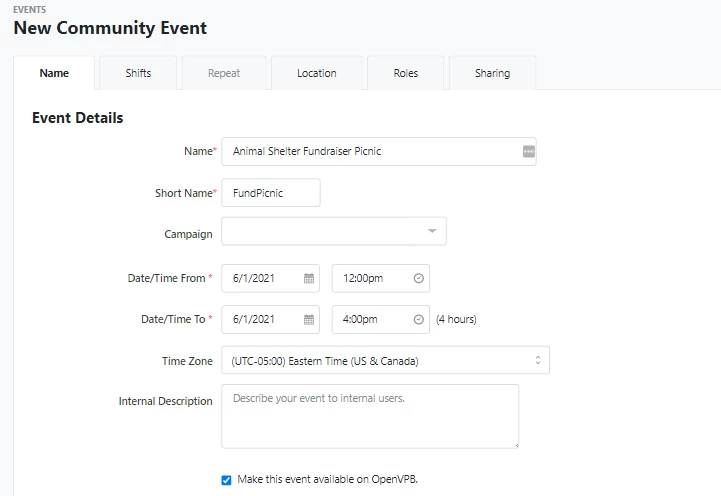
Once the main information fields have been filled out, select Next or use the tabs along the top to add Shifts, Location, available Roles, and customize the Sharing permissions.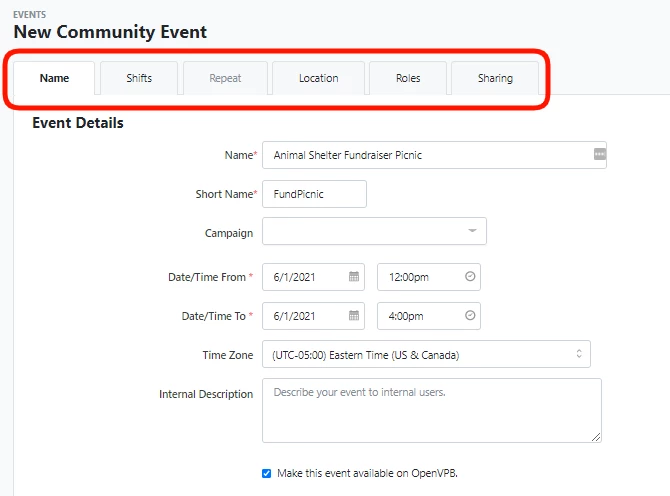
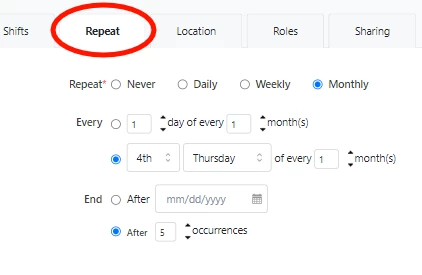
If you have allowed Events of this Type to repeat, then you can also use the Repeat tab to schedule recurring instances of the event.
When done customizing, select Finish.
You can then see the Event Details page, which can later be accessed through the Calendar itself or from the Event List on the main menu.
From here, you can edit details and keep track of participants.
Sharing your event to supporters
To invite supporters to your Calendar events outside your organization, you can publish an Event Signup form.
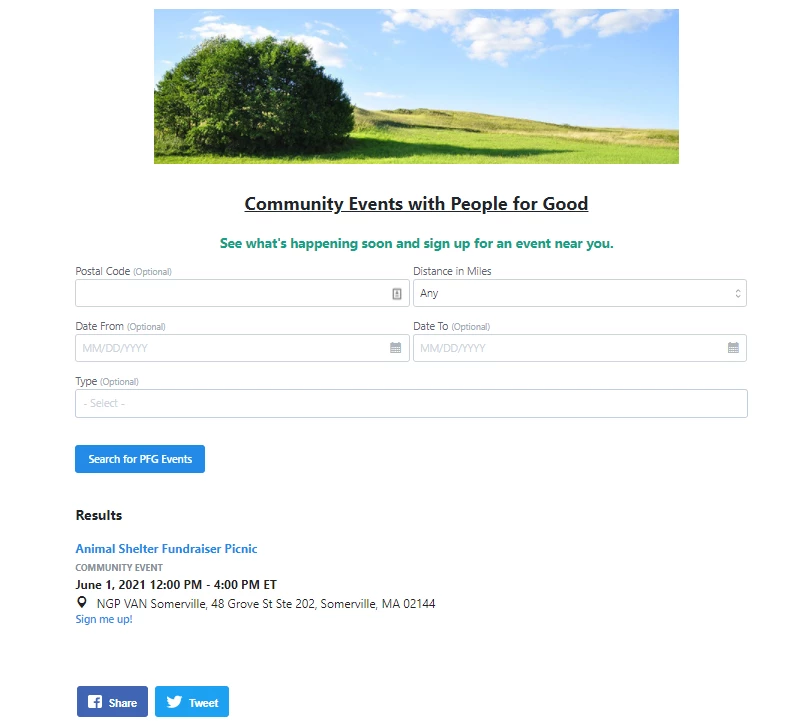
To share all upcoming events to your supporters, you can also use an Event List page. This page will allow your supporters to find upcoming events based on location, date, or event type.
To get started, open the Online Actions homepage and navigate to Pages.
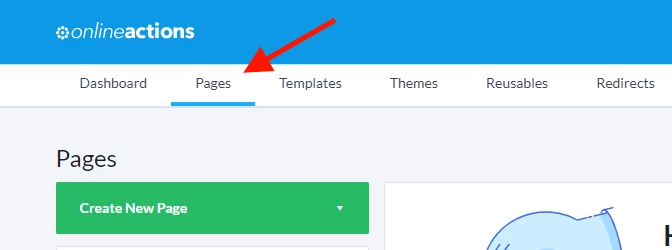
From there, click on Create New Page and select Event List from the dropdown menu. You can then decide which types of events should be included on your page, and customize your page to your liking.
Once you publish your Event List page, you will be able to share the link to others outside your organization.
Not quite what you were searching for?
- Navigate back to the Manage Events Resource Index.
How do I add a recurring event in EveryAction? | How do I view and share scheduled events using the calendar and event list? | How does viewing and sharing scheduled events using the calendar and event list work in EveryAction? | Why can't I view and share scheduled events using the calendar and event list? | Where do I view and share scheduled events using the calendar and event list in EveryAction? | What is view and share scheduled events using the calendar and event list in EveryAction? | How to view and share scheduled events using the calendar and event list? | Can I view and share scheduled events using the calendar and event list in EveryAction?