



(3 min read)
Optimize your mobile messages to drive better engagement, increase participation in calls to action, and raise more dollars by A/B testing your messages.
Creating an A/B Test Variant
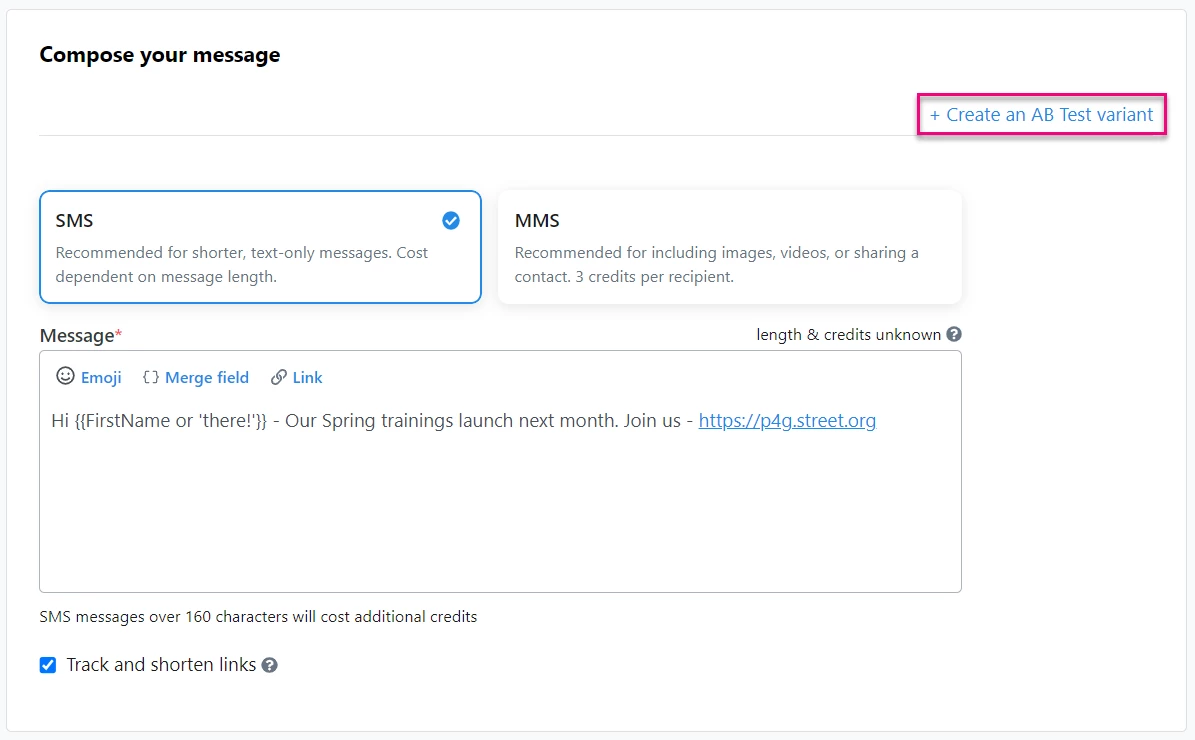
A/B test messages start the same as your standard broadcast message – give it a unique name and build your audience. Then, select the link at the top of the Compose your message step to create two variants of your message, an A and a B.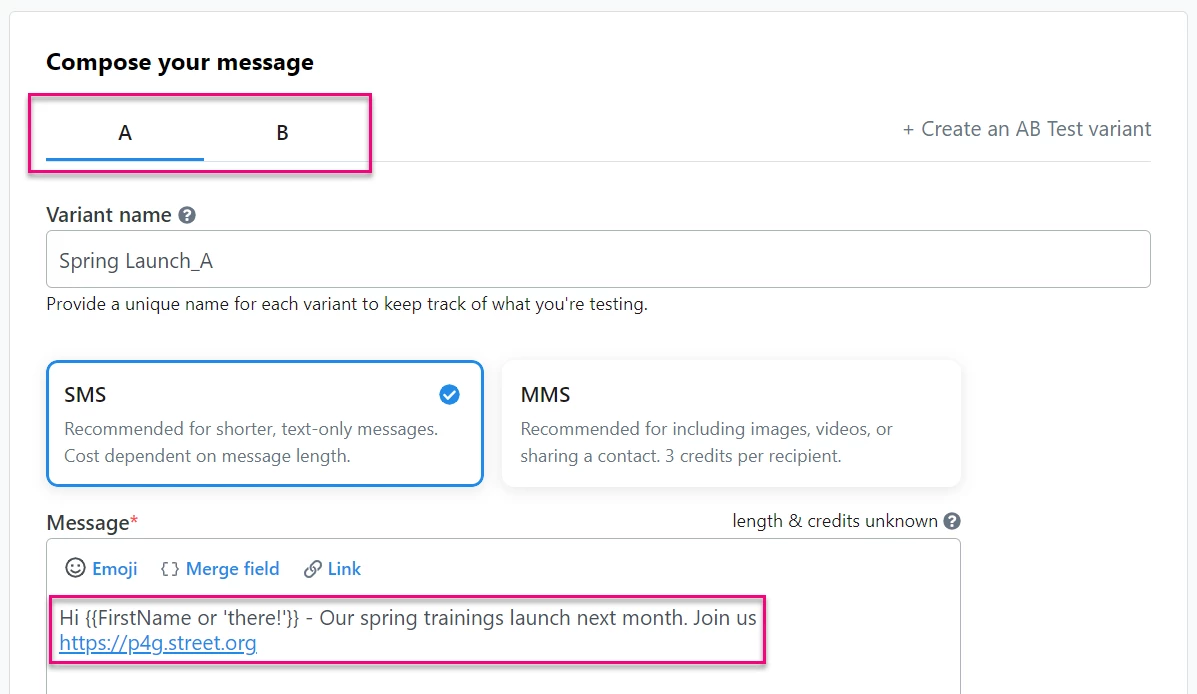
You will see an A and a B tab in the Compose your message box.
When you click the link, any content previously added in the input will automatically become the A variant. You can leave your message as is, or edit it to better suit your testing needs.
Navigate to the B variant by clicking the B tab just under the Compose your message heading.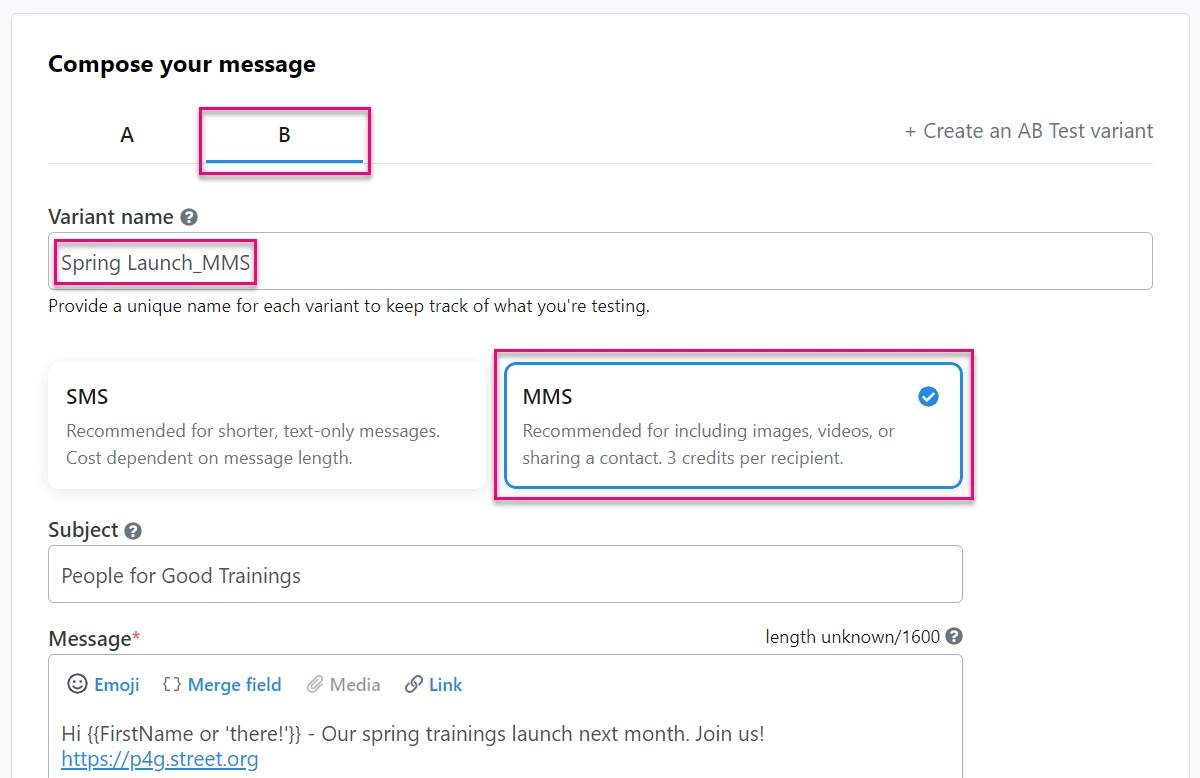
Variants are auto-named by appending _A or _B to the original message name. Choosing a variant naming structure that identifies what you are testing in each will help track your various attempts. Variant names must be unique to avoid confusion later.
Within your message, there are several elements to consider testing:
-
Using Emojis or not
-
Choosing an SMS, text-only message, or an MMS with images
-
Adding merge fields to personalize the text or using generic language
-
Including SmartLinks or normal links
-
Turing on “one-click submit” links or not
Mobile Messaging does not support testing send times.
Deleting a Variant
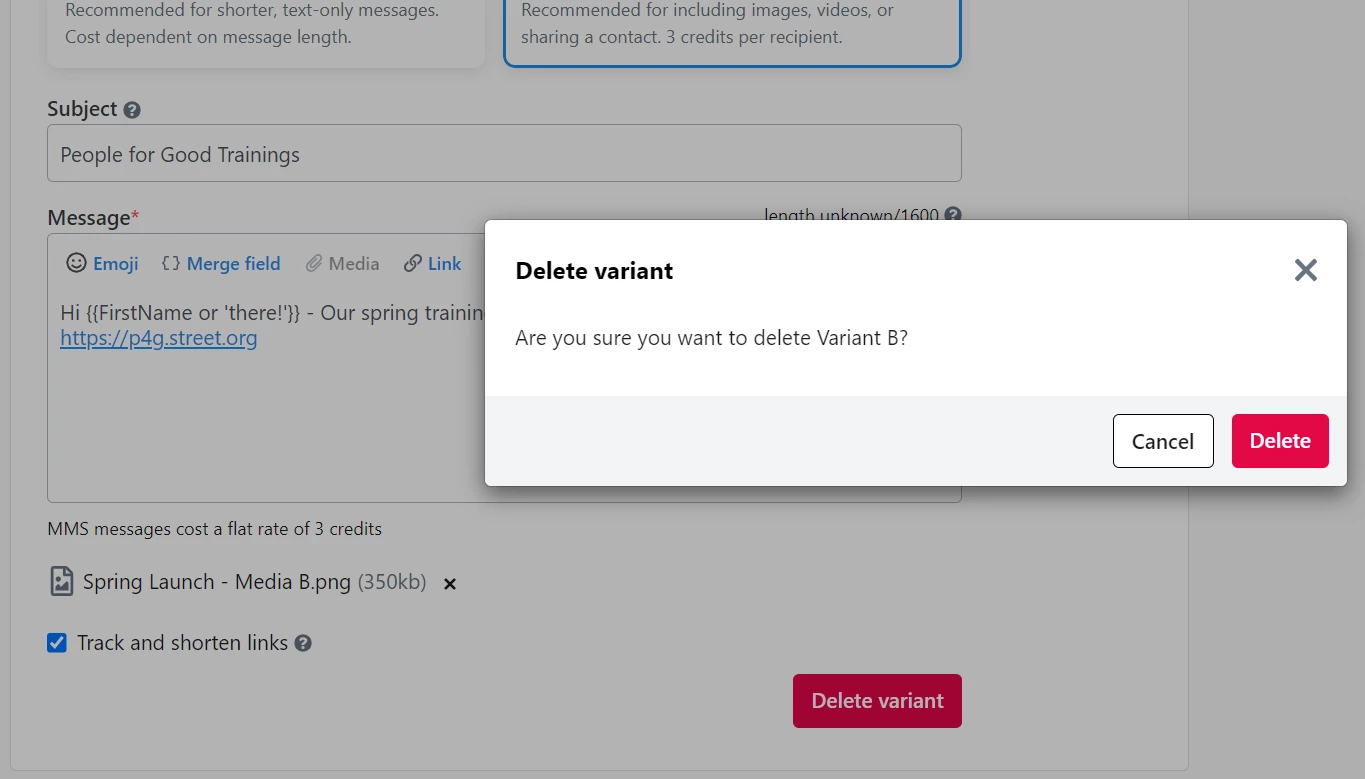
If you decide not to run an A/B test for a message, select Delete variant to reset your message to a standard broadcast message. This option appears on both variants, so you can choose which variant to delete.
Setting your test recipients
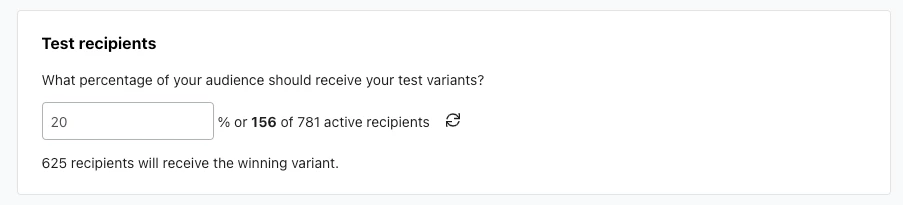
After you build your audience using a Saved Search or Saved List, decide against what percentage of your list you want to run the test.
Test a large enough segment of your audience to yield significant results. This will vary depending on what you are testing and your overall audience size.
Selecting a winner
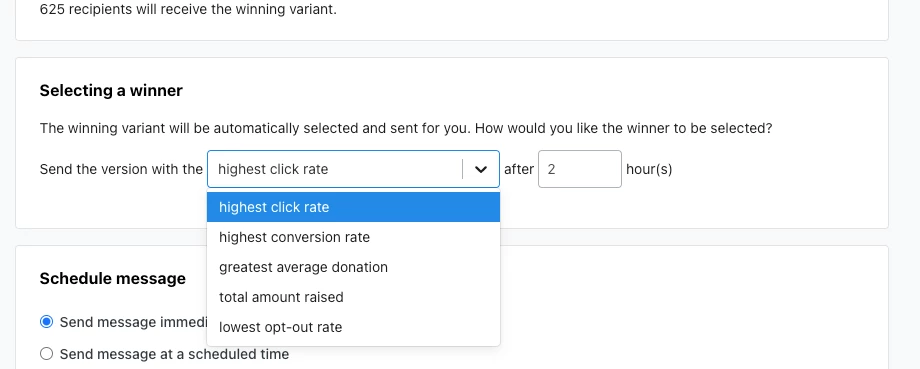
The winning version is determined automatically, based on criteria you set in the Selecting a winner panel. By default, this criteria is set to “highest click rate” in the variant after a 2 hour period.
Criteria for selecting a winner:
-
Highest click rate -
-
Variant with the highest click rate (clicks/delivered messages)
-
Link shortening and tracking must be turned on
-
-
Highest conversion rate -
-
Variant with the highest rate of Online Action form submissions
-
Link must lead to an Online Action forms or an embedded form
-
-
Greatest average donation -
-
Variant that generates the highest average donation amount per donation (total amount raised/number of contributions)
-
Link must lead to an Online Action form
-
-
Total amount raised -
-
Variant that generates the highest total amount of funds
-
Link must lead to an Online Action form
-
-
Lowest opt-out rate
-
Variant that yields the lowest opt-out rate (opt-outs/delivered messages)
-
Set at least a two hour window for data to accumulate before allowing a winner to be selected and sent. You can choose any period of time between 1 and 24 hours. Be sure to consider the time of day your winning message will be sent when setting the length of time to wait.
Previewing your A/B test
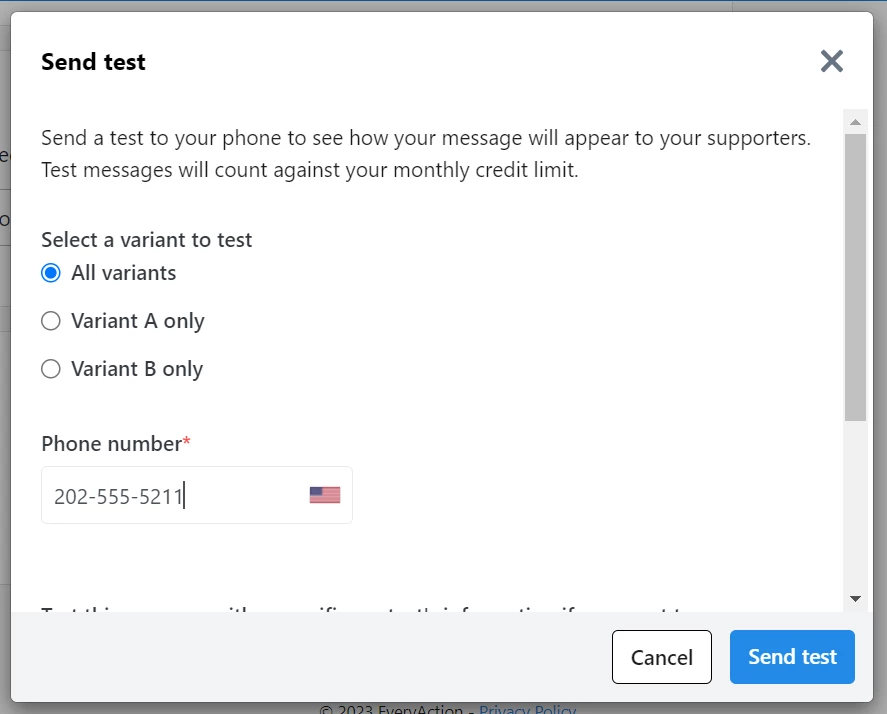
As with a standard broadcast message, you can preview your A and B variants. Select Preview & test at the bottom of the page, followed by the Send a test message option. Send a sample of all variants or select the individual variant you want to send.
Sending & Scheduling your A/B test
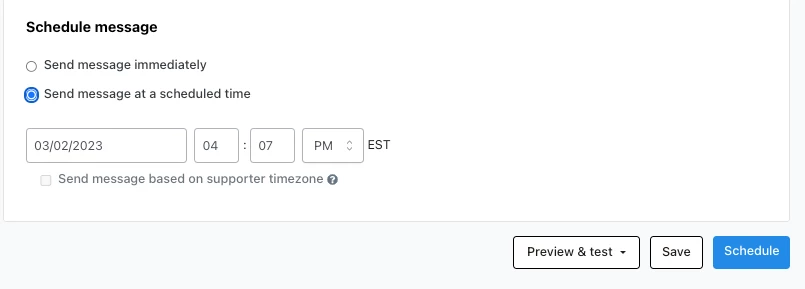
A/B Test Messages can be sent immediately or scheduled to go out a specific time. The winning variant is sent based on the number of hours you selected to wait in the Selecting a winner panel. The number of hours you select should factor in a waiting period for results to gather.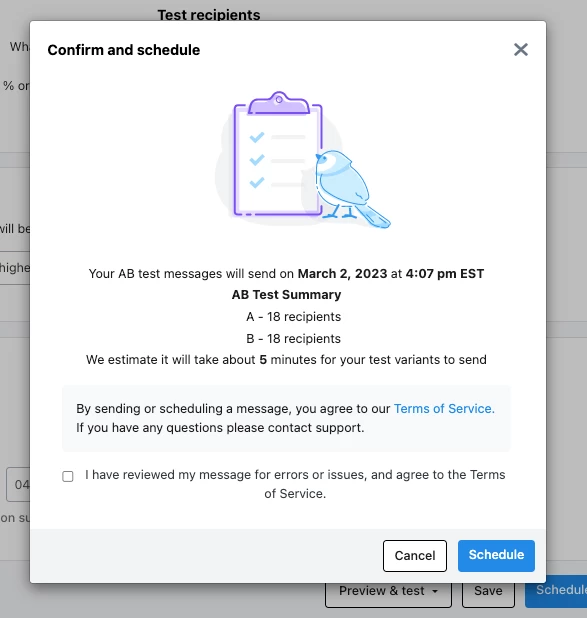
Before sending or scheduling, you will need to confirm your plan. A summary of the number of recipients for each variant and an approximate time for your test messages to send are provided. Remember, larger audiences require more time and you will need to account for that when auto-selecting a winner.