



Keywords are specific words that can be used by your supporters to opt-in or opt-out of receiving text messages and that can be used to increase engagement by triggering customized, automatic responses. With Mobile Messaging you can control the automated responses to your supporters and even create your own customized keywords that will give your supporters more ways to respond to your messages with their specific interests or concerns.
Using reserved keywords
There are a few keywords that are reserved for helping your supporters manage their subscription status to your text messages. These keywords are a required part of any mobile messaging service. You cannot change or eliminate these keywords. If you need to customize these messages, you should contact Support.
Reserved Keywords that work with Mobile Messaging include:
-
HELP: When a person texts the SMS keyword HELP to your shortcode or toll-free number, they will see a message that contains additional information about the campaign, how to opt-out, and how to receive further assistance.
-
STOP, UNSUBSCRIBE, END, QUIT, CANCEL, or STOPALL: When supporters texts any of these SMS keywords to your shortcode or toll-free number, they will be opted-out and sent a text message confirming the opt-out.
-
JOIN: Join is used as the universal opt-in keyword. When your supporter texts JOIN to your shortcode or toll-free number we will automatically update that number’s status to Opt-In if the phone number already exists. If not, a new phone-only contact record will be created and be opted in, for future data collection.. (Remember, SMS Opt-In Status is set on individual phone numbers and is shared across contacts within a committee.)
-
UNSTOP: Unstop is used as the universal re-join keyword. When a person texts UNSTOP to your shortcode or toll-free number, we will automatically update that number’s status to Opt-In (but only if it was previously opted-out).
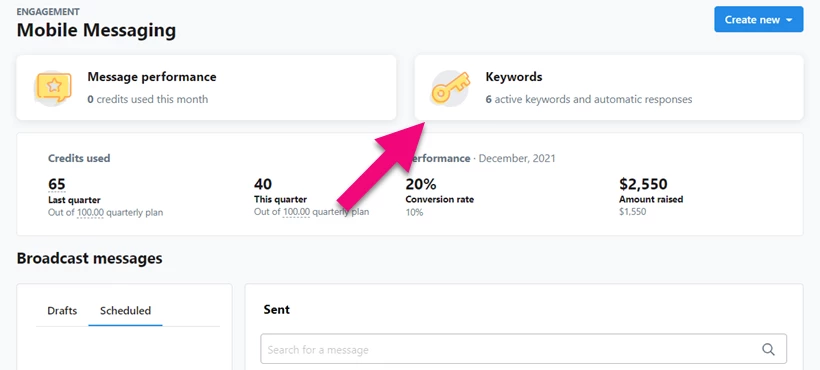
To view these keywords and their settings, open Mobile Messaging from the Sidebar and then select View Keywords.
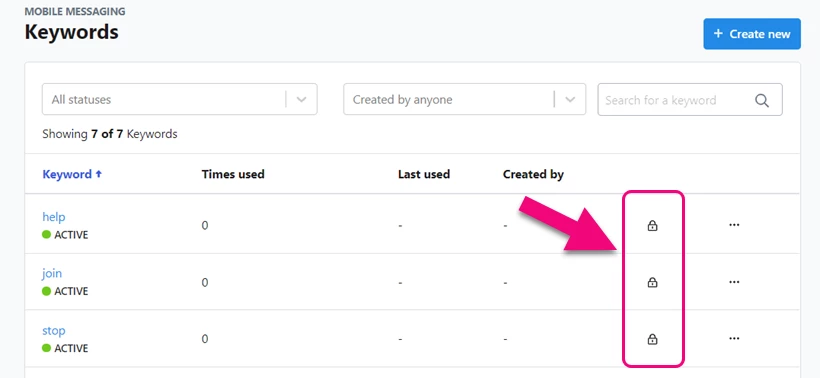
Reserved keywords are marked with a lock, meaning you cannot delete these messages. Use the action menu (…) to view the details and pre-configured messages.
Creating custom keywords
Custom keywords make it easier for your supporters to respond to your messages and help drive greater engagement. You can customize the messages you send in these automated responses and include links to forms or websites and MMS elements like images (.pngs, .jpgs, .gifs), videos (.mp4), and contact cards (.vcf).
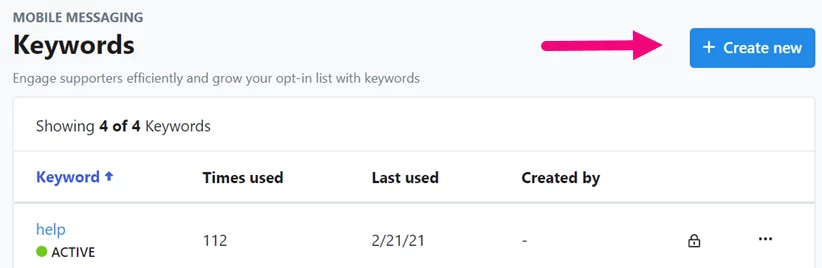
To add a new keyword, select Create new > Keyword from the Mobile Messaging main page or open the Keywords list page and select + Create new.
Add your Keyword and select which actions you want to include as part of your response.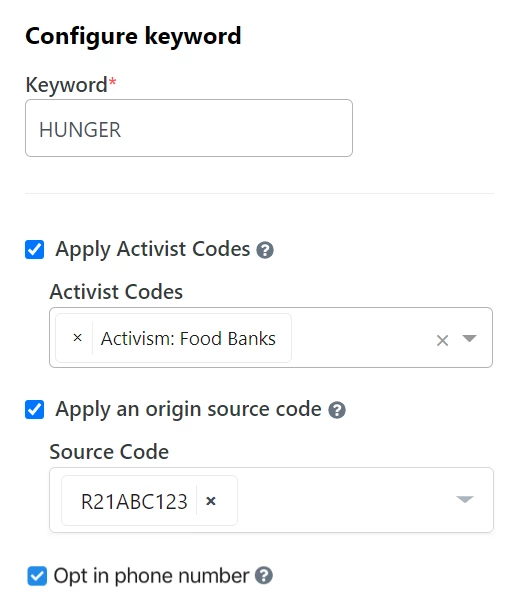
As a rule, your keyword:
-
Cannot be more than 30 characters
-
Can have spaces between words, such as, VOTE NOW
-
Cannot start with STOP, STOPALL, UNSUBSCRIBE, QUIT, END, or CANCEL
-
Cannot contain emojis or special characters
-
Cannot be a duplicate of other keywords within the same committee
Once you’ve selected the keyword and actions to take, you can select an automatic message response that your supporter will receive as a confirmation. If you’ve opted them into your texting program, this will be added to the usual opt-in message that you send them for compliance reasons.
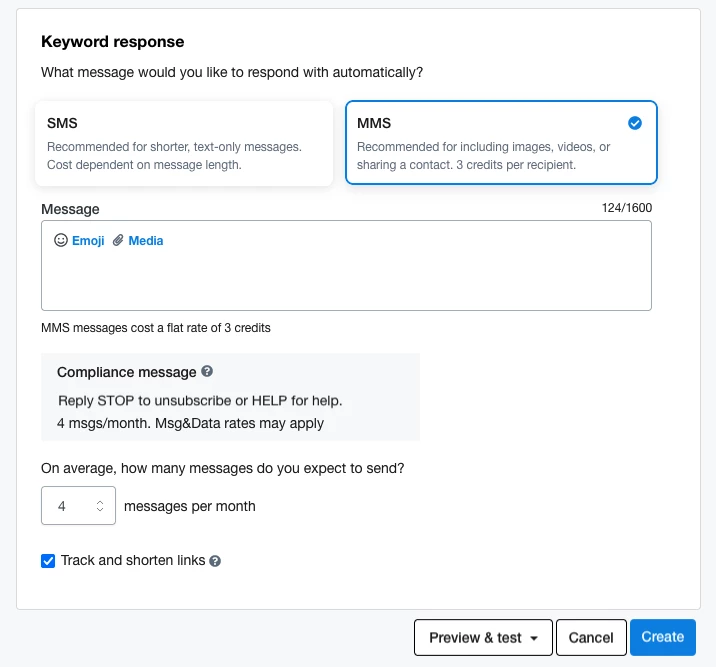
If you are using MMS, consider including a .vcf contact card in your opt-in response. This allows your supporters to add your organization both as a text messaging contact, as well as an email contact, which can improve deliverability.