


How do I add a footer to Online Actions forms?
Step 1: Navigate to Online Actions
Once in Online Actions, either create a new form or select an existing form from the Form Overview section.
Step 2: Navigate to the Basics Page of Your Form
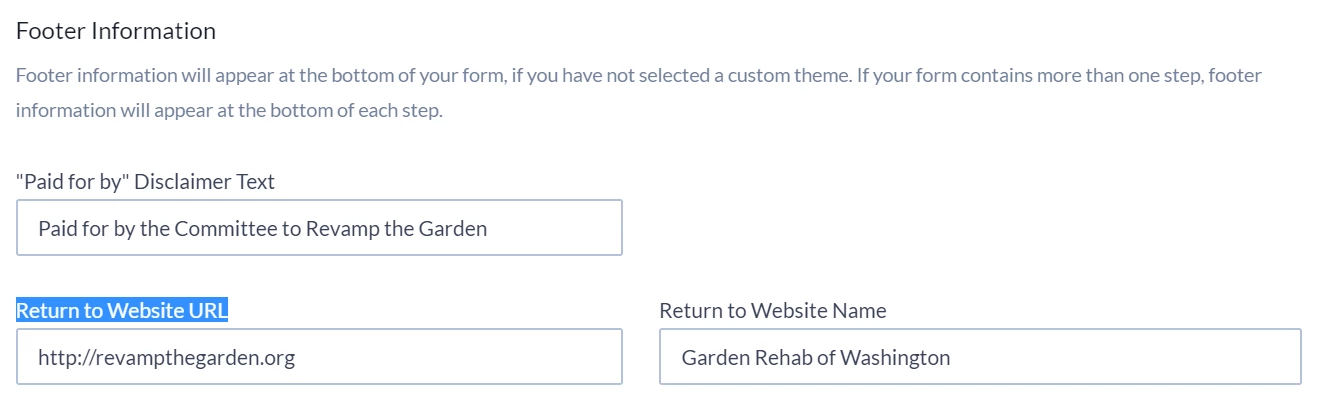
On the Basics page, scroll to the section Footer Information. Here you can add information in the footer of your form, including a disclaimer, a website URL, and a website name. If you are using a form for a political campaign, you can include your Paid for by disclaimer text here. When you enter a website name in addition to a URL, the link will be applied to the website name. For example, if your URL is revampthegarden.org and you list Garden Rehab of Washington as the website name, Garden Rehab of Washington becomes a clickable link.
Step 3: Publish Your Form
On the Confirmation page, scroll to the bottom of the page and select "Publish Changes".
Not quite what you were searching for?
- Navigate back to the Online Actions Resource Index.
How do I add a footer to online actions forms? | How does add a footer to online actions forms work in EveryAction? | Why can't I add a footer to online actions forms? | Where do I add a footer to online actions forms in EveryAction? | What is add a footer to online actions forms in EveryAction? | How to add a footer to online actions forms? | Can I add a footer to online actions forms in EveryAction?