


How do I create an Event Signup Form?
How do I create an Event Signup Form?
Event Signup Forms are tied to an Event in the CRM.
Creating your Event Types and Roles
Before you can publish an Event Signup Form, determine which Event Types and corresponding Event Roles can be published in Online Actions.
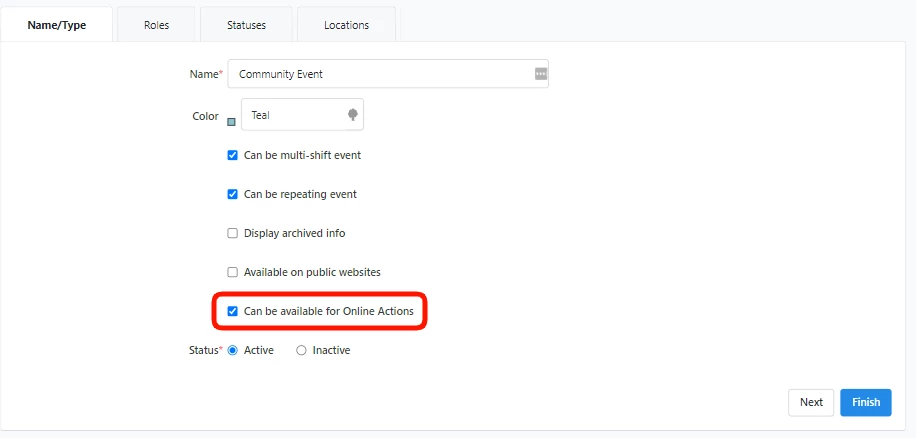
On the sidebar of the Main Page, search Event Types. On the Event Types page search and select the one you want, and check Can be available for Online Actions box.
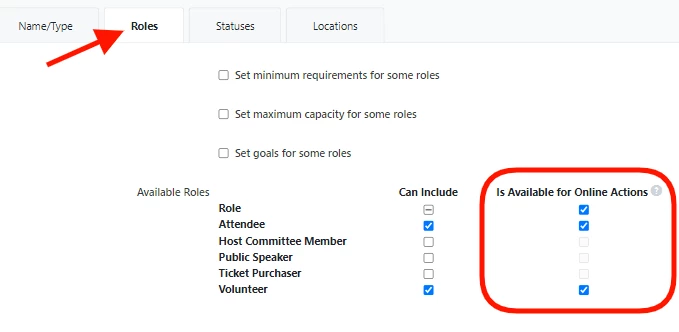
As you edit the Event Type, move to the Roles tab and decide which Event Roles to make available on the forms by selecting Is Available for Online Actions.
Publishing your form
Once the Event Type and corresponding Roles are enabled for Online Actions, you can publish Events of that type by selecting Publish online signup form(s) the bottom of the first step for creating a new event.
Three additional fields appear:
- Event Signup Form Template - If you created an Event Signup Form Template, you can apply it to the Online Signup Form.
Read more about creating an Event Signup Template
- Public-Facing Name - This appears at the top of the form, below your logo.
- Public-Facing Description - This appears in the text below the header, above the form fields.
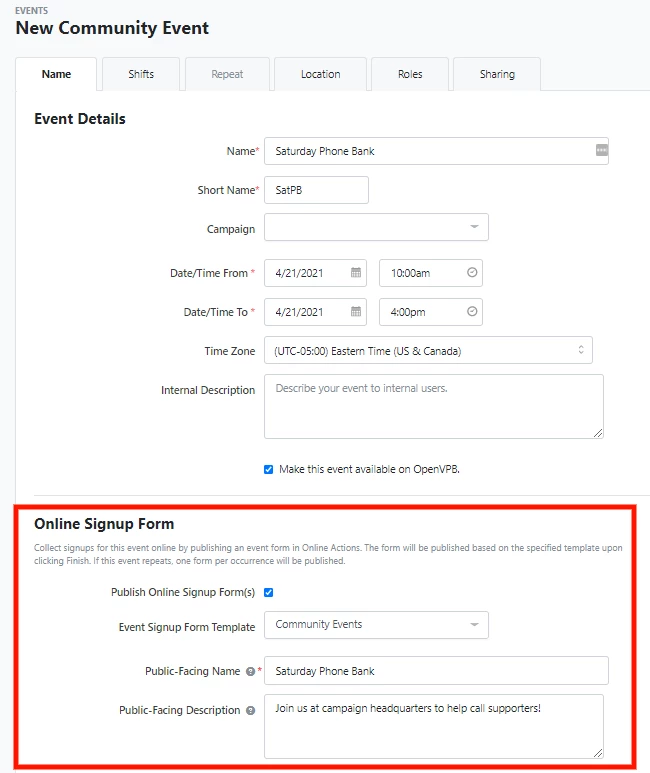
Click Finish to create your Event Signup Form. One form is published for each instance of a recurring event, which can prolong the time required to publish.
Once an Event Signup Form is published, the URL appears in the Online Signup Form section of the Event details.
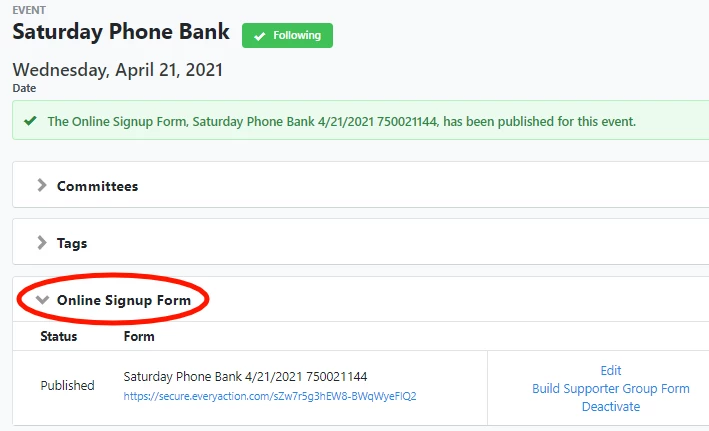
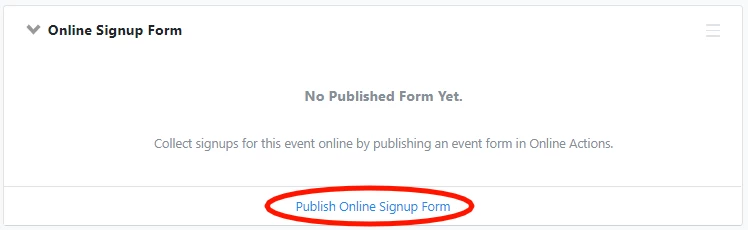
You can publish an existing event in the same section using the Publish Online Signup Form link in the same section.
Submitting an Event Signup Form
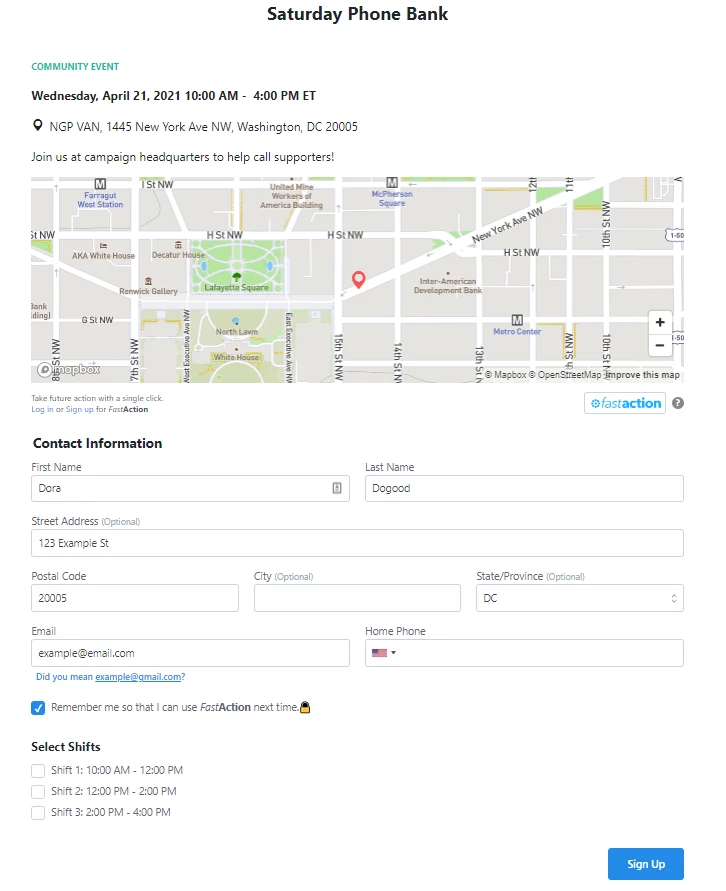
When a supporter visits an Event Signup Form, they can see the name, event type, description, date, time, and location(s). A map renders the location pins, if they have been assigned coordinates in the database. If you've included multiple values, supporters can select the location, role, and shifts they want to sign up for before submitting their contact information.
By default, the Thank You page includes all the details of the event, including which shift and role the supporter selected. The confirmation email is not set by default, as the From Name and From Email Address need to be indicated; users can set this up in advance with an Event Signup Template, or afterward by editing the published form in Online Actions.
Editing Event Signup Forms in Online Actions
Once an event is published to Online Actions, an Event Signup Form appears on the Online Actions dashboard for you to edit.
Along with your messaging, you can customize fonts and colors, change the display order of Locations and Roles, and set values for those fields.
Read more about Design in Online Actions forms
Like other form types, you can apply a Theme, update the content and contact fields, and configure a Thank You page and Confirmation Email.
You can also choose to include a waiver on your form, and collect typed or hand-drawn signatures from supporters.
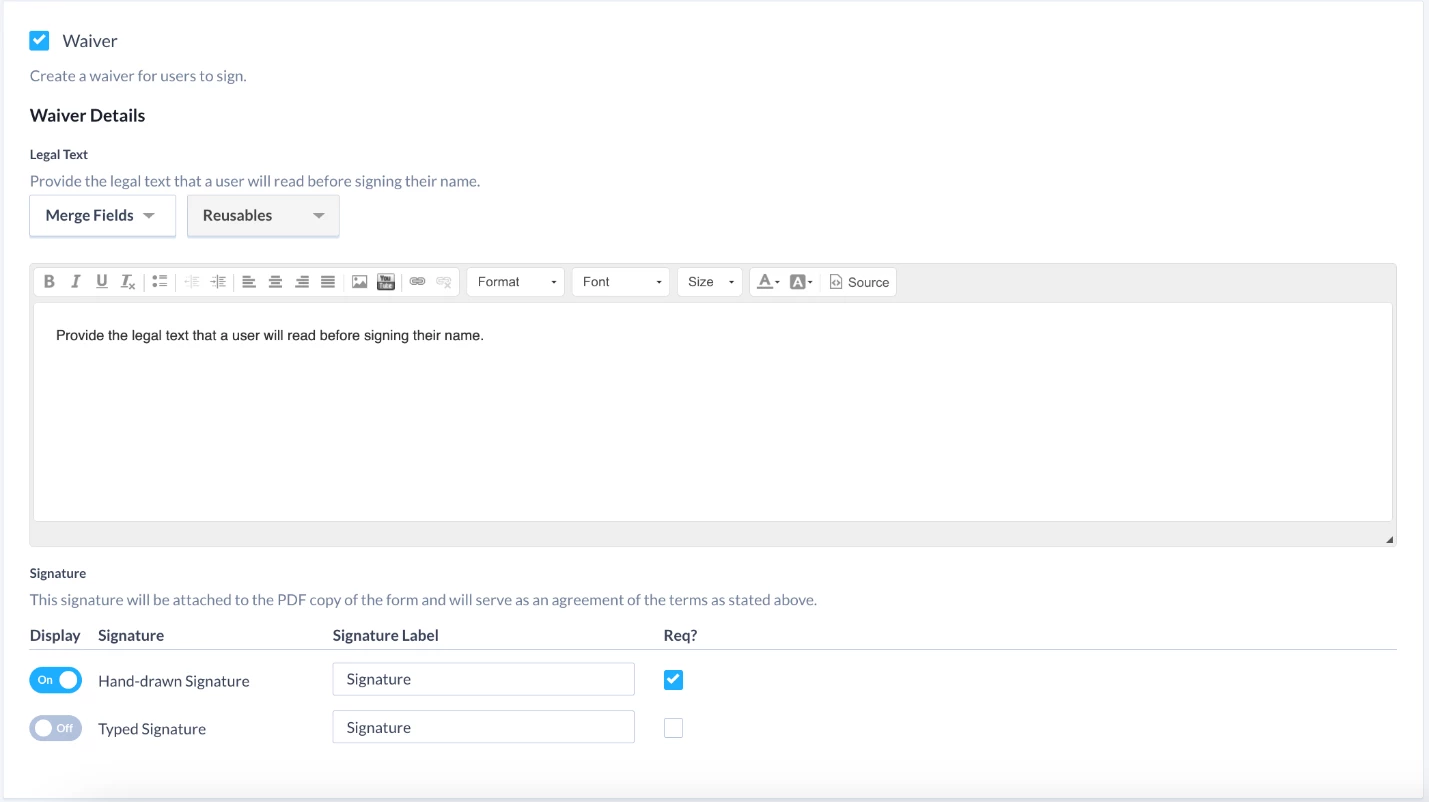
In the Legal Text section, fill in the text you’d like to display.
In the Signature section, choose whether or not you’d like a hand-drawn signature and/or typed signature, and whether these options are required for form submission.
Once a contact signs the waiver and submits the form, the signature will be attached to a PDF version of the form on their contact record.
Merge field content included in the form, Thank You page, and confirmation email will always display the latest changes made to the Event in the CRM.
Looking for training?
Explore this feature at your own pace - join a live training session or watch a recorded webinar by clicking the link below.
How do I create an event signup form? | How does create an event signup form work in EveryAction? | Why can't I create an event signup form? | Where do I create an event signup form in EveryAction? | What is create an event signup form in EveryAction? | How to create an event signup form? | Can I create an event signup form in EveryAction?