


How do I request a Paragon Gateway?
Step 1: Prepare Required Information
The application form for your Paragon account will take about 10 minutes to complete. Make sure you have all the required information you will need in advance, including:
-
Organization legal name
-
Federal Tax ID
-
Organization legal address
-
Personal information for the person responsible for the account, including:
-
Date of birth
-
Social Security Number
-
Driver's License Number
-
-
Bank routing and account number for deposits
Optional information you may want to include:
-
Main phone number
-
Donor Services number (will appear on donor statements)
-
Short description of the organization (will appear on donor statements)
-
Organization physical address (if different from legal address)
Step 2: Access the Payment Gateway Request Form
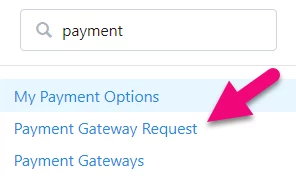
Search for "Payment Gateway Request" in the Sidebar. Note: Only account administrators and digital users can access this form. If you’re the site administrator but can’t see the link, contact Support for assistance.
Step 3: Complete the Application
Once you’ve opened the form, you’ll be asked to begin adding additional information. Before you begin, make sure you have the correct Designation selected if you have a multiple-Designation account. You can then proceed to add your organization’s information to apply for the gateway and merchant account.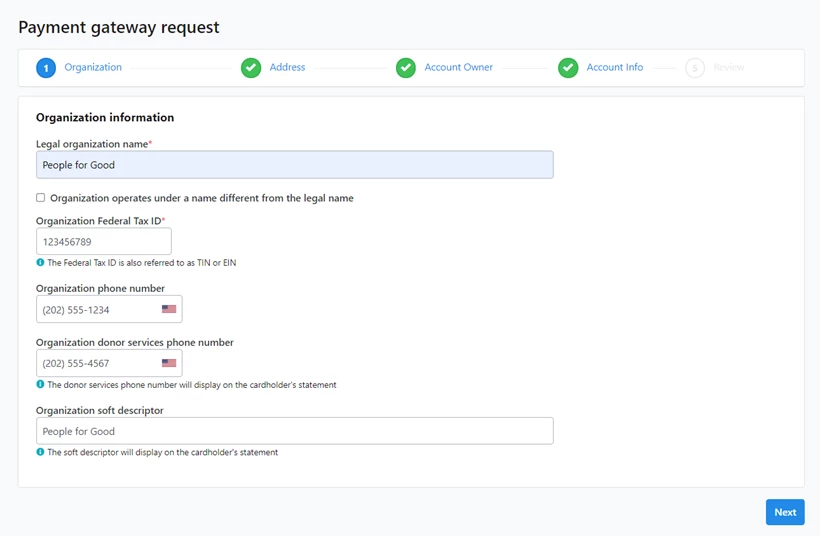
Step 4: Review and Agree to Terms
When you are finished adding your information, you’ll see a final review page on the last step that will confirm your information, show you the pricing structure for your transactions, and request that you agree to Paragon’s Terms and Conditions.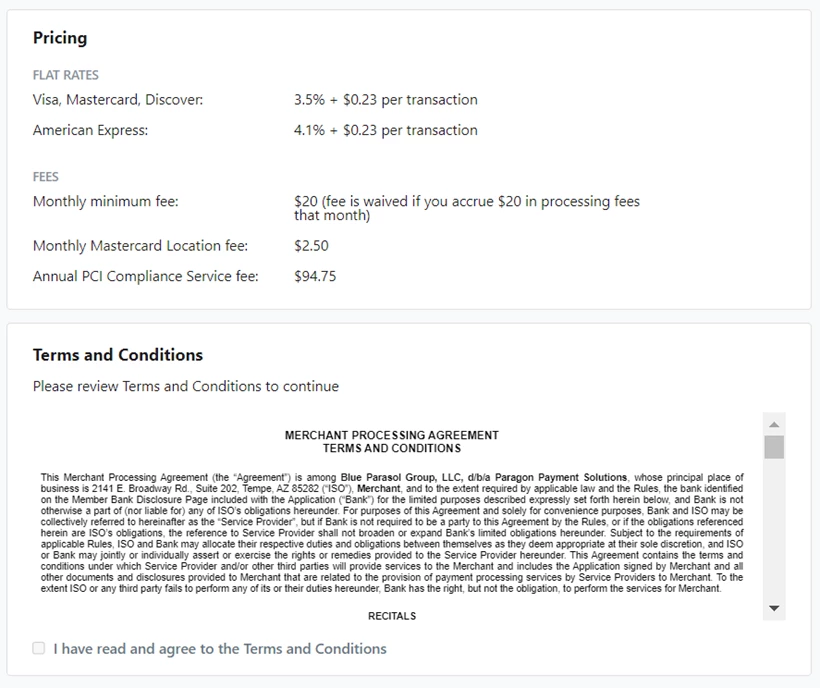
Step 5: Submit Your Application
Once you Submit your application, you should see a response within 30 seconds that will confirm your provisional account. You should see a confirmation page that will give you access to the Paragon portal. The credentials shown on this page are only shown here, so you should make note of them or click the button right away to visit Paragon’s portal and update your password.How do I request a paragon gateway? | How does request a paragon gateway work in EveryAction? | Why can't I request a paragon gateway? | Where do I request a paragon gateway in EveryAction? | What is request a paragon gateway in EveryAction? | How to request a paragon gateway? | Can I request a paragon gateway in EveryAction?