

How do I enable Venmo on my Contribution or Ticketed Event form?

  • February 6, 2025
  • 3 replies
  • 57 views

Happie Pingol
Forum|alt.badge.img

Venmo is owned by PayPal, so the first step in enabling Venmo payment processing is creating a PayPal payment gateway. After setting up the PayPal gateway, you’ll be able to enable Venmo on your Contribution and Ticketed Event forms. 


Step 1

Go to the Online Actions dashboard by clicking the waffle icon on the upper right-hand side of the page. 

Step 2

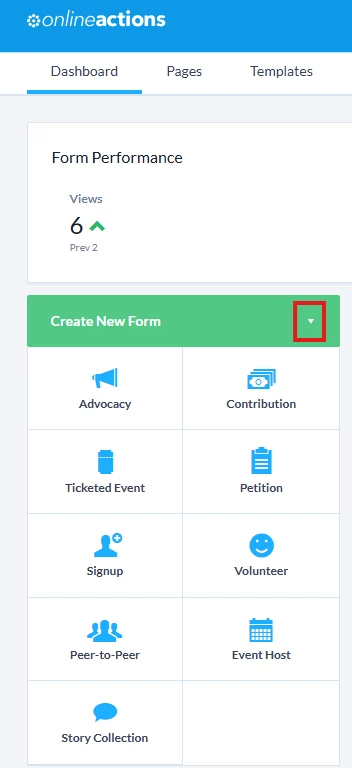
Navigate to your Contribution or Ticketed Event form in the drafts, or Create a new Contribution or Ticketed Event form by clicking New. 
000004813_0EMQg00000EiKRB.png 

Step 3

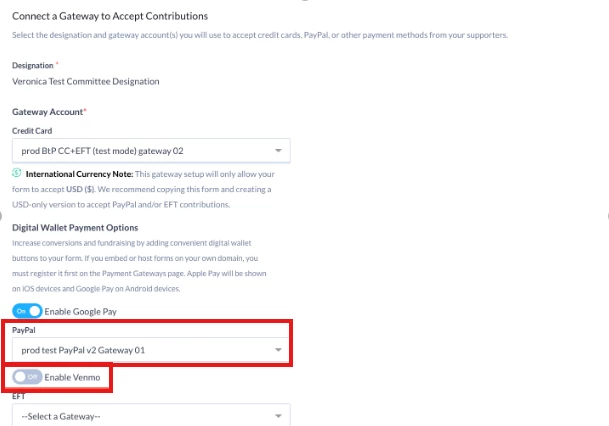
On the Basics page of your form, navigate to the "Connect a Gateway to Accept Contributions" section. 


Step 4

Under "Digital Wallet Payment Options" select your new PayPal gateway. 


Step 5

In the same section, you can also toggle "Enable Venmo" on or off to allow your donors to pay with Venmo. 
000004813_0EMQg00000Ehw8m.png 


What else do you need help with? 


3 replies

Rumi Matsuyama
Forum|alt.badge.img+1

If a client has a paypal account but does NOT have a venmo account, can donors still donate using venmo through the paypal gateway (and presumably have the funds process via paypal?)


Rumi Matsuyama
Forum|alt.badge.img+1

I found out some info about this!  Bonterra folks feel free to confirm or correct me: 

  1. another EA superuser has confirmed to me that clients must have a Venmo account enabled on their end for Venmo to work, regardless of whether they have a PayPal Account / Gateway.  if they toggle the Venmo switch on at EA without having their own Venmo account, Venmo users will receive an error message.  The user tested this out and then confirmed with Support that the error message they received when they tested donating by Venmo failed because the client didn’t also have a Venmo account (presumably one that is connected to the same PayPal account the Gateway is tied to. Makes sense! But the instructions don’t make that explicit IMHO)  So EA Folks: I suggest the help documentation (above and elsewhere?) and EA app itself (perhaps a tooltip?) could clarify this to warn folks not to turn it on until they have a Venmo account connnected to the same PayPal account or whatever?
  1. Furthermore, while this toggle to turn off/on Venmo is available on a form by form basis for regular donation forms and ticketed event forms, it’s not an option for the new Optimized Contribution Forms.  So if you have PayPal but not Venmo, you need to toggle Venmo off all your forms, but specifically if you use Optimized contribution forms you have to have Venmo turned off at the PayPal Gateway by Bonterra Support to in order to offer PayPal as a payment method on those types of forms.  Bonterra Support says the following: (highlighting added to info regarding Optimized forms) 

You should be able to turn Venmo off directly on the forms themselves, except for Optimized Contribution Forms.

For Advanced Contribution or Ticketed Event Forms:

  1. Go to Step 1 – Basics.

  2. After selecting your PayPal gateway under Digital Wallet Options, you should see an Enable Venmo toggle.

  3. You can turn this on or off per form.

For Optimized Contribution Forms:
These intentionally expose fewer settings. Payment methods are inherited from the gateway, so there’s no per-form Venmo toggle. That behavior is expected.

If you need Venmo turned off across all forms (or if you don’t see the per-form toggle), Support can disable it for you at the Payment Gateway level.


Megan Dodds
Forum|alt.badge.img+1
  • Community Manager
  • November 26, 2025

Thanks, Rumi! Our team is looking into updating our help resources to reflect this need. Great catch and appreciate the feedback!