


How to: Make calls with Virtual Phone Bank
We’ve made some updates to our login experience! If you come across references to “ActionID” in our help resources, those are being updated to reflect the new name: Bonterra Account. Nothing changes on your end as we tidy up the documentation.
(5 min read)
Virtual Phone Bank (VPB) allows you to participate in a campaign or organization’s outreach effort from anywhere. While you make calls you can view information about the people you're calling along side your script and enter responses as you go.
To begin, you will need two things:
-
A phone bank code provided by your organizer
-
An Bonterra Account, which you can set up using an email address and a password of your choice. Check with your organizer to see if you will receive a login invitation.
If your campaign or organization is using Daily Access Codes, you will be prompted to enter one after you login with Bonterra Account.
You can make calls one of two ways:
-
Make calls on your mobile device or landline and view the phone bank on a computer or tablet
-
Make calls on your mobile device and view the phone bank on your mobile device at the same time. VPB is mobile responsive. You can click on a phone number to place a call.
You may also be asked to access the phone bank via:
-
A campaign or organization database where a non-open VPB is set up
-
OpenVPB (openvpb.com), where you will create or log in with an Bonterra Account to make calls. OpenVPB is compatible with screen readers and can be accessed from a mobile device.
If your campaign or organization is using Daily Access Codes, you will be prompted to enter one after you enter the OpenVPB code.
Logging into OpenVPB
If you're using OpenVPB, go to openvpb.com. If you are not already logged into an Bonterra Account, you will be redirected to log in with an existing Bonterra Account or create one from the login page using Create account.
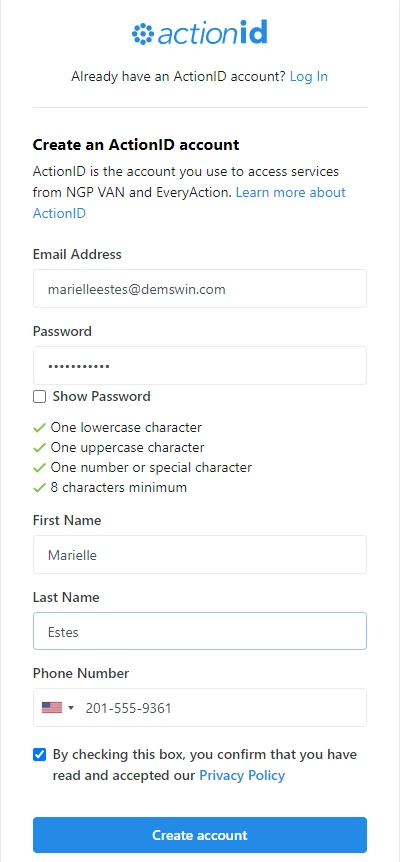
When you select Create account, set up Two-Factor Authentication (2FA) and return to openvpb.com to log in. Depending on the link your organizer provided, you may be prompted to enter an access code.
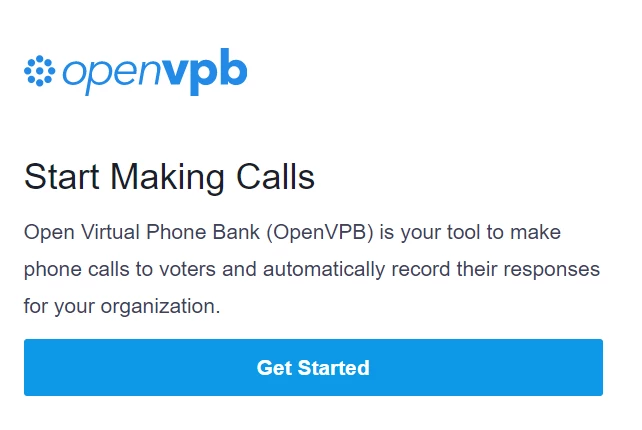
If you have been given a Daily Access Code, you will be prompted to enter it after selecting Get Started.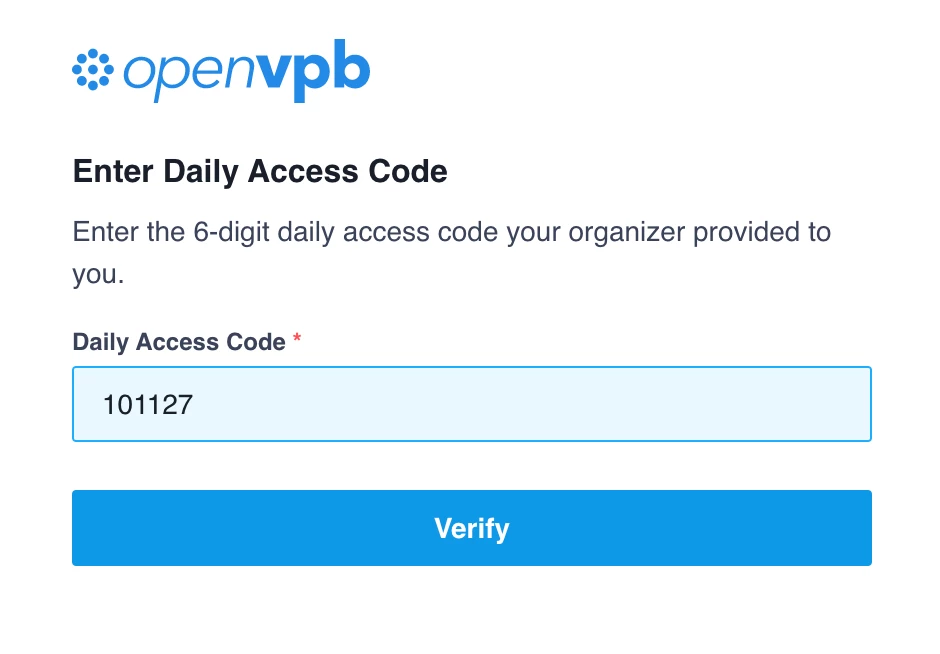
If you have any issues, please contact your organizer. Depending on the OpenVPB set up, contact information may be available at the top of your screen on this page.

Logging into Virtual Phone Bank
Log into VAN with your Bonterra Account. If you have access to My Voters and My Campaign, ask your organizer which side of VAN you should phone bank from.
You can begin phone banking with VPB one of two ways:
-
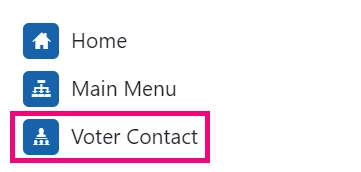
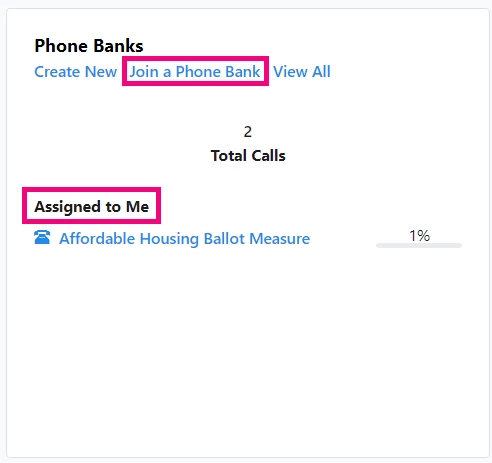
Open Voter Contact from the Sidebar. You may see phone banks under Assigned to Me. Otherwise, you can select Join a Phone Bank and enter the access code provided by your organizer.
-
-
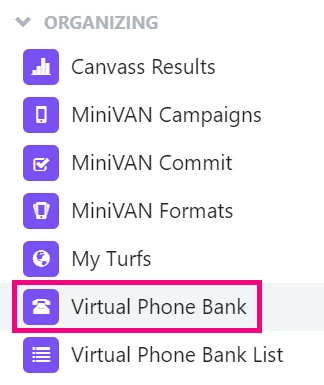
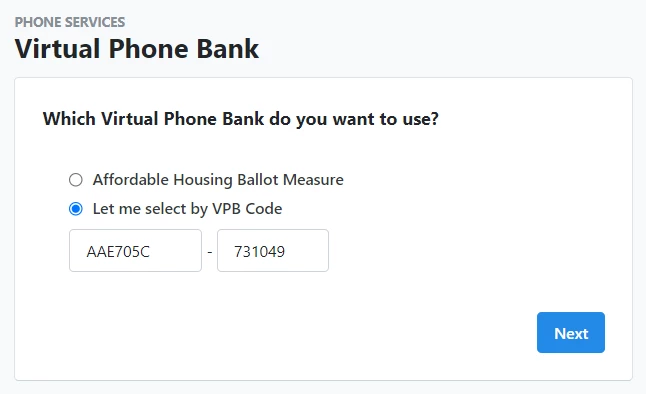
Open Virtual Phone Bank from the Sidebar. Select the phone bank assigned to you, or enter the access code provided by your organizer.
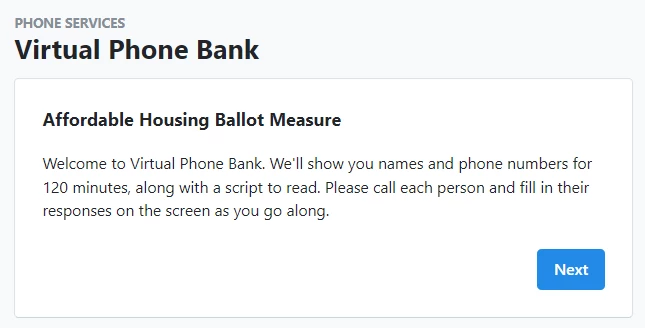
You will see a brief summary of how VPB works.
Making calls and entering results
During your call, you will see the name and number of the person you're calling. If you’re using VPB, you may also see a progress bar letting you know either the number of calls you’ve made against the total number of contacts or against your individual limit, depending on how the phone bank is set up.
Making calls in OpenVPB looks slightly different, but entering results works the same way.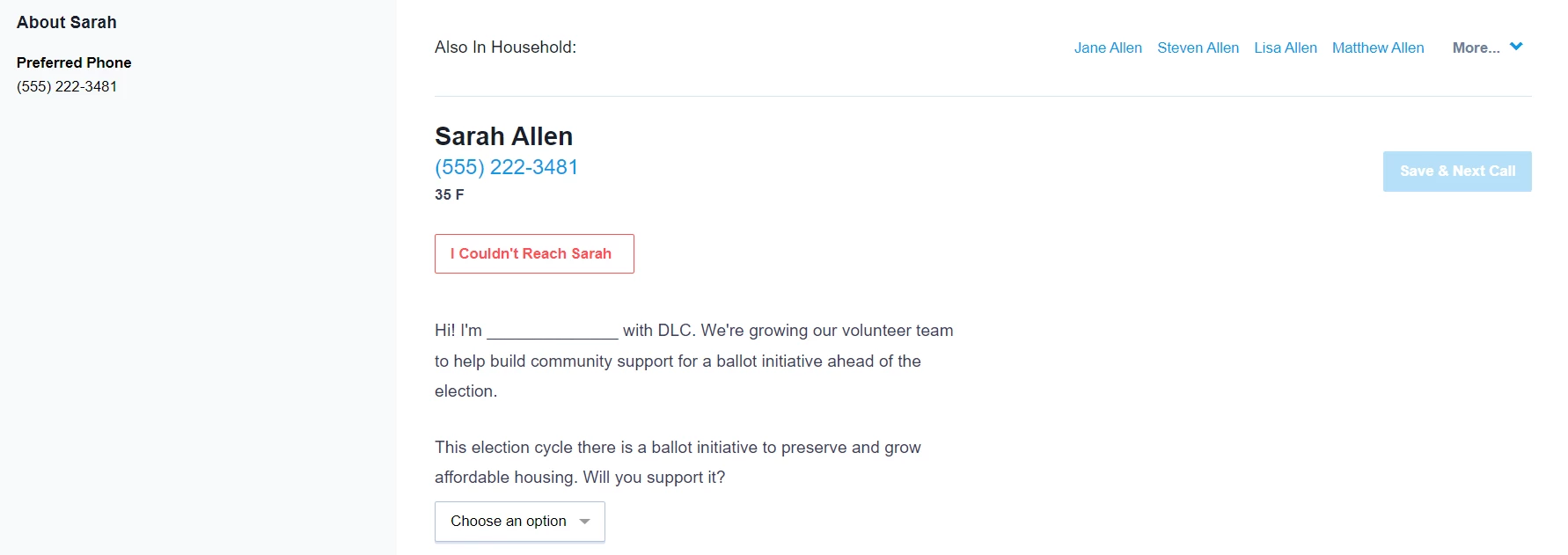
In the event you are unable to reach the person you called, select I Couldn’t Reach and enter the reason.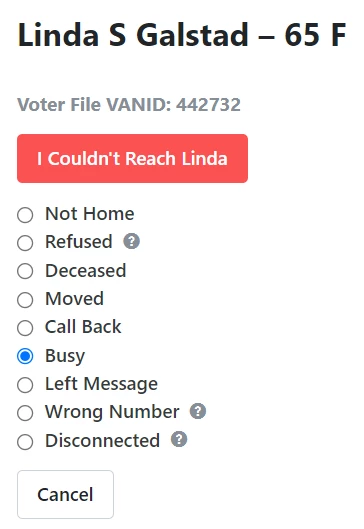
Your script is displayed beneath your contact information.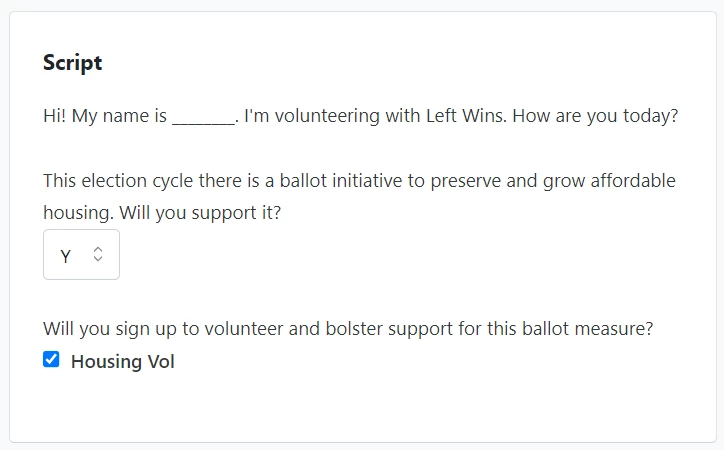
Once you complete the script and enter in notes or update information about a contact if necessary, select Save & Next Call.

In some cases, the campaign or organization you’re phone banking for will provide a Designated Contact, someone you can call or email should you have questions while making calls. If that information is not available, contact your organizer with questions.
In VPB, the Designated Contact information appears to the right of the information for the person you’re calling.
In OpenVPB, the Designated Contact information appears above the information for the person you’re calling.
Households
Some numbers are shared by multiple people in a single household. In that case, each person is assigned a tab and you can toggle from one to the next to record responses of each household member.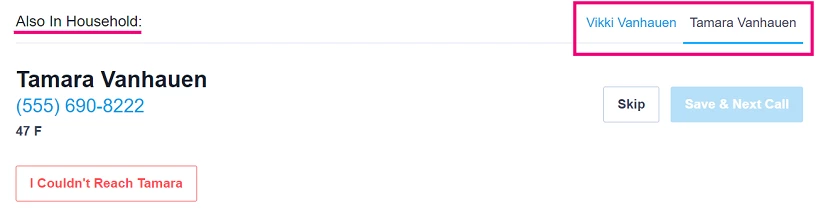
Calling through alternative numbers
Occasionally, a single person will have multiple numbers. In that case, you will see the first out of however many possible options. Dial that number and enter the results. Only proceed to the next number if you are unable to reach a contact with the first.
In VPB, the button to try an alternative number is located on the upper right of the screen.
In OpenVPB, the button to try an alternative number is located below the list of reasons you were unable to reach your contact.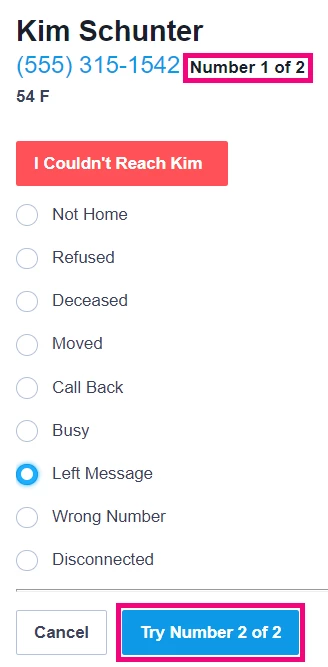
Scheduling people for events in Virtual Phone Bank
When making calls, you may be asking people to attend events.
In VPB, the button to Schedule for Events is located on the upper right of the screen.
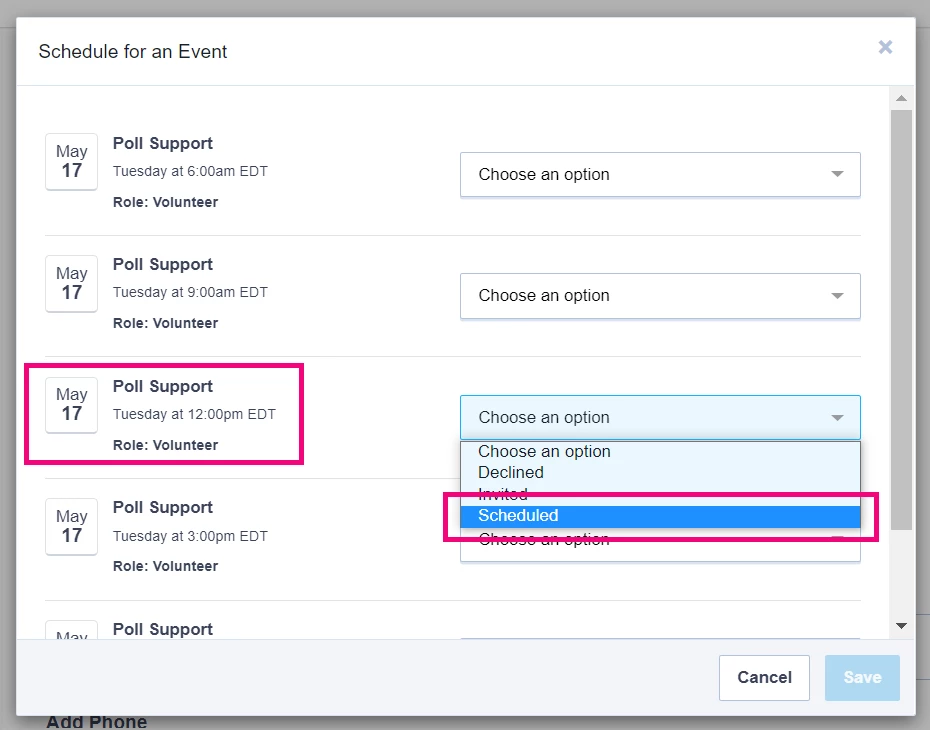
In OpenVPB, the button to Schedule for an Event is located below your script.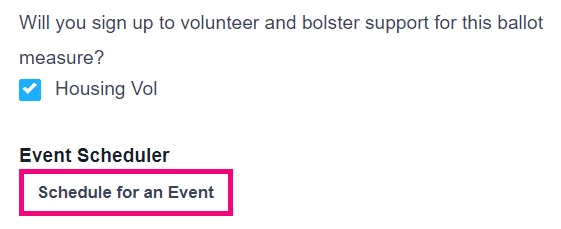
In VPB, the scheduler may include multiple events. Edit filters to narrow the event selection by type, name, and date, then Refresh Results.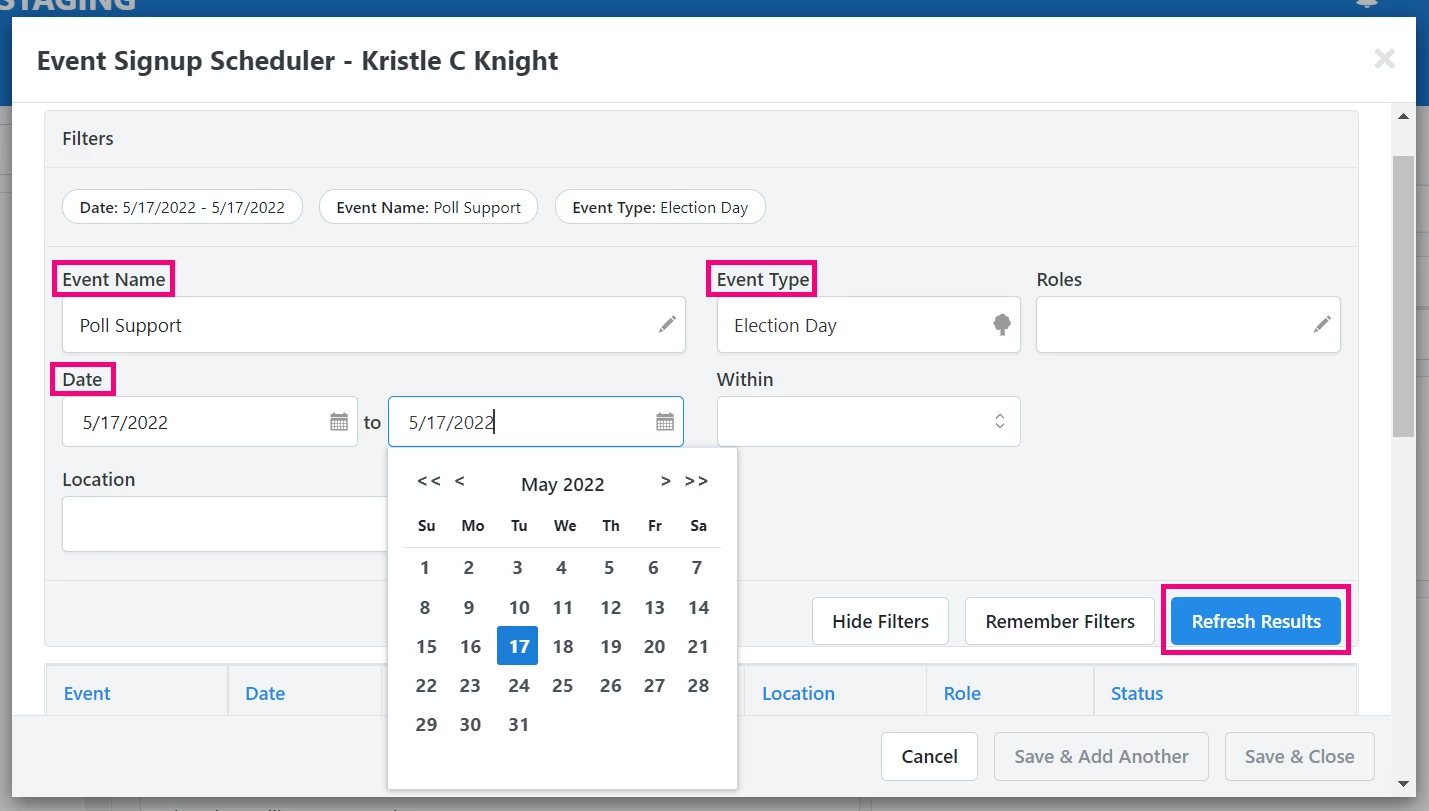
The Event Scheduler will show you all the available shifts for an event. Use the Status dropdown, if you’re in VPB, or Choose an option, if you’re in OpenVPB to record responses. Communicate with your organizer to ensure you’re updating statuses appropriately.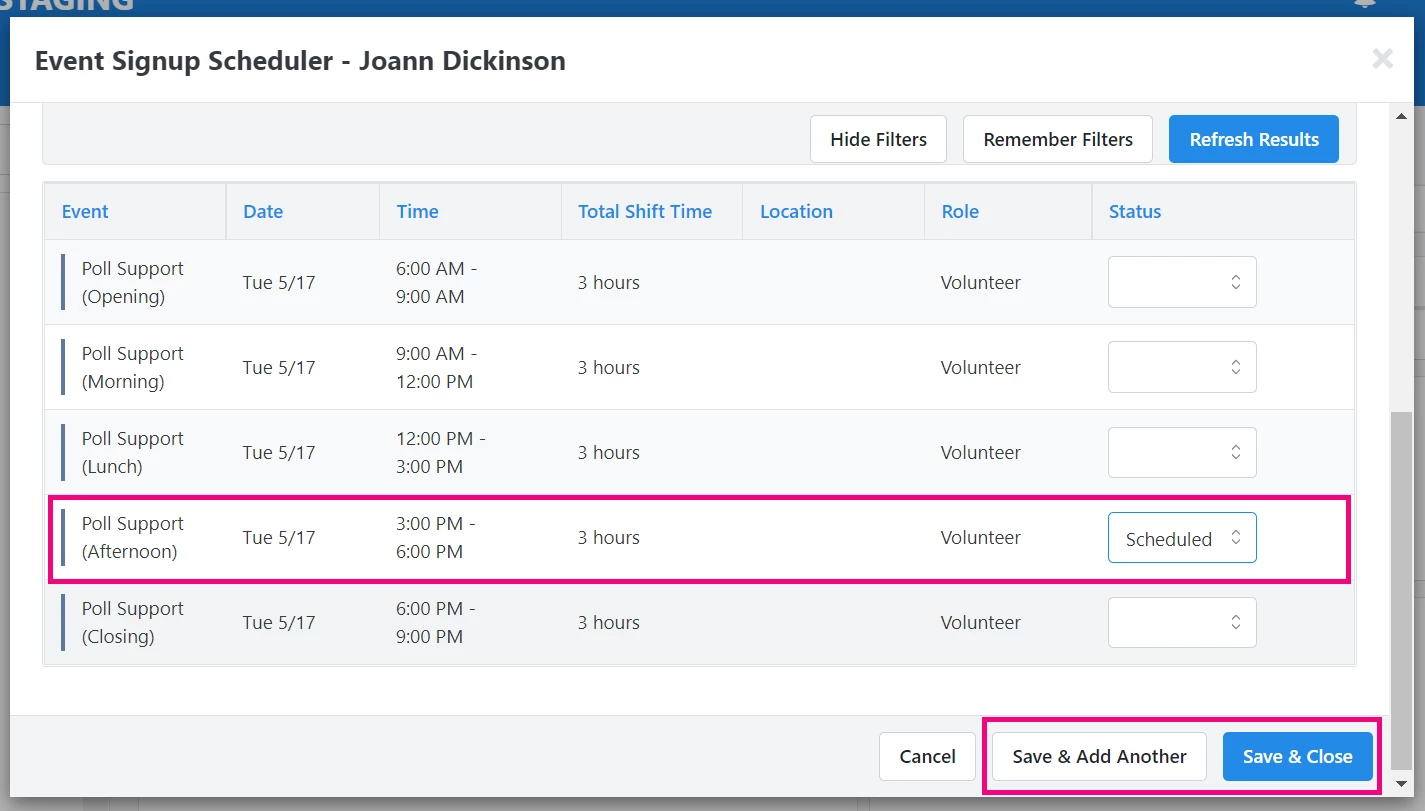
How do I how to: make calls with virtual phone bank? | How does how to: make calls with virtual phone bank work in EveryAction? | Why can't I how to: make calls with virtual phone bank? | Where do I how to: make calls with virtual phone bank in EveryAction? | What is how to: make calls with virtual phone bank in EveryAction? | How to how to: make calls with virtual phone bank? | Can I how to: make calls with virtual phone bank in EveryAction?