


How to: Make calls with VPB Connect
We’ve made some updates to our login experience! If you come across references to “ActionID” in our help resources, those are being updated to reflect the new name: Bonterra Account. Nothing changes on your end as we tidy up the documentation.
(4 min read)
VPB Connect allows you to make calls for campaigns or organizations using your computer from anywhere. You will see information about the people you're calling and a customized script from the campaign or organization, and enter results as you go. You don’t need to use your phone.
In order to make calls with VPB Connect, the campaign or organization you’re working with must have purchased this service.
Read more on Virtual Phone Bank
Feature requirements
To make calls with VPB Connect, you will need three things:
-
The phone bank link from the campaign or organization you're volunteering for
-
A login called Bonterra Account, which you can set up using your email address and a password of your choice. In some cases, the campaign or organization may need to send you a login invitation.
-
A computer
Headphones or a headset connected to your computer is also recommended, particularly if you’re not in a quiet place to yourself.
Open Virtual Phone Bank is compatible with screen readers. If you have any questions or concerns, please contact the campaign or organization directly.
VPB Connect works with the device and browser combinations that are indicated in the chart below. For example, on a Windows device, volunteers should use Chrome, Firefox, or Edge.
|
| Chrome | Firefox | Safari | Edge - Chromium |
|---|---|---|---|---|
| Android | ✅ | ✅ | ❌ | ❌ |
| iOS | ❌ | ❌ | ✅ | ❌ |
| Linux | ✅ | ✅ | ❌ | ❌ |
| macOS | ✅ | ✅ | ✅ | ❌ |
| Windows | ✅ | ✅ | ❌ | ✅ |
Logging into Open Virtual Phone Bank
Go to openvpb.com > Get Started.
If you are not already logged into an Bonterra Account, you will be directed to myaccount.ngpvan.com, where you can log in to an existing Bonterra Account or create one.
To create an Bonterra Account from openvpb.com, click Create an Bonterra Account from the login page.
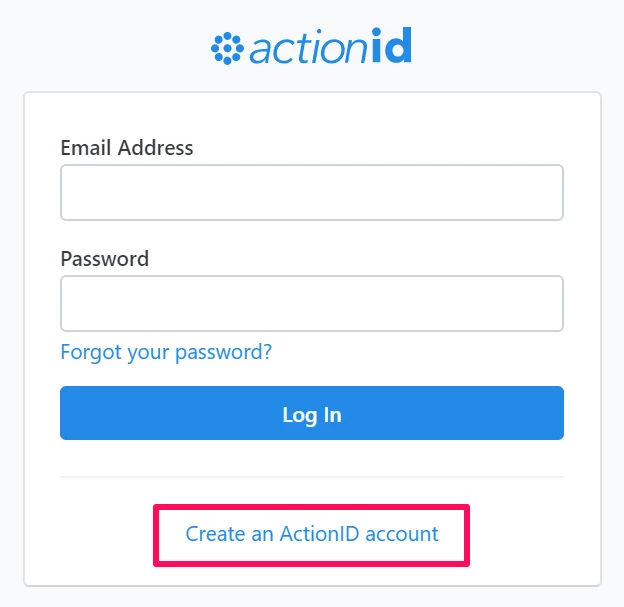
Enter your information and set a password, then click Create Account. We encourage everyone to set up Two-Factor Authentication (2FA). You may have heard this referred to elsewhere as Multi-Factor Authentication (MFA).
Once you have set up your Bonterra Account, go back to openvpb.com to log in. Depending on the link that the campaign has provided, you may be prompted for the Virtual Phone Bank code provided by the campaign or organization before proceeding to the Get Started page. If you have any issues, please contact the campaign or organization directly.
Providing your browser with access to your microphone
In order to click-to-dial, you will need to grant your browser access to your microphone. You will be prompted to do so after proceeding from the Getting Started page.
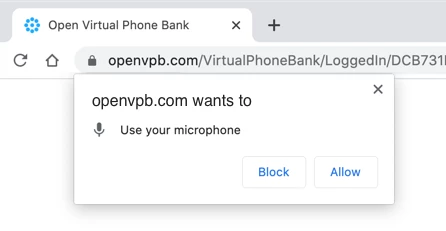
If you dismiss the prompt, you will need to edit your browser settings. If you do not provide access to your microphone, you will not be able to click-to-dial; instead, you will need to dial the numbers on your phone.
Making calls
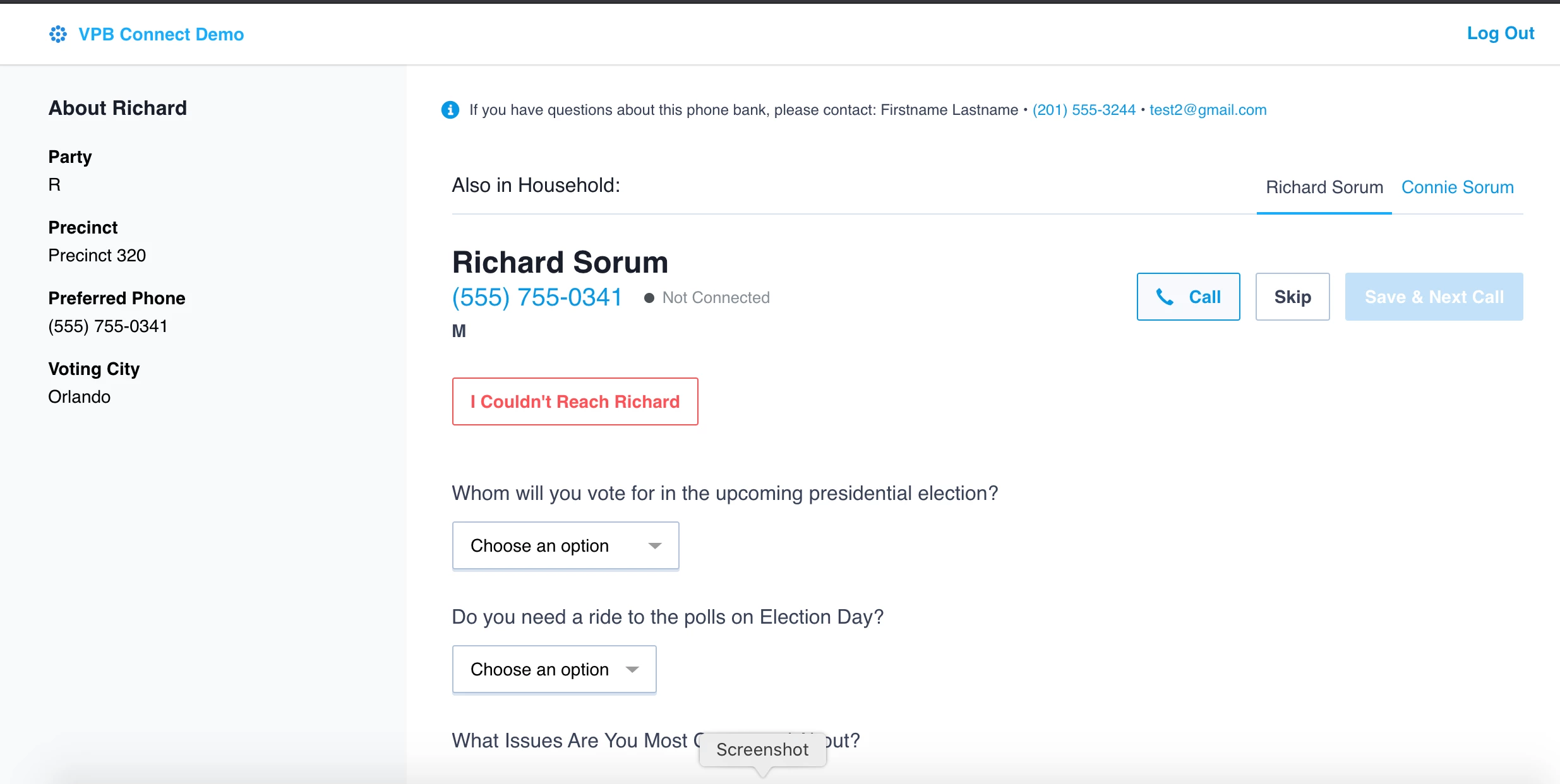
Near the top of the phone bank page, you will see the name and phone number of the person you're calling. Before you place the call, you will see Not Connected next to the phone number. To the left, you’ll see additional information.
To place a call from your browser, click Call. If you do not see the button, it may be because you have not granted your browser access to your microphone, or because VPB Connect has been disabled for that phone bank. Reach out to the campaign with any questions.
After you click Call, the status next to the phone number will change to Connecting…
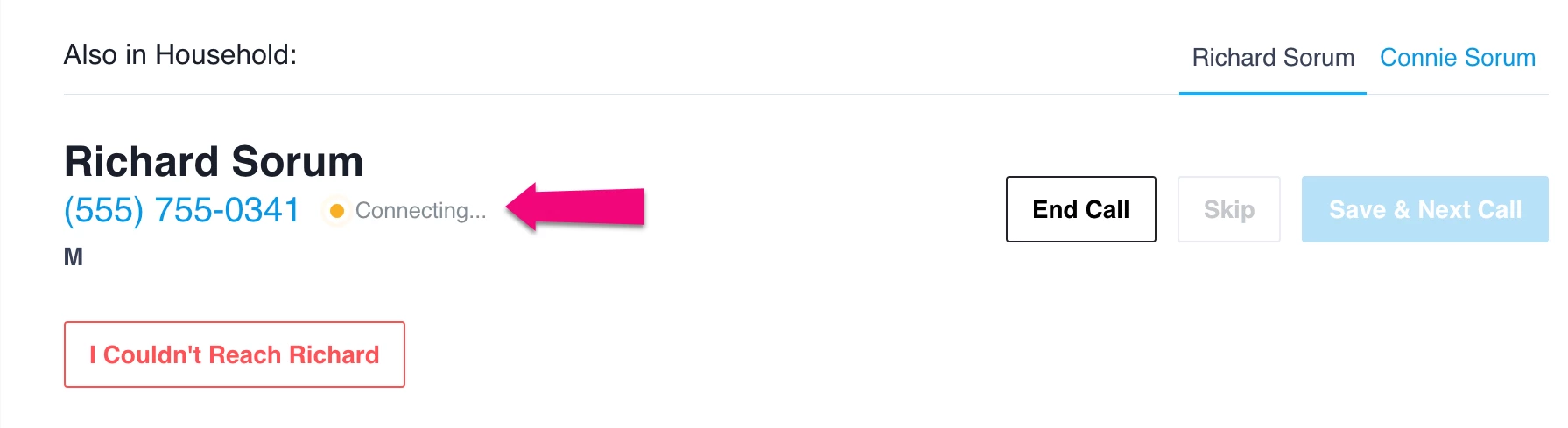
Once someone picks up or you get the voicemail, the status will change to Connected. When you need to, use End Call.
Entering results
Follow the script and choose the responses required to complete your call. When you reach the end of a branching script, you will see Script Complete. If you are using a linear script, just follow every step until your call is completed.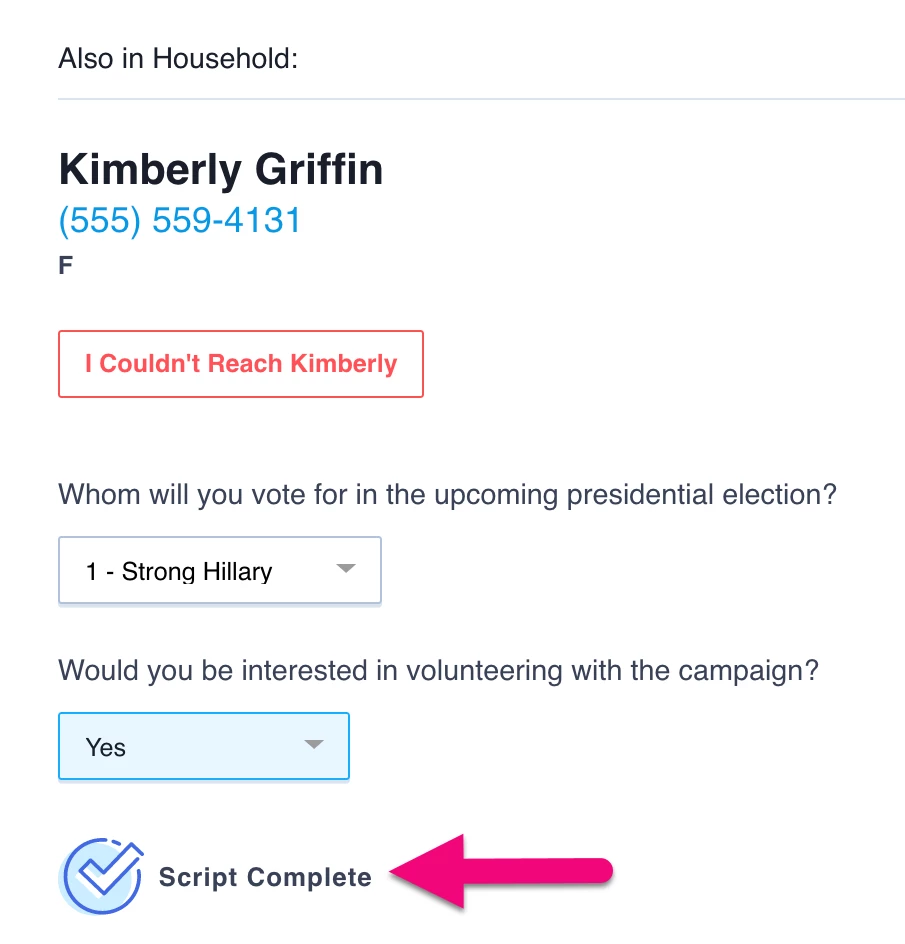
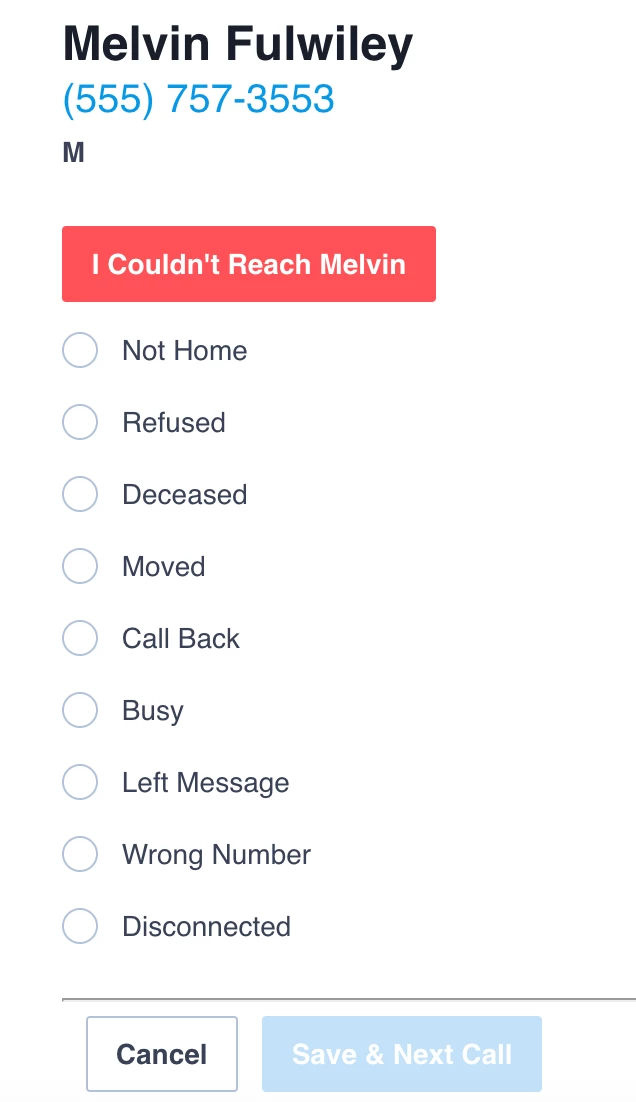
If you weren't able to talk to the person you called, click I couldn't Reach name and enter the appropriate reason, such as Not Home, Busy, or the like.
Any results that you've entered when using VPB Connect will show up in the Contact History with the Input Type of VPB Connect. This makes it much easier to track which responses came from your VPB Connect efforts.
When you’ve finished entering the results and are ready to move to the next call, click Next.
If you have any questions or concerns, please contact the campaign or organization directly. In many cases, they will provide a designated contact, which will appear at the top for Open Virtual Phone Bank.

Households
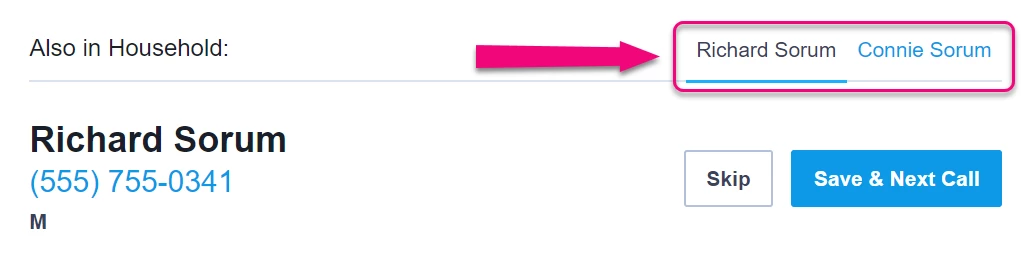
In some cases, you may see multiple tabs, one for each person in a household. You can toggle between tabs depending on who you're able to reach. Keep in mind that you should only enter results for the person you spoke with. If you speak with someone not listed on the screen, do not enter their results for someone else’s name.
Scheduling people for events
When making calls, you may be asking people to attend rallies, meet-and-greets, and town halls, or to volunteer at events like canvasses or other phone banks.
If someone says they can attend or volunteer at an event, click Schedule for an Event. You will see a list of upcoming events and shifts.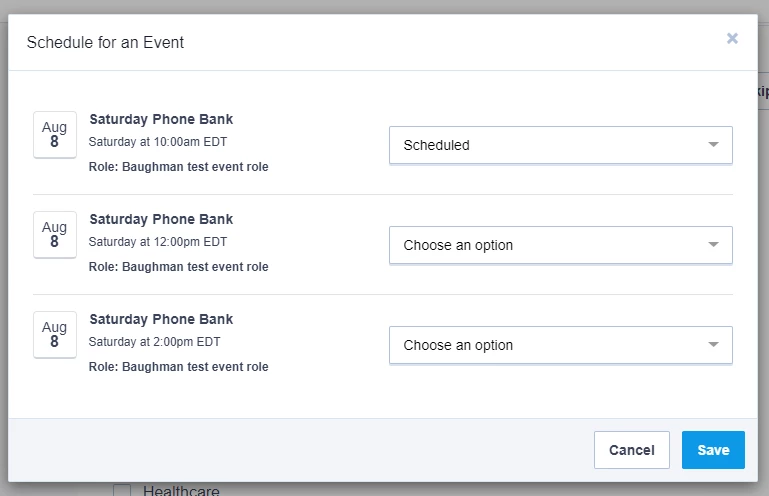
Talk to the person to figure out which event(s) works best for them and select a status for that event. If you're unsure of which status to select, check with the person, campaign, or organization running the phone bank. If you need to expand the date range or event filters, click Edit. To finish scheduling them for the event, Save & Close.
Getting assistance
If you have any questions or run into any issues while making calls, contact the campaign or organization directly.
Not quite what you were searching for?
- Navigate back to the Phone Outreach Resource Index.
How do I make calls with vpb connect? | How does making calls with vpb connect work in EveryAction? | Why can't I make calls with vpb connect? | Where do I make calls with vpb connect in EveryAction? | What is making calls with vpb connect in EveryAction? | How to make calls with vpb connect? | Can I make calls with vpb connect in EveryAction?