


How do I create and run reports in Report Manager?
With Report Manager, you can track your progress and analyze the data you collect by customizing and running reports. Depending on your package, you will be able to report on features like Targeted Email as well as track the results of your Online Actions form submissions. There are also specialized reports for fundraisers and organizers.
Step 1: Open Report Manager
You can open Report Manager from the Sidebar or using the link on the Main Menu.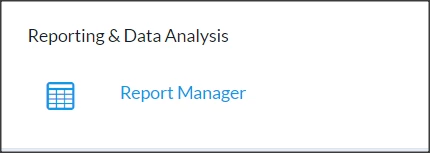
The Report Manager page will open with a list of your recently used reports.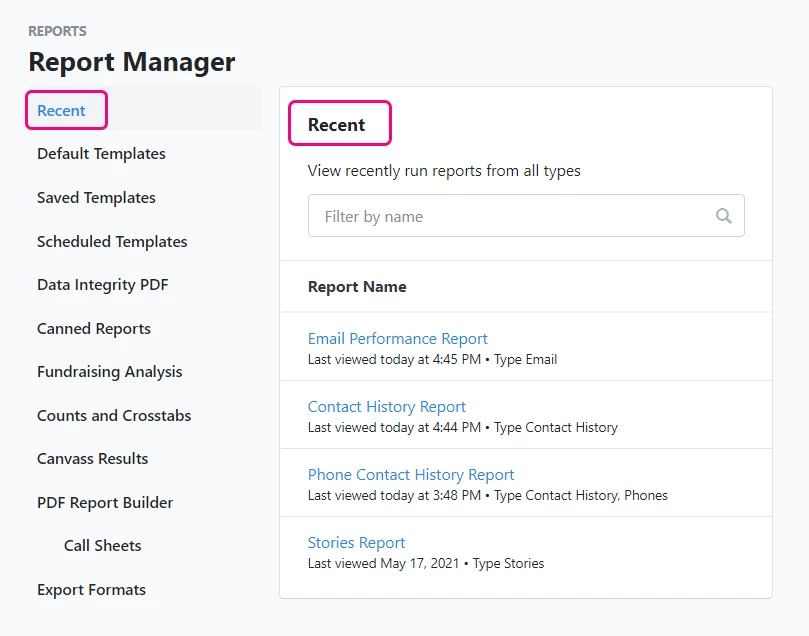
To the left of this list, you will see links to many other types of templates and pre-created reports. What you see will depend on your package or permissions.
Step 2: Search for reports
You can search for individual reports by name in each section by using the Search area at the top of the list.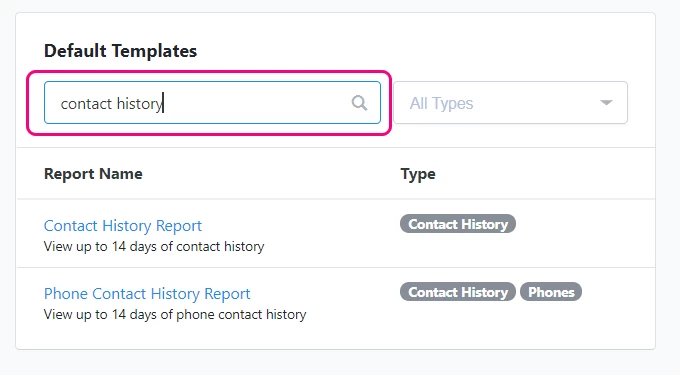
Step 3: Select a Report
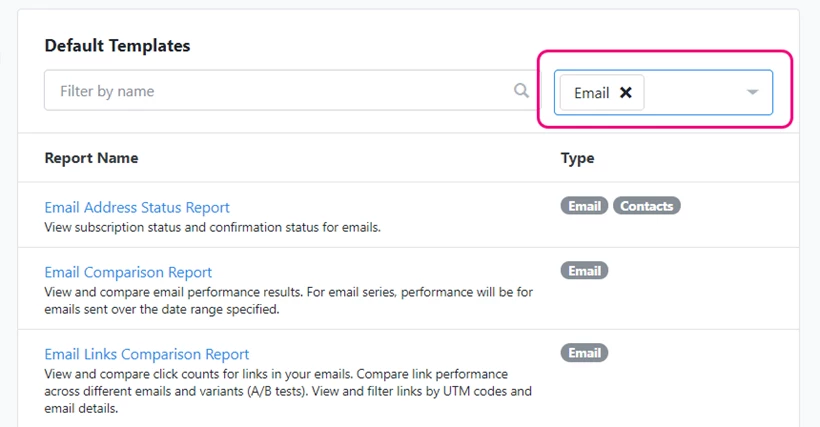
Our reports are also classified by type to help you better find the report that fits your particular role in the organization. To see all reports for a particular type, you can use the All Types dropdown to narrow the list to reports that are most likely to match what you need.
Not quite what you were searching for?
- Navigate back to the Reporting Resource Index.
How do I create and run reports in report manager? | How does create and run reports in report manager work in EveryAction? | Why can't I create and run reports in report manager? | Where do I create and run reports in report manager in EveryAction? | What is create and run reports in report manager in EveryAction? | How to create and run reports in report manager? | Can I create and run reports in report manager in EveryAction?