


How to: Use PDF Report Builder
When creating walk lists for canvassing or making fundraising calls it is often useful for staff or volunteers to have an overview of the person being called. While it is best to use the tool designed specifically for that effort (MiniVAN or Virtual Phone Bank for canvassing for example, or Call Time for fundraising), we do provide a way to easily create printable sheets you can share with others.
The PDF Report Builder helps you create a template into which contact records can be merged in order to produce PDF call or walk sheets (or any kind of printable list). Once you create a report template and a list of people to call, you can print the list of individuals in the form of call sheets, with one sheet per record.
Creating a new report template
Open the Report Manager from the Sidebar, or use the link on the Main Menu.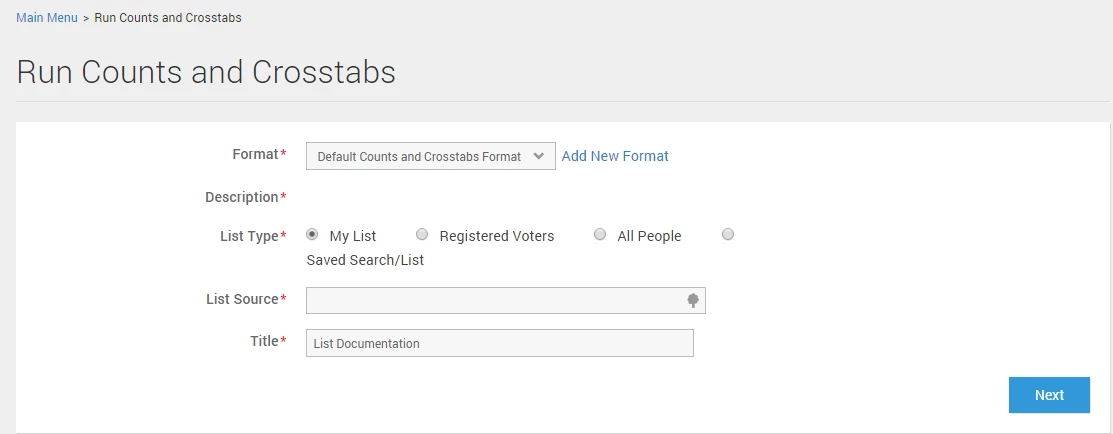
Select PDF Report Builder from the list of report templates on the left-hand side.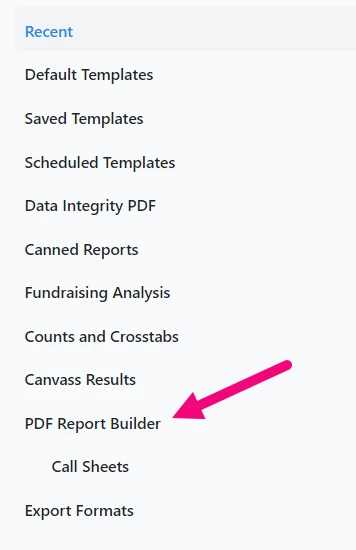
Select Create New PDF Report to create a new template.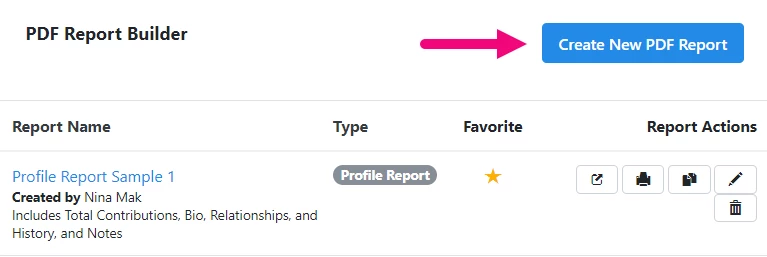
You can also copy an existing template by using the Copy icon to the right of the template name.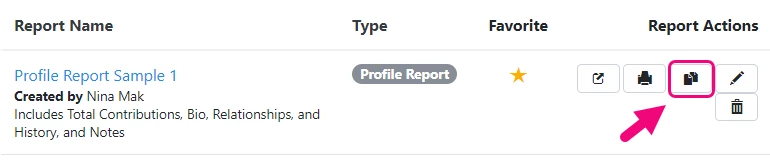
You can then select whether you want to create a Call Sheet, Profile Report, or Other. Name the report and provide a description if you wish to do so. Then select a Default Text Size and click Next.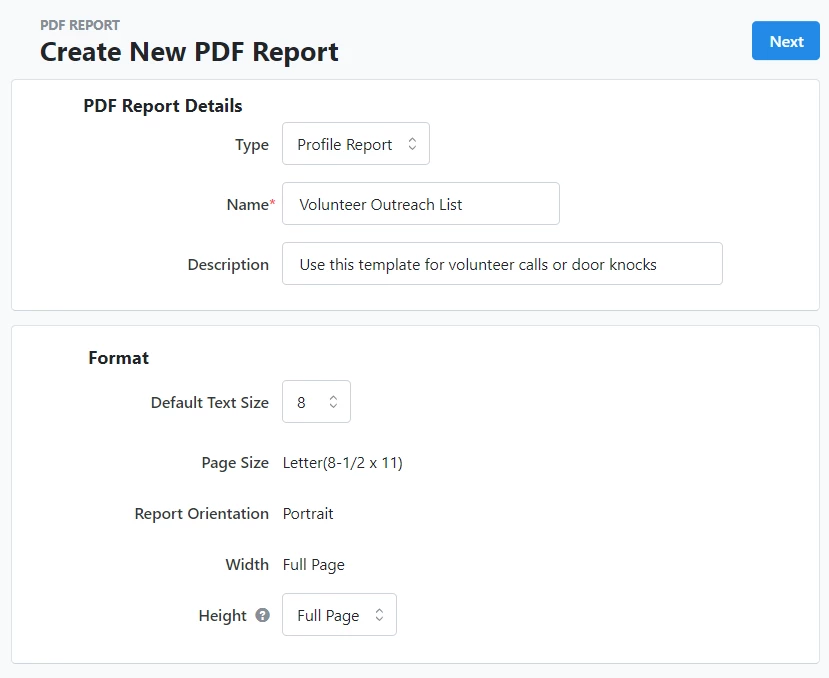
If you are not copying or editing an existing template, you will begin with a blank slate, displayed as a grid for alignment and design purposes, on the left. On the right, you can use the Toolbox section to select and add data to the report.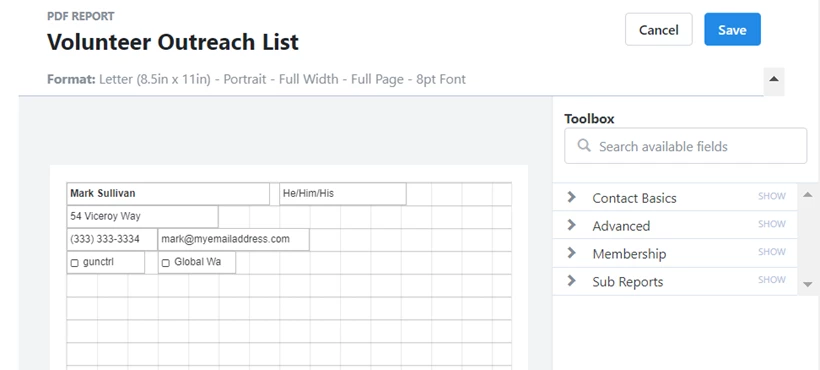
You can expand and collapse the sections that group the data (Contact Basics, Advanced, Sub Reports), or find specific data points by using the search bar.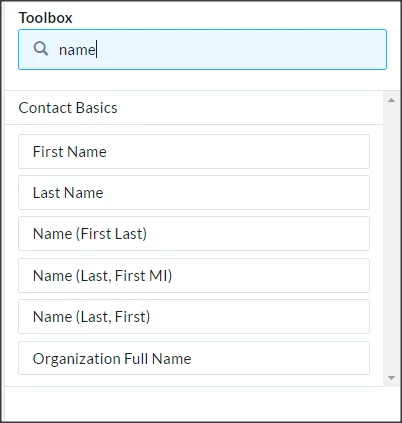
In order to edit a field that has been added, click on it to see a small editor menu. This allows the user to change the font and font formatting, and to delete the field.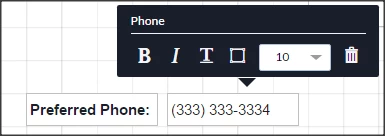
You will need to create a label for a field separately. This can be done by adding a Custom Text field, which is in the Advanced section.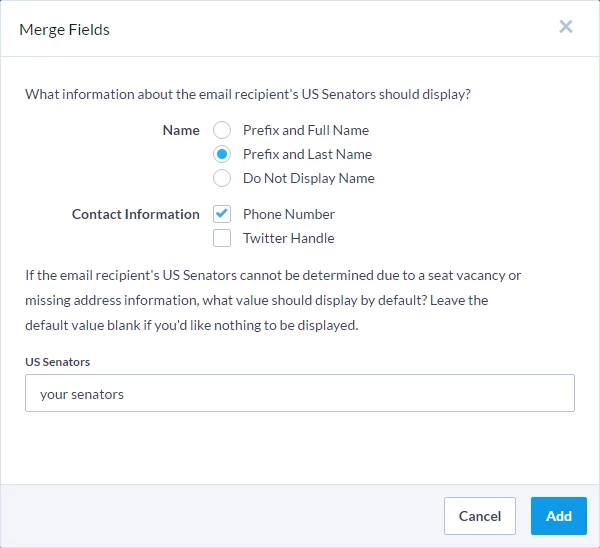
You can also add Sub Reports, which are groups of data points that users commonly would like to add to reports, such as Activist Codes and Contributions. 
Once you select a sub-report, you can click on the pencil icon to edit and customize it, including which fields from that group to display on the report (the Available Fields section). In the example below, the Activist Codes sub-report allows users to select from the following fields: Activist Code Name, Activist Code Type, and Date Canvassed. These can be added to the sub-report display by dragging and dropping them.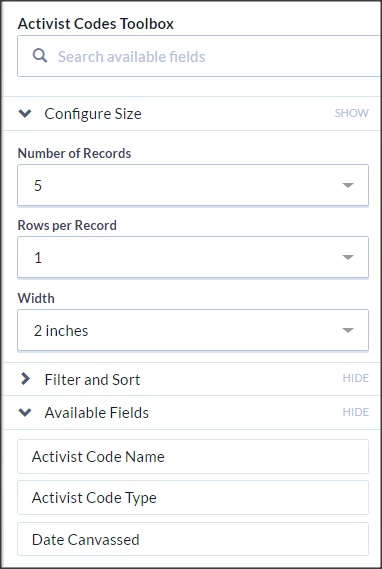
Additionally, once you have added fields to a sub-report, the sub-report toolbox will prevent you from making it so small that it cuts off the data. For example, in the screenshot above, the Activist Code Sub-Report Toolbox now has a minimum width of 5 inches, as making it any smaller would cut off fields in the report.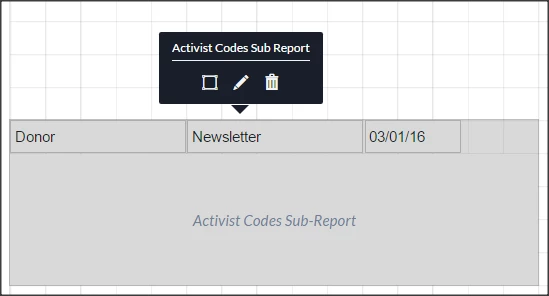
In the example below, we've added name, nickname, contact information, employer and occupation, and some contribution history.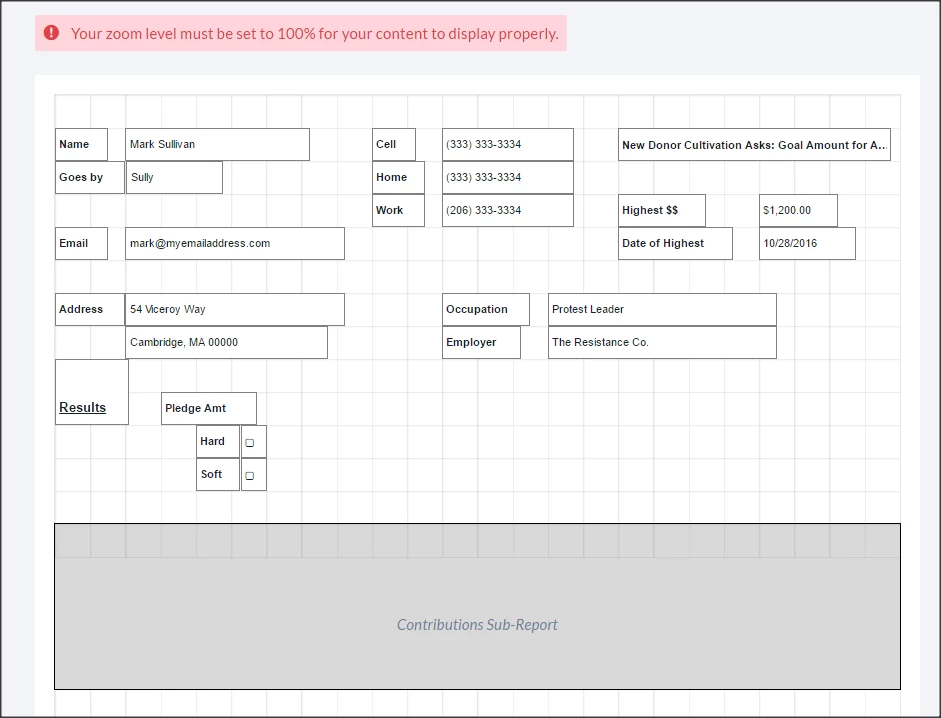
If you need to edit a report, you can click the name of the report in Report Manager and then on Edit Layout.
Printing PDF Reports
After you've created a list of people you want to include in your call or walk sheets, you can print your PDF Reports from two places.
The first is directly from the PDF Reports list page.
The second is from My List. Click on the Print icon. Then select your PDF Report from the Report Format dropdown and a value for the Contacted How field.
Once you have selected a value for the Contacted How field, you can select sort order options. These options allow you to control what order the PDF Reports are printed in.
The example below indicates the PDFs will print in order of phone number (ascending), then by name (also ascending).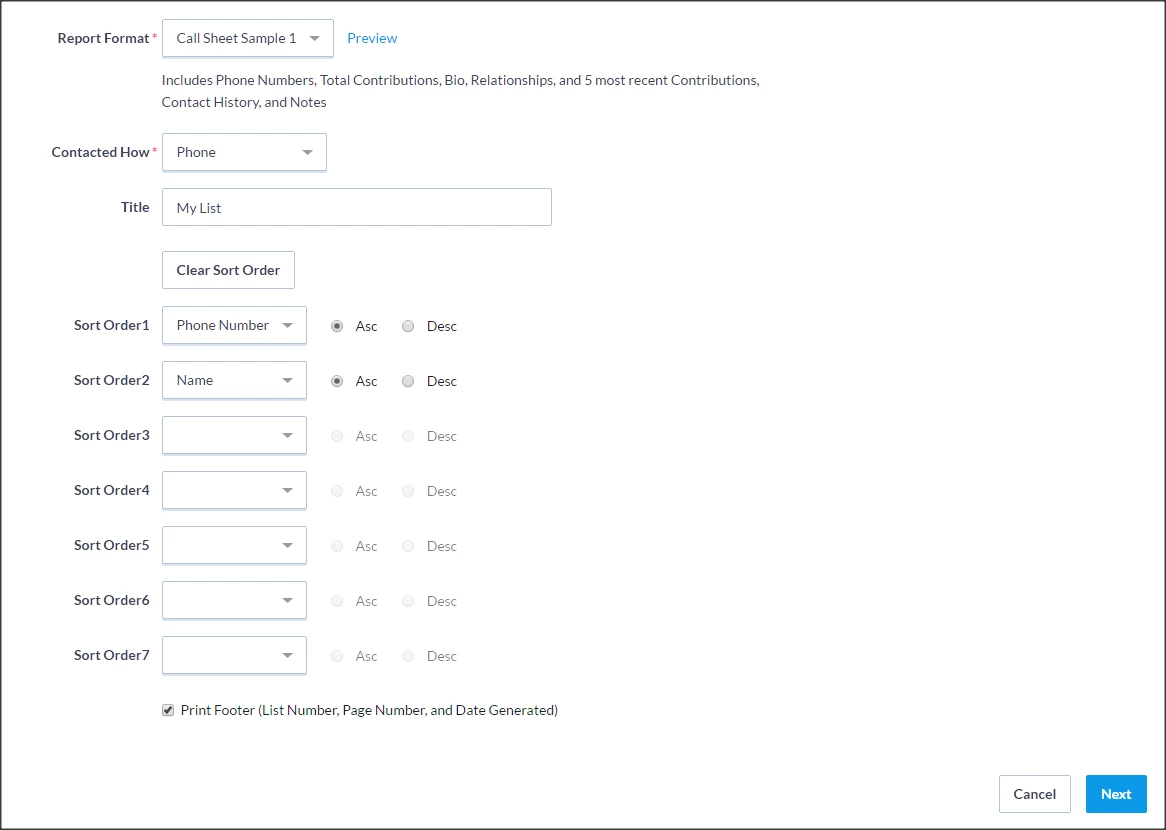
In some cases, sort options may pre-populate based on the value chosen for the Contacted How field; however, you can change them in the same way as the non-pre-populated ones, which is by selecting a different value in the dropdown, and toggling the radio buttons between ascending ('Asc') and descending ('Dsc').
Additionally, you can preview a call sheet by clicking on Preview.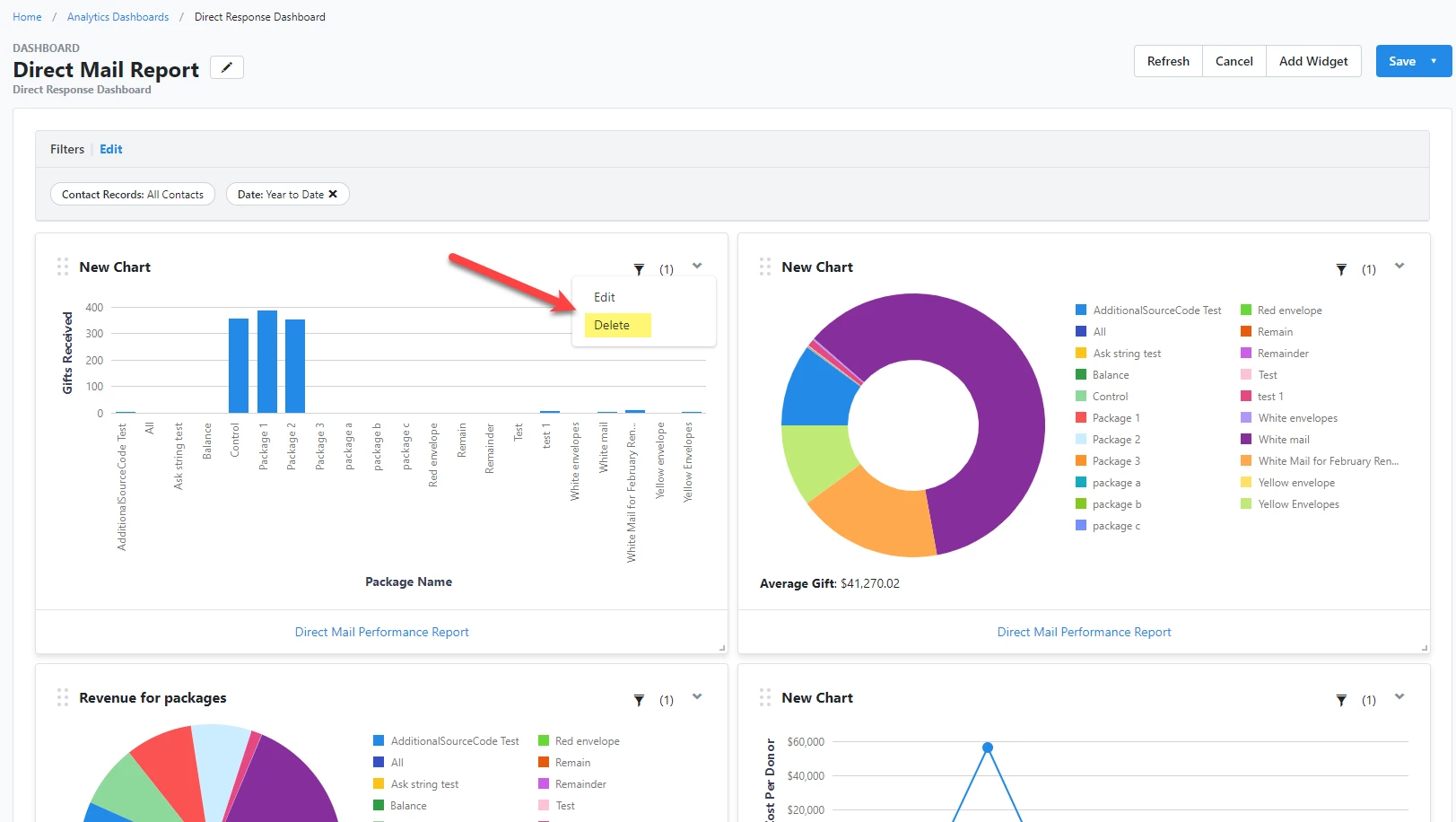
Other Actions with PDF Reports
In addition to copying PDF report templates, you have four actions you can take directly from the PDF Reports list. These are indicated by the icons to the right of each report.
The actions include:
- Preview the template
- Print the call sheets (This will print call sheets using whatever list is currently loaded in My List. If there is no list loaded there, you will be prompted to create a new list.)
- Copy the report (i.e. Save As)
- Edit the report
- Delete the report
How do I how to: use pdf report builder? | How does how to: use pdf report builder work in EveryAction? | Why can't I how to: use pdf report builder? | Where do I how to: use pdf report builder in EveryAction? | What is how to: use pdf report builder in EveryAction? | How to how to: use pdf report builder? | Can I how to: use pdf report builder in EveryAction?