Whether you’re launching a canvass or running a virtual phonebank, you will need a script. Your script is a roadmap for canvassers to follow during conversations on doors or on the phone. Use specific messaging and questions to suit the goals of your campaign.
Preparing to use scripts
Before you create your script:
-
Choose your Activist Codes - Activist Codes are labels you apply to contact records to track individuals according to their interests and their relationship to your organization.
-
Create Survey Questions - Survey Questions help you gather information, like gauging support for a candidate or initiative.
Choosing your script type
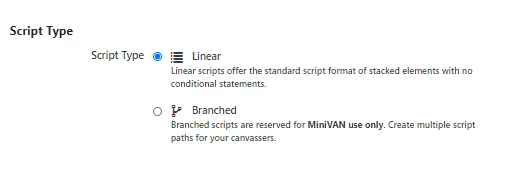
You have the choice of two script types you can use with MiniVAN or your phone banks.
Linear Scripts are designed for simple responses and/or straightforward asks from contacts.
-
Supported by MiniVAN, Virtual Phone Bank (VPB), and OpenVPB
-
Easy for your canvassers to follow when using paper canvassing packets or call sheets
Branched Scripts are designed for flexibility, so you can provide canvassers with instructions on how to further engage contacts or when to end a conversation.
-
Supported by MiniVAN and OpenVPB
- Point canvassers to the next question and to talking points based on the responses they receive
Using the Scripts tool in Virtual Phone Bank, you can create a script to fit your segment or target audience.
When using Open Virtual Phone Bank, you can set a default script and up to 4 alternate scripts. Scripts can be directed to certain people by selecting a script using the targeted subgroup option. Callers are able to toggle between scripts in the Open Virtual Phone Bank.
Getting started
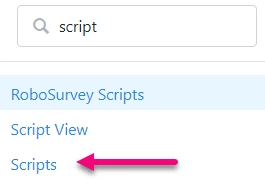
Search for Scripts in the Sidebar.
From the top of the Scripts list page, select Add New Script and add the requested details.
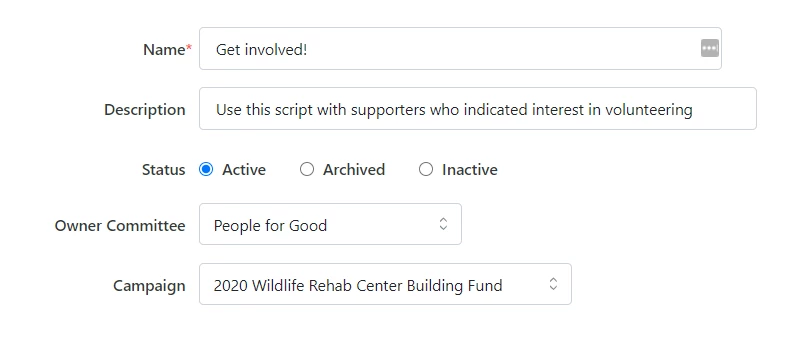
If you use a multi-committee setup, you can only edit a script in the committee where it was created, the Owner Committee, but you can share it with other committees to use in their outreach efforts. If you have access to multiple databases (My Voters, My Campaign, My Workers), you will also see a Database option where you can pair your script with another database.
You can update these Script details at any time by going back to the Scripts dashboard and selecting the script you want to edit.
Creating linear scripts
Linear scripts are generally used when you have a straightforward ask or simple response you need from your supporters. These can be useful in fast-paced outreach efforts where you are trying to reach the largest number of supporters to make them aware of your campaign or issue.
Script elements are conversation components. Provide language for introductions, messaging, questions, and goodbyes. Elements can only be added one at a time, but you can add multiples of each element type.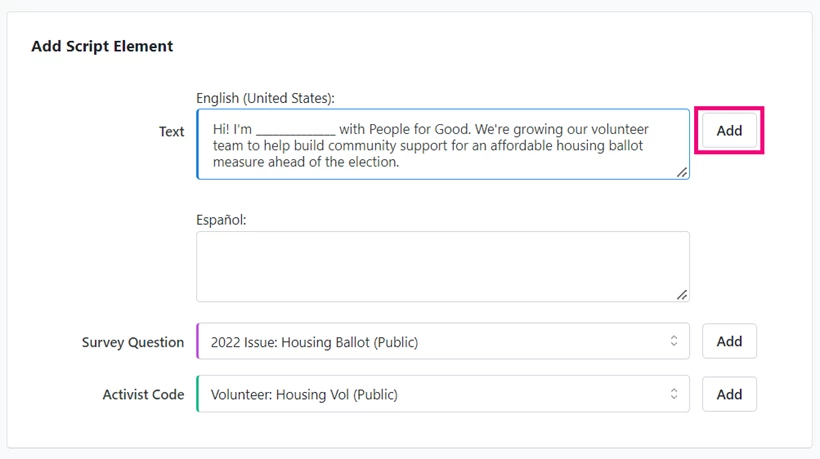
Use Text to provide suggested language for opening and closing conversations. You can also use this script element for messaging and transitions from one topic to the next.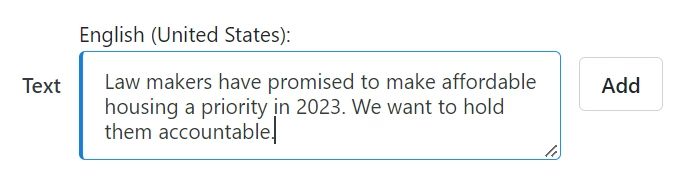
When adding Survey Questions and Activist Codes, you will only be able to choose from those you have already created. Once a survey question or activist code has been added, it will no longer appear in the dropdown menu.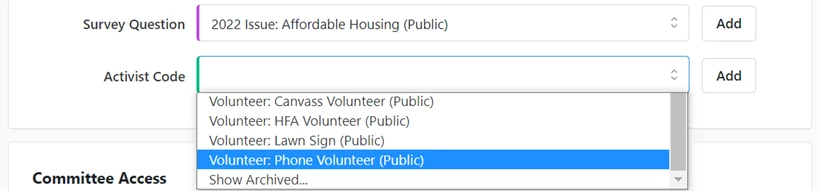
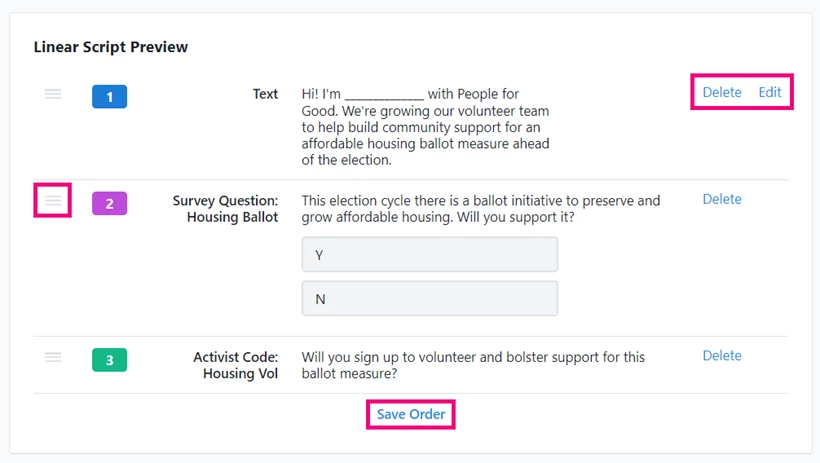
Elements you add to the script appear under Script Preview. You can rearrange their order by hovering your cursor over the lines to the left of each element and dragging them to a new place. You can also Delete an element or Edit text. Save the order when you are satisfied with the script.
Creating branched scripts
Branched scripts allow canvassers or phone bank volunteers to conditionally select the next question on a Script based on the response they receive from the person answering the door or phone. Using script branching ensures that volunteers and canvassers have the right talking points for the right person and offers alternatives depending on the kind of response (committed, undecided, etc.).
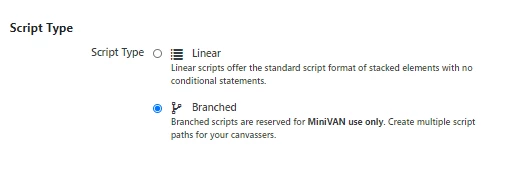
Once you select Branched, you can begin to add elements the same way you would with Linear scripts.
It helps to add all of your branched script elements before you begin connecting them. You can change their position later.
Beginning with your first element, think about what question or text should follow. The branch icon to the right of the element has a dropdown menu with numbers. Select the number corresponding to the element you want your canvassers to read next.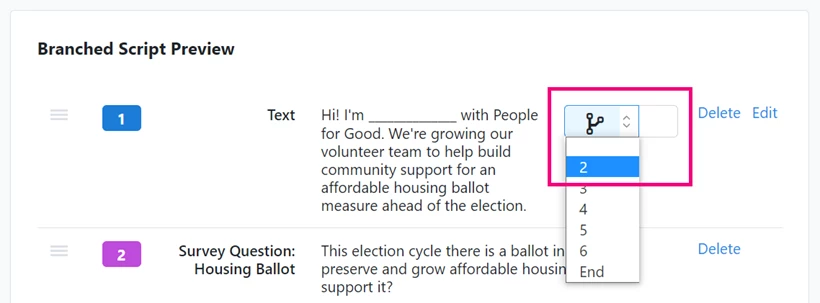
For Survey Questions and Activist Codes, branch icons appear beside each possible response. This is how the conversation branches, sending canvassers to different text or further questions depending on responses. Select the number corresponding to the element you want your canvassers to read next.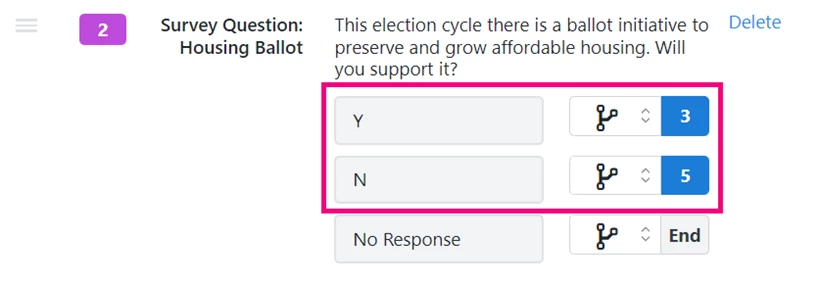
At the conclusion of a conversation select End. All script elements must branch or end before you can save your script.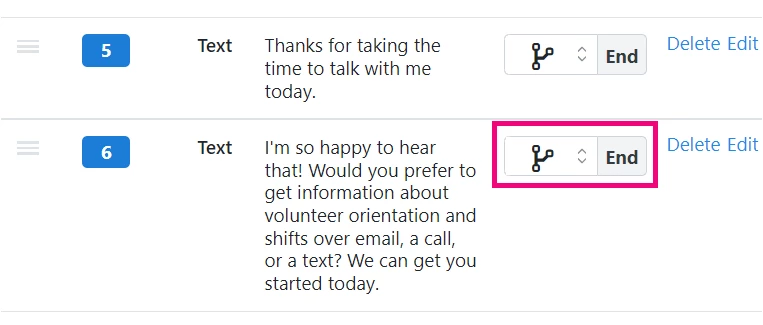
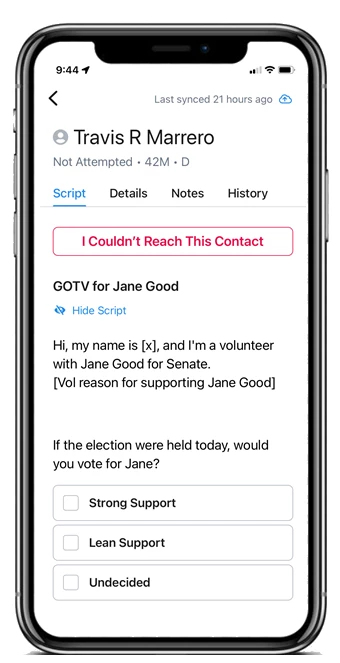
When your canvassers see the script in MiniVAN, it will naturally lead them through the various branches.
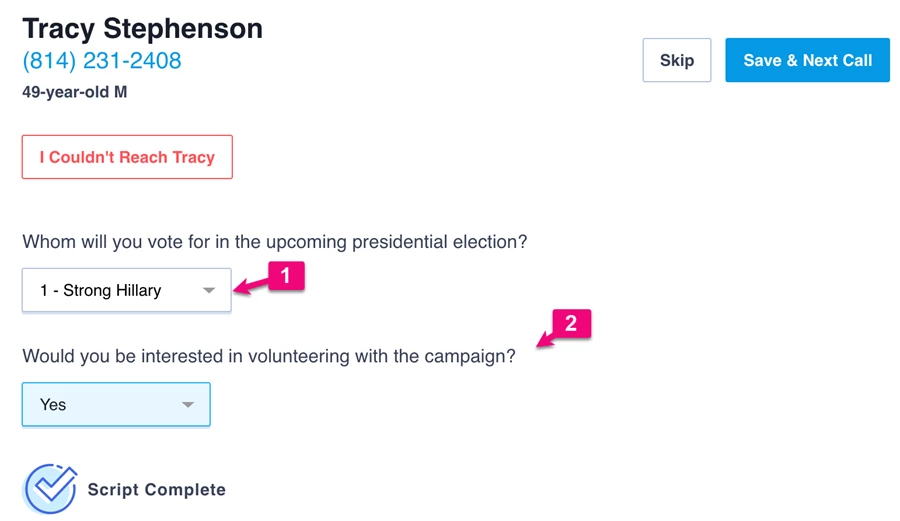
In OpenVPB, your phone bank volunteers will be able to choose which response they received in the script area and will then be prompted with the next message or question.
Adding more canvass result options
For both script types, you can add more response types and keep records of conversations canvassers were unable to have by selecting more Canvass Result Options from the checkboxes in the right column.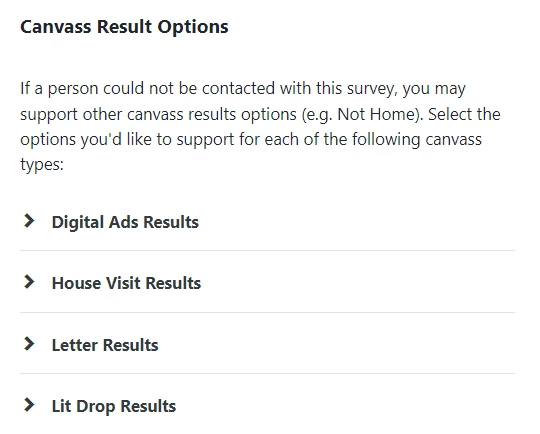
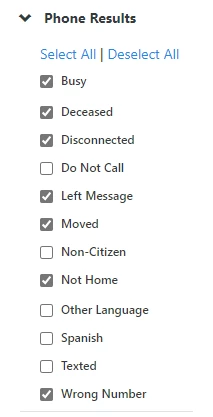
Use caution when selecting terminal result types like Moved, Wrong Number, Deceased, and Do Not Email. These choices mark contact information as bad and can affect searches for other users with access to your database. Discuss best practices for using contact results with your canvassers.
Sharing scripts
In multi-committee setups, scripts can only be edited in the Owner Committee. To share your script with other committees for use in their canvasses or phonebanks, use the Committee Access selector at the bottom of the page.
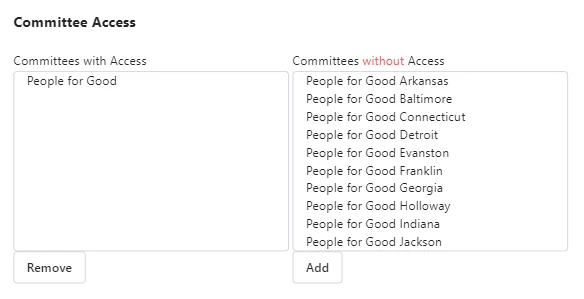
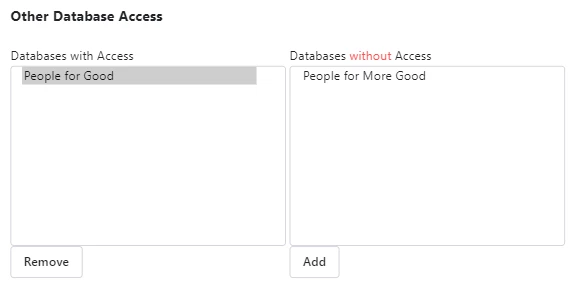
If you have access to other databases (My Voters, My Campaign), you will see a section for Other Database Access, which allows you to share your script with them.
Adding Spanish scripts
You can create a Spanish language version of your script that displays when your canvasser's browser is set to Spanish. We provide a Spanish translation of the forms and instructions in MiniVAN and OpenVPB, so you only need to translate the elements you add to the script. Provide Spanish translation of your Activist Codes and Survey Questions when you create them.
Retiring Scripts
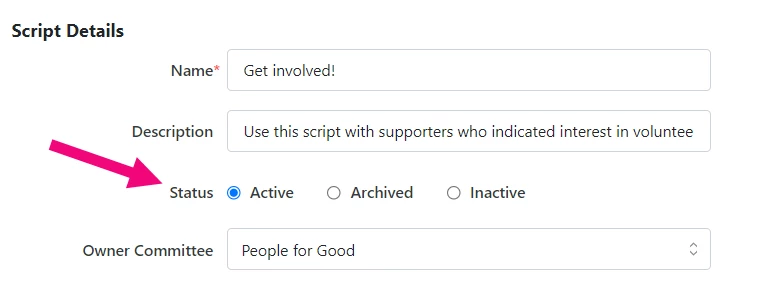
If you need to retire a script, change its Status to Inactive or Archived. Do this at the end of a campaign or canvass to avoid confusing older messaging for newer messaging.
Open the script you want to retire and find Status on the Script Details page. Select the new status and save.