


How to: Add Event Types, Event Roles, and Locations
Depending on your package and user permissions, you may be able to create unique Event Types, Event Roles, and Locations that fit your organization. If you do not see these features in your setup, you will need to contact your administrator to add the Event Type, Location, or Event Role you need.
Adding an Event Role
You should begin by creating a few Event Roles that you will be able to add to your Event Types. You will want to keep them simple so they are more versatile for use with a variety of Event Types.
Your Event Roles will work best if you link them to Engagement Types that you can use later to help you track how supporters are engaging with your organization.
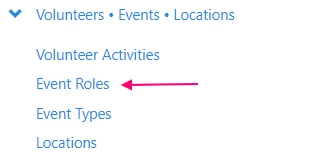
Begin by searching for Event Roles in the Sidebar or by selecting Main Menu > Administrative Menu > Volunteers • Events • Locations > Event Roles.
You can then add the Name and Engagement Type for your new Event Role.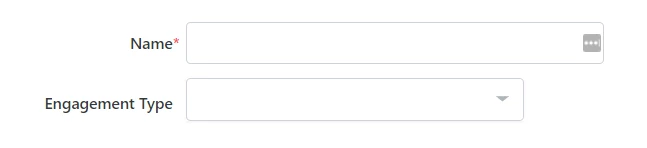
Adding Locations
Adding Locations can make it easier for you to associate your Event Types or particular events with specific locations. Search for Locations in the Sidebar or select Main Menu > Administrative Menu > Volunteers • Events • Locations > Locations.
Select Add New Location to add the details for your new Location.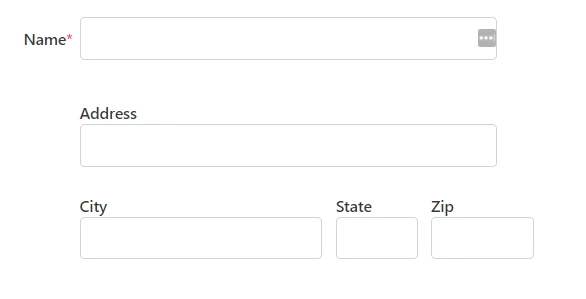
Adding an Event Type
Once you've added Event Roles and Locations, you can then easily add new Event Types that match your organization's needs.
If your package includes Ticketed Events you will see this as an Event Type option on the list page but you will not be able to edit this type. This Event Type is meant to be used with Ticketed Event forms and reports.
To begin adding a new type, search for Event Types in the Sidebar or select Main Menu > Administrative Menu > Volunteers • Events • Locations > Event Types.
Select Add New Event Type.
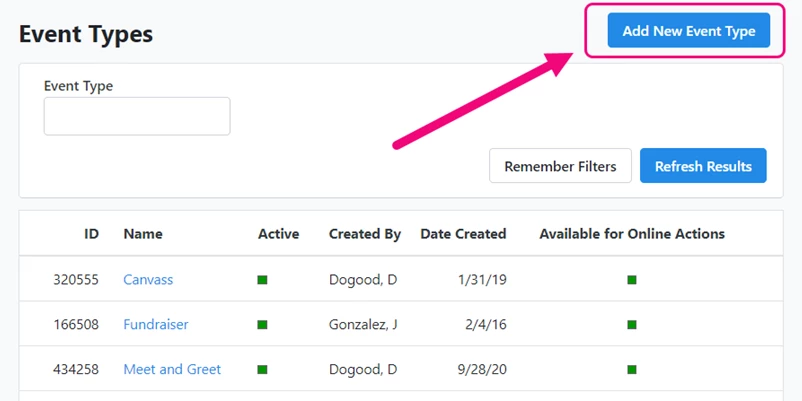
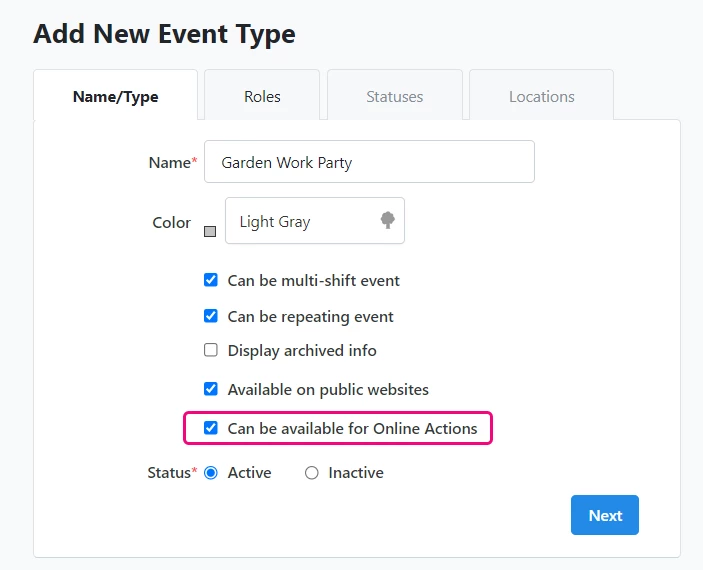
Add the name and details for your Event Type.
You have custom features available to select here, including:
- 'Can be multi-shift event': Enables the ability to assign volunteers across multiple shifts for the same event.
- 'Can be repeating event': Allows the same event to run continuously or on scheduled dates.
- 'Display archived info': Allows visibility of previously gathered event information.
- 'Available on public websites': Confirms that event details are permitted to be shared publicly.
- If you plan to use it with your online forms, check the box so it can be available for Online Actions.
You will then be asked to select at least one Role from the Event Roles you created previously.
The Statuses tab will let you select which statuses, if any, you want to make available for that particular kind of event.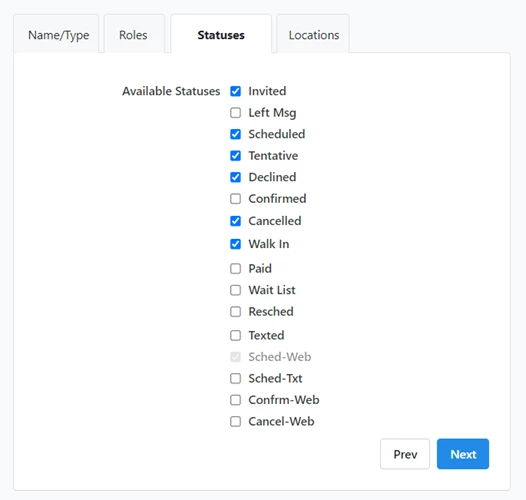
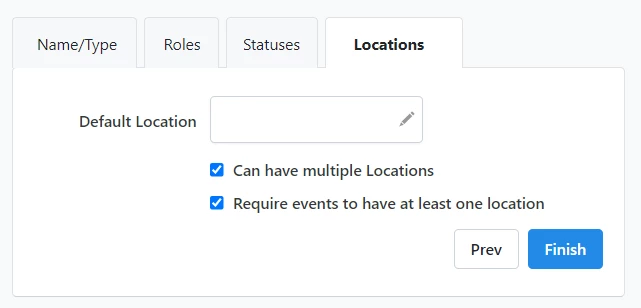
The Locations tab allows you to add any Locations you always want to associate with this Event Type, though you may want to leave the default location blank for now. Locations can be added to events later.
Remember, the more general you make the Event Type, the easier it will be to reuse and run searches.
Once you have created your custom Event Types, you can begin adding new events using them.
How do I how to: add event types, event roles, and locations? | How does how to: add event types, event roles, and locations work in EveryAction? | Why can't I how to: add event types, event roles, and locations? | Where do I how to: add event types, event roles, and locations in EveryAction? | What is how to: add event types, event roles, and locations in EveryAction? | How to how to: add event types, event roles, and locations? | Can I how to: add event types, event roles, and locations in EveryAction?