



Word of mouth marketing and organic growth are two of the most important - and low cost - ways of increasing your supporter base and engagement.
You can make it easy for your supporters to spread your message on social media by enabling Facebook and Twitter (X) share icons on the thank you page of your forms.
Enabling Social Sharing
On the Confirmation Page step of publishing a form, you can select an image, title, and description for your share. 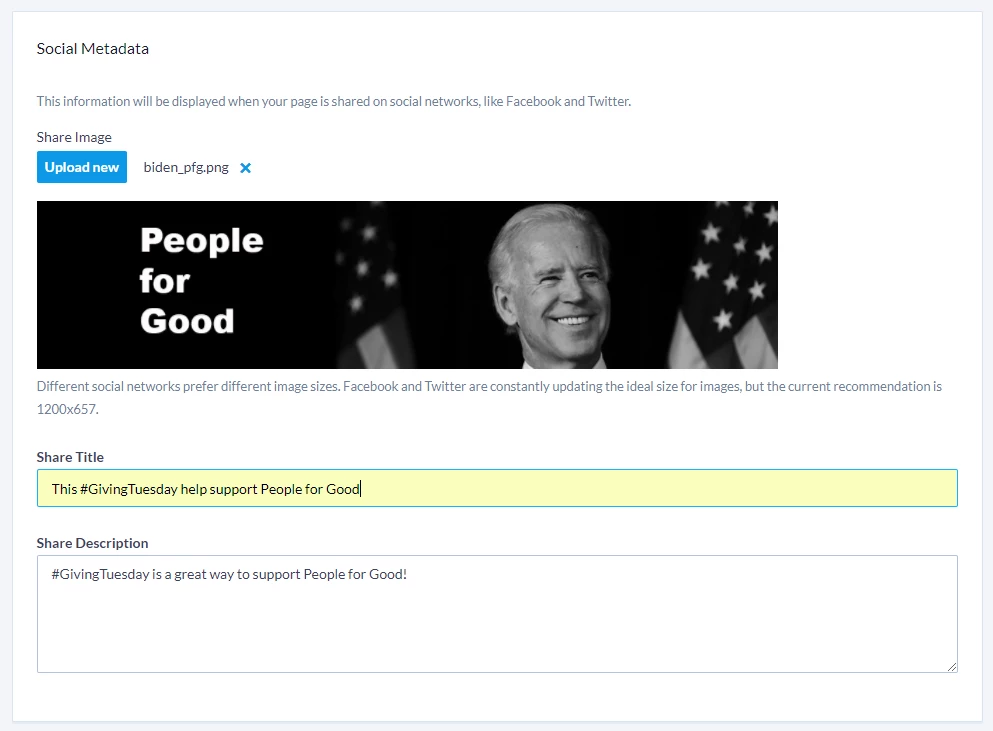
This will also populate the Facebook and Twitter (X) metatags by default on your online form. If you are using a theme with your online form, you will need to update its coding to use the social media metadata merge fields.
Read more about using Themes to style Online Actions forms
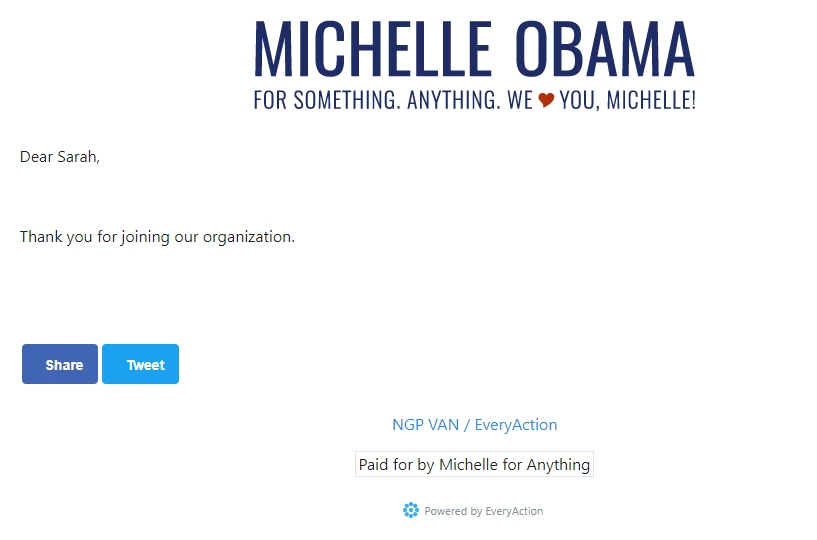
You can then check Show Facebook Share Button and Show Twitter Share Button to add the share links to your confirmation response.
When someone submits your form and lands on the Thank You Page, they'll see the Facebook and Twitter (X) buttons to share the action they've just taken, and encourage others to do the same.
Troubleshooting
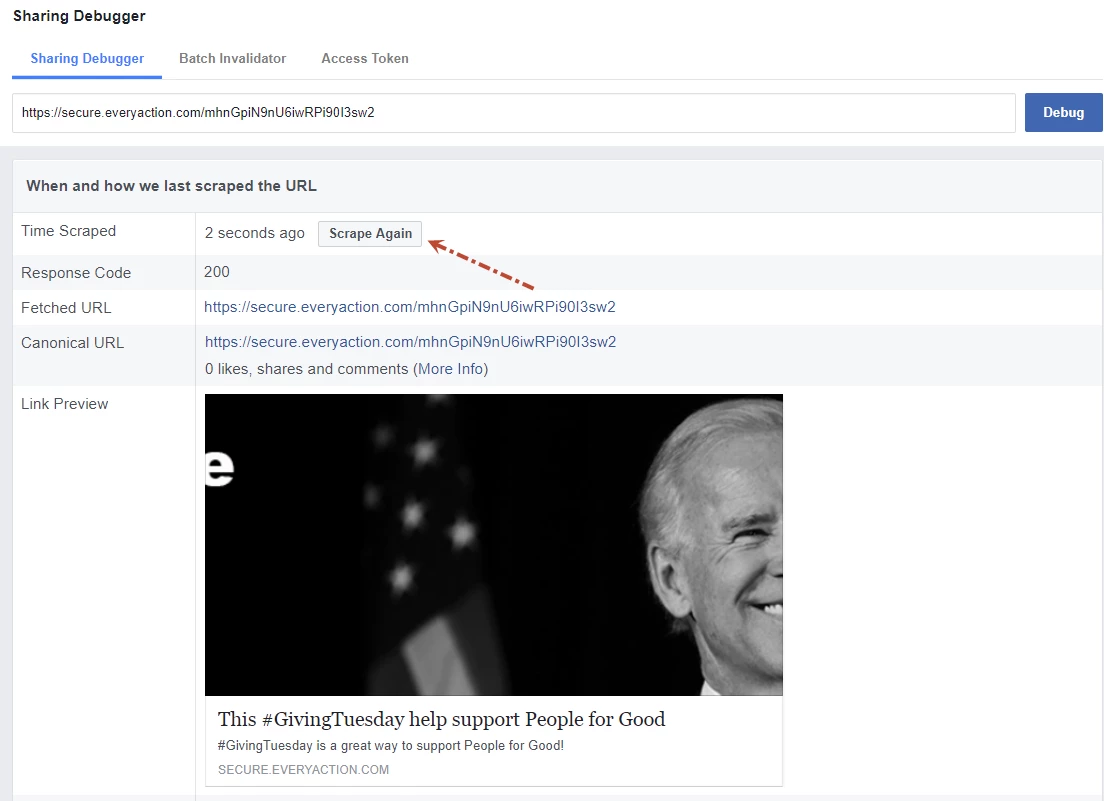
Facebook will store or cache the title, description, and image from the first time a URL is shared. In order to refresh these values, go to the Facebook debugger tool at:
https://developers.facebook.com/tools/debug/sharing/
Enter the public URL for your form, and hit the debug button. From there, you will see a Scrape Again button next to the Time Scraped result.
Similarly, Twitter (X) will store the social share data from when the URL is first shared. To clear it, enter the form's url in their Card Validator tool to clear their cache. It can take a few minutes for the cache to clear using this method, so it may take 5 minutes or so to clear.