



(6 min read)
Word of mouth marketing and organic growth are two of the most important - and low cost - ways of increasing your supporter base and engagement. If you want to learn more about your supporters who are encouraging friends and family to take action and make donations, you can use Referrer Tracking and Social Share Buttons to help you trace those connections.
When you enable the Facebook and Twitter Social Share Buttons on your Online Actions form, any supporter who shares your form using these buttons will automatically be recorded.
If you want to discover who is then taking action from the shared links, you can add Referrer Tracking IDs to your form's URL to create a unique link that will help you track these shared forms. Any ontact who shares the customized link will then be connected to any supporters who take action using the form. You can add these Referrer Tracking URLs to the Facebook and Twitter share buttons, or you can make your own custom links to use on the Confirmation Page or with your Targeted Email.
Once supporters start to share your links, you can then search and report on the number of supporters your contacts have referred, specific form types and names of the forms that are being shared, and which social networks are used for sharing.
Adding Social Share Buttons to Online Actions forms
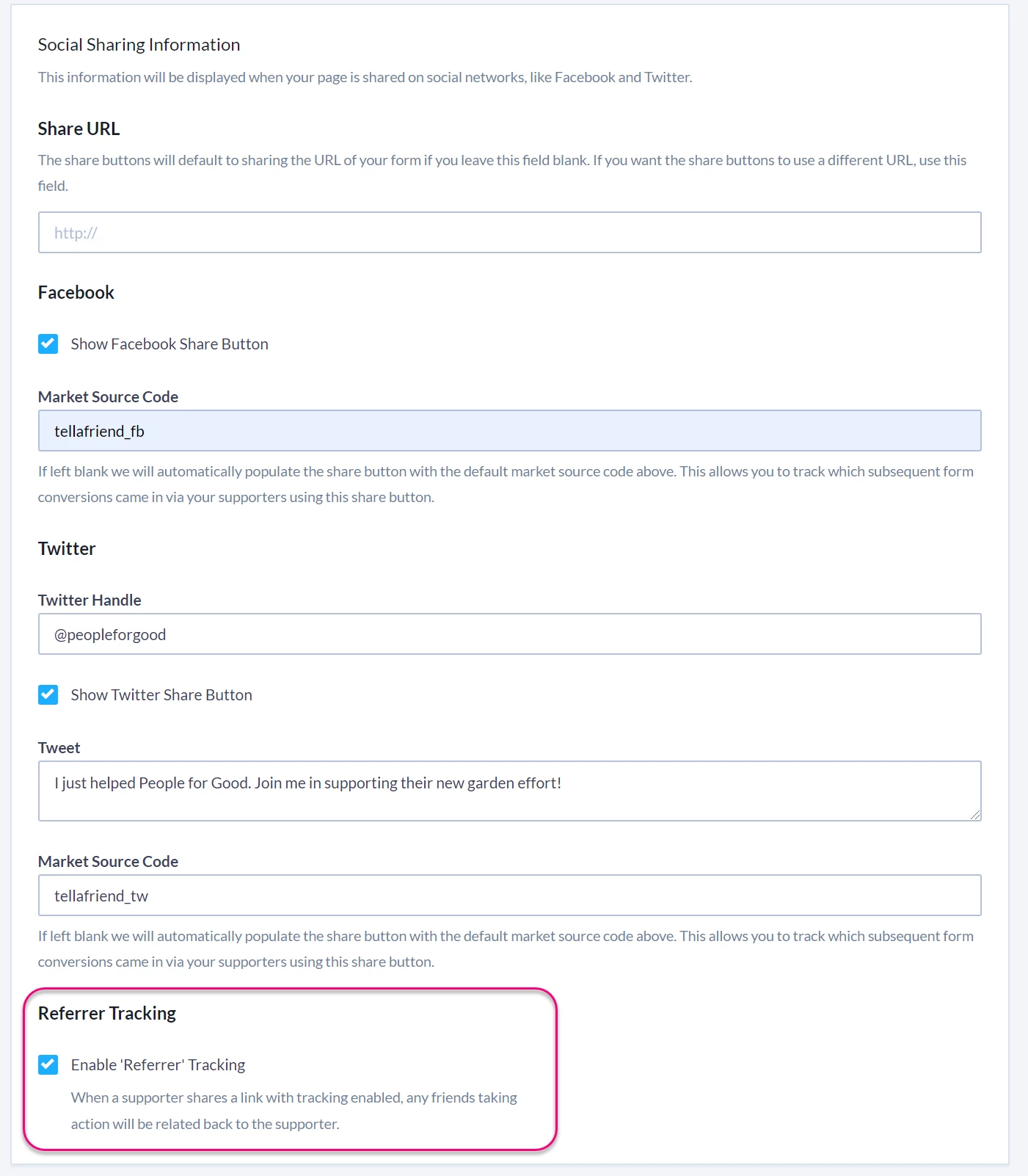
To begin tracking your referrals, enable the Facebook Share and Twitter Share buttons in the Social Sharing Information section of the Confirmation Page step when building a form. Selecting Enable referrer tracking will append Referrer Tracking IDs to the URLs used for the Share and Tweet buttons.
Adding referral links to Online Actions Thank You pages and Confirmation Email
In addition to using referrer tracking on the built-in Social Share Buttons, you may want to give your supporters a link with a Referral Tracking ID, which can be copied and pasted into an email or shared on another social media network. You can use the merge field Form URL to automatically include the complete URL of the current form and append the merge field for Referrer Tracking ID using the ?ref= operator. Your link should look like:
Here are some examples of how you can use this link in your confirmation page or email:
- Example of Linked URL:
Help us reach 20,000 petition signers. Share this link with friends and family! <a href="{{FormUrl}}?ref={{ReferrerTrackingId}}">{{FormUrl}}?ref={{ReferrerTrackingId}}</a>
- Example of Linked Text:
<a href="{{FormUrl}}?ref={{ReferrerTrackingId}}">Help us reach 20,000 petition signers. Share this link with friends and family!</a>
- Example of linked URL with Market Source:
You can also append this link to the end of a mailto link. (Mailto links open an email in your supporter's default email program.) For example, this mailto link will populate the subject line and body of an email.
body=Next%20week%20this%20administration%20will%20be%20making%20a%20change%20to%20environmental%20regulations%20that%20could%20prove%20deadly.%20Join
%20me%20and%20People%20for%20Good%20in%20stopping%20them%20by%20taking%20this%20important%20action%20today!{{FormUrl}}?ref={{ReferrerTrackingId}}">
Send this important email to friends and family!</a></p>
(Make sure to use %20 for any spaces in your text.)
You can also create a "Share on Facebook" link with referrer tracking in your Confirmation email using something like the following:
Help us reach 45,000 petitions signers! Share this action on Facebook!</a>
To create a "Share on Twitter" link, you can use:
<p><a href="https://twitter.com/home?status=Help%20stop%20these%20deadly%20changes!%20{{FormUrl}}?ref={{ReferrerTrackingId}}%20%23resist">Tweet this now</a></p>
All spaces in the message within the a href tags should be replaced with %20). Make sure your tweet length is no more than 140 characters. Twitter will automatically shorten any URL in a tweet to 23 characters.
Searching for contacts who used a shared link
Once you've added Social Share Buttons and Referral Tracking links, you can find contacts who took action on a form that was shared with them from another contact or from a shared link on Facebook, Twitter, or another source, you can use the Referred By or Referred Through criteria from the Online Forms section in Create A List.
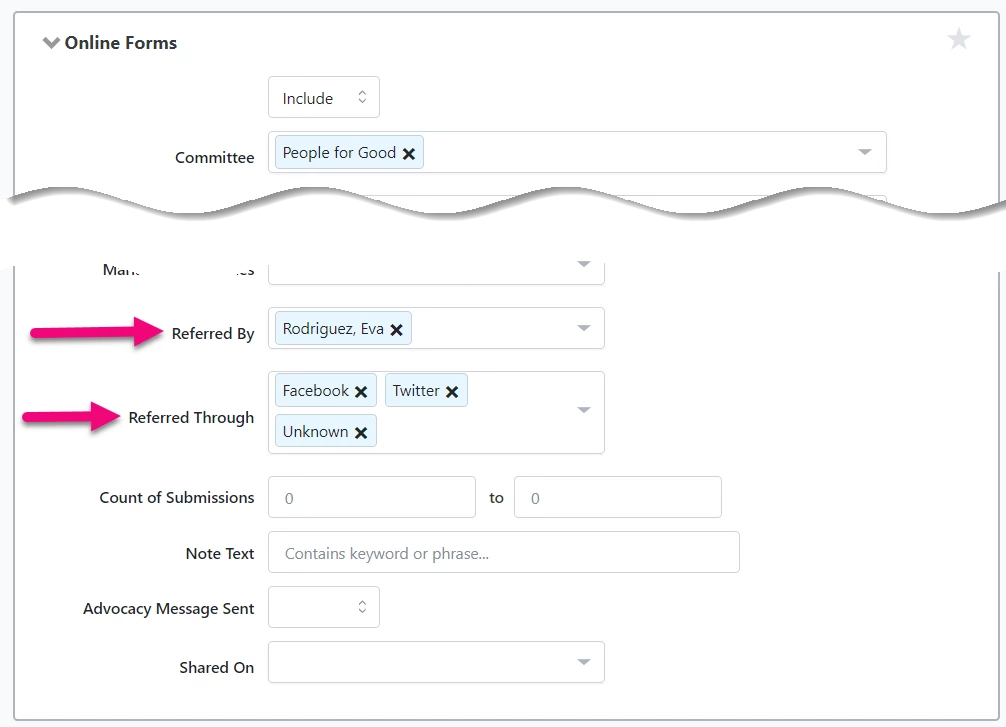
Searching for contacts who are sharing your forms
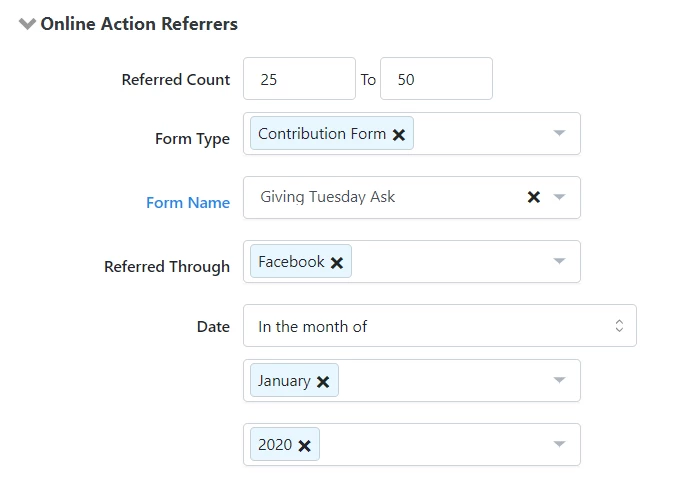
You can also search for supporters who are sharing your links and create lists from the Online Action Referrers page section. You can search and segment supporters based on:
- How many actions a supporter has generated;
- What types of actions a supporter has generated, like donations, petitions signers, or event RSVPs;
- Which supporters have generated actions through a specific form;
- Identify supporters who shared during a certain time period or range;
- Find supporters who used your Share Buttons on your forms to share via Facebook or Twitter or some other source to generate these actions.
Viewing referrals on a contact record
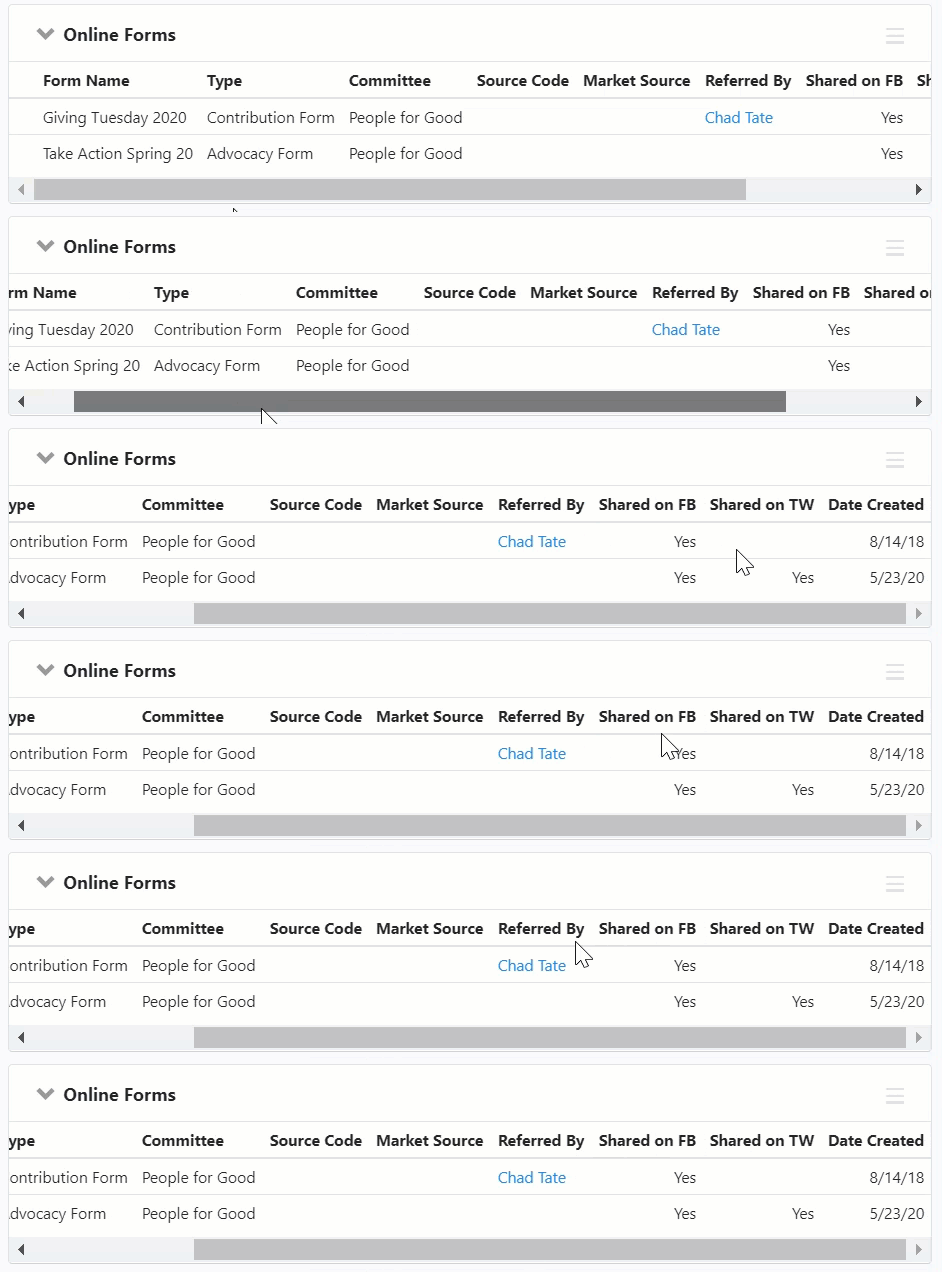
If you want to see details about which forms your contact submitted after a link was shared with them or whether they shared a form they submitted with anyone else, you can look in the Online Forms section from the All Details page of the contact record. You will need to scroll to the right or select the More link to see the columns for Referred By, Shared on FB, and Shared on TW.
If your supporter took action on a form that has Referrer Tracking enabled, you'll see the contact name for the person who shared the link with them. If your supporter shared the form with anyone else using the Social Share Buttons on your form you will see a Yes in the corresponding column, otherwise, the space will remain blank.
Reporting on referrals
You can add columns to both the Online Forms Custom Questions Report and Online Activity Report that will help you track how your forms are being shared.
From Edit Columns > Form Submission Details, you can add:
- Clicked Share on Facebook: Displays a Yes if the supporter shared your form
- Clicked Share on Twitter: Displays a Yes if the supporter shared your form
- Referred By: Displays the name of referring supporter (this links to the referr's contact record)
- Referrer's VANID: Displays the unique ID of the referring supporter
- Referred Through: Indicates if the form your supporter used was shared from your Facebook or Twitter Social Share Buttons on your form
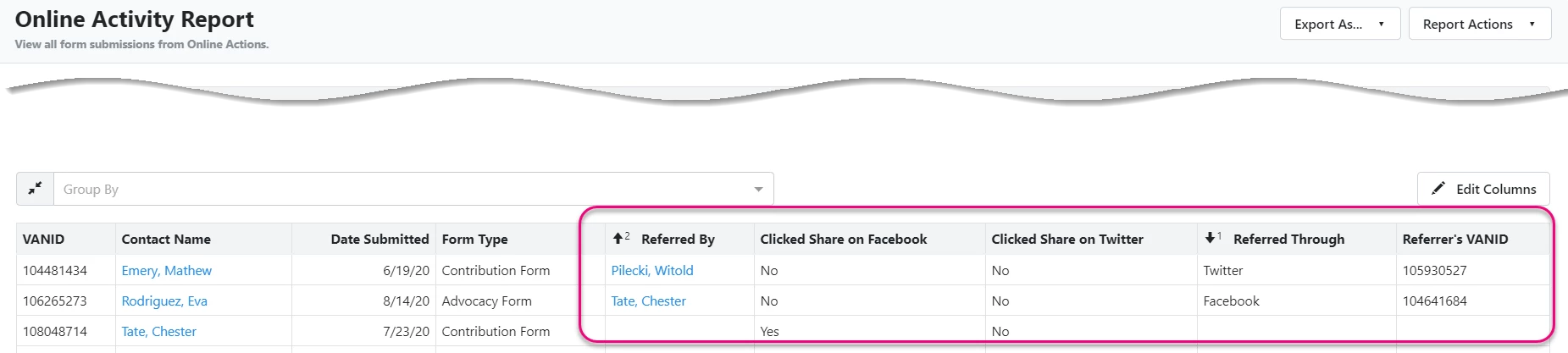
You can also Group By the fields to get more data. For example, if you Group By the Referred By column, you will see one parent row for each referrer and see a count of the number of actions that referrer is responsible for. This is an easy way to discover who your most successful referrers are on each action or each month.
You can also use these values to filter the reports to focus on just the contacts who are sharing or following shared links.
