



Survey Questions help you gather information from supporters and can be added to many of your outreach efforts. Use Survey Questions for questions you want uniform responses to, like Yes or No, or Somewhat, A lot, or Not at all.
Creating Questions
Search Survey Questions from the Sidebar, or select Survey Questions from the Codes, Questions, Scripts dropdown in the Administrative Menu section of your Main Menu.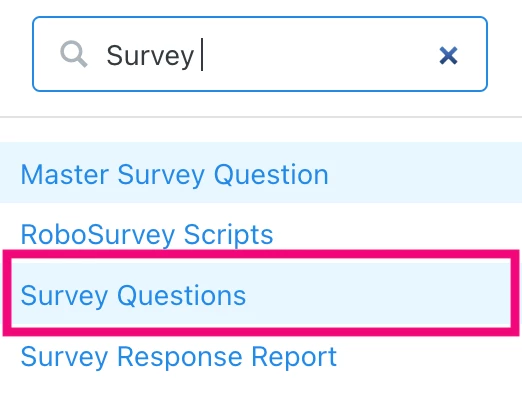
From your Survey Questions list page, add New Survey Question at the top of the section and fill out survey question details form.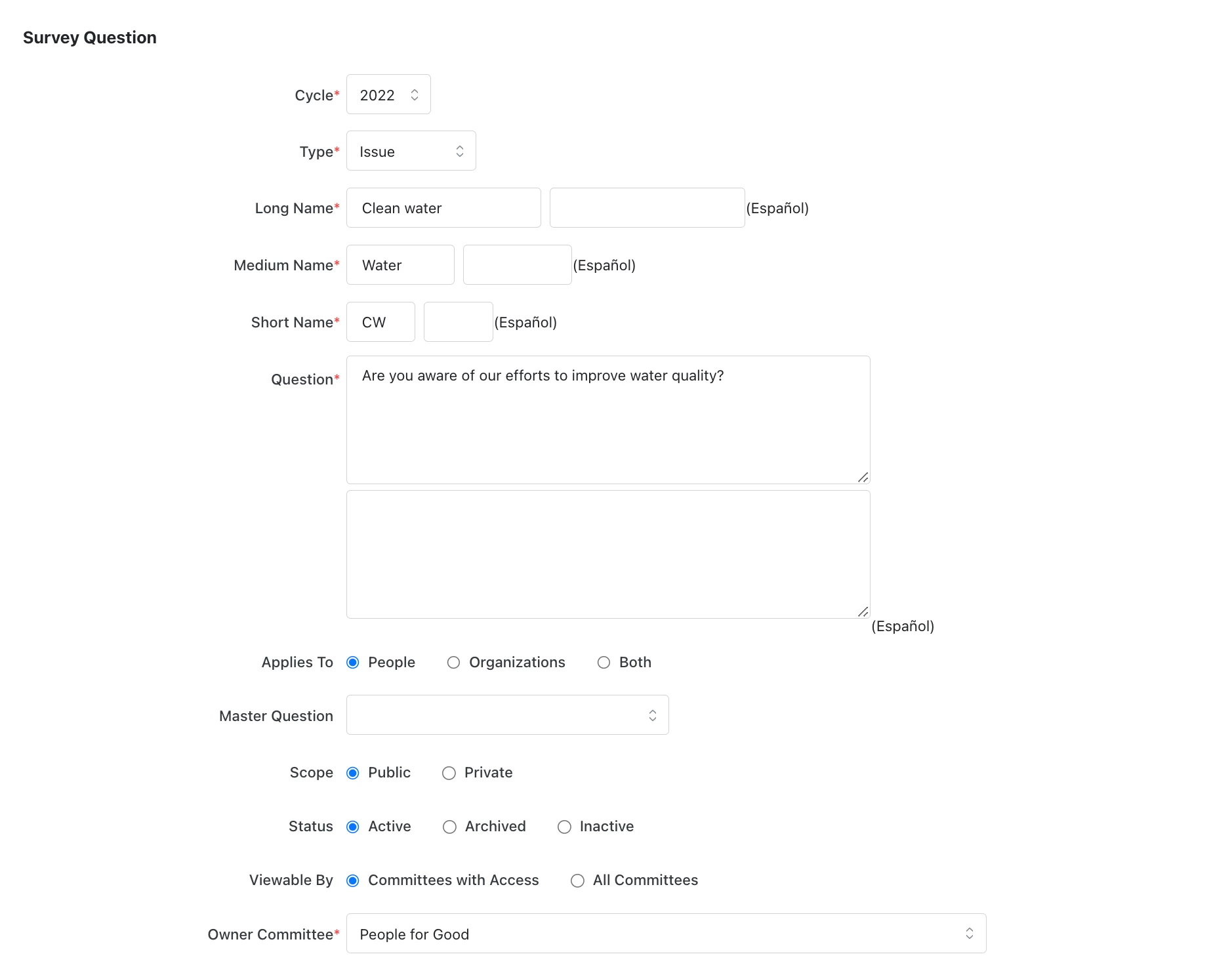
Fields with asterisks are required.
-
Cycle* - Your Cycle selection sorts your questions and is a criteria that limits the number of questions displayed in a list. You can ask the same Survey Question in multiple election cycles and will not need to create a new question each time. Simply update the Cycle property for that question for it to appear in your Survey Question list for the current cycle.
-
Type* - Select the Type that best classifies the question. If you want a Type not included, your System Administrator can contact VAN about adding one.
-
Long Name, Medium Name, and Short Name* - Choose a name that helps you easily recall to the subject of the question. VAN displays the Long Name wherever possible. The Medium Name is used when space is limited, such as on Walk Lists and phones. Short names appear where space is very tight, such as in column headings on Canvass Results or Crosstabs.
-
Question* - Avoid double-barreled questions, which raise more than one issue but allow for only one answer. Create additional questions to address all subjects you want participant opinion on.
-
Applies to - Choose whether a question can be applied to people records, organization records, or both.
-
Master Question - Master Questions are subject umbrellas that allow you to group related questions according to whatever logic you apply for the purpose of searching and analyzing responses.
-
Scope - Choose whether your survey questions are public or private.
A Public question is usable and searchable to all committees with access. Their responses are also viewable by all committees with access. Public questions are not available to committees without access.
A Private question is usable and searchable to all committees with access. Their responses, however, are only viewable by the committee that applied them. Private questions are not available to committees without access.
If any Survey Question, whether Public or Private, has been designated "viewable by all committees," users on committees without access can see that it exists on the Survey Question list but cannot use it.
-
Status - When you add a question, it is Active by default. You can archive questions by selecting Archive or deactivate them by selecting Inactive.
-
Viewable by - Select which committees have access to this question.
-
Owner Committee* - As the creator of a survey question, you may have access to more than one committee, but one committee must be designated the owner.
After you Save the question details, you can add responses.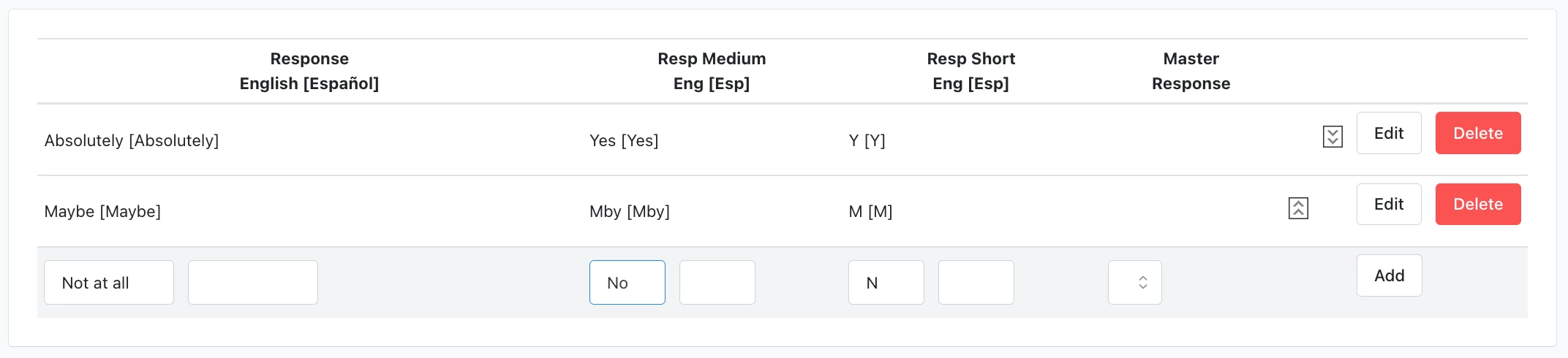
If you are using a data-sharing multi-committee setup, you can select the Committees to have access to your question.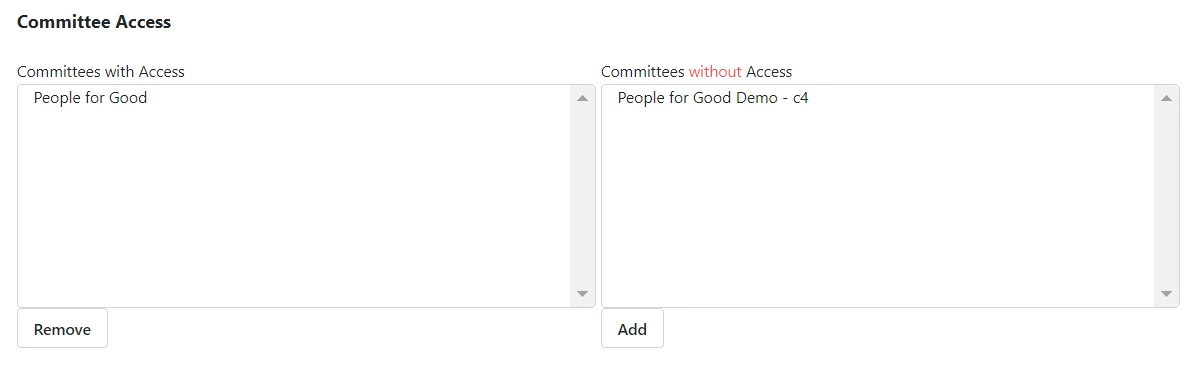
To find responses to your Survey Questions, find the Survey Question Summary View by opening Report Manager and selecting Canvass Results.
Find your Survey Response Report by searching on the Sidebar.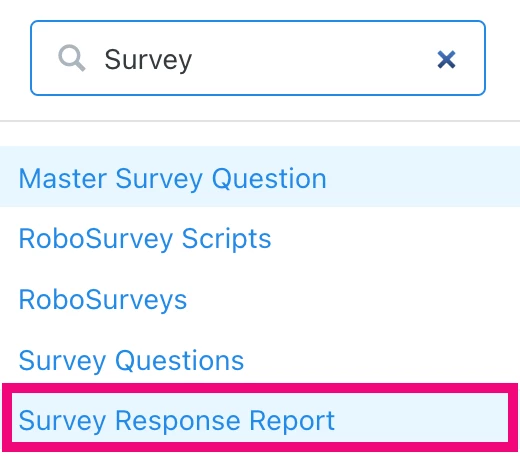
Searching on Survey Questions in Create a list
Survey Questions are one of many criteria you can search on in Create a list to build a target universe.
From the Survey Questions section, select a question from the dropdown, and pick which response(s) you want to see.
Dropdown menu options include active Survey Questions. If you want to view archived questions, select Show Archived to expand your list to include those. Though archived questions are not being used in current efforts, their responses may inform your organizational or campaign strategy and planning. 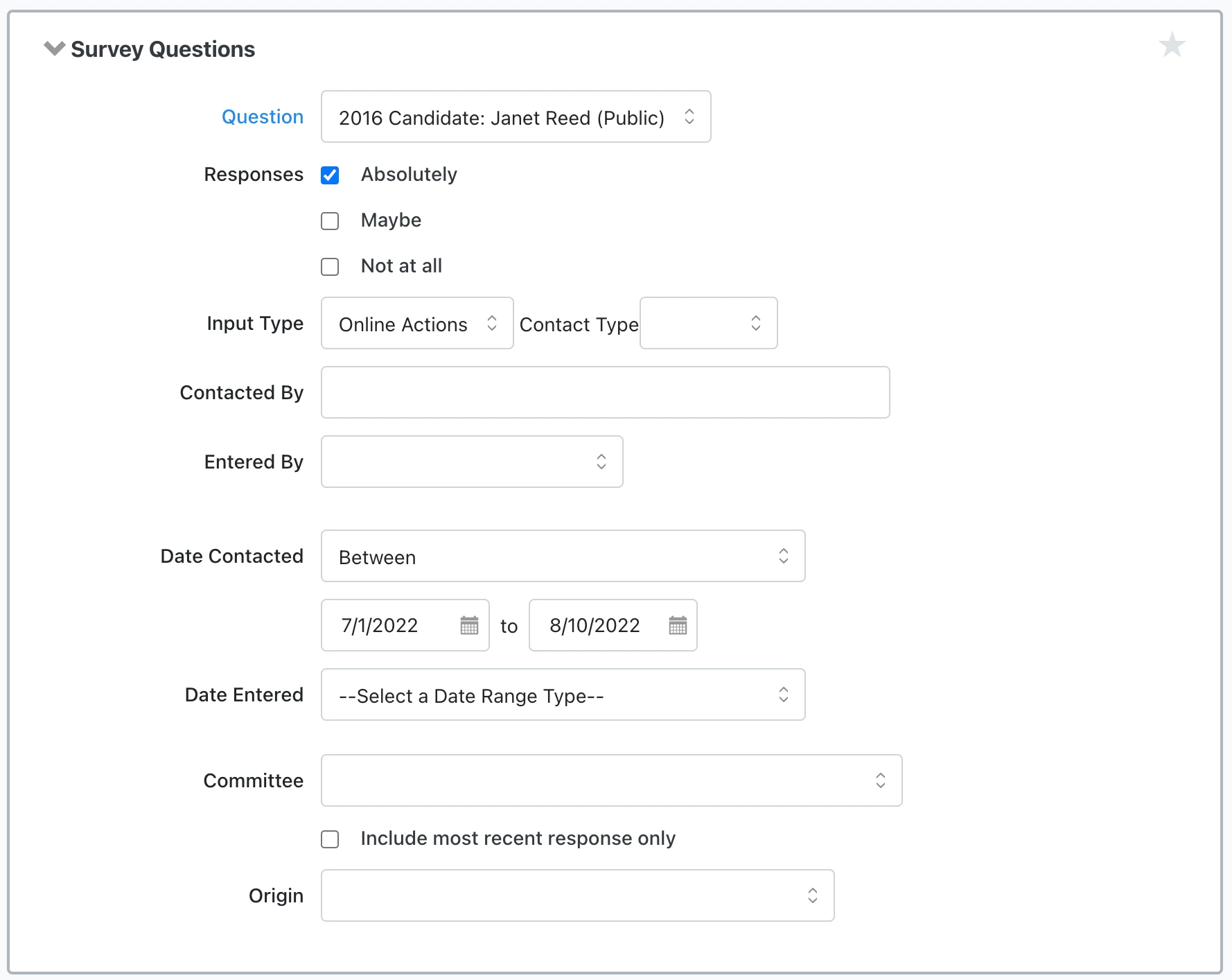
Understanding Survey Questions
Applying survey responses to a record makes an entry on the Contact History of that record. Using Survey Questions to enter data that was not collected from direct communication with a contact will cause Canvass Results and other reports to become inaccurate.
Survey Questions are multiple choice, but you can only apply one response to a given question to a record. In some cases, entering a new response will override the first.
Survey Question responses cannot be deleted or removed once recorded on a single record unless all of the following conditions exist:
-
The Survey Response was applied by the user;
-
The Survey Response was created within the last 24 hours;
-
The user is logged into the same committee where the response was applied;
-
The response was applied by the same input type you're trying to edit or add a new response under, e.g., if the response was bulk uploaded, it cannot be manually removed.
Users with the ability to edit Survey Questions can add and remove Committee access to questions if:
-
the user is also a member of that committee
-
the user is also a member of the Master Committee
-
the use has permission to manage all Survey Questions system-wide
Only state administrators can create Master Survey Questions and map Survey Questions to them.