



(5 min read)
Attention: EveryAction is now Bonterra CRM. Please bear with us as we update our screenshots to match our new name.
A strong online fundraising or engagement program starts with your ability to get messages into your supporter's inbox rather than their SPAM folder. This requires that your email is recognized as legitimate and not filtered to a SPAM folder by an Email Service Provider.
Email Scoring is an automatic process that improves your ability to reach your supporters and helps email providers like Gmail and Yahoo see your communications as legitimate. In Targeted Email, you can use these scores to improve your segmentation, excluding inactive email addresses which can lower your domain reputation with email providers.
Understanding email filtering
Email providers try to help their customers avoid an inbox full of unwanted emails by using automatic filters to determine if a message should go to an inbox or to a secondary location such as a SPAM folder. If you are a typical email user, this means that your filters are set to look at the sender's domain name (URL) and internet address (IP address) and track how engaged you are with emails you receive from these particular addresses.
If you rarely open or click on message from a specific URL or IP address, or if you regularly mark those emails as SPAM, the SPAM filter will give that address or domain a lower reputation for delivery. Messages from these IP addresses and domains are less likely to land in your inbox and will start to be sent to your SPAM folder instead.
These filters operate broadly, so similar results for one domain or IP address from several recipients on the same email provider can affect all users of that email provider. This can have a negative impact on fundraisers or organizations trying to do advocacy or outreach.
If you continue to send messages to disengaged supporters who never open the emails, the SPAM filter will start to rank your messages lower for all their users on their system. This can mean that even your more engaged supporters who are using the same email provider will start to have your messages delivered to their SPAM folder rather than their inbox.
Our Email Scoring process helps you manage these effects by automatically segmenting your contacts based on past engagement.
Understanding our automated Email Scoring process
Email Scoring happens in an automatic way when you use our system for delivery. Each email address in your database is given a score from 1 to 10. (Unsubscribed or opted-out email addresses are not scored.) As supporters open or click on emails they receive, their score is updated to move them higher in rank. Recent activity has a higher value than past actions. Email addresses that bounce or that don't respond to your messages will start to drop in rank over time.
Every email address has a unique score, so if your contact has more than one email address, each of their addresses will have its own score. If an email address is duplicated for some reason for that contact, both instances will have the same score in our system.
Using Email Scoring to improve deliverability
While the scoring process is automatic in our system, there are additional ways to manage or improve your email deliverability.
Filtering based on email score in Targeted Email
When sending a Targeted Email, you can filter out specific email addresses based on their engagement score. This is especially helpful when dealing with contacts that have two or more email addresses subscribed but only respond to you using one email address.
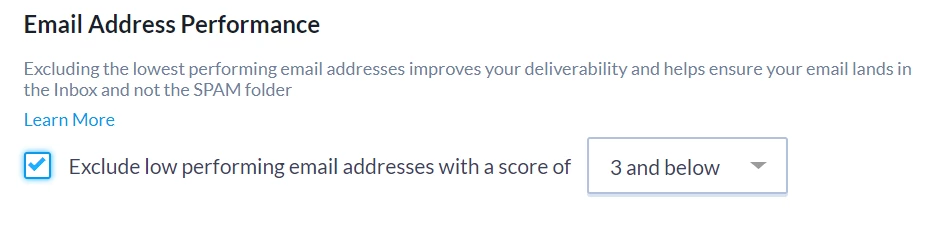
You can opt to do the exclusion of low engagement supporters in Targeted Email > Select Recipients > Exclude from Audience > Show Additional Exclusions > Email Address Performance. New emails start at a 5, so you will want to include at least 5 and above for any broad outreach programs.
You can also set Email Score exclusion levels for specific domains. If you have recurring problems with the domain socialgood, you can can exclude all socialgood email addresses with a score of 3 or less.
Using Create A List to search for your more engaged supporters
Every contact email list undergoes attrition over time, so our tools let you segment out users who have become disengaged. You can reserve your outreach to less committed supporters for campaigns that more closely match what they've supported the past or you can design a specific re-engagement campaign to increase your conversions with these contacts.
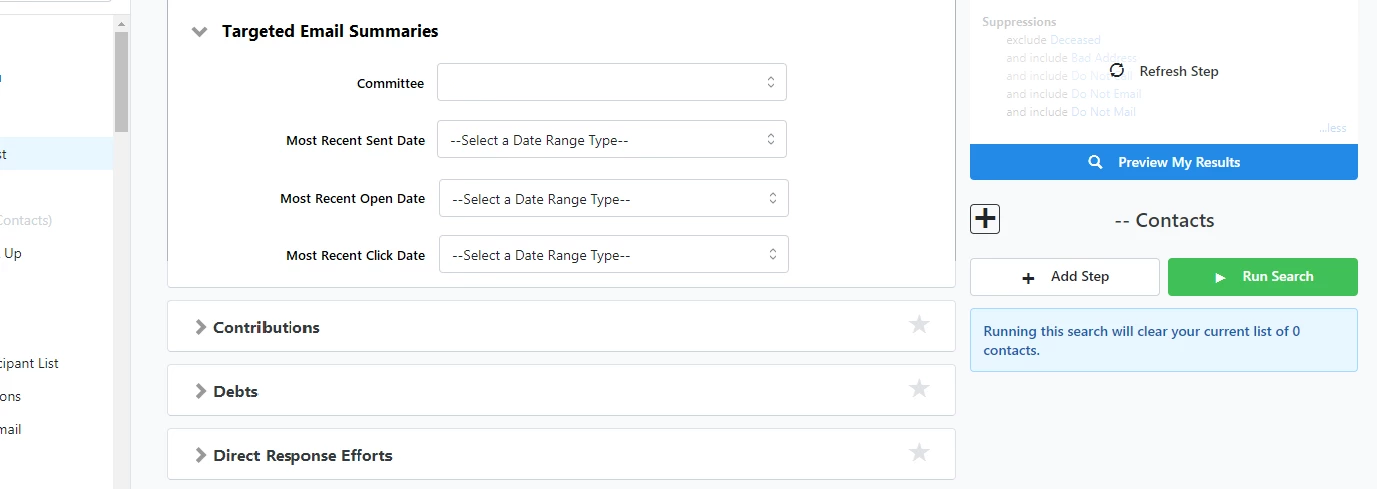
When creating lists for email campaigns, you can use Create A List > Targeted Email Summaries to filter contacts by the most recent date they were sent, opened, or clicked an email. This allows you to easily target or exclude contacts based on their recent email engagement. We generally recommend that you only send email to contacts who have engaged with your email program in the last six to nine months unless you are specifically targeting contacts for a re-engagement campaign.
Viewing email scores on the Email Address Status Report
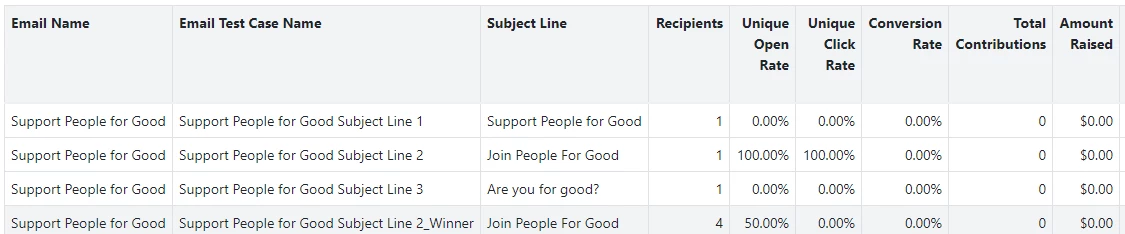
If you want to see a summary of email scores for your contacts, you can use the Email Address Status report. You can add a column labelled Email Score that will show you each contact's score in the system.
For an overview of how your email program is performing, use the dropdown menu to choose Group By > Email Score to see a count of how many email addresses are at each score level.
You can schedule this report to run weekly or monthly to monitor changes over time.
If you have more questions about how email scoring works, contact Support with any questions.
Alternate search terms: email address status report, targeted email summaries, email score, email address performance, exclude from audience, targeted email audience, email program performance, deliverability, spam filters, domain reputation
How do I how to: improve email delivery with email scoring? | How does how to: improve email delivery with email scoring work in EveryAction? | Why can't I how to: improve email delivery with email scoring? | Where do I how to: improve email delivery with email scoring in EveryAction? | What is how to: improve email delivery with email scoring in EveryAction? | How to how to: improve email delivery with email scoring? | Can I how to: improve email delivery with email scoring in EveryAction?