



Note: SmartLinks are intended to work specifically for the e-mail recipient and our recommendation is not to forward them. When you click on a SmartLink in an email, it can load data onto the form for a supporter based on the identifiers in the link, regardless of whether or not they have a cookie in their browser to pre-fill data on the form. So, forwarding a SmartLink can result in pre-filling data, including the credit card token stored in FastAction, for the original recipient, even when the recipient of the forwarded email clicks the link. For this reason, we recommend indicating that these links are designed to be one-time use for the original e-mail recipient.
Step 1: Open the Drag & Drop Editor
Access your Targeted Email campaign in the Drag & Drop Editor.
Step 2: Select the Text Block
Choose a Text block where you want to add the Smart Link.
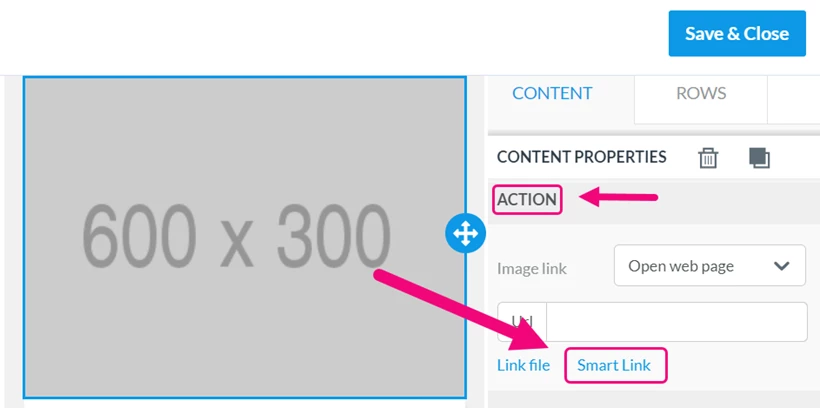
For Image and Button objects, look for the Smart Links in the Actions section in the menu to the right.
Step 3: Add Smart Link
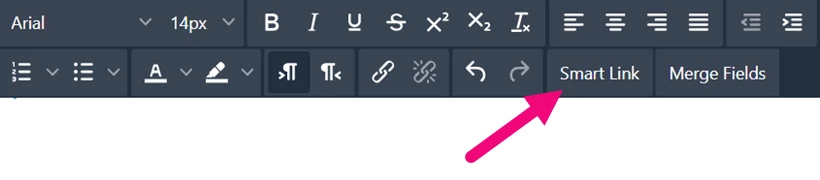
Click on “Smart Link” from the editing ribbon.
Step 4: Use the SmartLinks Wizard
The SmartLinks wizard will open to help you customize your link.
The SmartLinks wizard will help you create links to a standard Online Actions form, an Online Actions form that is embedded in your own site, or to a form that is located at another URL.
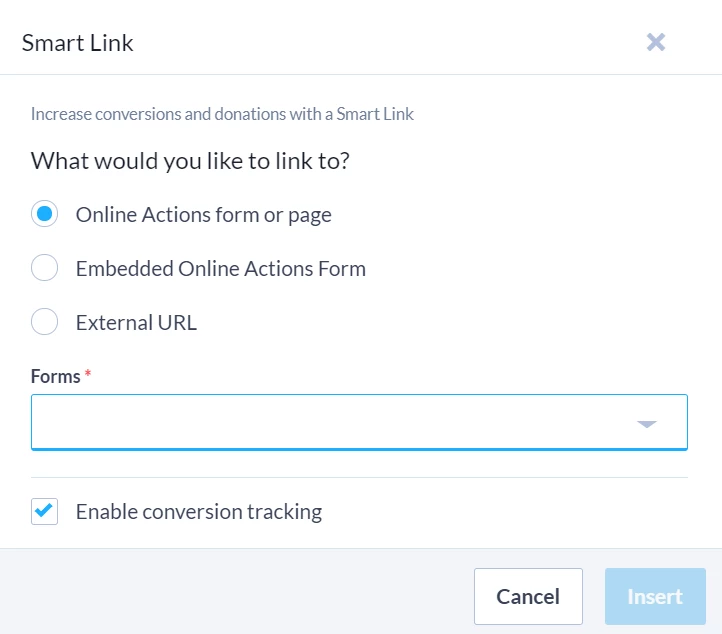
Online Actions Form or Page:
If you are using a standard Online Actions form or page, you can select the form from the dropdown menu.
Embedded Online Actions Form or External URL:
When you choose either Embedded Online Actions form or External URL, you will be prompted to enter the web address for the external form.
With embedded forms, you will have access to all the same Smart Link options as you would with forms served directly from Online Actions.