Who can receive a Triggered Email?
While Targeted Emails are only sent to supporters who have opted-in to your messages, a Triggered Email can be sent to anyone, regardless of subscription status. Because the recipient initiated some sort of action that triggers the autoresponder to send, these messages have a special status under CAN-SPAM and other email laws and can be sent to both subscribed and unsubscribed recipients. They typically have higher open and clickthrough rates than promotional emails.
To avoid violating this special exception rule, Triggered Emails should contain, at most, limited promotional content, and it should be clear this isn’t the focus of the email.
Should you use Automation or Triggered Email?
Triggered Emails are used to send a single, specific message in response to an event.
While you can personalize the content by using conditional content and merge fields, everyone will get the same email. You do not have control over the segmentation of these emails, since these autoresponders will send to anyone who takes a particular action or has a qualifying triggering event. This includes any unsubscribed contacts who trigger these automated responses.
Automations, on the other hand, are more useful when you need to schedule particular emails or segment your recipients based on your contact records. Automations let you target recipients and send different versions of an email based on their previous choices. You can use the same segmentation that you use in any Targeted Email communication, including the use of suppressions and domain exclusions.
Automations are typically used for things like Welcome Series, re-engagement campaigns, or other outreach efforts where you want to customize your responses based on what you know about your contacts. Use them when you want to send multiple emails (series), choose when to send them, and have the option to take different actions based on supporters' responses.
You can, however, use both tools together by using Triggered Emails as entry criteria for Automations like the Lapsed Sustainer workflow.
Locating Triggered Emails
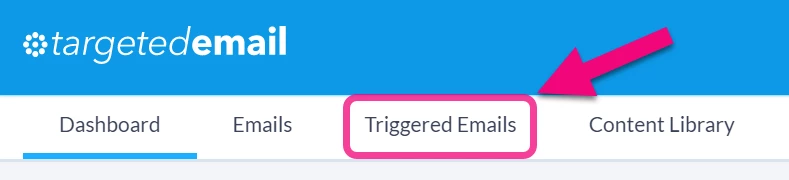
You can open Triggered Emails from the tab at the top of the Targeted Email feature.
On the Triggered Emails dashboard, you will see how many emails have been published, are in draft, or have been deactivated. You can also create a new Triggered Email using any of the available templates. Since the audience is defined solely by the triggering event for the template you choose, you will not need to create any saved lists or searches.
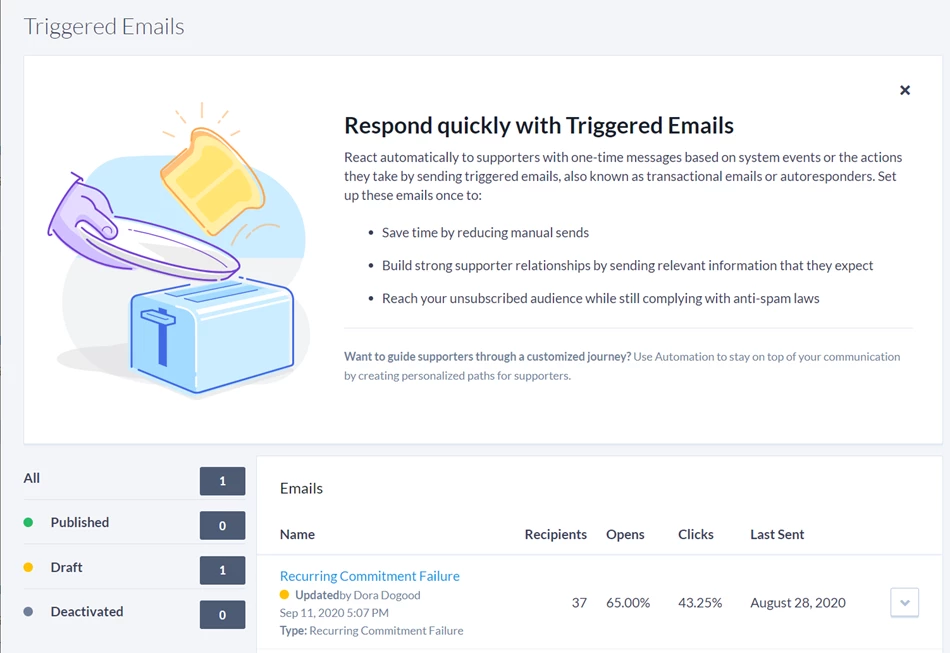
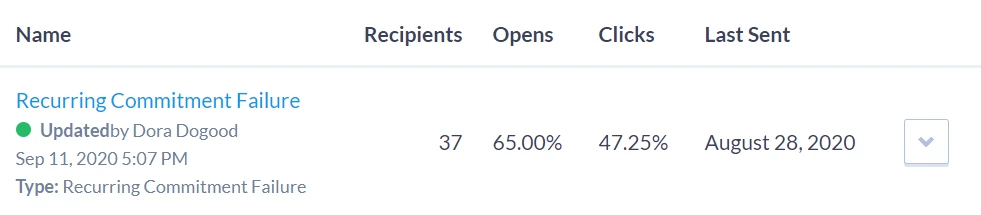
At the bottom, you will see a Summary section that will show how many recipients have received each of your Triggered Emails, when it was last sent, and the number of opens and clicks on the message.
Read more on using Triggered Emails for Recurring Commitment Failures
Read more on creating Triggered Emails for Confirmed Opt-In subscription notices
Monitoring Triggered Emails
The Summary section of the Triggered Emails dashboard gives you a quick overview of how many messages have been sent and opened when using any of your triggered emails.
You can also track any of your Triggered Emails in much the same manner as any Targeted Email, including:
-
Searching for recipients from the Targeted Emails section of Create a List
-
Using the Email Performance report to see who is opening and clicking on the message
-
Viewing which triggered emails a particular contact received using the Targeted Email section on the contact's details page
Looking for training?
Explore this feature at your own pace - join a live training session or watch a recorded webinar by clicking the link below.