



(5 min read)
From the contact record, you can use the Phones section to view and update phone numbers. Each contact record can have multiple phone numbers, just like they can also have multiple addresses and emails.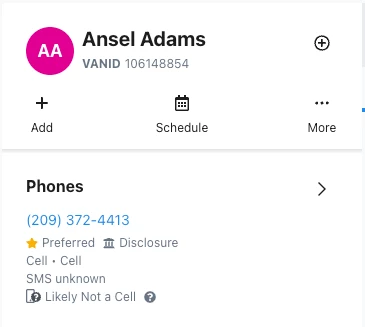
Understanding phone number fields
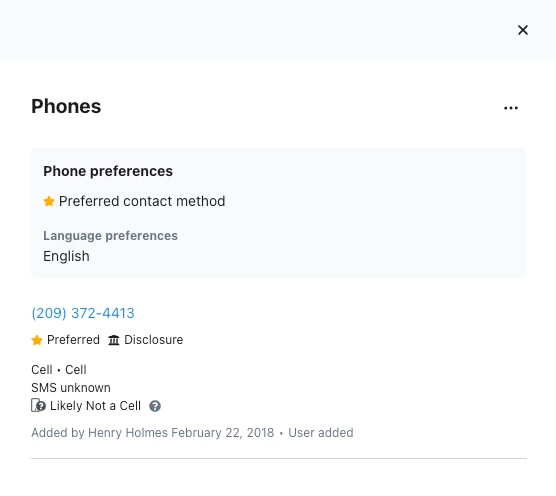
In the Phones section, you will several details about your contact's phone numbers, including:
- Type: This field lets you classify the kind of phone number listed. The options here are Cell, Fax, Home, Main, Other, and Work.
- Phone: This is the phone number itself.
- Device Type: Device Type: The device associated with a number. The options are Cell, Landline, VoIP, Fax, Unknown.
- Is a Cell? Indicates whether the phone number is likely to be a mobile number or not. The options are Verified Cell, Likely Cell, Likely Not a Cell, and Not a Cell. You can think of it as supplementary to the Phone Type. See more information below.
- SMS Opt-In status: Indicates whether the person agreed to receive SMS messages from you at that phone number. The options here are Opt-In, Opt-Out, and Unknown.
- Added by: Includes the date and the name of the user who last edited the record. Followed by the Source.
- Source: This indicates how the phone number was added. When you manually add a new phone number to a record, Source will populate with User Added by default. Users with the ability to edit phone numbers will be able to change the source only after a phone number has been added. The values are:
- Bulk: The phone number was added via Bulk Upload.
- Mobile: The phone number was added on a mobile device, typically while canvassing or phone banking.
- User Added: The phone number was manually added from the contact record.
- Vendor: This is used in very limited cases. Please contact our support team via in-app Support Request with questions.
- Voter file: The phone number came from a voter file update, which is loaded by our data team. The voter file source varies depending on the VAN platform you are using.
Marking phone numbers as preferred
On each contact record, you can set one phone number as Preferred when someone has indicated that they prefer to be reached at a specific phone number.
Preferred Phones are prioritized this way:
-
Manually marked Preferred phones always take precedence
-
If no number has been manually marked as Preferred, the most recently added Home Phone is the default Preferred phone.
-
If there is no Home phone on a contact record, the most recently added Cell phone is the default Preferred phone.
-
If there are no Home or Cell phones, there will be no preferred number.
-
If you are on VoteBuilder, please contact your national administrators about how phone scores affect Preferred phones.
There are a few other important things to know about how Preferred phones work:
-
Once a number is manually set as the Preferred number, the only way to change which number is Preferred is to do so manually.
-
Phone numbers marked Preferred will have the option to Remove. Other numbers on the contact record will have the option to Set as preferred and Remove.
-
Uploads that add new phone numbers to a contact record may change which number is considered Preferred, if no number has been manually set as Preferred.
-
Using the Preferred Phones Only checkbox in Create A List will return people with phone numbers that have been manually marked Preferred by a user.
Understanding how cell status is determined
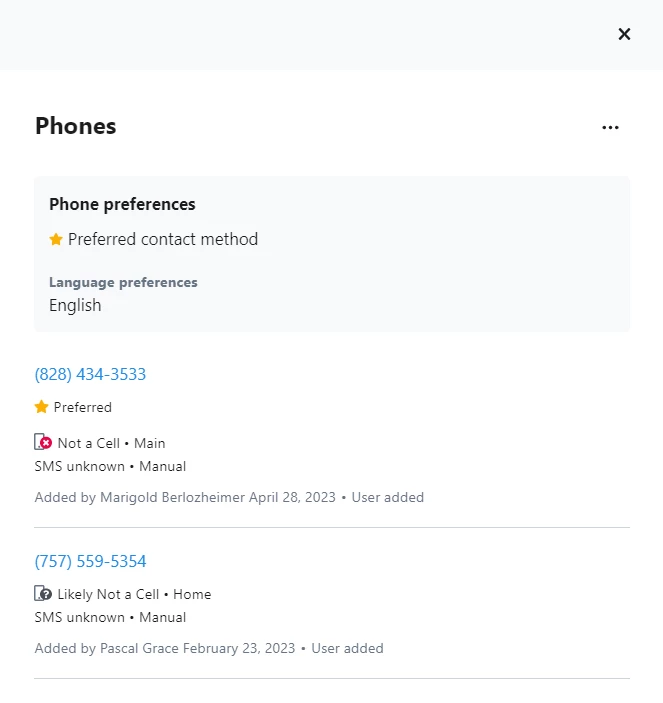
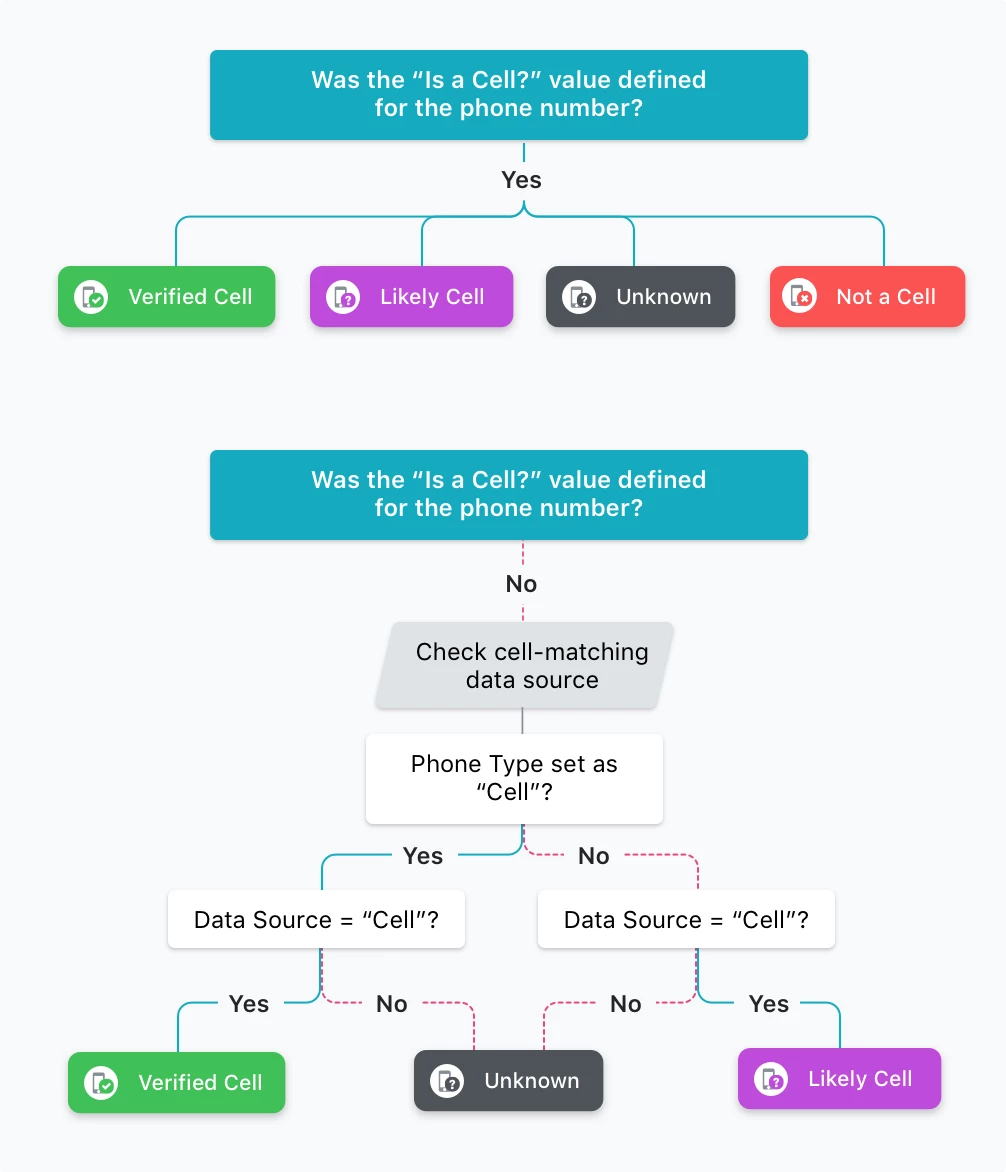
Phone numbers added without a value selected for Is a Cell? prompt the system to assign a status.
Is a Cell? is different from Phone Type. You should select a Phone Type whenever you add phones but only apply an Is a Cell? value if you are very sure that the phone number is a cell.
When we auto-assign the cell status, phone numbers are checked against a cell matching data source, which verifies if a number is a likely or verified cell phone number. Please see the chart below for details on how the value is determined.
Adding and editing phone numbers
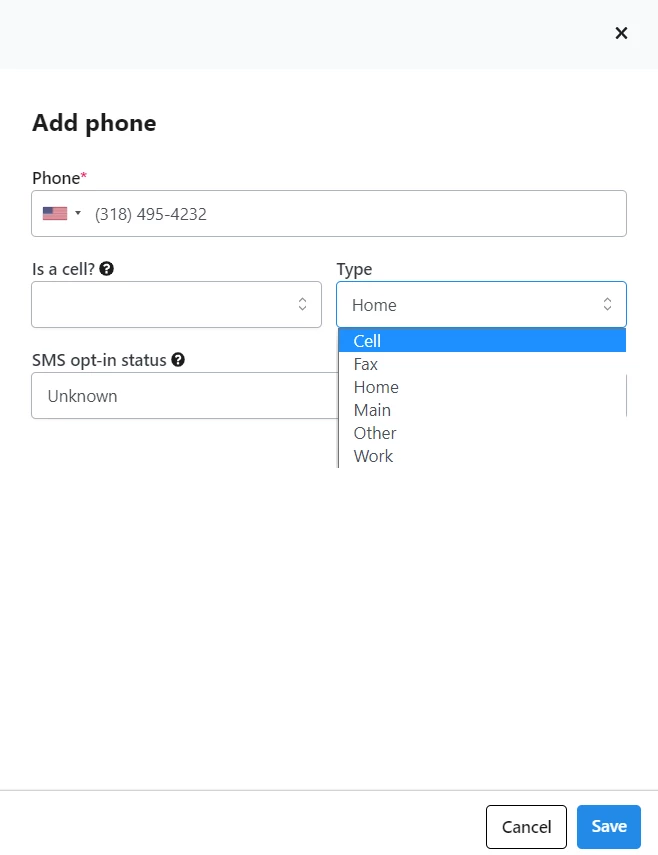
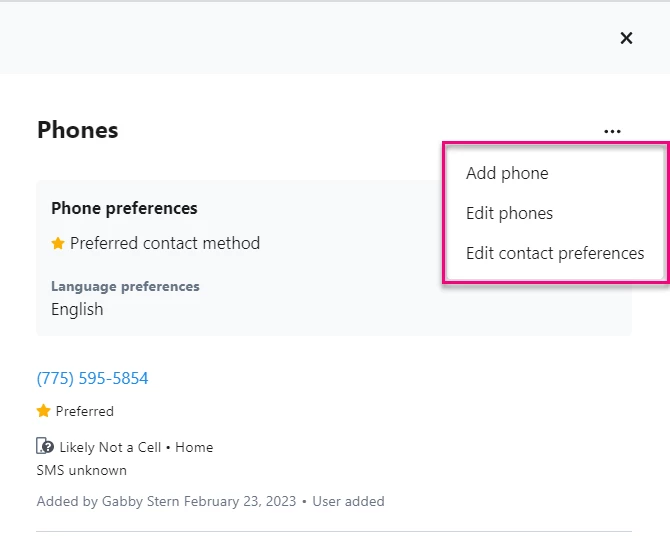
From your open Phone drawer, select the three dots to add or edit numbers.
Select the phone type and whether or not this is a cell number, then select Save to save the record.
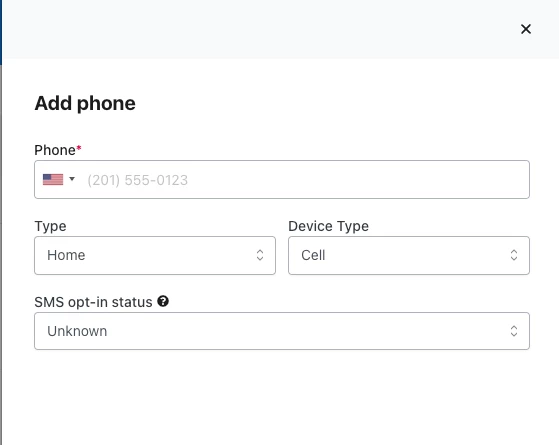
When adding an international number, the system will recognize the country associated with it and populate the correct flag as well as the dialing prefix. You can also manually select the correct flag.
You can Restore phone numbers that have been marked as bad directly from the contact record.
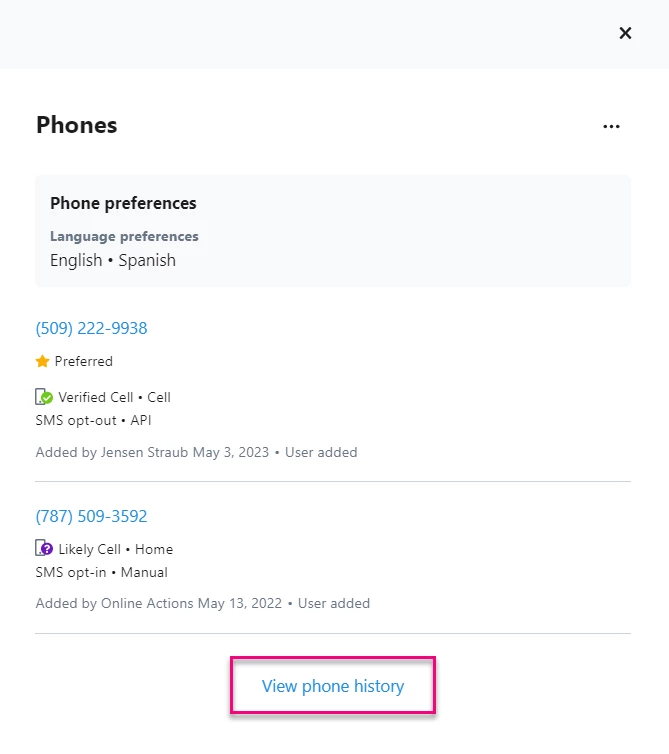
Select View phone history to reveal numbers that have been deleted from the contact record.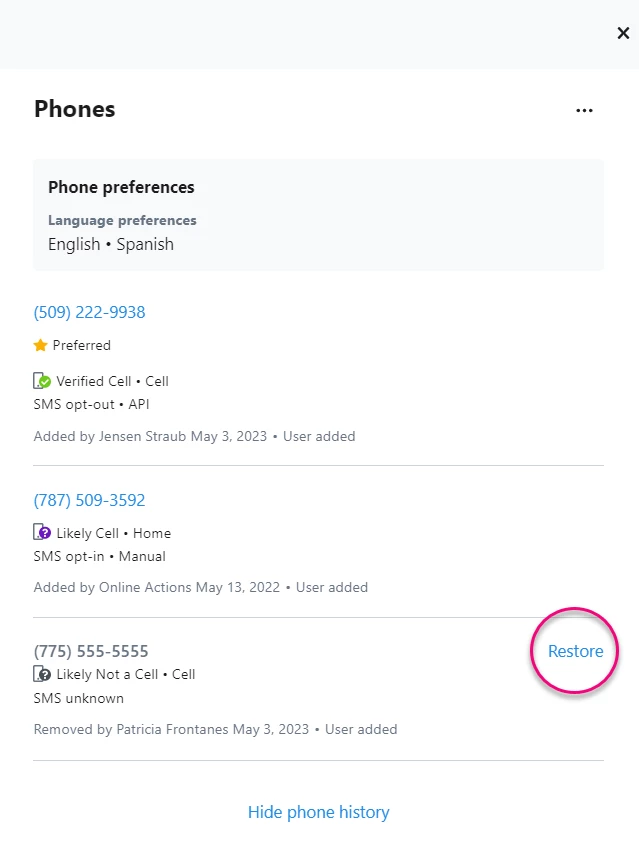
Restore the number you want added back to the record.
Another way to restore numbers is with Bulk Unsuppress, which you can do if you have permission to Bulk Apply phone numbers. Do this when a large number of phones have been connected, after being marked disconnected, or if a large number of phones were mistakenly marked as bad.
If you are using My Voters, this permission is limited to state and national administrators. (Only in EA and NGP.)
Marking phone numbers as bad
Phone numbers on contact records can be affected by canvass results.
The following canvass result codes mark addresses and phone numbers as bad or otherwise affect a person's record:
-
Deceased marks the person as having died
-
Moved marks the current primary/voting address on the contact record as Archived
-
Wrong Number/Not at This Number marks the current preferred number as Archived
-
Disconnected marks the specified number as bad
-
Do Not Call sets the No Call suppression flag on the record
-
Do Not Text marks the phone number as opted out
-
Do Not Walk sets the Do Not Walk suppression flag on the record
Depending on your user profile, you may also be able to change numbers in VAN. The following security functions are required to manage phone numbers in VAN:
-
Editing: Edit Phone Numbers - Add or delete phone numbers.
-
Editing: Add New Phones - Some legacy users can add phone numbers in My Voters. Phone numbers can be added on Contact Details, in Form View, in Virtual Phone Bank and Predictive Dialer, in MiniVAN, in Bulk Upload, and through the API.
-
Bad phone numbers are displayed on the Voter Details page with a strikethrough. You can undo Mark Phone Bad action by selecting Restore Phone next to the bad number. If a number is added to a contact record and it was previously marked bad on that record, it cannot be tagged as a preferred number.