



Overview
In some cases, users may need to edit, impersonate, or otherwise manage the users they can administer. Below is information on the most common tasks related to user management including editing information, changing access, and impersonation. For information about resetting passwords, click here.Editing User Accounts
Pending Users
Once the email has been sent, users will appear as 'Pending User' until they've logged in.
User List page:
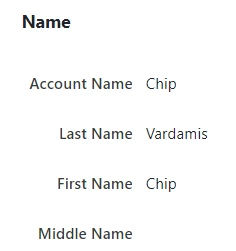
User Details page (the First Name and Last Name can be edited while the user is pending):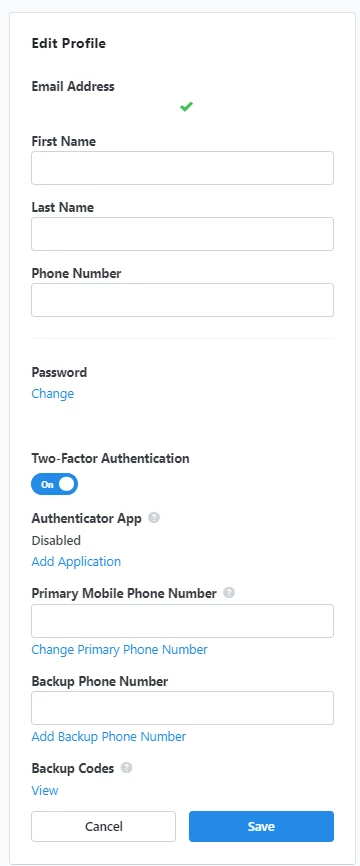
There are also two filters on the User List page related to login and ActionID - Pending User (yes/no) and Has ActionID (yes/no).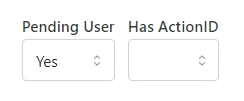
Editing Name and Contact Information
The First Name and Last Name fields can be edited by other Users only while the newly created User is pending.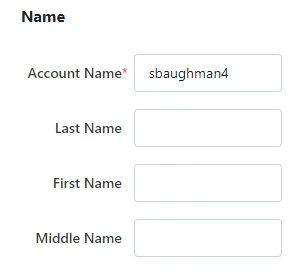
When the person clicks on the link in the invitation, they will be required to enter their first and last name to proceed and log in.
Once that person has finished the login process, the ActionID information and name will populate the fields on the User Details page, and will only be editable by that user when they edit their ActionID profile page.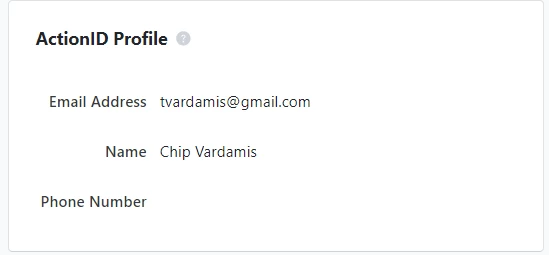
The contact information section is still editable to edit on all user detail pages, whether pending or active.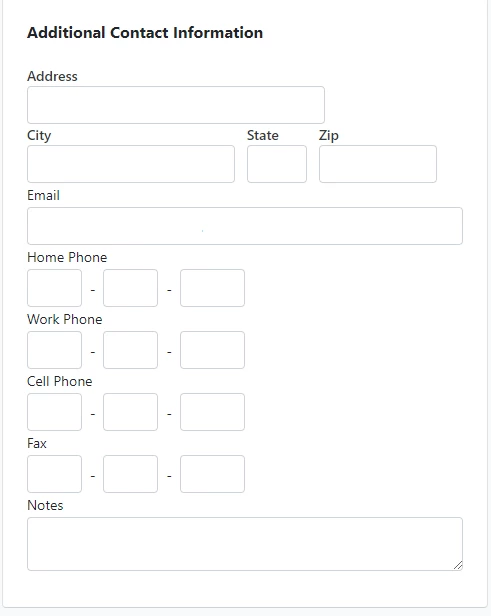
Impersonating User Accounts
To impersonate a user account, click on the 'More' dropdown and then on 'Impersonate User.'While you're impersonating a user, the 'More' dropdown disappears so that users cannot purposefully or accidentally make changes to a user account as another user.
Users are able to impersonate another user if all of the following are true:
- Their User Profile contains the 'Create and Edit Users' security function.
- Their User Profile contains the 'Impersonate Users' security function.
- They have access to the same or more Committees than the user they want to edit.
- If in a state-based database, they have access to the same or more states than the user they want to edit.