


How to: Load voter registration applicants
(4 min read)
In order to load voter registration batches, you must have access to the Voter Reg state. In most cases, you will need to purchase this separately from My Voters and My Campaign.
Read an overview >>
Creating your data entry form
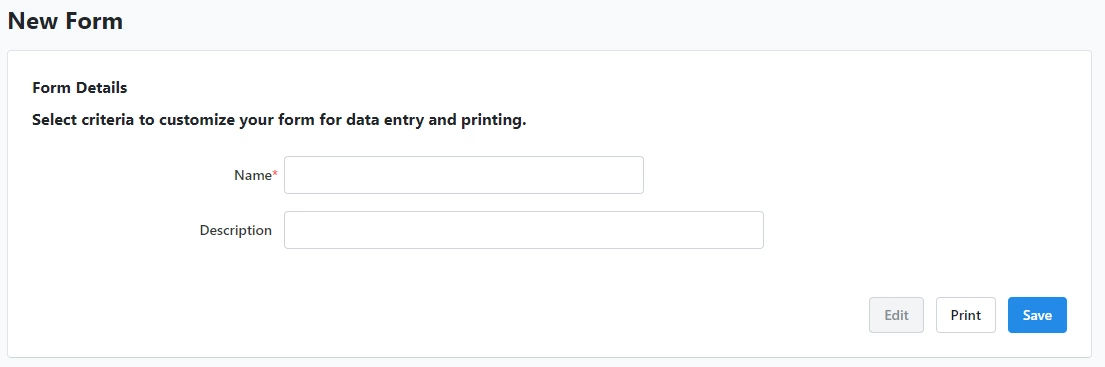
Before adding batches of applicants, you must first create a form with which to enter data.
From the Sidebar, select Forms > Add New Form. You can edit an existing form by clicking on the name of it.
Use the toolbox to select and add elements like name, registration information, and Activist Codes using the checkboxes next to the field names and clicking Add Elements to Form.
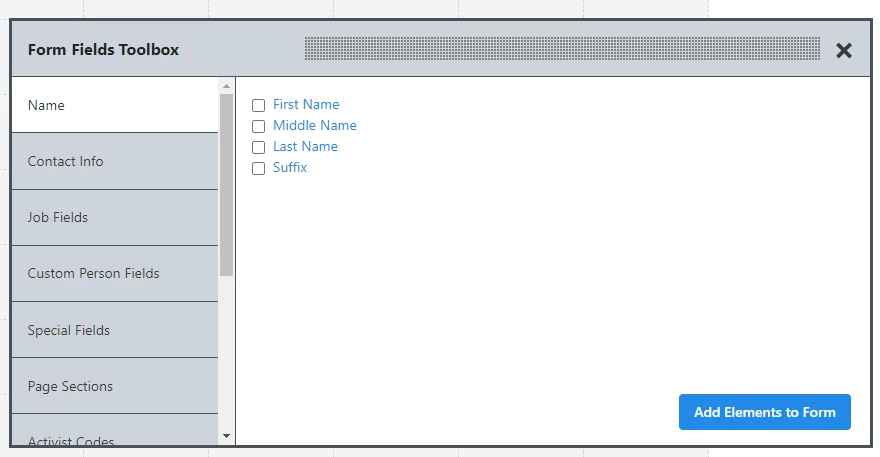
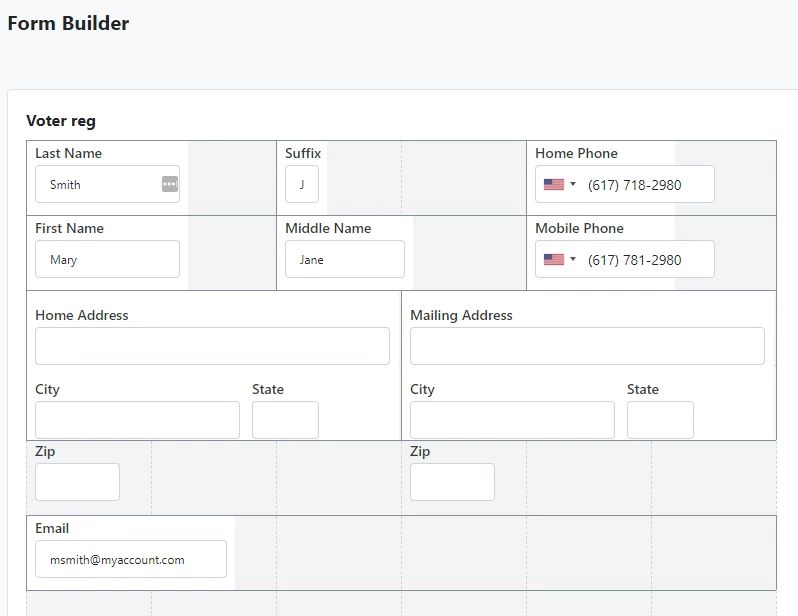
If you close the toolbox and need to bring it back up, use Show Toolbox. When you've added all the fields you need, Save your form.
Creating Batches
Use the sidebar menu to navigate to Batches > Create a New Batch.
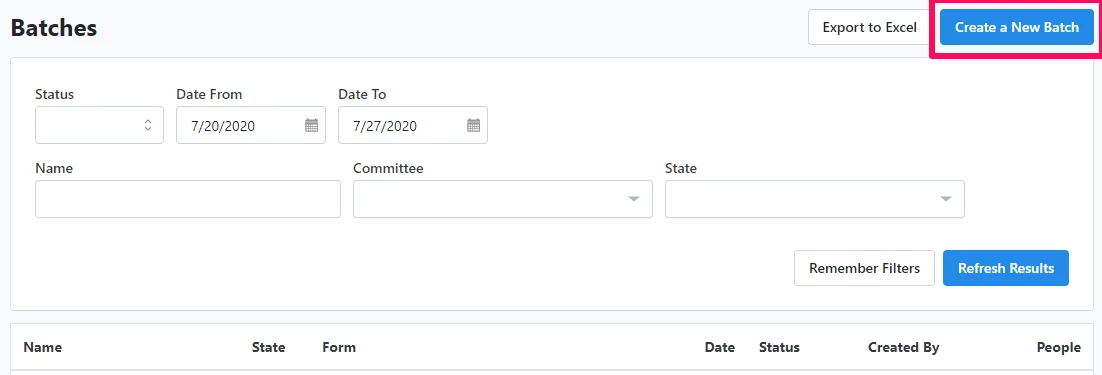
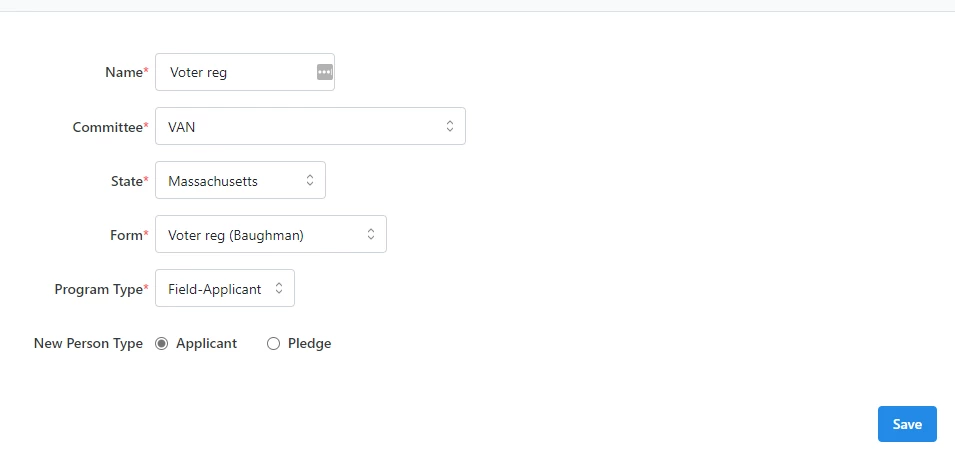
Enter the following fields and Save:
-
Name: Name the batch. This typically indicates the source or date for applicants or pledged applicants. You may want to discuss naming conventions within your organization.
-
Committee: If you have access to more than one committee in Voter Reg, you will be able to select from one of them.
-
State: Select which state the individuals live in. Keep in mind that you can only load people for one state at a time.
-
Form: Select a data entry form, which determines the fields you can enter.
-
Program Type: Select Field-Applicant if you collected the filled-out registration form from the person or select Field-Pledge if the person has pledged to register. Web will be applied when voter registration applicants are loaded via API.
-
New Person Type: Select Applicant if you are loading people who have filled out an application, or Pledge if you are loading people who have pledged to vote. In most cases, this will match Program Type.
Entering applicant data
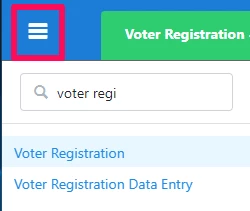
Use the Voter Registration Data Entry link in the sidebar menu.
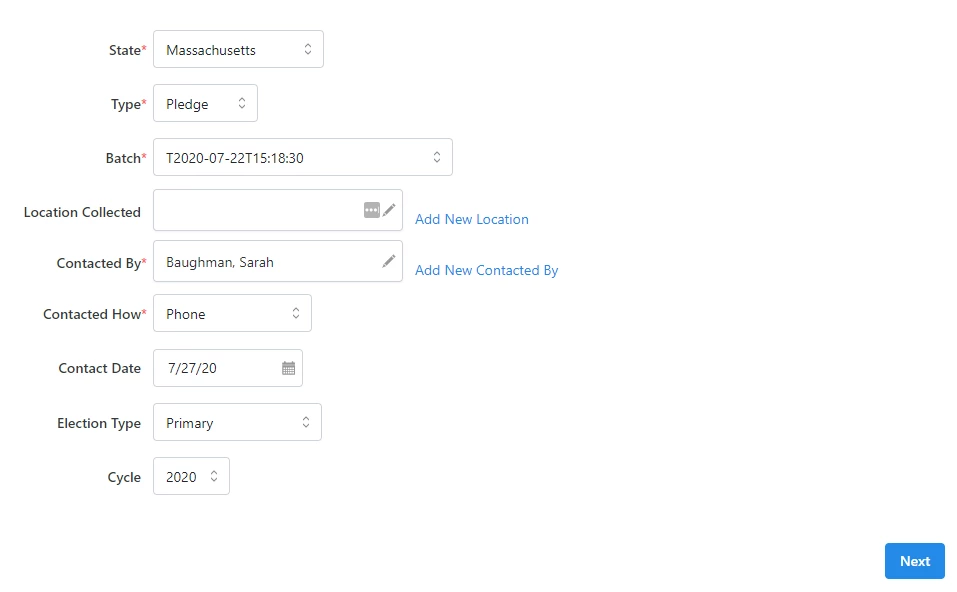
Select the State, Type (Applicant or Pledge; derived from New Person Type on the batch), and Batch. This will prompt Canvasser, Contacted How, and Contact Date to appear. Use these to indicate who contacted the applicants, how, and when. Click Next to proceed, and begin entering the information for the first applicant.
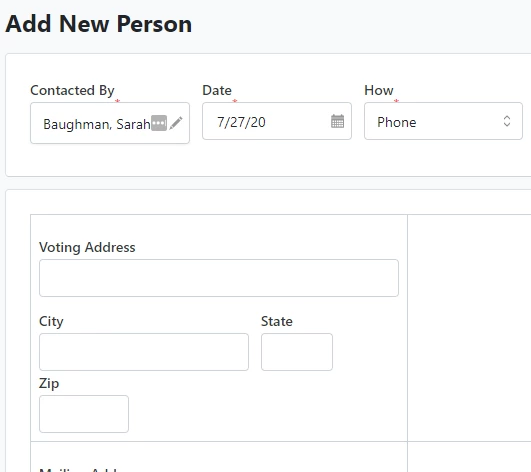
Click Save and enter the information for the next person. Continue until all applicant information has been entered.
Reviewing and committing batches of applicants
To review the data you've entered in each batch, go to Batches > open a batch > View Voters.
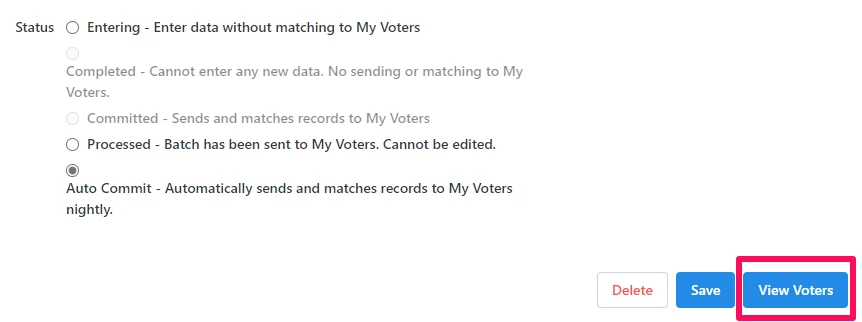
When you're done entering data for the batch and ready for it to be run against My Voters overnight, change the status to Committed.
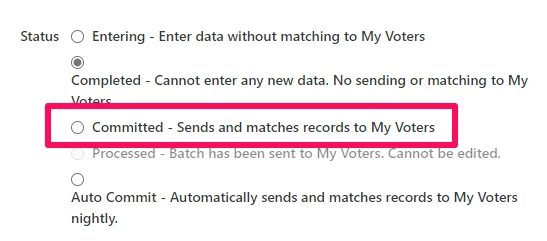
The following morning, each person will have a Voter Registration Type, depending on whether and how a match was made:
-
Registration Pending: People who have yet to match to a record on the voter file but have at least First Name, Last Name, Street Number, Street Name, Zip Code, and DOB. These records are added to My Voters because as someone who is running your voter registration program, you may have a better sense of whether your applicants are likely registered before the state voter file update is available. You must have Search and View Applicant Status in order to search on this information.
-
New Registered Voter: Records in Voter Reg who after a voter file update are now able to be matched to a record in My Voters. These are people who were not previously registered in the state. Consider these folks net new voters – an expanded electorate.
-
Moved Voter Pending: People in Voter Reg who matched to a record in My Voters based on name, phone number, date of birth, or the like but who have a different address than what is currently on the voter file. These are people who were registered in the state but may have moved. It’s possible that they registered recently enough that the next voter file update will match the address they provided, at which point their status will change to Moved Voter. It’s also possible that they are not registered at their current address.
-
Moved Voter: Records that previously had a status of Moved Pending Voters and matched by address in a later voter file update. This means that the address collected in your voter registration efforts now matches the voter file.
-
Existing Voter: People in Voter Reg who matched to an existing record on the voter file in My Voters. Sometimes during Voter Reg programs, people are “re-registered” using the same information that is already on file. This status indicates that there has been no change from the record that already existed in My Voters.
-
Not Enough Information: These are the records that we were not added to My Voters due to missing information. Records can be rejected if they are missing First Name, Last Name, Street Number, Street Name, Zip Code, or DOB.
The system will update the following statuses when a record is matched to My Voters:
-
Registration Pending > New Registered Voter
-
Moved Voter Pending > Moved Voter
How do I how to: load voter registration applicants? | How does how to: load voter registration applicants work in EveryAction? | Why can't I how to: load voter registration applicants? | Where do I how to: load voter registration applicants in EveryAction? | What is how to: load voter registration applicants in EveryAction? | How to how to: load voter registration applicants? | Can I how to: load voter registration applicants in EveryAction?