



(6 min read)
Weebly is an industry-leading drag & drop website builder that makes it easy to build mobile-ready, polished websites.
Our integration makes it easy to post your Online Actions forms automatically to your site, to give you a unified look and feel for your supporter outreach efforts.
View our checklist of actions to launch your Weebly site
Getting started
Contact your account executive to have the integration added to your package. Keep an eye on your email. You will need to submit a kickoff form, which notifies us we can create the shell of your site and your user account.
Open the kickoff form
When you receive confirmation that your site is ready, set a new username and password. Choose a different username and password than those you use to log into your database. Consider using a password manager to help you remember your site password.
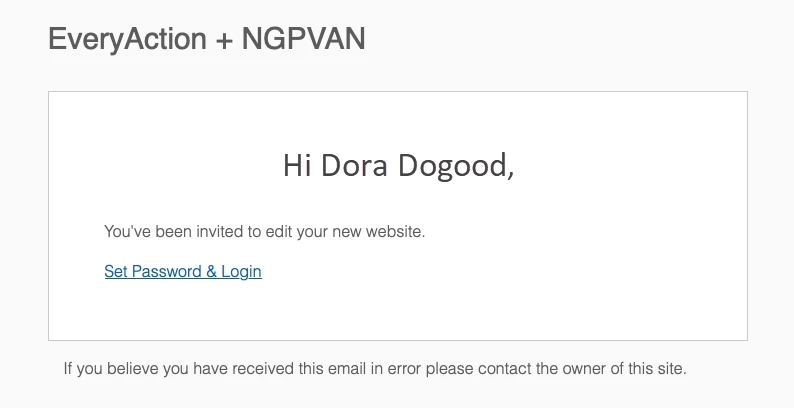
Log into your site and select Edit Site to get started.
Launch Weebly
Customizing your site
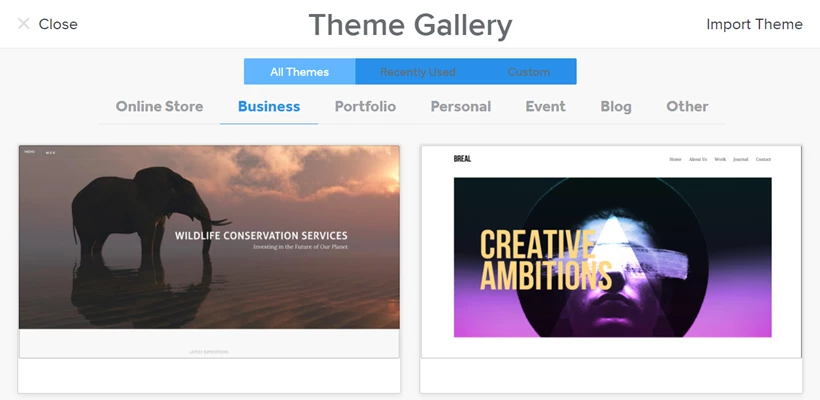
After logging in, you can begin designing your site. There is a basic theme already selected, but this is easy to change. Select the Theme tab at the top and then select Change Theme to see the available themes.
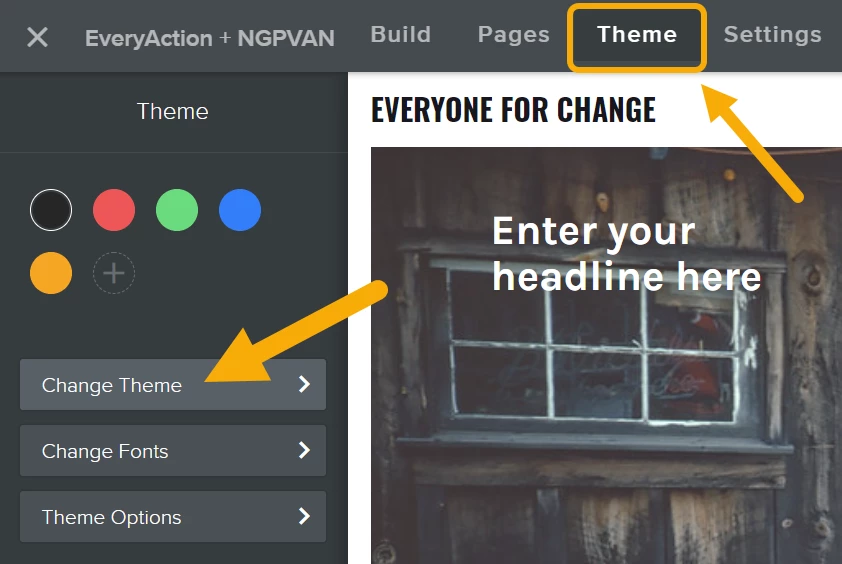
Weebly offers many options to customize the look and feel of your site. Review the themes available to you to decide on a layout, fonts, and appealing colors. Consider your supporter experience and which style best complements your organization’s tone.
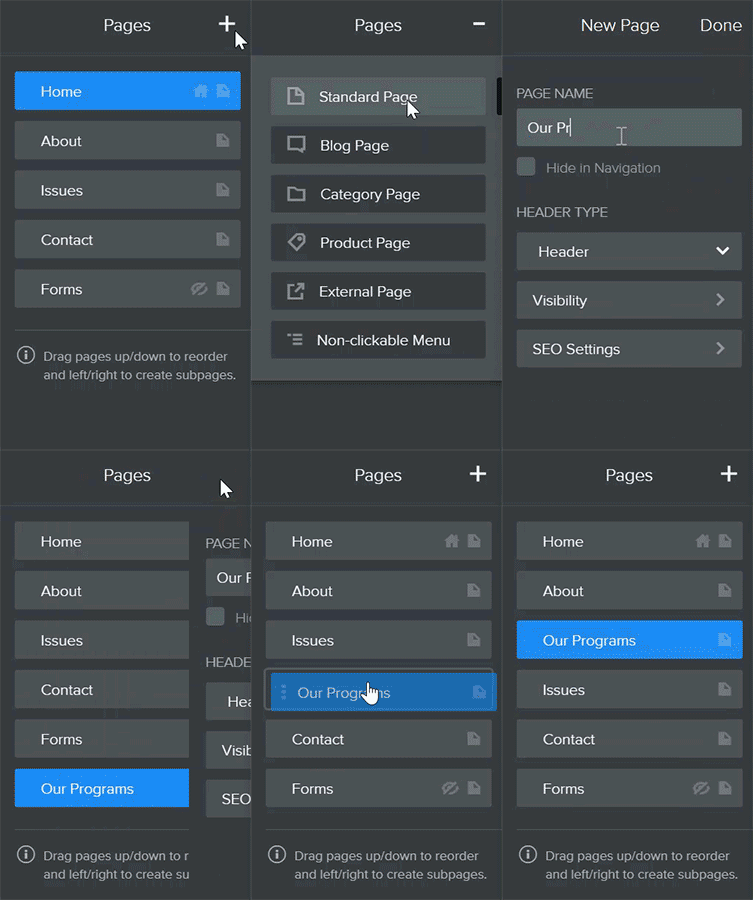
Open the Pages tab to add more pages and select the layout for each. Add a new page by opening the dropdown under the + sign and selecting the page type you want.
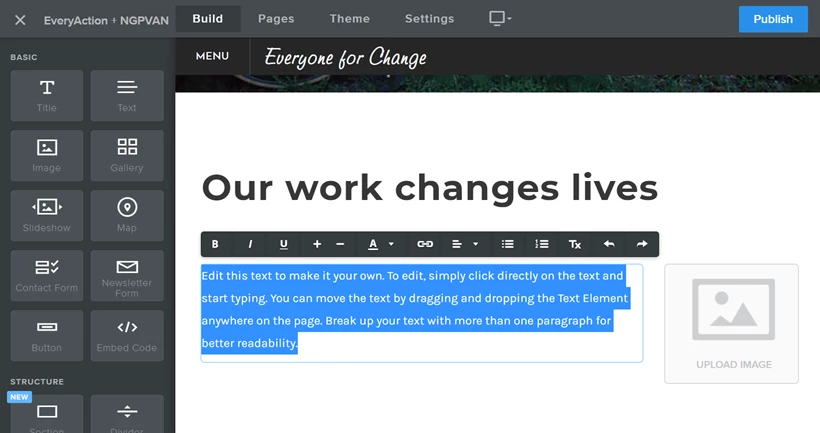
Open the Build tab on each page to add images and text and make it look just the way you want.
If you need more help customizing the general look and feel of your site, Weebly has excellent help materials available that can walk you through all of their formatting options.
Launch the Weebly help site
Customizing your Forms page
Your initial site will launch with a few basic pages, including the forms.html page. Do not delete this page or change the URL name.
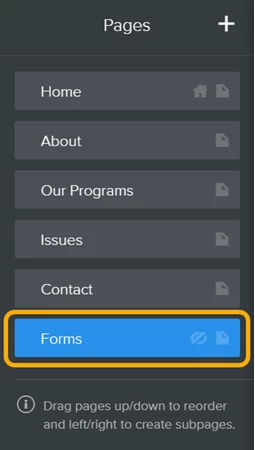
This is the page you will use to set up the basic layout for all your Online Actions forms. You must have this page to automatically post Online Actions forms to your site. You can customize your Online Actions to match the design scheme you establish on Weebly.
Read more about using Design in Online Actions forms
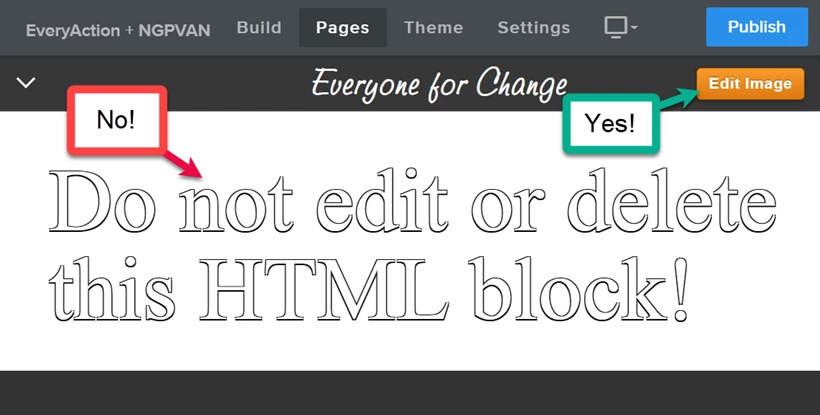
When formatting your forms.html page, change the header, footer, and background colors, but do not edit the custom HTML block in the middle of your page. This code is crucial for making your Online Actions forms publish seamlessly to your form.
Previewing your Online Actions forms
If you want to preview what your forms will look like before you officially launch your website, use your form’s id from the standard Online Actions URL to manually display that form using your Weebly site.
To do this, copy the form ID from the existing Online Actions link, and then use a query string to add that form ID to your Weebly form.
For example:
If your Online Actions forms are currently published at the URL https://secure.everyaction.com/MeIdy9Aa6UKpRmuIrRe3Ly2 , copy the form id value -MeIdy9Aa6UKpRmuIrRe3Ly2
Then, open your Weebly site and add this page and query string after the main URL (Paste the ID of the form you want to preview): /forms.html?formid=MeIdy9Aa6UKpRmuIrRe3Ly2
Adding a dedicated page for a particular form
To add a page on your website for a specialized form, copy the embed code from your selected Online Actions form.
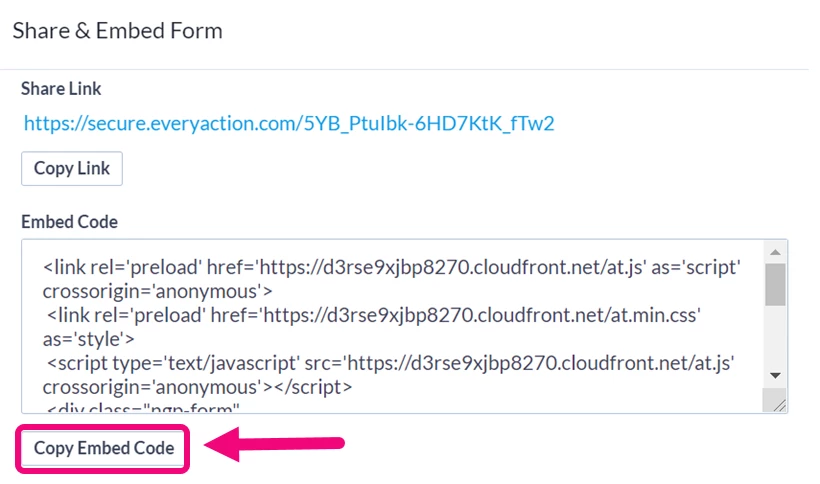
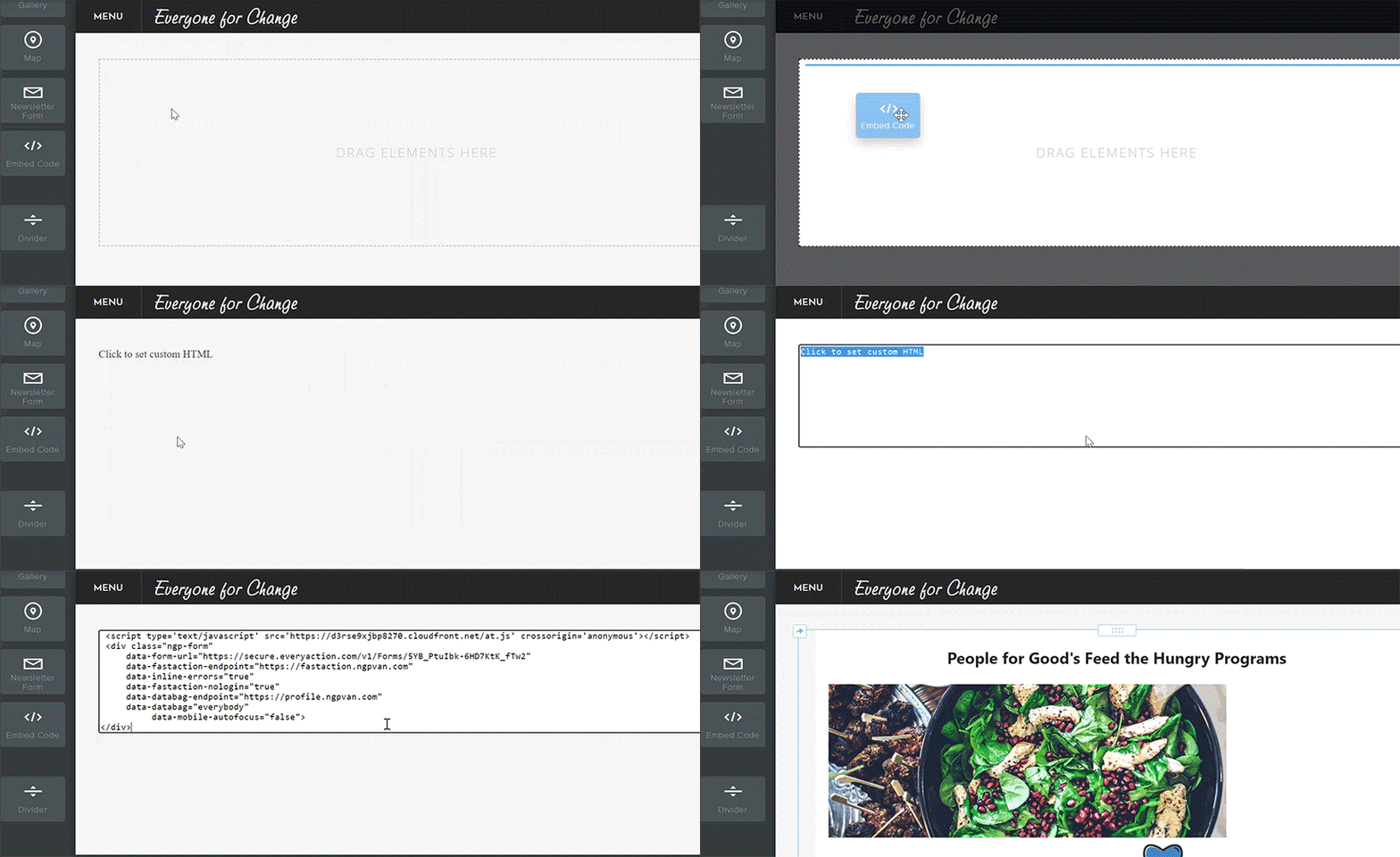
Create a new page in Weebly and drag an Embed Code block onto the page. Paste the embed code.
Launching your site
You need to own your domain name to launch your site. Choose a reputable domain name registrar.
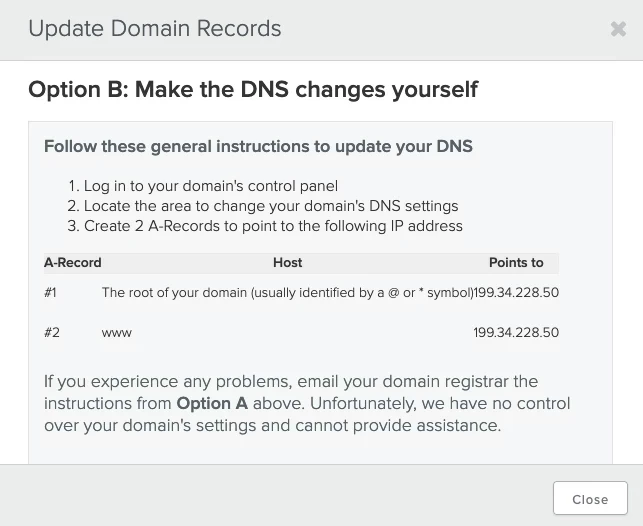
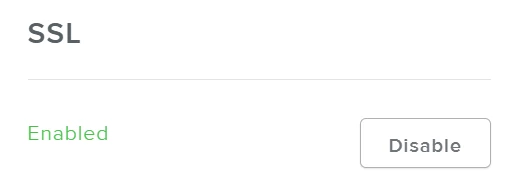
From the Settings tab on your Weebly site, select Enable SSL. Follow the instructions on Option B: Make the DNS changes yourself. Most domain providers have a management or settings page that allows you to link your websites to your new name. Look for that page and copy the information for your A records from your Weebly site.
When your DNS updates with your domain name provider, click Enable SSL again. This launches the HTTPS (secure) version of your site. Then contact us to enable your Online Actions form integration. We will notify you via email when it’s ready and you can begin publishing forms to your site directly.
Publishing your Online Actions forms
Your Online Actions forms automatically show up on your website when you publish them, using a query string argument. Each form URL will look something like this:
https://www.example.org/forms.html?formid=MeIdy9Aa6UKpRmuIrRe3Lw2
You have to republish older forms to update their URLs and add them to your site.
Understanding differences from standard Online Actions forms
Your Weebly site is where you will do most of your form styling with this integration. Certain attributes that you can select on each form in standard Online Actions forms will not be available for forms hosted on Weebly:
-
Banner images
-
Return to website name/URL
-
Disclaimer info
-
Google Analytics tag
-
Themes
-
Custom CSS
Plan to use the built-in templating and styling functions in Weebly to add/adjust these items.
Also, while PayPal and Venmo work with your Weebly forms, we are unable to support Apple Pay on your Weebly hosted websites. Weebly does not host the file Apple needs to verify a merchant's domain. If you plan to use ApplePay, contact Support to discuss setting up a vanity domain to use this feature.
And, while you can embed most of the forms and pages available in Online Actions on your Weebly site, a few are unavailable:
-
Self-Service pages, although you can embed the login page
-
Peer-to-Peer portal page, although your signup form and fundraiser page can be embedded
-
Attendee Check-in pages
You can use your Redirects on deactivated forms, but any other redirects are usually handled directly in your Weebly site.